
Introduction
This manual provides detailed instructions for the installation, operation, and maintenance of your Inefala 10.1-inch Android 13 Car Radio. This unit is specifically designed for Renault Master models from 2019 to 2022. Please read this manual thoroughly before installation and use to ensure proper functionality and safety.
Setup and Installation
The installation process involves removing the existing radio and connecting the new unit. While designed for easy installation, professional assistance is recommended if you are unfamiliar with car electronics.
Package Contents
Verify that all components are present in the package:
- Inefala 10.1-inch Android Car Radio
- 2 x Power Cables
- Canbus Box
- RCA Cable
- GPS Antenna
- Reverse Camera Input Cable
- AHD Emergency Camera
- External Microphone
- 2 x USB Cables
- Original Car USB Cable
- Radio Antenna
- Mounting Bracket
- Installation Tool (Plastic Lever)
Installation Steps
- Preparation: Ensure the vehicle's ignition is off and the battery is disconnected before starting installation.
- Remove Original Radio: Carefully remove the existing radio bezel and the climate control panel to access the hidden TORX screws. Use the provided plastic lever to prevent damage.
- Disconnect Old Unit: Disconnect all cables from the original car radio.
- Connect New Unit: Select the correct wiring harness from the provided cables. Connect the power cables, USB cables, GPS antenna, and the white radio antenna cable to the new Inefala unit.
- Reverse Camera Connection: If installing the AHD reverse camera, connect its input cable to the designated port on the car radio. Refer to the wiring diagram below.
- Test Functionality: Before fully reassembling, temporarily connect the battery and test the basic functions of the radio (power, audio, touch screen).
- Reassembly: Once confirmed working, securely mount the Inefala unit and reattach the climate control panel and radio bezel.

Figure 1: Before and After installation comparison in a Renault Master dashboard.
Reversing Camera Wiring
For optimal performance, ensure the reverse input cable is connected, even if a reverse camera is not actively used. This prevents potential interference with Bluetooth and Wi-Fi signal reception.
- Red Cable (1): Connects to the positive terminal of the car's reverse light cable.
- Black Cable (2): Connects to the negative terminal of the car's reverse light cable.
- The two red extension cables (3) and (4) are typically not required for standard installations.

Figure 2: Reversing Camera Wiring Diagram.
Operating Instructions
Android 13 System
The Inefala car radio operates on the Android 13 system, featuring 2GB RAM and 64GB internal storage. This configuration ensures stable and fast performance, a fluid user interface, and access to a wide range of applications from the Google Play Store.
Wireless CarPlay, Android Auto & Mirror Link
Connect your smartphone wirelessly via Bluetooth for CarPlay or Android Auto, or use Wi-Fi for Mirror Link functionality. This allows you to access your phone's features directly on the car radio display, including making calls, sending messages, playing music, and using navigation apps, all controllable via voice commands or touch.

Figure 3: Wireless CarPlay, Android Auto, and Mirror Link interfaces.

Figure 4: Example of applications accessible via Wireless CarPlay & Android Auto.
GPS Navigation & Wi-Fi Connectivity
The unit features integrated GPS navigation, supporting both online and offline maps. Connect to Wi-Fi to download additional navigation applications, stream music, watch videos, and access other online content. The system also offers 26 customizable UI themes to personalize your display.

Figure 5: Wi-Fi Connection and GPS Navigation interfaces.
Bluetooth & FM RDS Radio & EQ
Utilize Bluetooth for hands-free calling, music playback, and file transfers from your phone. The integrated FM RDS radio allows you to listen to your favorite stations with clear reception. The Equalizer (EQ) function provides audio customization options for an enhanced listening experience.
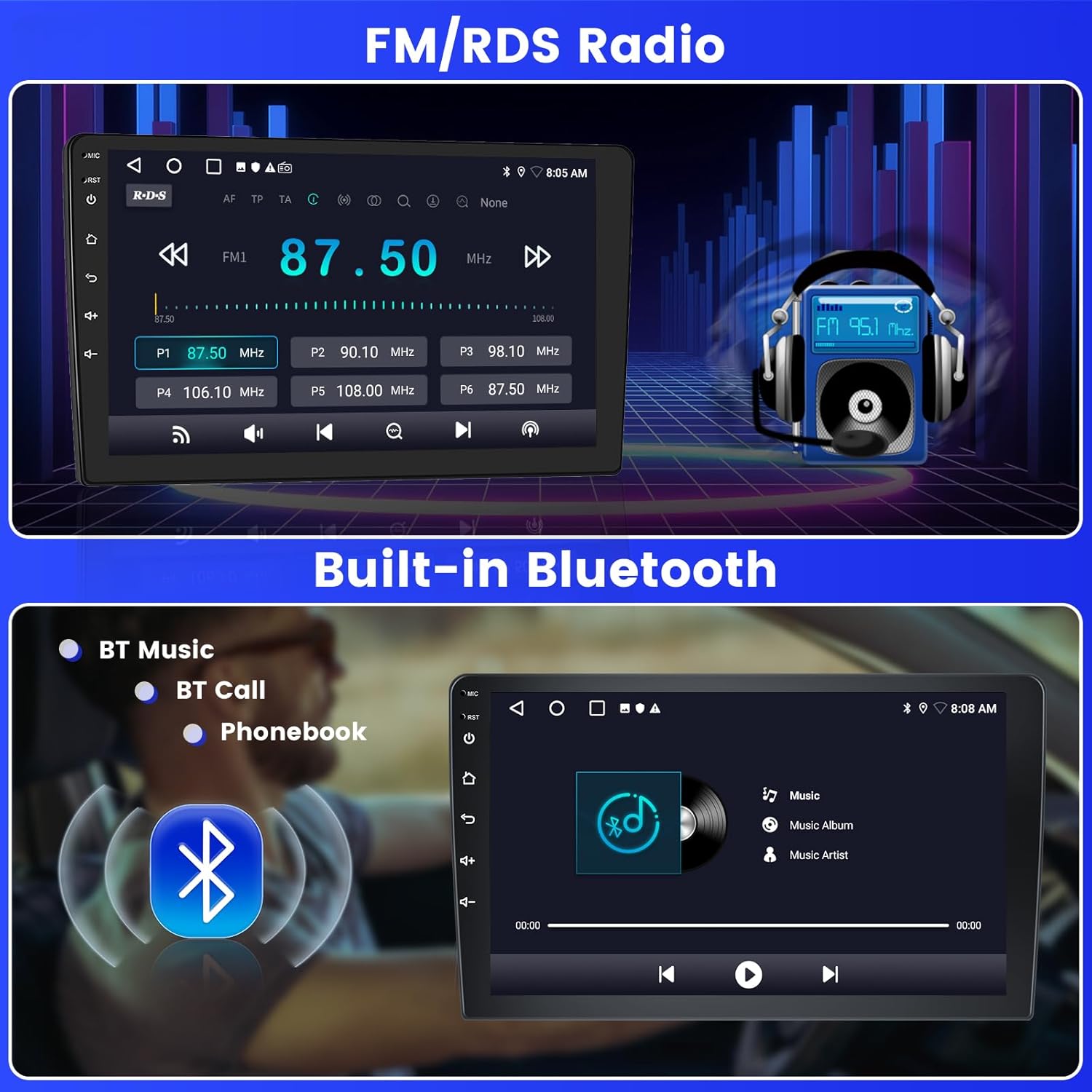
Figure 6: FM/RDS Radio and Built-in Bluetooth interfaces.
AHD Reverse Camera & Steering Wheel Control (SWC)
The unit supports an AHD reverse camera, providing a high-definition rear view on the screen automatically when reversing, which aids in safer parking and maneuvering. Steering Wheel Control (SWC) allows you to safely adjust volume, change tracks, and answer calls without taking your hands off the wheel.
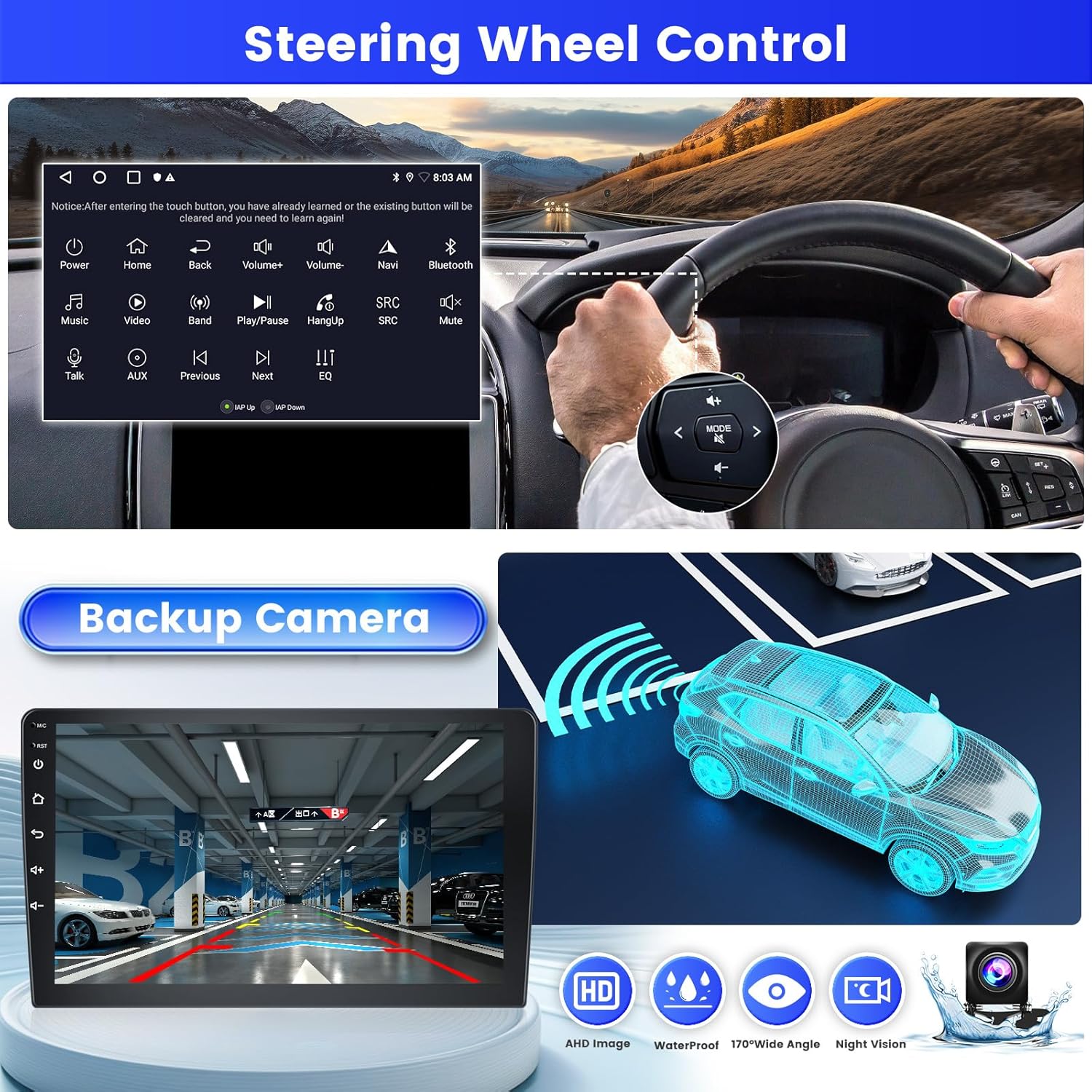
Figure 7: Steering Wheel Control and Backup Camera view.
Split Screen Functionality
The split-screen feature allows you to view and operate two applications simultaneously on the 10.1-inch display, enhancing multitasking capabilities while driving.

Figure 8: DSP settings, Split Screen, and UI Themes.
Maintenance
Cleaning the Display
To clean the 10.1-inch touchscreen display, use a soft, lint-free cloth. For stubborn smudges, slightly dampen the cloth with water or a screen-safe cleaning solution. Avoid harsh chemicals or abrasive materials that could damage the screen.
Software Updates
Periodically check for software updates via the system settings. Connecting to a stable Wi-Fi network is recommended for downloading and installing updates to ensure optimal performance and access to the latest features.
Troubleshooting
If you encounter any issues with your Inefala car radio, refer to the following common problems and solutions:
- Unit Does Not Power On:
Ensure all power cables are securely connected. Check the vehicle's fuse box for any blown fuses related to the radio. Verify that the ignition is on, as the radio may be configured to only operate with the ignition engaged. - No Sound Output:
Check speaker connections. Ensure the volume is not muted or set to zero. Verify EQ settings are not causing an issue. - Poor Radio Reception:
Ensure the radio antenna is properly connected. In some cases, an additional antenna amplifier may be required to improve reception quality, especially if it's lower than the original radio. - Bluetooth/Wi-Fi Issues:
Ensure the reverse camera input cable is plugged in, even if no camera is used, as it can affect Bluetooth and Wi-Fi signal reception. Restart the unit and your smartphone. Check device pairing settings. - Steering Wheel Controls Not Working:
Without CANBUS Decoder: Connect the Key1/Key2 wires from the power cable to the corresponding steering wheel control wires of your original car. Then, access the SWC manual match function in the unit's settings to activate the buttons.
With CANBUS Decoder: Ensure the Canbus box is connected before powering on the radio. Navigate to Car Settings > Factory (000000) > CarType Setting. Select the correct brand, model, and year of the Canbus decoder according to your vehicle's specifications. - Compatibility Issues:
Ensure the product is compatible with your specific Renault Master model and year (2019-2022). Incompatibility can lead to installation difficulties or non-functional features.
Specifications
| Brand | Inefala |
| Model Number | Inefala-A8134A3797A4MI2IT53-C490 |
| Screen Size | 10.1 Inches |
| Operating System | Android 13 |
| Memory (RAM) | 2GB |
| Storage (ROM) | 64GB |
| Connectivity Technology | Bluetooth, USB, Wi-Fi |
| Special Features | Wireless CarPlay, Android Auto, Mirror Link, FM RDS Radio, EQ, GPS, 26 UI Themes, Steering Wheel Control (SWC), Dual USB Input |
| Compatible Vehicle Type | Van (Renault Master 2019-2022) |
| Audio Output Mode | APE/FLAC/WAV/MP3/WMA |
| Control Method | Touch |
| Supported Satellite Navigation | GPS |
| Item Weight | 1.5 Kilograms |
Warranty Information
The Inefala car radio comes with a 24-month warranty from the date of purchase. This warranty covers manufacturing defects and malfunctions under normal use. For any warranty claims or inquiries, please contact customer support.
Customer Support
For technical assistance, installation questions, or any other support needs, Inefala offers lifetime online support. Our team aims to respond to inquiries within 24 hours.
Contact Methods:
- Via Amazon Platform: You can contact the seller (Inefala) directly through your Amazon order details by clicking 'Ask a question' or 'Contact Seller'.
- Email: Send your inquiries to inefalaservices@163.com.


Figure 9: Information on contacting Inefala support.