
1. Introduction
This manual provides essential information for setting up, operating, maintaining, and troubleshooting your HAOVM G12 10-inch Android 14 Tablet. Please read it thoroughly to ensure optimal performance and longevity of your device.

Image 1.1: HAOVM G12 Tablet showcasing its 10.1" HD display, Android 14 OS, GPS, 4G LTE, 3GB+32GB storage, 2.4G/5GHz WiFi, BT5.0, 5MP+8MP Dual Camera, Stereo Speakers, 64bit Processor, 2.0GHz Frequency, MediaTek 4*Cortex-A53 CPU, and USB-C Charge port.
2. Setup
2.1 Initial Charging
Before first use, fully charge your tablet using the provided USB Type-C cable and power adapter. Connect the Type-C cable to the tablet's charging port and the adapter to a power outlet. The battery indicator on the screen will show charging status.
2.2 SIM Card and TF Card Installation
Your HAOVM G12 tablet supports 4G SIM cards for cellular data connectivity and TF cards for expandable storage up to 1TB.
- Locate the SIM/TF card slot on the side of the tablet.
- Carefully open the slot cover.
- Insert the Nano-SIM card and/or TF card into the designated trays, ensuring correct orientation.
- Close the slot cover securely.

Image 2.1: Close-up view of the HAOVM G12 Tablet's side, indicating the slots for SIM and TF cards.
Video 2.1: A demonstration of the HAOVM G12 Tablet's features, including SIM card insertion and general functionality.
2.3 Power On/Off
Press and hold the power button located on the side of the tablet until the screen lights up. To power off, press and hold the power button, then select 'Power off' from the options.
3. Operating the Tablet
3.1 Display and Navigation
The tablet features a 10.1-inch IPS touch screen with a resolution of 1280x800 pixels, offering vibrant colors and wide viewing angles. Navigate the interface using touch gestures: tap, swipe, pinch-to-zoom.

Image 3.1: The HAOVM G12 Tablet showcasing its vivid 10.1" IPS display and stereo speakers during media playback.
3.2 Camera Functions
The tablet is equipped with an 8MP rear camera and a 5MP front camera. Open the Camera app to capture photos and videos. Switch between front and rear cameras as needed for selfies or general photography.

Image 3.2: The HAOVM G12 Tablet being used for a video call and demonstrating a photo captured with its camera.
3.3 Audio
Enjoy clear audio through the built-in stereo speakers. For private listening, connect headphones to the 3.5mm headphone jack.
3.4 Connectivity
- Wi-Fi: Supports 2.4GHz and 5GHz dual-band Wi-Fi for high-speed internet access.
- Bluetooth: Features Bluetooth 5.0 for connecting wireless accessories like headphones or speakers.
- 4G LTE: The unlocked SIM card slot allows for cellular data usage, enabling connectivity outdoors.
- Wireless Projection: Cast your tablet's screen to a larger display, such as a TV, for an enhanced viewing experience.
3.5 GPS Navigation
The tablet includes built-in GPS functionality with support for multiple navigation systems (GPS, Glonass, Galileo, Beidou), ensuring accurate location tracking for travel or location-based applications.

Image 3.3: HAOVM G12 Tablets in use during travel, highlighting the built-in GPS feature.
3.6 Android 14 and Parental Controls
Running on Android 14, the tablet provides access to a wide range of applications via the Google Play Store. It comes pre-installed with Google Kids Space and YouTube Kids, offering child-friendly content. Advanced parental controls through Google's Family Link allow you to manage screen time, app access, and content filters. The tablet also features eye protection mode, reading mode, and focus mode for digital well-being.
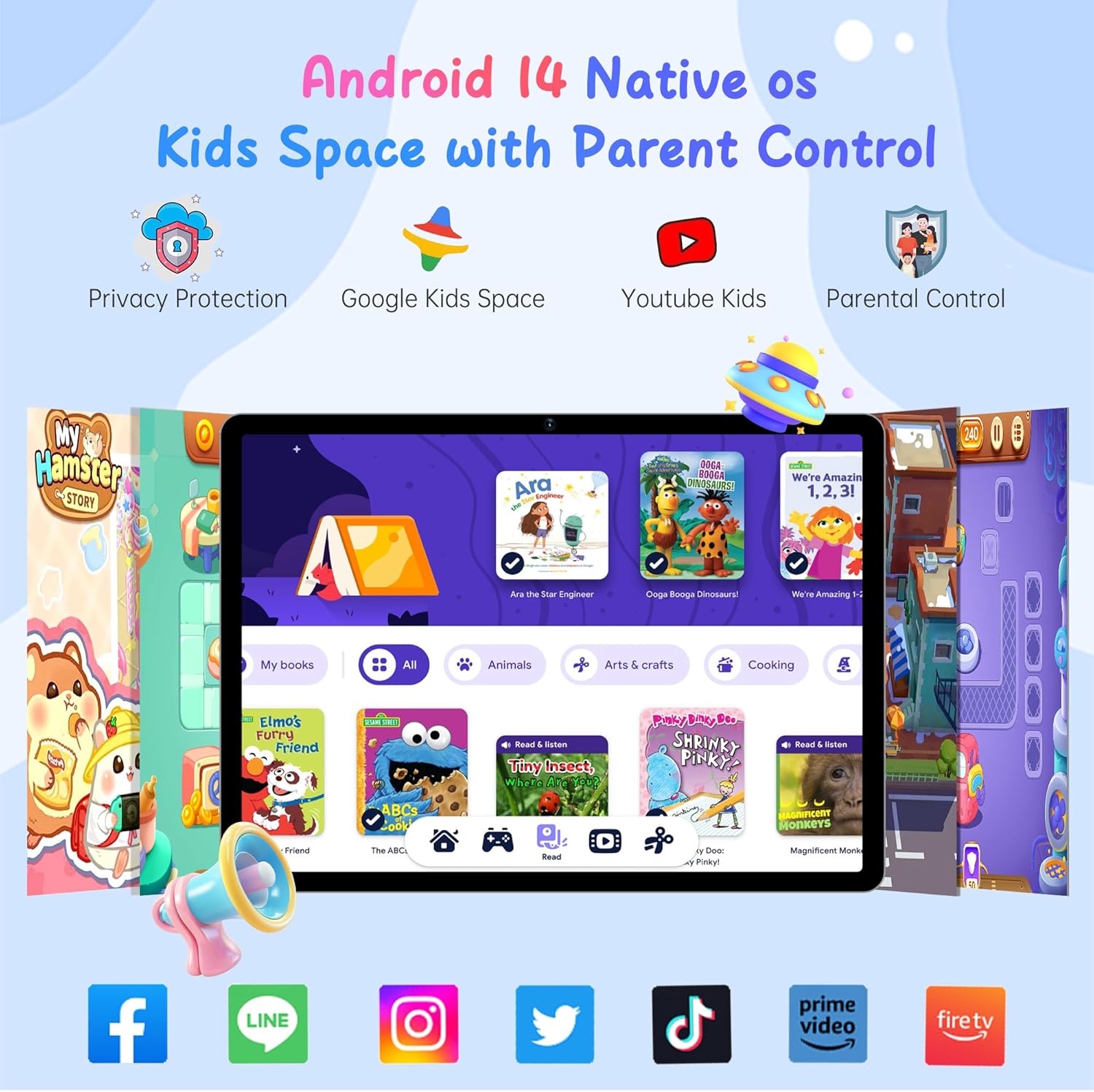
Image 3.4: The HAOVM G12 Tablet showing the Android 14 interface with Google Kids Space and parental control options.
3.7 Multi-tasking
Utilize the split-screen function to run two applications simultaneously, enhancing productivity and convenience.
4. Maintenance
4.1 Protective Case
The tablet comes with a detachable rugged protective case made of shock-absorbent silicone. This case helps protect the device from accidental drops and impacts. Keep the case clean by wiping it with a soft, damp cloth.

Image 4.1: The HAOVM G12 Tablet protected by its durable, shockproof case during use.
4.2 Screen Care
To maintain screen clarity, clean the display with a soft, lint-free cloth. Avoid using harsh chemicals or abrasive materials that could damage the screen.
5. Troubleshooting
- Tablet not powering on: Ensure the tablet is fully charged. If the issue persists, try holding the power button for 10-15 seconds for a forced restart.
- SIM card not recognized: Verify that the SIM card is correctly inserted into its slot. If the problem continues, check with your cellular provider to ensure the SIM card is active and compatible with the device. For SIM card removal, consult the device's physical design for an eject mechanism.
- Slow performance: Close unnecessary background applications. Clear cached data from apps. Consider performing a factory reset if performance issues are severe and persistent (back up your data first).
- Wi-Fi connectivity issues: Ensure Wi-Fi is enabled on the tablet and that you are within range of a known network. Restart your Wi-Fi router if other devices are also experiencing connectivity problems.
6. Specifications
| Feature | Detail |
|---|---|
| Brand | HAOVM |
| Model Name | G12PK14 |
| Memory Storage Capacity | 32 GB |
| Screen Size | 10.1 Inches |
| Display Resolution Maximum | 1280*800 Pixels |
| Operating System | Android 14 |
| Model Year | 2025 |
| RAM Memory Installed | 3 GB |
| Flash Memory Supported Size Maximum | 1 TB |
| Hardware Interface | 802.11 ac/b/g/n, 802.11 b/g/n, Bluetooth 5, Sim Card, USB Type C |
| Cellular Technology | 4G |
| Rear Facing Camera Photo Sensor Resolution | 8 MP |
| Front Photo Sensor Resolution | 5 MP |
| Battery Capacity | 5000 Milliamp Hours |
| Processor Speed | 2 GHz |
| Processor Brand | MediaTek |
| Human-Interface Input | Touchscreen |
| Headphones Jack | 3.5 mm |
7. What's in the Box
- 10.1 inch tablet
- Tablet case
- Adapter
- Data line
8. Warranty and Support
The HAOVM G12 Tablet comes with a 1-year limited warranty. For any product-related inquiries or support, please contact HAOVM customer service. HAOVM is committed to providing excellent product quality and top-notch after-sales service.
Optional protection plans are available for extended coverage:
- 2-Year Protection Plan
- Complete Protect (monthly renewal)