
1. Overview
This manual provides instructions for the Omikamo Wireless Type Cover Keyboard, designed to enhance your Microsoft Surface Pro experience. This ultra-slim, portable keyboard features Bluetooth 5.3 connectivity, a multi-gesture touchpad, 7-color backlighting, and a pen holder. It is compatible with Microsoft Surface Pro 11 (2024), Surface Pro 10 (2024), Surface Pro 9, Surface Pro 8, and Surface Pro X 13-inch models.
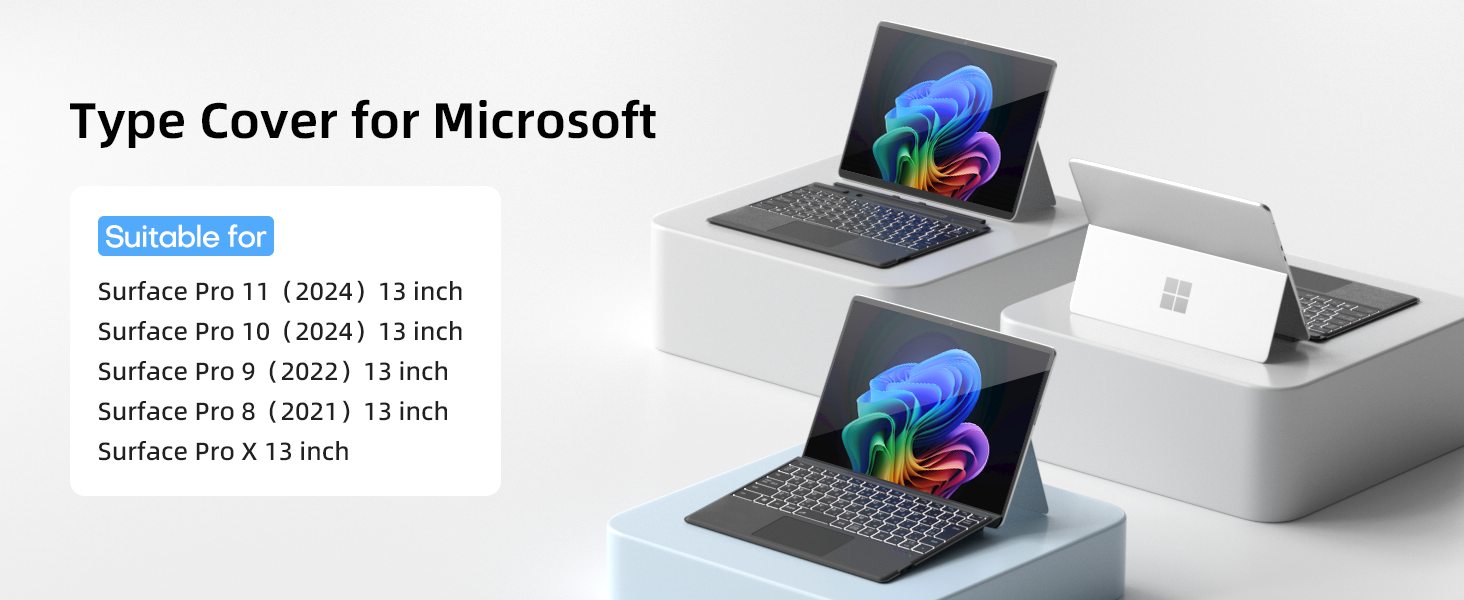
Image 1.1: Compatibility chart showing supported Surface Pro models (11, 10, 9, 8, X) and unsupported models (7+, 7, 6, 5, 4, 3, Go).
2. Package Contents
- Bluetooth Keyboard
- Type-C Charge Cable
- User Manual
3. Product Features
3.1 Ultra-Slim and Lightweight Design
The keyboard is designed to be ultra-thin and lightweight, making it highly portable for on-the-go use. Its dimensions are 11.3 x 8.8 x 0.23 inches, and it weighs 1.23 pounds.

Image 3.1: The keyboard's ultra-thin profile and light weight, emphasizing portability.
3.2 Magnetic Attachment and Adjustable Angle
The keyboard attaches to your Surface Pro via strong magnetic adsorption, providing a secure connection. This allows for an ergonomic typing angle and can be detached for standalone use or different viewing angles.
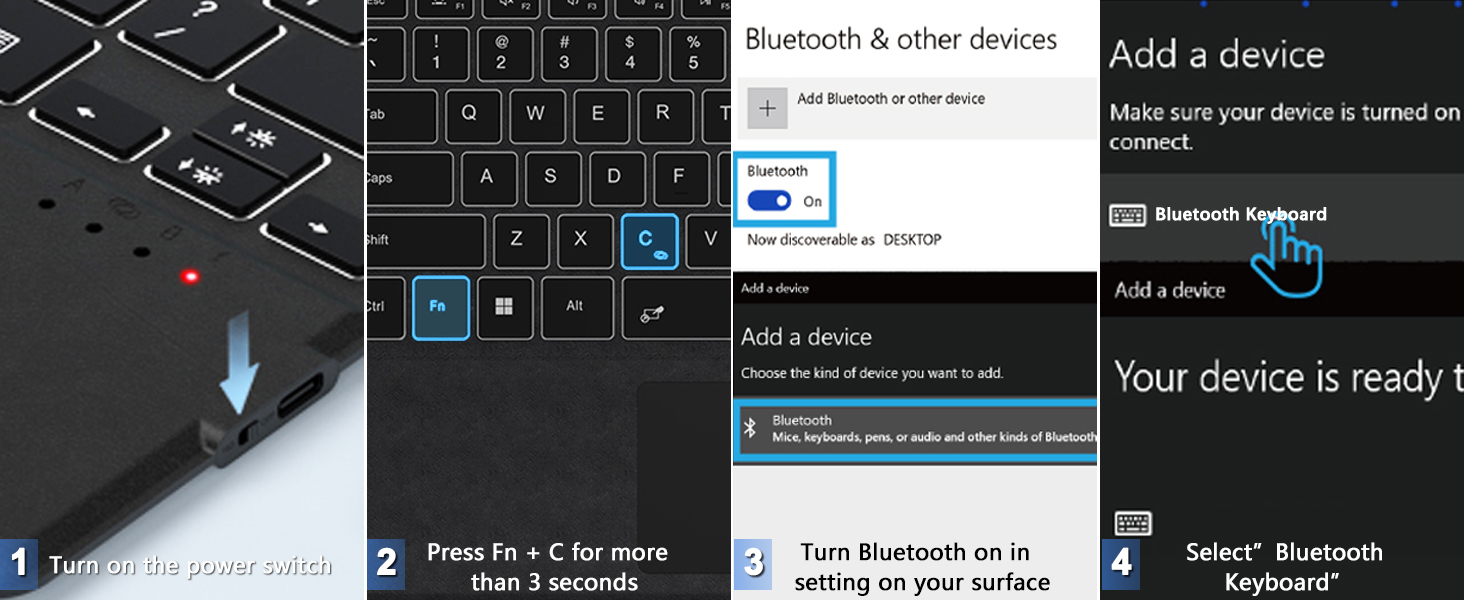
Image 3.2: Demonstrates the strong magnetic attraction and quiet operation of the keyboard.

Image 3.3: Illustrates various ergonomic configurations including normal connection, tilt angle, and 33 feet separation for wireless use.
3.3 7-Color Backlit Keys
The keyboard features 7 pleasant colors for backlighting with 3 brightness levels. You can choose your preferred backlight color to suit different lighting conditions.

Image 3.4: Shows the 7-color LED backlights and how to adjust the 3 brightness levels using Fn + light key.
3.4 Multi-Gesture Touchpad
The sensitive touchpad provides efficient operation, supporting 4-finger operations and up to 12 gestures. Press Fn + Space to enable or lock the touchpad function. Ensure the touchpad is enabled in your Surface settings.
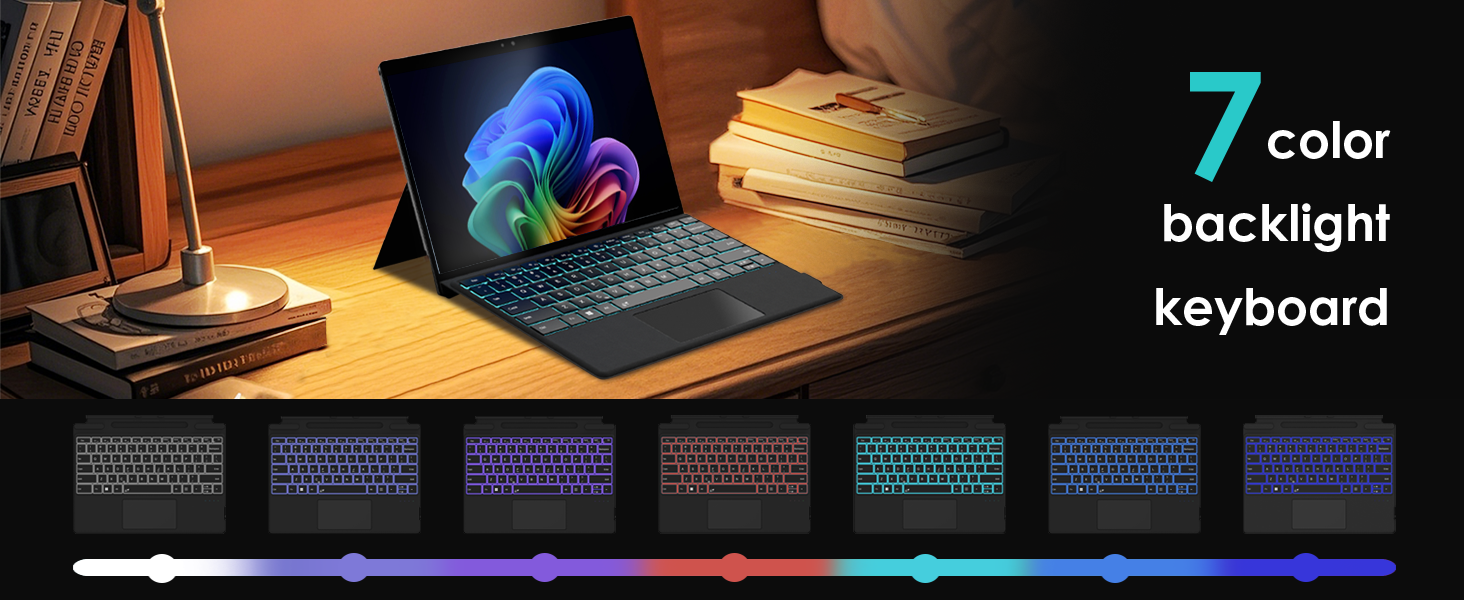
Image 3.5: Demonstrates the responsive touchpad and various multi-touch gestures for enhanced control.
3.5 Independent Shortcut Keys
The top row of keys on the keyboard includes independent shortcut functions for tasks like screenshot, lock screen, and volume adjustment, without needing to press the Fn key.
3.6 Pen Holder
The keyboard includes a dedicated pen holder for convenient storage of your Surface Pen.
3.7 Auto Wake Up/Sleep
The keyboard supports auto wake-up and sleep functions. It will automatically wake up the screen when opened and put the screen to sleep when closed, only when connected via Bluetooth.

Image 3.6: Illustrates the smart screen on/off functionality when connected via Bluetooth.
4. Setup and Bluetooth Connection
Follow these steps to connect your Omikamo Wireless Type Cover Keyboard to your Microsoft Surface Pro:
- Turn on the keyboard: Locate the power switch on the side of the keyboard and slide it to the "ON" position.
- Enter pairing mode: Press and hold the Fn + C keys simultaneously for 3 seconds. The Bluetooth indicator light on the keyboard will start flashing, indicating it is in pairing mode.
- Enable Bluetooth on your Surface Pro: Go to "Settings" > "Bluetooth & devices" on your Surface Pro.
- Add a device: Click "Add device" and select "Bluetooth".
- Select "Bluetooth Keyboard": From the list of available devices, select "Bluetooth Keyboard". Your Surface Pro will connect to the keyboard. The indicator light on the keyboard will stop flashing once connected.

Image 4.1: Visual guide for connecting the keyboard via Bluetooth, showing the power switch, Fn+C combination, and device pairing steps.
Video 4.1: An official seller video demonstrating the general features and magnetic attachment of the Surface Pro Bluetooth Keyboard.
Video 4.2: An official seller video providing a step-by-step guide on how to connect the keyboard via Bluetooth.
5. Charging and Battery
The keyboard is equipped with a built-in 800mAh Lithium Polymer battery. It is rechargeable via the included Type-C charge cable.
- Charging Time: Approximately 2-3 hours for a full charge. The keyboard can be used while charging.
- Battery Life: Up to 180 hours of work time without backlight, and up to 48 hours with backlight. Standby time is up to 7500 hours.
- Checking Battery Status: The battery indicator light will show different colors based on the charge level:
- Flashes three times: 75%-100%
- Flashes two times: 25%-75%
- Flashes once: <25%

Image 5.1: Details on the Type-C charging port and long-lasting battery specifications.
6. Maintenance
To ensure the longevity and optimal performance of your keyboard, follow these maintenance guidelines:
- Keep the keyboard clean by wiping it with a soft, dry cloth.
- Avoid exposing the keyboard to extreme temperatures, moisture, or direct sunlight.
- Do not use harsh chemicals or abrasive materials for cleaning.
- Store the keyboard in a safe place to prevent physical damage when not in use.
7. Troubleshooting
If you encounter any issues with your keyboard, refer to the following common solutions:
| Problem | Solution |
|---|---|
| Keyboard not connecting via Bluetooth | Ensure the keyboard is turned on and fully charged. Re-enter pairing mode (Fn+C for 3 seconds). On your Surface Pro, remove the keyboard from your Bluetooth device list and attempt to pair again. |
| Touchpad not responding | Ensure the touchpad is enabled on your Surface Pro settings. Press Fn+Space to toggle the touchpad function. |
| Backlight not working | Press the backlight key (usually F5 or a dedicated light icon) to turn on/off or adjust brightness. Ensure the keyboard has sufficient battery charge. |
| Keyboard goes to sleep too quickly | The keyboard is designed to enter sleep mode after 10 minutes of inactivity to conserve battery. Press any key to wake it up. |
| Incorrect key input or layout | Verify that the correct keyboard language and layout are selected in your Surface Pro settings. |
8. Specifications
| Feature | Detail |
|---|---|
| Product Dimensions | 11.3 x 8.8 x 0.23 inches |
| Item Weight | 1.23 pounds |
| Manufacturer | Omikamo |
| Item Model Number | WR3-789X11 |
| Batteries | 1 Lithium Polymer batteries required (included) |
| Compatible Devices | Surface Pro 8/9/10/X/11 |
| Connectivity Technology | Bluetooth |
| Keyboard Description | Flexible |
| Special Feature | Backlit, Portable, Rechargeable, Trackpad, Quiet |
| Color | Black |
| Keyboard Backlighting Color Support | RGB (7 colors) |
9. Warranty and Support
Omikamo is committed to providing innovative and reliable products. For any warranty claims, technical support, or product inquiries, please refer to the contact information provided with your purchase or on the official Omikamo website. Please retain your proof of purchase for warranty purposes.