
Hodozzy A3849
Hodozzy 1DIN Car Multimedia Player User Manual
Wireless CarPlay & Android Auto with 7-inch Touchscreen
1. Introduction
Thank you for purchasing the Hodozzy 1DIN Car Multimedia Player. This manual provides detailed instructions for the installation, operation, and maintenance of your new car stereo system. Please read this manual thoroughly before using the product to ensure proper functionality and safety. Keep this manual for future reference.
2. Product Overview

Figure 2.1: Hodozzy 1DIN Car Multimedia Player with 7-inch touchscreen.
2.1. Key Features
- 7-inch IPS Touchscreen Display (1024*600 resolution)
- Wireless Apple CarPlay & Android Auto
- Mirror Link Functionality (Android/iOS)
- Bluetooth 5.0 for Hands-Free Calling and Audio Streaming
- FM/RDS Radio with 18 preset stations
- USB, U Disk, and Type-C Input for Multimedia Playback
- Steering Wheel Control (SWC) Support
- Colorful Backlight Settings
- Built-in EQ for Customized Audio Experience
- Includes Backup Camera for safe parking
2.2. Package Contents
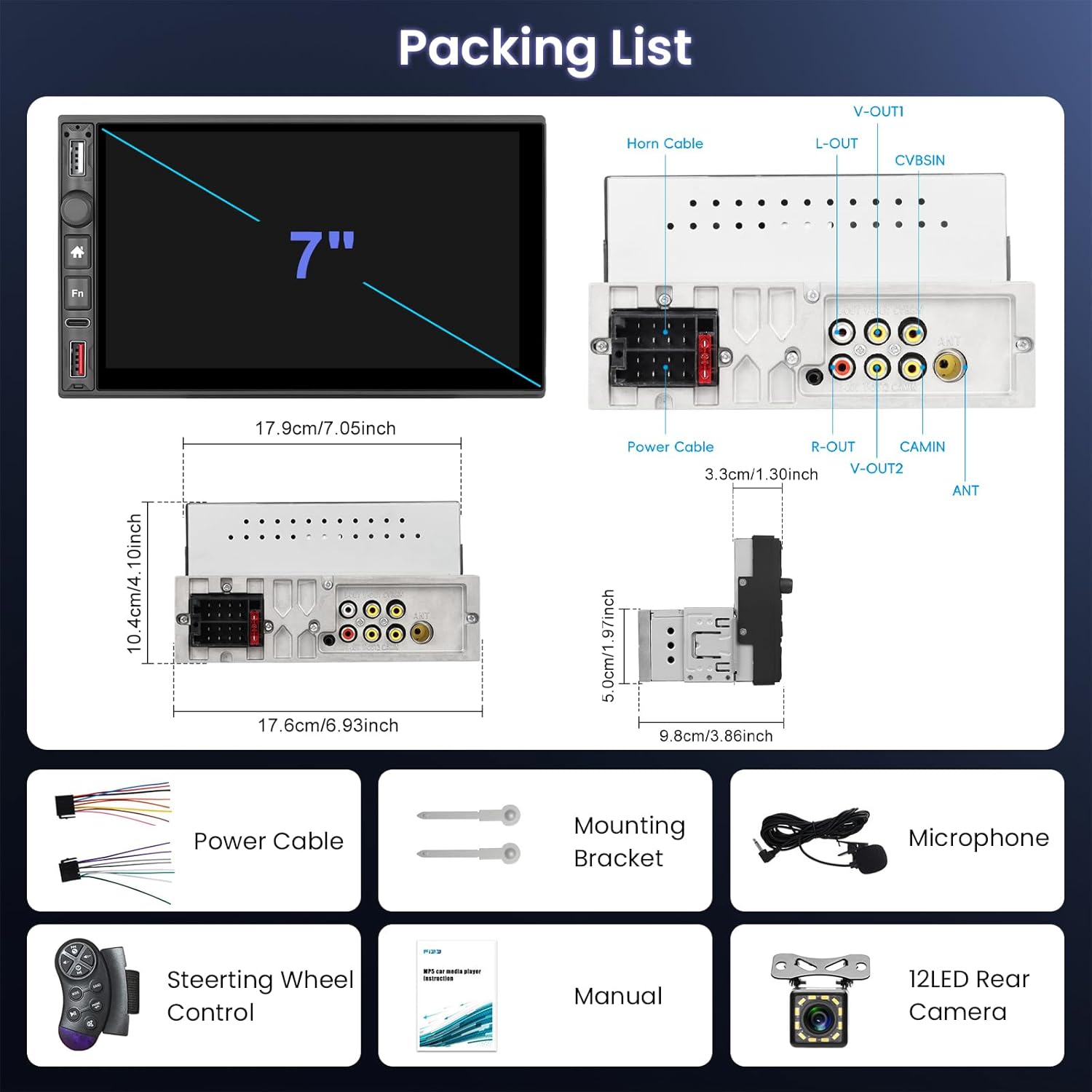
Figure 2.2: Included components and dimensions.
The following items are included in your package:
- 1 × Car MP5 Player (Main Unit)
- 2 × Power Cables
- 1 × Microphone
- 1 × Backup Camera
- 1 × Steering Wheel Control Remote
- 2 × Mounting Brackets
- 1 × User Manual
3. Setup
3.1. Installation Size
The installation size for this 1DIN car stereo is approximately 178 mm (width) x 50 mm (height). Please ensure your vehicle's dashboard opening matches these dimensions for proper fitment.
3.2. Wiring Diagram
Refer to the wiring diagram provided in the included user manual for detailed connection instructions. Ensure all connections are secure and correctly matched to your vehicle's wiring harness. Incorrect wiring can cause damage to the unit or vehicle electrical system.
3.3. Mounting
Use the provided mounting brackets to secure the unit into your vehicle's dashboard. Ensure the unit is firmly in place to prevent movement during driving.
4. Operating Instructions
4.1. Wireless CarPlay & Android Auto

Figure 4.1: Wireless CarPlay, Android Auto, and Mirror Link functionality.
To use Wireless CarPlay or Android Auto, ensure your smartphone's Bluetooth is enabled. Pair your phone with the car stereo via Bluetooth. Once paired, the system will automatically prompt you to launch CarPlay or Android Auto. This allows direct access to navigation, music, messages, and more from your dashboard without cables.
4.2. Bluetooth Functionality

Figure 4.2: Bluetooth 5.0 and FM/RDS Radio interface.
The unit features Bluetooth 5.0 for stable and fast connections. Pair your mobile device to enjoy hands-free calling and wireless audio streaming. Access your phone's contacts and call history directly from the stereo's screen.
4.3. FM/RDS Radio
Tune into your favorite FM radio stations. The RDS (Radio Data System) feature displays station information where available. You can save up to 18 preset radio stations for quick access.
4.4. Mirror Link
For Android and iOS devices, the Mirror Link function allows you to display your smartphone's screen directly on the car stereo's display via a USB connection. This is useful for apps not supported by CarPlay or Android Auto.
4.5. Steering Wheel Control (SWC)

Figure 4.3: Reversing Camera view and Steering Wheel Control setup.
Connect your vehicle's existing steering wheel controls to the unit to manage music playback, volume, and calls without taking your hands off the wheel. Refer to the wiring diagram for SWC connection details.
4.6. Reversing Camera
The included backup camera provides a clear view of the area behind your vehicle when reversing, enhancing parking safety. The display automatically switches to the camera feed when the vehicle is put into reverse gear.
4.7. Multimedia Playback

Figure 4.4: Multimedia input options (USB, U Disk, Type-C).
The unit supports various playback options via USB, U Disk, and Type-C inputs. You can play audio files (MP3/WMA/WAV/APE/FLAC), video files (RM/RMVB/AVI/MP4/MKV/3GP), and view image files (JPG/BMP/PNG).
4.8. Colorful Backlight Setting

Figure 4.5: Customizable button backlighting and EQ settings.
Customize the button backlighting with 7 different color options (Red, Green, Blue, Yellow, Cyan, Purple, White) to match your vehicle's interior or your personal preference.
4.9. Audio Equalizer (EQ)
Utilize the built-in 12-band equalizer to fine-tune the audio output to your liking. Adjust bass, treble, and other frequency bands to achieve optimal sound quality for all your media.
5. Maintenance
To ensure the longevity and optimal performance of your Hodozzy Car Multimedia Player, follow these maintenance guidelines:
- Cleaning: Use a soft, dry cloth to clean the screen and unit. For stubborn smudges, slightly dampen the cloth with water. Avoid using harsh chemicals, abrasive cleaners, or solvents.
- Temperature: Operate the unit within the specified temperature range of -20°C to 70°C. Extreme temperatures can affect performance and lifespan.
- Power: Ensure stable power supply (DC12V). Fluctuations can damage internal components.
- Software Updates: Check the manufacturer's website periodically for any available firmware updates to improve performance and add new features.
- Avoid Liquids: Do not expose the unit to water or other liquids.
6. Troubleshooting
If you encounter issues with your device, please refer to the following common troubleshooting steps:
- No Power:
- Check the power cables and connections.
- Verify the vehicle's fuse related to the stereo.
- No Sound:
- Check speaker connections.
- Ensure volume is not muted or set too low.
- Verify audio source selection.
- Bluetooth Connection Issues:
- Ensure Bluetooth is enabled on both the stereo and your phone.
- Delete previous pairings and re-pair the devices.
- Move closer to the unit to ensure signal strength.
- CarPlay/Android Auto Not Connecting:
- Ensure your phone's operating system is up to date.
- Check for any app updates for CarPlay/Android Auto on your phone.
- Restart both the stereo and your phone.
- Backup Camera Not Displaying:
- Check the camera's power and video signal connections.
- Ensure the vehicle is properly in reverse gear.
- Unit Freezes/Unresponsive:
- Press the reset button (if available, refer to the main unit diagram).
- Disconnect power for a few minutes and reconnect.
If the problem persists after trying these steps, please contact Hodozzy customer support for further assistance.
7. Specifications
| Feature | Specification |
|---|---|
| Screen Material | IPS |
| Voltage | DC12V |
| CPU Chip | F133 |
| Screen Size | 7 inches |
| Screen Resolution | 1024*600 |
| Wireless CarPlay/Android Auto | Supported |
| Mirror Link | Supported |
| Steering Wheel Control (SWC) | Supported |
| Backup Camera | Supported |
| Bluetooth Version | 5.0 |
| Output Power | 45W*4 |
| Operating Temperature | -20°C ~ 70°C |
| WiFi Connectivity | Supported |
| Colorful Backlight | Supported |
| USB Port | Supported |
| U Disk | Supported |
| Type-C | Supported |
| FM/RDS Radio | Supported |
| EQ | Supported |
| Lossless Sound Quality | Supported |
| Reversing Input | CVBS |
| Power Amplifier Chip | TDA7388 |
| Audio Formats | MP3/WMA/WAV/APE/FLAC |
| Video Formats | RM/RMVB/AVI/MP4/MKV/3GP |
| Image Formats | JPG/BMP/PNG |
| Installation Dimensions | 178mm (W) x 50mm (H) |
8. Warranty and Support
Hodozzy products are designed and manufactured to the highest quality standards. For warranty information and customer support, please refer to the warranty card included in your product packaging or visit the official Hodozzy website. If you have any questions or require technical assistance, do not hesitate to contact our customer service team.
Manufacturer Reference: A3849
Ask a question about this manual
Ask about setup, troubleshooting, compatibility, parts, safety, or missing instructions. Manuals+ will review the question and use this page’s manual context to help answer it.