
Introduction
This user manual provides comprehensive instructions for the operation, maintenance, and troubleshooting of your YGSKK Mini Projector, Model M8-6710. This portable projector is designed for various applications, including home entertainment, gaming, and presentations, offering native 1080P resolution with 4K compatibility, built-in speakers, and Bluetooth 5.3 connectivity. Please read this manual thoroughly before using the product to ensure proper and safe operation.
Safety Information
- Power Supply: Use only the provided power adapter. Ensure the voltage matches the requirements specified on the device.
- Ventilation: Do not block any ventilation openings. Maintain adequate space around the projector for proper airflow to prevent overheating.
- Liquid Exposure: Keep the projector away from water or other liquids. Do not operate in humid environments.
- Cleaning: Disconnect the power before cleaning. Use a soft, dry cloth. Avoid liquid cleaners or aerosols.
- Handling: Handle the projector with care. Avoid dropping or subjecting it to strong impacts.
- Eye Protection: Do not look directly into the projector lens when the lamp is on, as the bright light can cause eye strain or damage.
- Disassembly: Do not attempt to disassemble or repair the projector yourself. Refer all servicing to qualified personnel.
Package Contents
Upon opening the package, please verify that all the following items are included:
- YGSKK Mini Projector (M8-6710) x 1
- Remote Control x 1
- HDMI Cable x 1
- Power Cable x 1
- User Manual x 1
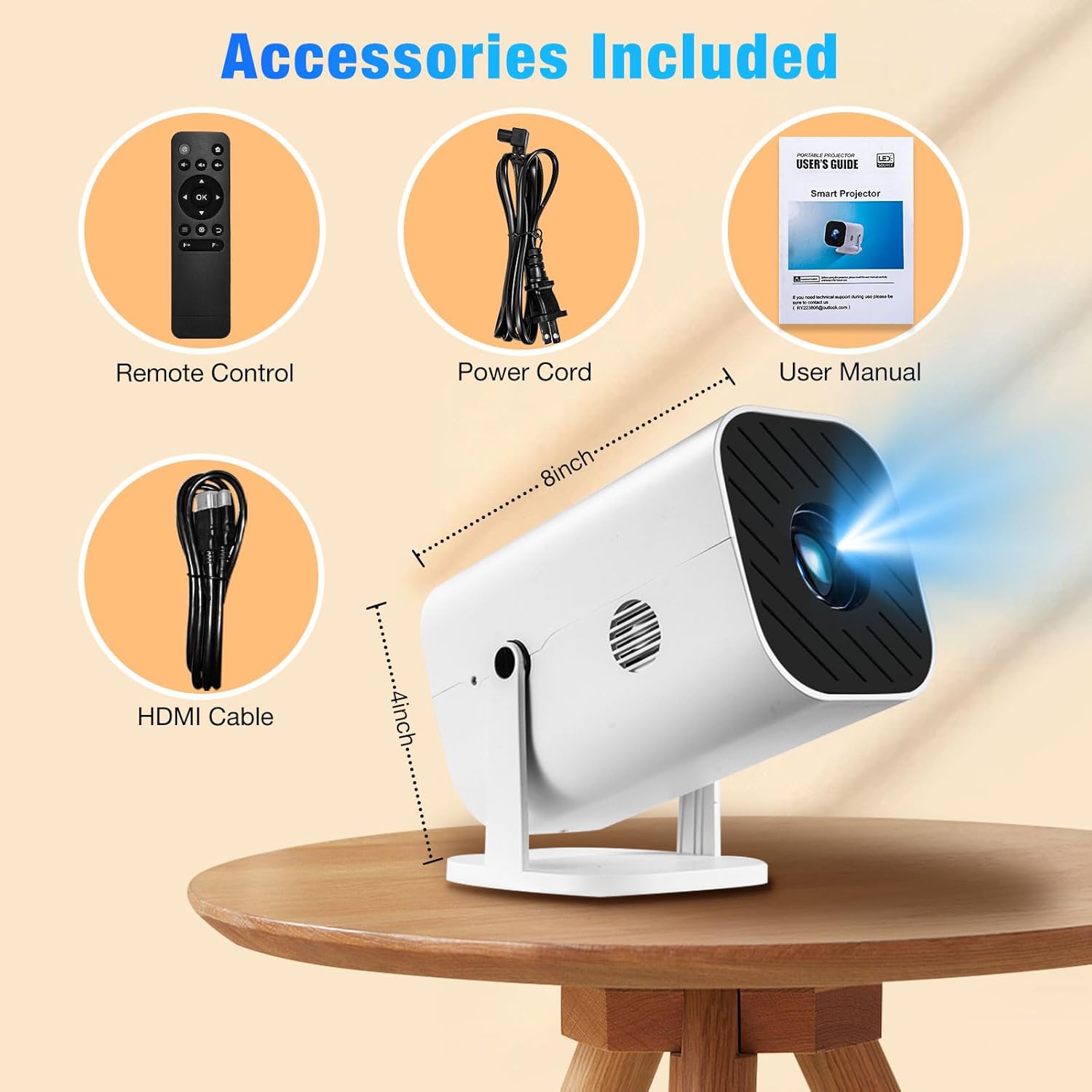
Image: The YGSKK Mini Projector shown with its included accessories: a remote control, power cord, user manual, and HDMI cable, confirming the contents of the product packaging.
Product Overview
The YGSKK Mini Projector is a compact and versatile device designed for ease of use and portability. It features a robust lens system, multiple connectivity ports, and an integrated adjustable bracket for flexible projection angles.

Image: A front view of the YGSKK Mini Projector, highlighting its key features such as Bluetooth 5.3, 4K video decoding, 600 ANSI lumens brightness, support for up to a 200-inch screen, and electrofocusing capability.
Key Features:
- Native 1080P Resolution with 4K Support: Delivers clear and vivid images.
- 210° Swivel Projector: Integrated base allows for flexible projection angles, including ceiling projection.
- Electric Focus: Quickly adjust image clarity using the remote control.
- Built-in Speakers: Provides integrated audio output.
- Advanced Bluetooth 5.3: For connecting external Bluetooth speakers or headphones.
- Extensive Connectivity: HDMI, USB, and 3.5mm Aux interfaces.
- Portable Design: Compact and lightweight for easy transport.

Image: An illustration detailing the wide range of compatibility for the YGSKK Mini Projector, including connections for audio devices, USB storage, and various HDMI input sources like smartphones, laptops, gaming consoles, and streaming devices.
Setup
1. Placement
Position the projector on a stable, flat surface. The integrated 210° adjustable bracket allows for flexible placement and projection angles, including projecting onto a ceiling or wall at various heights. Ensure the lens is facing the desired projection surface.

Image: The YGSKK Mini Projector showcasing its 210-degree rotatable bracket, illustrating how the projector can be angled to project images at different elevations and directions, from horizontal to nearly vertical.
2. Power Connection
Connect the provided power cable to the projector's power input port, then plug the other end into a standard electrical outlet.
3. Initial Focus Adjustment
After powering on the projector, use the F+ or F- buttons on the remote control to adjust the electric focus until the projected image is clear and sharp. This electric focus feature eliminates the need for manual lens adjustments.

Image: The YGSKK Mini Projector illustrating its electric focus function, where the user can adjust the image clarity remotely using the F+ and F- buttons on the provided remote control, resulting in a sharp projected image.
Operating Instructions
1. Power On/Off
Press the power button on the projector or the remote control to turn the device on or off.
2. Connecting Devices
The projector supports various input sources:
- HDMI: Connect devices such as laptops, gaming consoles (PS5, PS4, Xbox), TV sticks, DVD players, or TV boxes using the included HDMI cable.
- USB: Insert USB drives or mobile hard disks into the USB port to play media files directly.
- Smartphones: To connect a smartphone, you will need to purchase an HDMI 3-in-1 phone adapter (not included). Connect your phone to the adapter, and the adapter to the projector's HDMI port.

Image: The YGSKK Mini Projector connected to a laptop via an HDMI cable, demonstrating zero-delay connectivity for displaying content from a computer, such as a video game, on a large projected screen.
3. Audio Output
The projector has built-in high-fidelity stereo speakers. For enhanced audio, you can connect external devices:
- Bluetooth 5.3: Pair with Bluetooth speakers or headphones for a more stable and higher quality sound experience. Note: Bluetooth does not support direct connection to smartphones for audio output.
- 3.5mm Aux: Plug in external speakers or headphones via the 3.5mm audio jack.
4. Adjusting Screen Size
The projector can project a screen size ranging from 50 to 200 inches. Adjust the distance between the projector and the projection surface to achieve the desired screen size. The optimal viewing distance will vary based on the desired screen size.

Image: A visual guide demonstrating the relationship between projection distance and screen size for the YGSKK Mini Projector, showing recommended distances for screen sizes from 50 inches up to 200 inches.
Maintenance
1. Cleaning the Lens
Use a soft, lint-free cloth specifically designed for optical lenses to gently wipe the projector lens. Avoid using abrasive materials or harsh chemicals that could scratch or damage the lens coating.
2. Cleaning the Exterior
Wipe the exterior of the projector with a soft, dry cloth. For stubborn marks, a slightly damp cloth can be used, but ensure no moisture enters the device. Do not use solvents or strong detergents.
3. Storage
When not in use for extended periods, store the projector in a cool, dry place, away from direct sunlight and extreme temperatures. It is recommended to use the original packaging or a protective case to prevent dust accumulation and physical damage.
Troubleshooting
| Problem | Possible Cause | Solution |
|---|---|---|
| No image projected / "No Signal" message | Incorrect input source selected; loose cable connection; device not powered on. | Ensure the correct input source (HDMI, USB) is selected. Check all cable connections. Verify the connected device is powered on. |
| Image is blurry | Focus not adjusted; projector too close/far from screen. | Use the F+ or F- buttons on the remote to adjust electric focus. Adjust the projector's distance from the screen. |
| Screen mirroring not working for certain apps (e.g., Netflix, Prime Video) | HDCP (High-bandwidth Digital Content Protection) protocol restrictions. | Connect a TV stick (e.g., Amazon Fire TV Stick, Roku) to the projector's HDMI port to display content from these apps. |
| No sound from projector | Volume too low; external audio device not connected properly; incorrect audio output selected. | Increase the volume. Ensure Bluetooth speakers/headphones or 3.5mm Aux cable are correctly connected. Check audio settings on the source device. |
| Remote control not responding | Low battery; obstruction between remote and projector; not pointing directly at sensor. | Replace batteries. Ensure no obstructions. Point the remote directly at the projector's IR sensor. |
Specifications
| Feature | Detail |
|---|---|
| Brand | YGSKK |
| Model Number | M8-6710 |
| Display Resolution | Native 1920 x 1080P (Compatible with 4K) |
| Connectivity Technology | 3.5mm Jack, Bluetooth 5.3, HDMI, USB |
| Special Features | Built-In Speaker, Lightweight, Portable, 210° Swivel, Electric Focus |
| Recommended Uses | Business, Education, Gaming, Home Cinema |
| Item Weight | 1.76 pounds (approx. 0.8 kg) |
| Product Dimensions | 8.27 x 4.33 x 3.94 inches (approx. 21 x 11 x 10 cm) |
| Max Projection Size | 200 inches |
Warranty and Support
YGSKK provides a three-year warranty service for this product. If you encounter any issues during the use of your projector, our professional technical support team is available to assist you.
For technical assistance, please contact our 7/24 technical support. Refer to the contact information provided in the user manual or on the official YGSKK website for details.

Image: An overview of YGSKK's customer service commitments, including 7/24 technical support, a 30-day return policy, and a three-year warranty service, ensuring comprehensive after-sales support for the product.