
1. Introduction
This manual provides detailed instructions for the installation, operation, and maintenance of your podofo 8 CORE 6G+128G Car Radio Stereo. This unit is specifically designed for Honda CRV models manufactured between 2007 and 2011, offering an enhanced in-car entertainment and navigation experience with its Android 13 operating system, 9-inch HD touch screen, Wireless CarPlay, and Android Auto capabilities.
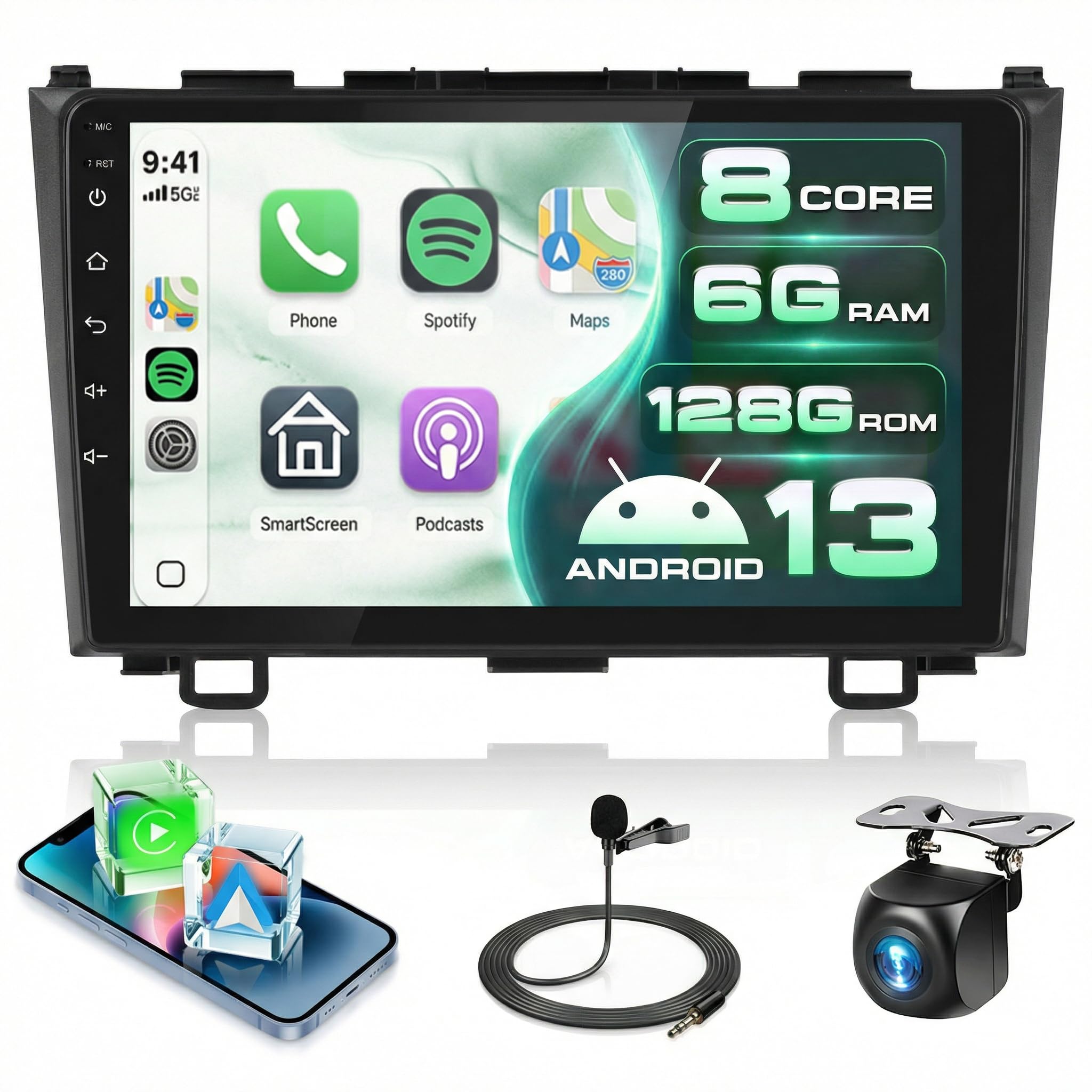
Figure 1: podofo 8 CORE 6G+128G Car Radio Stereo Unit
2. Setup and Installation
2.1 Compatibility Check
This car head unit is compatible with Honda CRV models from 2007 to 2011. It comes with a plug-and-play wiring harness for simplified installation. Please verify your vehicle's dashboard configuration before proceeding.

Figure 2: Honda CRV 2007-2011 Compatibility Guide
Important Note: This product is incompatible with original car radio systems featuring built-in navigation or a large screen (High Configuration). It is designed for vehicles with a Low Configuration factory radio.
2.2 Package Contents
Ensure all components are present before installation:
- Android Car Stereo Unit
- Power Cable
- RCA Input/Output Cables
- USB Cables (Dual Ports)
- GPS Antenna
- Radio Antenna
- External Microphone
- HD Backup Camera
- Installation Tools
- User Manual

Figure 3: Package Contents and Unit Dimensions
2.3 Wiring Instructions
Follow the wiring diagrams carefully for proper connection. The main power harness is plug-and-play. Special attention should be given to the backup camera wiring.
2.3.1 Reverse Camera Wiring
- Connect the video signal cable from the camera to the "Reversing Camera Input" on the head unit.
- Connect the camera's black cable (D) to the vehicle's ground ("GND").
- Connect the camera's red cable (E) to the backup light's positive (+) terminal.
- Ensure the reverse trigger cable (labeled "back" or "reverse") from the head unit's harness is connected correctly. If this cable is tied with the power harness, no additional connection is needed.

Figure 4: Reverse Camera Wiring Diagram
3. Operating Instructions
3.1 Wireless CarPlay and Android Auto
The unit supports both wired and wireless CarPlay and Android Auto. This allows seamless integration with your smartphone for navigation, music, calls, and voice control, enhancing driving safety and convenience.
- Wireless Connection: Enable Bluetooth and Wi-Fi on your phone and connect to the head unit.
- Wired Connection: Connect your phone via a USB cable to the unit's USB port.

Figure 5: CarPlay and Android Auto Interface
3.2 GPS Navigation and Wi-Fi Connectivity
The head unit features built-in GPS navigation and Wi-Fi. You can use online maps via Wi-Fi or download offline maps for navigation without an internet connection. Connect to a Wi-Fi hotspot to access online services and download apps.

Figure 6: GPS Navigation and Wi-Fi Connection
3.3 Bluetooth 5.0 and FM/RDS Radio
Utilize Bluetooth 5.0 for stable hands-free calling and audio streaming. The integrated FM/RDS radio provides access to local radio stations with clear sound quality and station information.

Figure 7: Bluetooth and FM/RDS Radio Functions
3.4 DSP Audio and 32-Band Equalizer
The Digital Sound Processor (DSP) technology provides a realistic and immersive audio experience. Use the 32-band equalizer to precisely adjust sound settings, suppress noise, and improve audio clarity to your preference.

Figure 8: DSP and 32-Band EQ Adjustment
3.5 Steering Wheel Control (SWC)
Connect the unit to your vehicle's steering wheel controls to manage calls, music playback, and switch modes without taking your hands off the wheel. This feature enhances driving safety.

Figure 9: Steering Wheel Control Setup
3.6 Mirror Link
The Mirror Link function allows you to display your smartphone's screen directly onto the head unit. This feature supports both Android and iOS devices via Bluetooth or USB cable.

Figure 10: Mirror Link Feature
3.7 User Interface (UI) Themes and Split Screen
Customize your experience with multiple UI themes. The split-screen function allows you to run two applications simultaneously, such as navigation and music, for improved multitasking.

Figure 11: Multiple UI Themes

Figure 12: Screen Partitioning (Split Screen)
3.8 Voice Control
Interact with your car stereo using voice commands. This feature allows you to control various functions, such as playing music, making calls, or opening applications, hands-free.
- Activate by saying "Hey Podofo" or using the designated voice assistant button.
- Examples: "Play Michael Jackson's Love Yourself," "Call 911," "Open Google."

Figure 13: Voice Control Features
3.9 HD Rear Camera and DVR Function
The included HD night vision rearview camera provides a 170° ultra-wide viewing angle and is fully waterproof, assisting with safe parking and reversing. The unit also supports DVR functionality for recording driving footage (DVR camera sold separately).
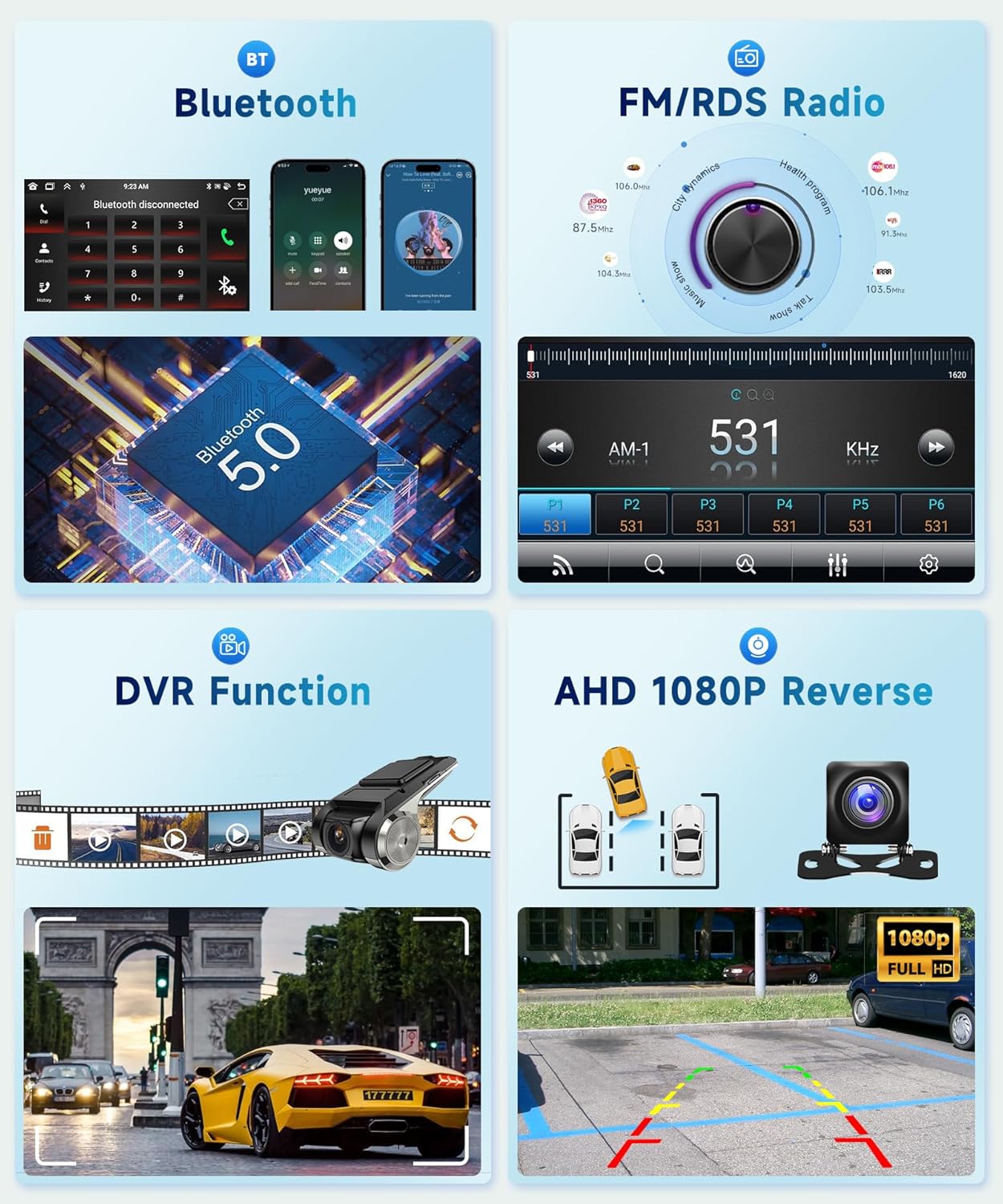
Figure 14: HD Rear Camera and DVR Functionality
4. Maintenance
To ensure the longevity and optimal performance of your car stereo, follow these maintenance guidelines:
- Cleaning: Use a soft, dry cloth to clean the screen and unit. Avoid abrasive cleaners or solvents.
- Software Updates: Periodically check for available software updates to ensure the system runs efficiently and has the latest features. Updates can typically be found on the manufacturer's website or through the unit's system settings.
- Temperature: Avoid exposing the unit to extreme temperatures for extended periods.
- Connections: Ensure all cables are securely connected. Loose connections can lead to intermittent issues.
5. Troubleshooting
If you encounter issues with your car stereo, refer to the following common troubleshooting steps:
- No Power: Check all power connections and the vehicle's fuse box. Ensure the ignition is on.
- No Sound: Verify speaker connections. Check volume levels on the unit and any connected devices (e.g., phone via CarPlay/Android Auto). Ensure the DSP settings are not muting audio.
- Touchscreen Unresponsive: Restart the unit. If the issue persists, a factory reset might be necessary (note: this will erase all user data).
- CarPlay/Android Auto Not Connecting: Ensure Bluetooth and Wi-Fi are enabled on your phone and the unit. Try connecting with a different USB cable if using a wired connection. Restart both the phone and the head unit.
- GPS Signal Loss: Ensure the GPS antenna is properly installed and has a clear view of the sky.
- Lagging Performance: Close unnecessary background applications. Ensure sufficient storage space. Consider a factory reset if performance issues persist after clearing cache.
For persistent issues, please contact customer support as detailed in Section 7.
6. Specifications
| Feature | Specification |
|---|---|
| Brand | podofo |
| Operating System | Android 13 |
| CPU | 8-Core |
| RAM | 6GB |
| ROM (Internal Storage) | 128GB |
| Screen Size | 9 Inches |
| Display Type | IPS HD Touch Screen |
| Resolution | 1280*720 |
| Connectivity | Bluetooth 5.0, Wi-Fi, USB |
| Special Features | Wireless CarPlay, Android Auto, GPS Navigation, 32-Band DSP, Steering Wheel Control, Mirror Link, FM RDS Radio, Subwoofer Output, Dual USB Ports, Dual Mic, Split Screen |
| Included Components | Android Car Stereo, External Microphone, GPS Antenna, HD Backup Camera |
| Vehicle Service Type | SUV (Honda CRV 2007-2011) |
| Item Weight | 1 Kilogram |
7. Warranty and Support
7.1 Warranty Information
This product comes with a 2-year warranty from the manufacturer, podofo. Please retain your proof of purchase for warranty claims.
7.2 Customer Support
For any concerns regarding installation, usage, or technical assistance, please contact podofo customer service directly. You can typically find support contact information through the retailer where you purchased the product or on the official podofo website.

Figure 15: How to Contact Technical Support

Figure 16: Podofo Warranty and Support Overview


