
Junsun B0DQD577F2
Junsun Android 13 Car Radio Stereo Instruction Manual
Model: B0DQD577F2 | Brand: Junsun
1. Introduction
Welcome to your new Junsun Android 13 Car Radio Stereo. This manual provides detailed instructions for the installation, operation, and maintenance of your device. This unit is designed to enhance your driving experience with advanced features and connectivity.
Key features include an Android 13 operating system, wireless CarPlay and Android Auto compatibility, integrated GPS navigation, Wi-Fi connectivity, Bluetooth for hands-free communication and audio streaming, FM/AM radio, and support for steering wheel controls.
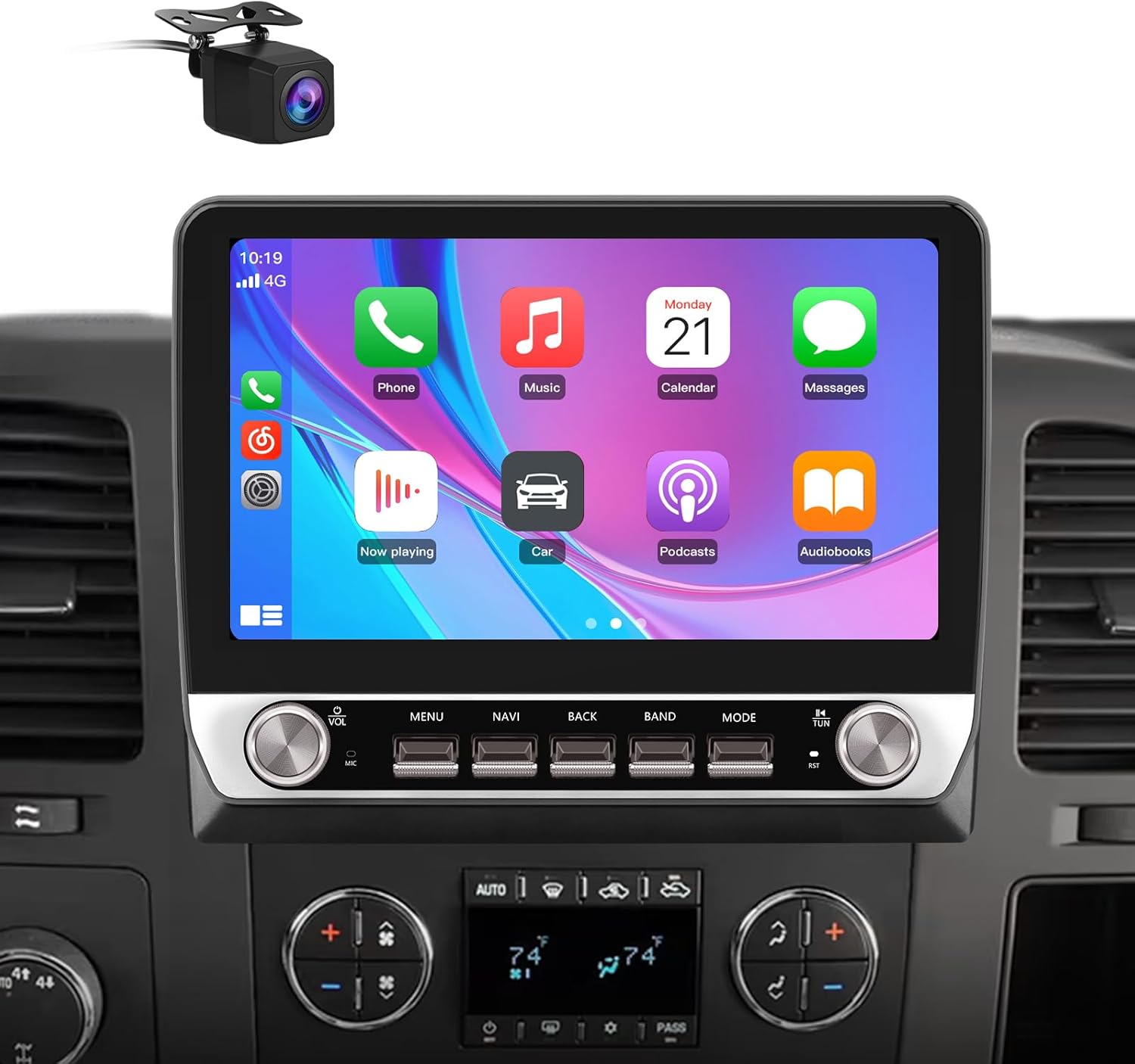
Figure 1.1: Junsun Android 13 Car Radio Stereo with CarPlay interface.
2. Applicable Car Models
This Junsun car radio stereo is specifically designed for the following Chevrolet and GMC vehicle models. Please verify your vehicle's compatibility before proceeding with installation.
- For Chevy Silverado 1500 (2007-2013)
- For Chevy Silverado 2500HD (2007-2013)
- For Chevy Silverado 3500HD (2007-2013)
- For Chevrolet Avalanche (2007-2011)
- For Chevrolet Express Van (2008-2011)
- For Chevrolet Impala (2006-2012)
- For GMC Acadia (2007-2012)
- For GMC Savana (2008-2013)
- For GMC Sierra (2007-2011)
- For GMC Yukon (2007-2013)

Figure 2.1: List of compatible vehicle models.
3. Package Contents
Please carefully unpack the product and ensure all the following components are included in your package:
- Junsun Android 13 Car Radio Stereo Unit
- Power Cables (x2)
- RCA Cable
- Reversing Line
- Antenna & Back Video-in Cable
- Can Bus Decoder
- USB Cables (x2)
- Crowbar Tool
- Screwdriver
- Speaker
- Microphone
- Mounting Frame and Trim

Figure 3.1: All included components in the package.
4. Installation Guide
4.1. Pre-Installation Check
Before beginning the installation process, ensure the vehicle's battery is disconnected to prevent electrical damage. It is recommended to consult a professional if you are unfamiliar with car stereo installations.
4.2. Wiring Diagram
Refer to the following diagram for proper wiring connections. Ensure all cables are securely connected to their corresponding ports. Incorrect wiring can lead to device malfunction or damage to your vehicle's electrical system.

Figure 4.1: ISO Wiring Harness and RCA Cable Connections.
4.3. Physical Installation
The Junsun car radio stereo is designed for a direct fit into compatible vehicle dashboards. Carefully remove your original stereo unit. Install the new unit using the provided mounting frame and trim, ensuring it is securely fastened and flush with the dashboard.

Figure 4.2: Before and After Installation comparison.
5. Operating Instructions
5.1. Power On/Off and Basic Controls
The unit powers on automatically with the vehicle's ignition. Use the physical buttons located on the front panel for quick access to essential functions such as volume, menu, navigation, and mode selection. These buttons are designed for intuitive control, minimizing driver distraction.

Figure 5.1: Physical Button Layout and Functions.
5.2. Android 13 System
The unit operates on the Android 13 system, providing a smooth and responsive user experience. Navigate through applications and settings using the touchscreen interface. You can install or delete Android applications from the Application Store, similar to a smartphone.
5.3. Wireless CarPlay & Android Auto
Connect your iPhone or Android smartphone wirelessly or via a USB cable to access CarPlay or Android Auto. This feature allows you to use your phone's address book, notifications, messages, map navigation, and music directly on the stereo's display.

Figure 5.2: Wireless CarPlay and Android Auto Interface.
5.4. GPS Navigation & Wi-Fi Connectivity
The unit supports online maps. After connecting to a Wi-Fi network (e.g., via a mobile hotspot), you can use GPS navigation anywhere. Wi-Fi also enables access to various online applications and services.

Figure 5.3: GPS Navigation in action.

Figure 5.4: Wi-Fi Connectivity for online applications.
5.5. Bluetooth Connectivity
Pair your smartphone via Bluetooth for hands-free calling and audio streaming. The external microphone ensures clear voice pickup, and your car speakers provide precise audio output for calls.

Figure 5.5: Bluetooth Phone Interface.
5.6. FM/AM Radio
The unit features FM/AM radio functionality with a digital display for precise tuning. Access news, music, and weather broadcasts with ease.

Figure 5.6: FM Radio Interface.
5.7. Steering Wheel Control
If your vehicle supports it, you can configure the steering wheel buttons to control the stereo, allowing you to adjust volume, change tracks, and switch radio stations without taking your hands off the wheel.
5.8. Backup Camera
The unit supports a backup camera (included in some packages) for enhanced safety during reversing. The display automatically switches to the camera view when the vehicle is in reverse gear.

Figure 5.7: Backup Camera View.
6. Maintenance
To ensure the longevity and optimal performance of your Junsun car radio stereo, follow these maintenance guidelines:
- Screen Cleaning: Use a soft, lint-free cloth to gently wipe the touchscreen. For stubborn smudges, slightly dampen the cloth with water or a screen-safe cleaner. Avoid abrasive materials or harsh chemical cleaners, as they can damage the screen coating.
- General Cleaning: Keep the unit free from dust and debris. Use a soft brush or compressed air to clean around buttons and ports.
- Temperature: Avoid exposing the unit to extreme temperatures for prolonged periods.
- Software Updates: Periodically check for available software updates to ensure optimal performance and access to new features. Follow the on-screen instructions for any updates.
7. Troubleshooting
If you encounter issues with your Junsun car radio stereo, refer to the following common problems and solutions:
7.1. No Power
- Check Wiring: Ensure all power cables are securely connected to the vehicle's electrical system and the stereo unit.
- Check Fuse: Inspect the fuse connected to the stereo's power line. Replace if blown.
- Vehicle Battery: Confirm the vehicle's battery is charged and properly connected.
7.2. No Sound Output
- Volume Level: Ensure the volume is not muted or set to a very low level.
- Speaker Connections: Verify that all speaker wires are correctly connected to the unit and the speakers.
- Amplifier Connection: If your vehicle has a factory amplifier, ensure the amplifier turn-on wire (often a blue wire) from the stereo is connected to the amplifier's remote turn-on input.
- Audio Source: Confirm the correct audio source (e.g., FM, Bluetooth, CarPlay) is selected.
7.3. CarPlay/Android Auto Connection Issues
- Phone Compatibility: Ensure your smartphone is compatible with CarPlay or Android Auto and has the latest operating system updates.
- Cable Connection: If using a wired connection, try a different USB cable, preferably the original cable that came with your phone.
- Restart Devices: Restart both your smartphone and the car stereo unit.
- Bluetooth/Wi-Fi: For wireless connections, ensure Bluetooth and Wi-Fi are enabled on your phone and the stereo.
7.4. Steering Wheel Controls Not Working
- Wiring: Verify that the steering wheel control wires are correctly connected to the stereo unit.
- Settings: Access the stereo's settings menu to configure or calibrate the steering wheel controls. Refer to the on-screen instructions for this process.
- CAN Bus Decoder: Ensure the CAN Bus decoder (if applicable to your vehicle) is correctly installed and functioning.
8. Technical Specifications
| Feature | Specification |
|---|---|
| Operating System | Android 13 |
| Display Size | 10 Inches |
| Memory (RAM) | 2 GB |
| Storage (ROM) | 64 GB |
| Connectivity | Bluetooth, Wi-Fi |
| Special Features | Wireless CarPlay, Android Auto, GPS Navigation, FM/AM Radio, Steering Wheel Control Support |
| Vehicle Service Type | Car, Truck |
| Mounting Type | Dashboard Mount |
| Item Weight | 4.84 pounds |
| Package Dimensions | 12.52 x 9.13 x 5.08 inches |
9. Warranty and Support
This Junsun car radio stereo comes with a 1-year manufacturer warranty from the date of purchase. This warranty covers defects in materials and workmanship under normal use.
For technical assistance, troubleshooting, or to inquire about warranty claims, please contact Junsun customer support:
Email: Junsun-US@outlook.com
When contacting support, please provide your product model number (B0DQD577F2) and a detailed description of the issue.

Figure 9.1: Junsun Customer Support.
Ask a question about this manual
Ask about setup, troubleshooting, compatibility, parts, safety, or missing instructions. Manuals+ will review the question and use this page’s manual context to help answer it.