
AbecxEye A33
AbecxEye A33 Security Camera User Manual
Model: A33
Introduction
This manual provides detailed instructions for the installation, operation, and maintenance of your AbecxEye A33 Security Camera. This outdoor camera features 2.4G WiFi connectivity, PTZ (Pan-Tilt-Zoom) capabilities, dual lenses for comprehensive coverage, 4MP resolution, two-way audio, AI detection, full-color night vision, and auto-tracking for enhanced home security.
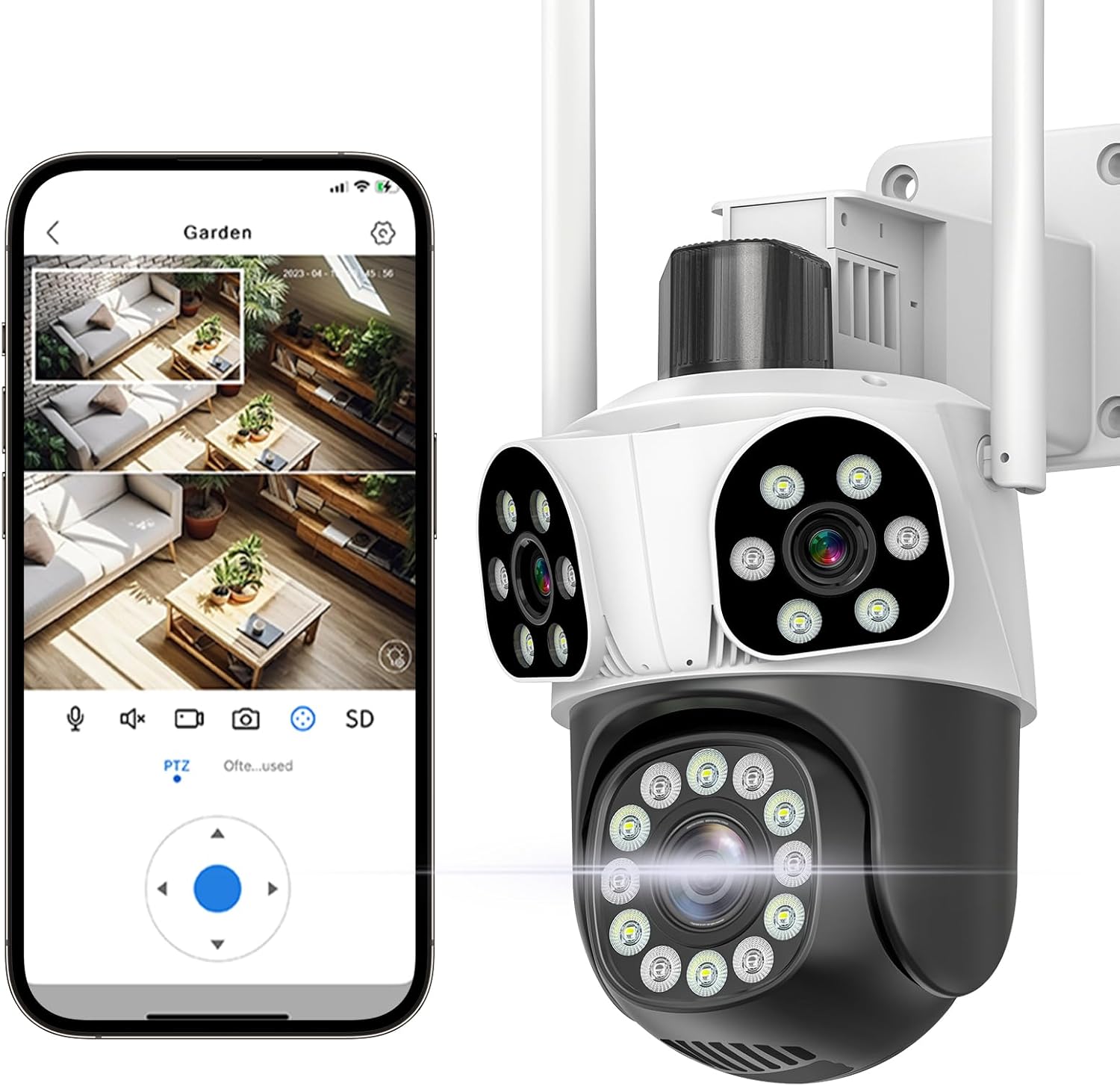
Figure 1: AbecxEye A33 Security Camera and its mobile application interface.
What's in the Box
Verify that all components are present before beginning installation.
- Camera Body
- Pedestals
- Instructions (User Manual)
- Set of Screws
- Waterproof Cap
- Power Adapter (Type may vary by region: EU, US, UK, AU)

Figure 2: Included components and power plug options.
Setup
1. App Installation
Download the official mobile application to control and monitor your camera. The app supports multiple users for shared access.
- Search for "P65Lite" in your device's app store (App Store for iOS, Google Play Store for Android).
- Install the application on your smartphone or tablet.

Figure 3: P65Lite Remote Access Application.
2. Mounting the Camera
The camera is designed for wall mounting. Ensure the mounting location provides a clear view and is within range of your 2.4GHz Wi-Fi network.
- Choose a suitable outdoor or indoor location for installation.
- Use the provided pedestals and screws to securely mount the camera.
- Ensure the camera is positioned to cover the desired monitoring area.
3. Power Connection
Connect the camera to a power source using the provided corded electric adapter.
- Plug the power adapter into the camera's power input.
- Connect the adapter to a standard electrical outlet.
4. Wi-Fi Connection
The camera supports 2.4GHz Wi-Fi networks only. Ensure your router is configured for 2.4GHz or has a dual-band setup.
- Open the P65Lite app and follow the on-screen instructions to add a new device.
- Select the option for wireless connection or scan the QR code on the camera if prompted.
- Enter your 2.4GHz Wi-Fi network name (SSID) and password when requested by the app.
- Wait for the camera to connect to your Wi-Fi network. A confirmation sound or indicator light will signal a successful connection.

Figure 4: Wireless Connection and QR Code Scanning for Setup.

Figure 5: Strong Signal Antenna for 2.4GHz Wi-Fi.
Operating Instructions
1. Live View and PTZ Control
Access the live feed from your camera through the P65Lite app. The camera features Pan-Tilt-Zoom (PTZ) functionality, allowing you to adjust the viewing angle remotely.
- Open the P65Lite app and select your camera from the device list.
- Use the on-screen joystick or swipe gestures to pan (355° horizontal rotation) and tilt (90° vertical rotation) the camera.
- The dual lens system provides a comprehensive 360° view, ensuring no blind spots.

Figure 6: PTZ Rotation and Control.

Figure 7: Triple-Lens and Triple-Screen Monitoring.
2. Digital Zoom
The camera supports 10X digital zoom for closer inspection of details within the live view.
- Pinch to zoom in or out on the live view screen within the app.

Figure 8: 10X Digital Zoom Functionality.
3. Two-Way Audio
Communicate with individuals near the camera using the built-in microphone and speaker.
- In the live view, tap the microphone icon to activate two-way audio.
- Choose between "Phone mode" (simultaneous talk and listen) or "Intercom mode" (press to talk, release to listen) based on your preference.

Figure 9: Two-Way Audio Modes.

Figure 10: Two-Way Audio in Use.
4. Night Vision Modes
The camera offers three night vision modes for clear visibility in low-light conditions:
- Full Color Night Vision: Utilizes white lights to provide full-color images even at night.
- Infrared Night Vision: Uses infrared LEDs for black and white images in complete darkness.
- Smart Vision: Automatically switches between infrared and full-color based on detected motion or light conditions.

Figure 11: Smart Night Vision Modes.
5. Recording and Storage
The camera supports continuous recording and event-triggered recording. Footage can be stored locally or in the cloud.
- SD Card Storage: Insert a microSD card (not included) into the designated slot for local storage. This option incurs no monthly fees.
- Cloud Storage: Subscribe to the cloud storage service (via the app) for secure, remote access to your recordings.
- The dual lenses record video simultaneously, providing comprehensive coverage.

Figure 12: Dual Lens Recording.

Figure 13: SD Card and Cloud Storage Options.
6. AI Detection and Auto-Tracking
The camera is equipped with advanced AI detection and auto-tracking features to enhance security monitoring.
- AI Detection: Configures the camera to detect specific events such as human motion, vehicle movement, or abnormal sounds, reducing false alarms.
- Auto-Tracking: When motion is detected, the camera can automatically pan and tilt to follow the moving object within its field of view.
- Smart alerts will be sent to your mobile device upon detection.
7. Multi-User Sharing
Share camera access with family members or trusted individuals through the app.
- The main account can invite sub-accounts to view live feeds and recordings.
- Multiple users can log in and view the camera simultaneously.

Figure 14: Multi-User Sharing Capability.
Maintenance
To ensure optimal performance and longevity of your AbecxEye A33 Security Camera, follow these maintenance guidelines:
- Cleaning: Periodically wipe the camera lens and body with a soft, damp cloth to remove dust and dirt. Avoid abrasive cleaners.
- Weather Resistance: The camera has an IP65 waterproof rating, designed to withstand rain and snow. However, avoid submerging the camera in water.
- Firmware Updates: Check the P65Lite app regularly for firmware updates. Keeping the firmware updated ensures the camera has the latest features and security patches.
- Power Supply: Ensure the power cable is securely connected and not damaged.
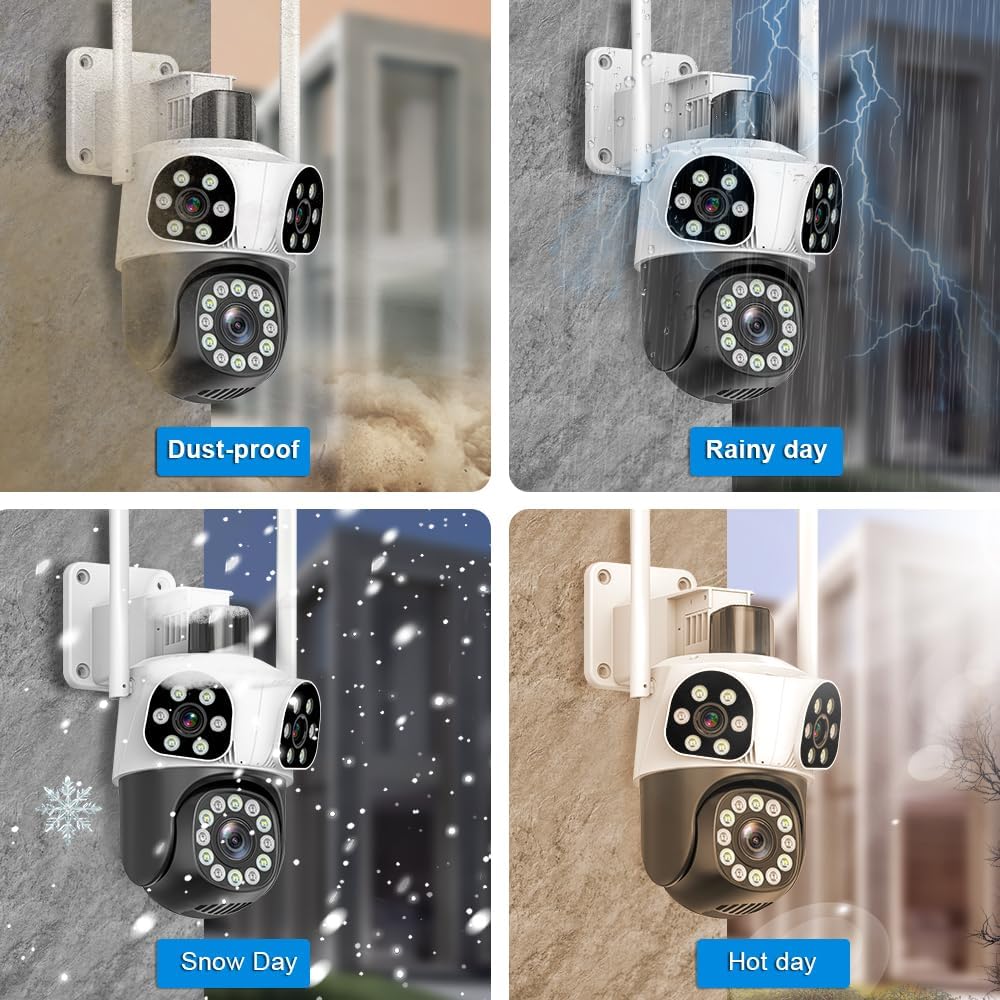
Figure 15: All-Weather Durability (IP65 Rated).
Troubleshooting
If you encounter issues with your camera, refer to the following common troubleshooting steps:
| Problem | Possible Cause | Solution |
|---|---|---|
| Camera not powering on | No power supply; damaged cable/adapter | Check power connection; try a different outlet; inspect cable for damage. |
| Cannot connect to Wi-Fi | Incorrect Wi-Fi password; 5GHz network used; camera too far from router | Ensure correct 2.4GHz Wi-Fi password; move camera closer to router; restart router. |
| Poor video quality | Weak Wi-Fi signal; dirty lens | Improve Wi-Fi signal strength; clean the camera lens. |
| No audio/two-way talk not working | Microphone/speaker muted in app; network issues | Check app settings for audio mute; ensure stable internet connection. |
| Motion detection not working | Detection settings incorrect; camera obstructed | Adjust motion detection sensitivity and zones in app; ensure clear view. |
For further assistance, please contact AbecxEye customer support.
Specifications
| Feature | Detail |
|---|---|
| Model Name | A33 |
| Indoor/Outdoor Usage | Outdoor, Indoor |
| Connectivity Protocol | Wi-Fi (2.4GHz only) |
| Power Source | Corded Electric |
| Video Capture Resolution | 1920p (4MP) |
| Night Vision Range | 15 Meters |
| Water Resistance Level | Waterproof (IP65) |
| Item Dimensions (L x W x H) | 6.22 x 4.24 x 7.2 inches |
| Item Weight | 2.01 pounds |
| Control Method | App (P65Lite) |
| Special Features | Dual Lens, PTZ (Pan 355°, Tilt 90°), Two-Way Audio, AI Detection, Auto Tracking, Full-Color Night Vision, Multi-User Sharing, H.265 Video Format |
Ask a question about this manual
Ask about setup, troubleshooting, compatibility, parts, safety, or missing instructions. Manuals+ will review the question and use this page’s manual context to help answer it.