
1. Introduction
Thank you for choosing the SIIOOE DM324 2K Wireless Solar Outdoor Security Camera. This manual provides essential information for the proper installation, operation, and maintenance of your security camera. Please read this manual thoroughly before use and retain it for future reference.
2. Safety Information
- Ensure the camera is installed securely to prevent accidental falls.
- Do not expose the camera or solar panel to extreme temperatures outside the specified operating range.
- Keep the device away from strong magnetic fields.
- Use only the provided charging cable and solar panel.
- Do not attempt to disassemble or repair the device yourself. Contact customer support for assistance.
- Dispose of batteries according to local regulations.
3. Package Contents
Verify that all items are present in your package:
- 1 x Surveillance Camera
- 1 x Solar Panel
- 1 x Type-C Data Cable
- Mounting Screws and Anchors
- Mounting Bracket
- User Manual

Image: Contents of the SIIOOE DM324 camera package.
4. Product Overview
The SIIOOE DM324 is a 2K wireless solar-powered outdoor security camera designed for comprehensive surveillance. It features a 2K resolution for clear images, a built-in 5000mAh battery, and a solar panel for continuous power. The camera offers 360-degree pan/tilt/zoom (PTZ) functionality, color night vision, PIR human detection, and two-way audio communication. It is IP66 waterproof, making it suitable for various outdoor conditions.

Image: Front view of the SIIOOE DM324 camera and its solar panel.
Key Features:
- 2K Resolution: Provides clear and detailed video footage.
- Solar Powered: Equipped with a solar panel and a 5000mAh battery for continuous operation without frequent recharging.
- Color Night Vision: Offers full-color video even in low-light conditions.
- PIR Human Detection: Intelligent motion detection distinguishes humans from other moving objects, reducing false alarms.
- Two-Way Audio: Built-in microphone and speaker allow for real-time communication.
- 360° PTZ Coverage: Pan, tilt, and zoom capabilities provide a wide viewing angle.
- IP66 Waterproof: Designed to withstand various weather conditions, including rain and snow.

Image: The camera's solar charging capability, highlighting its wireless nature.
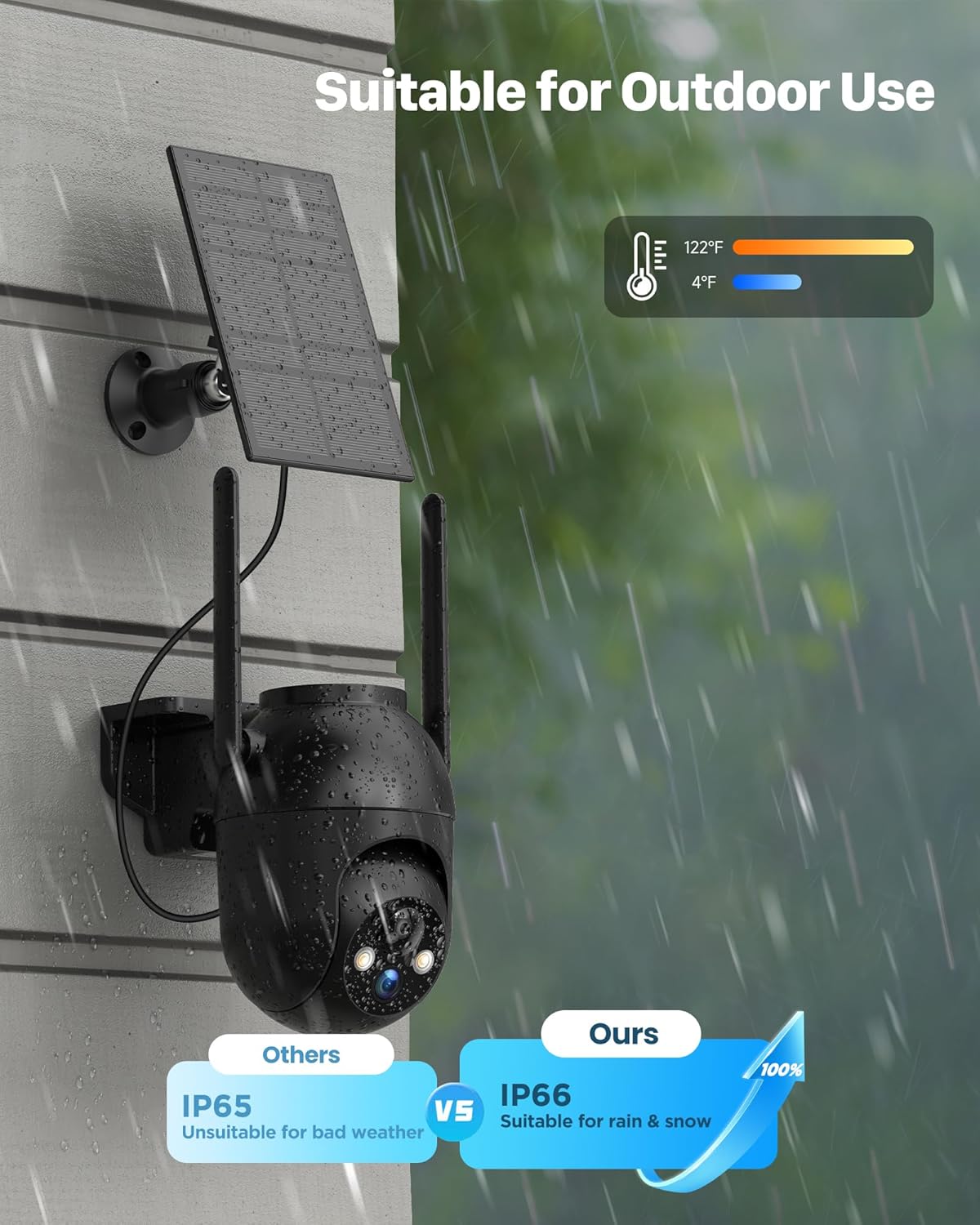
Image: The camera's IP66 waterproof rating, showing its suitability for outdoor use in various weather conditions.
5. Setup
5.1 Initial Charging
Before first use, fully charge the camera's built-in 5000mAh battery using the provided Type-C data cable and a standard 5V USB power adapter (not included). This ensures optimal performance and battery life.

Image: The camera and solar panel working together for non-stop charging.
5.2 App Installation and Pairing
- Download the CloudEdge app from your smartphone's app store (iOS or Android).
- Register for an account and log in.
- Follow the in-app instructions to add your new camera. This typically involves scanning a QR code on the camera and connecting it to your 2.4GHz Wi-Fi network.
5.3 Mounting the Camera and Solar Panel
The camera is designed for wall mounting. Choose a location that provides the desired viewing angle and ensures the solar panel receives maximum direct sunlight throughout the day.
- Use the provided mounting bracket, screws, and anchors to securely attach the camera to a sturdy surface.
- Mount the solar panel in an unshaded area, ideally facing south (in the Northern Hemisphere) or north (in the Southern Hemisphere) for optimal sun exposure.
- Connect the solar panel cable to the camera.

Image: Guide for correct solar panel placement to ensure proper charging.
6. Operating the Camera
6.1 Live View and Recording
Open the CloudEdge app to access the live feed from your camera. You can manually record video or capture screenshots directly from the live view interface.
6.2 Motion Detection and Alerts
The camera features PIR (Passive Infrared) motion detection with intelligent human recognition. This helps to filter out irrelevant movements from animals or vehicles.
- Enable/Disable: Activate or deactivate motion detection in the app settings.
- Sensitivity: Adjust the detection sensitivity (levels 1-10) to suit your environment. Higher sensitivity detects smaller movements.
- Human Detection: Enable this feature to receive alerts primarily for human activity. Disable it if you need to detect animals or vehicles.
- Alerts: When motion is detected, the camera will send a notification to your smartphone and begin recording.

Image: Intelligent motion classification showing alerts for various detected objects.
6.3 Night Vision
The camera automatically switches to night vision mode in low light. It supports both infrared (black and white) and full-color night vision, providing clear images even in complete darkness.

Image: Demonstrating the camera's color night vision capability, providing clear images at night.
6.4 Two-Way Audio
Use the two-way audio feature to communicate with visitors or deter unwanted individuals. Tap the microphone icon in the app to speak, and listen through the camera's speaker.

Image: Illustrating the two-way audio function for communication.
6.5 PTZ Control and Alarm Function
Control the camera's pan (horizontal) and tilt (vertical) movements directly from the app to view different areas. The camera offers 360-degree coverage.
- PTZ Control: Use the directional controls in the app to adjust the camera's viewing angle.
- Sound Alarm: Configure the camera to emit a loud alarm sound when motion is detected to deter intruders. You can also manually trigger the alarm via the app.

Image: The camera's 360-degree full view capability.

Image: The camera's ability to deter intruders with sound and light alarms.
6.6 Sharing with Family
You can share access to your camera's live feed and recordings with family members through the CloudEdge app, allowing multiple users to monitor the property.

Image: Sharing camera access with family members.
7. Maintenance
- Cleaning: Regularly wipe the camera lens and solar panel with a soft, damp cloth to ensure clear images and efficient charging. Avoid abrasive cleaners.
- Battery Care: Ensure the solar panel is free from obstructions (e.g., leaves, snow) to maintain optimal charging. If the camera is stored for an extended period, fully charge it before storage and recharge every few months to prevent deep discharge.
- Firmware Updates: Check the CloudEdge app periodically for firmware updates to ensure your camera has the latest features and security enhancements.
8. Troubleshooting
| Problem | Possible Cause | Solution |
|---|---|---|
| Camera not powering on | Low battery; Power button not pressed | Fully charge the camera using the Type-C cable. Press and hold the power button for a few seconds. |
| Cannot connect to Wi-Fi | Incorrect Wi-Fi password; 5GHz Wi-Fi network; Camera too far from router | Ensure correct 2.4GHz Wi-Fi password. Move camera closer to router. Restart router and camera. |
| Solar panel not charging | Insufficient sunlight; Panel obstructed; Cable loose | Relocate solar panel to an area with direct sunlight. Clear any obstructions. Ensure cable is securely connected. |
| Frequent false alarms | High motion sensitivity; Human detection disabled | Adjust motion detection sensitivity in the app. Enable human detection if only human activity is desired. |
| Poor image quality | Dirty lens; Network issues | Clean the camera lens. Check Wi-Fi signal strength. |
If you encounter issues not listed here or require further assistance, please contact SIIOOE customer support.
9. Specifications
| Feature | Specification |
|---|---|
| Model Number | DM324 |
| Video Capture Resolution | 1440p (2K) |
| Connectivity Technology | Wireless (Wi-Fi) |
| Power Source | Solar Powered |
| Battery Type | Lithium Polymer (5000mAh included) |
| Special Features | Two-Way Audio, Motion Sensor, Night Vision (Color) |
| Indoor/Outdoor Use | Outdoor, Indoor |
| Waterproof Rating | IP66 |
| Compatible Devices | Smartphone |
| Controller Type | CloudEdge App |
| Mounting Type | Wall Mount |
| Product Dimensions (LxWxH) | 10.16 x 10.16 x 5.08 cm |
| Item Weight | 798 grams |
10. Warranty and Support
For any product-related issues, technical support, or warranty inquiries, please contact SIIOOE customer service. Refer to the contact information provided with your purchase or visit the official SIIOOE website for support details.
