
1. Introduction
This manual provides detailed instructions for the Quanlex 3-in-1 Wireless CarPlay & Android Auto Adapter, model SUNLINK Q3 6035. This device is designed to convert your car's existing wired CarPlay and Android Auto systems into wireless connections, enhancing your driving experience with seamless smartphone integration and entertainment options.

Image: Quanlex 3-in-1 Wireless CarPlay & Android Auto Adapter with car screen showing Netflix and YouTube.
2. Features
- 3-in-1 Wireless Connectivity: Supports both wireless Apple CarPlay and Android Auto, allowing seamless switching between systems.
- Integrated Entertainment: Stream Netflix, YouTube, and other video applications directly on your car's display.
- Local Media Playback: Supports TF cards and USB devices for playing music and videos without requiring WiFi or a hotspot.
- Plug-and-Play Installation: Simple setup with no additional drivers or complex installation procedures required.
- Automatic Connection: After the initial setup, the adapter automatically connects to your phone each time the car starts.
- Retains Original Car Controls: Maintains full functionality of your car's original controls, including touch screen, OEM knob, steering wheel controls, and voice assistant (Siri/Google Assistant).
- Wide Compatibility: Compatible with over 800 car models from 2016 onwards that are equipped with wired CarPlay. Works with iPhones running iOS 10.0+ and Android phones running Android 11.0+.
- Stable Performance: Features a 5.8GHz upgraded chip, 2.4GHz Bluetooth, and 5.8GHz WiFi modules for smooth operation and real-time synchronization.
- Compact and Portable Design: Lightweight and small, making it easy to place and carry.

Image: The adapter enables wireless CarPlay and Android Auto, eliminating the need for cables.

Image: The device supports streaming Netflix and YouTube directly on the car's display.
3. Setup Instructions
Follow these steps to set up your Quanlex Wireless CarPlay & Android Auto Adapter:
- Connect the Adapter: Plug the wireless CarPlay dongle into your car's original USB or USB-C port. Ensure the connection is secure.
- Pair with Your Phone: On your smartphone, enable both Wi-Fi and Bluetooth. Search for the device's Bluetooth name (e.g., "HI-BOX") and select it to pair.
- Complete Connection: A prompt will appear on your phone. Confirm the pairing and choose "Use CarPlay" or "Use Android Auto" to establish the wireless connection.
After the initial successful connection, the adapter will automatically connect to your phone each time you start your car, provided your phone's Bluetooth and Wi-Fi are enabled.
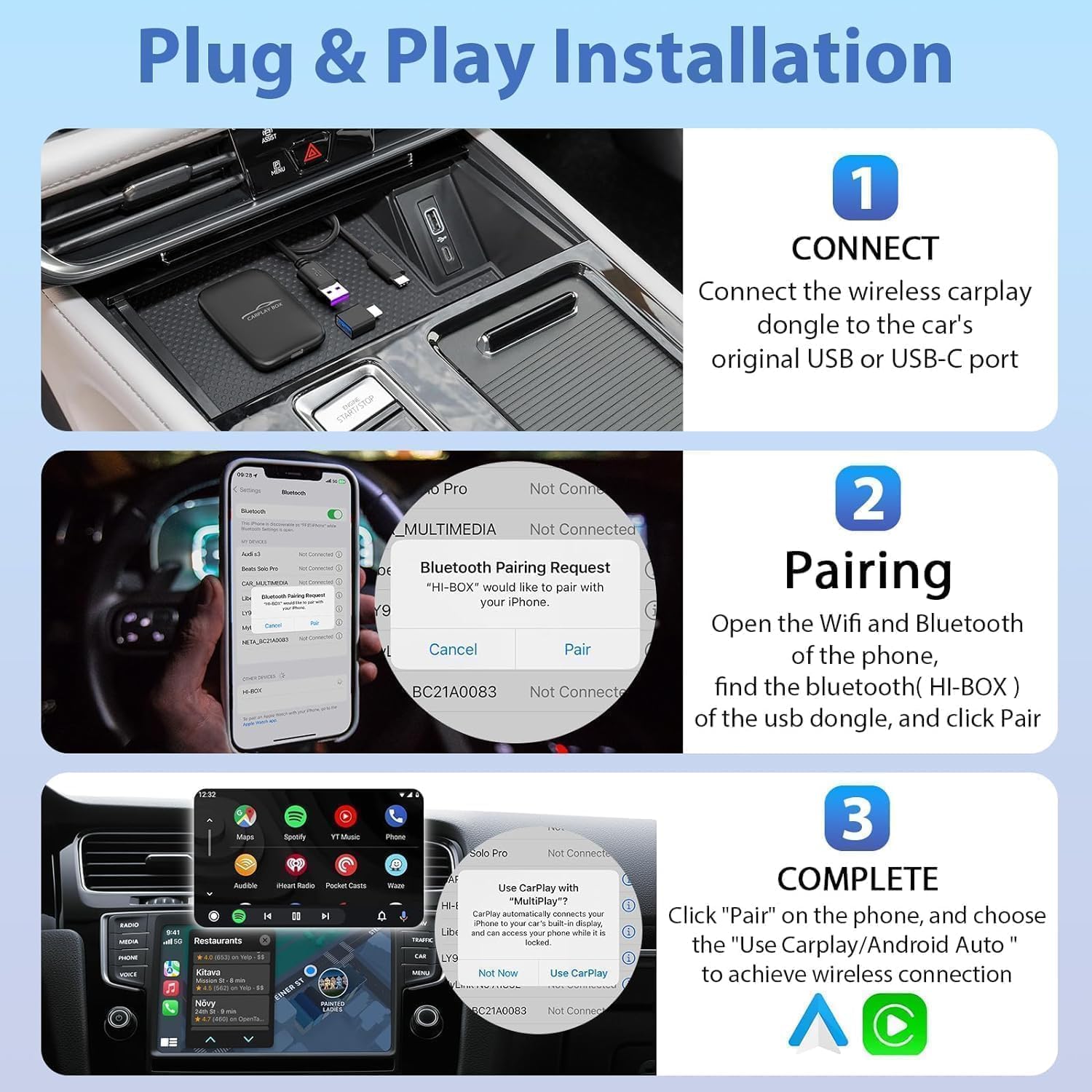
Image: Visual guide showing the three steps for plug-and-play installation: Connect, Pair, and Complete.
4. Operating Instructions
Once connected, you can operate the wireless CarPlay or Android Auto interface using your car's existing controls:
- Touch Screen Control: Interact directly with the car's touchscreen display for navigation, app selection, and media playback.
- OEM Knob Control: Utilize your car's factory-installed control knob for precise navigation through menus and options.
- Steering Wheel Control: Use the buttons on your steering wheel to manage audio, calls, and other functions without taking your hands off the wheel.
- Voice Assistant Control: Activate Siri (for CarPlay) or Google Assistant (for Android Auto) using your car's voice command button or by saying the wake word, allowing for hands-free operation.
To access streaming apps like Netflix and YouTube, ensure your device has an active internet connection (e.g., via mobile hotspot) as the adapter itself does not provide internet access. For offline media, insert a TF card or USB drive into the adapter's designated slot.

Image: Demonstrates how the adapter allows users to retain original car controls, including touch screen, OEM knob, steering wheel, and voice assistant.
5. Compatibility
The Quanlex 3-in-1 Wireless CarPlay & Android Auto Adapter is designed for broad compatibility:
- Vehicle Compatibility: Works with over 800 car models manufactured from 2016 onwards that come equipped with factory-wired CarPlay.
- iPhone Compatibility: Supports iPhones running iOS 10.0 and newer versions.
- Android Phone Compatibility: Supports Android phones running Android 11.0 and newer versions.
Note: HUAWEI phones might not be fully compatible with this device.

Image: Illustrates wide compatibility with various car brands and mobile phone operating systems (iOS and Android).
6. Maintenance
To ensure the longevity and optimal performance of your adapter, follow these maintenance guidelines:
- Cleaning: Use a soft, dry cloth to clean the device. Avoid using liquid cleaners or abrasive materials.
- Environmental Conditions: Store and operate the adapter within recommended temperature ranges. Avoid exposure to extreme heat, cold, or direct sunlight for prolonged periods.
- Moisture Protection: Keep the device away from water, humidity, and other liquids.
- Handling: Handle the adapter with care. Avoid dropping it or subjecting it to strong impacts.
- Cable Management: Ensure USB cables are not bent sharply or tangled, which can damage the internal wires.
7. Troubleshooting
If you encounter issues with your Quanlex adapter, refer to the following common problems and solutions:
| Problem | Possible Cause | Solution |
|---|---|---|
| Device does not power on or connect. | Loose USB connection, incompatible USB port, car's infotainment system issue. | Ensure the adapter is securely plugged into a functional USB port. Try a different USB port if available. Restart your car's infotainment system. |
| Wireless CarPlay/Android Auto fails to connect or disconnects frequently. | Bluetooth/Wi-Fi interference, incorrect pairing, phone settings. | Ensure your phone's Bluetooth and Wi-Fi are on. Forget the device in your phone's Bluetooth settings and re-pair. Move closer to the adapter if possible. Check for any conflicting Bluetooth devices. |
| Streaming apps (Netflix/YouTube) do not work or buffer. | No internet connection, weak signal, app-specific issues. | Ensure your phone is providing a stable internet connection (e.g., mobile hotspot). Check your data plan and signal strength. Restart the app. Some apps may have regional restrictions or require specific versions. |
| Audio lag or distorted sound. | Bluetooth interference, low bandwidth. | Ensure no other Bluetooth devices are actively connected to your phone or car. Try restarting the adapter and your phone. |
| Screen display issues (e.g., incorrect resolution, inability to scroll). | Compatibility with car's display, software glitch. | Ensure your car's infotainment system is updated. Restart the adapter. If issues persist, contact customer support for specific car model compatibility. |
8. Specifications
| Attribute | Detail |
|---|---|
| Brand | Quanlex |
| Model Number | SUNLINK Q3 6035 |
| Package Dimensions | 5.35 x 3.98 x 0.83 inches |
| Item Weight | 3.34 ounces |
| Compatible Devices | Smartphone (with wired CarPlay) |
| Specific Uses | CarPlay Adapter |
| Connector Type | USB Type C |
| Color | Black |
| Manufacturer | Dongguan Lijie Electronic Technology Co., Ltd. |

Image: The adapter's compact dimensions (80mm x 50mm x 14mm) and lightweight design, highlighting its portability and internal components like the DAC chip.
9. Warranty and Support
For information regarding product warranty, please refer to the documentation provided with your purchase or contact the seller directly. Specific warranty terms and conditions may vary.
For technical support or further assistance, please reach out to the manufacturer or seller through their official contact channels. Keep your purchase receipt and product model number (SUNLINK Q3 6035) ready when seeking support.


