
Introduction
This manual provides essential instructions for setting up, operating, and maintaining your Aheadlink Android 15 Tablet YQ10SMAX. Please read this manual thoroughly before using your device to ensure optimal performance and longevity. Keep this manual for future reference.
What's in the Box
Upon opening the package, verify that all the following items are included:
- 1x 10-inch Android 15 Tablet
- 1x Bluetooth Keyboard
- 1x Wireless Mouse
- 1x Stylus Pen
- 1x Protective Leather Case
- 1x Charging Cable (USB-A to USB-C)

Image: The package contents, showing the tablet, Bluetooth keyboard, wireless mouse, stylus pen, protective leather case, and charging cable.
Product Overview
Familiarize yourself with the physical components of your tablet.
Tablet Components
- 10.1-inch HD Touchscreen: Main display for interaction.
- Front Camera: For video calls and selfies.
- Rear Camera: For taking photos and videos.
- Power Button: To turn the tablet on/off or put it to sleep.
- Volume Buttons: To adjust audio levels.
- USB-C Port: For charging and data transfer.
- MicroSD Card Slot: For expandable storage up to 2TB.
- Speaker: For audio output.
- Microphone: For audio input.

Image: Front view of the tablet, highlighting the display.
Setup
1. Charging the Tablet
- Connect the provided USB-A to USB-C charging cable to the tablet's USB-C port.
- Plug the USB-A end into a compatible USB wall adapter (not included) or a computer's USB port.
- Allow the tablet to charge fully before first use. The battery indicator on the screen will show charging status.
Note: Use only the provided charging cable or a compatible USB-A to USB-C cable for optimal charging. Fast chargers designed for other devices may not be compatible or may charge slowly.
2. Powering On/Off
- To Power On: Press and hold the Power button until the screen lights up.
- To Power Off: Press and hold the Power button until a power menu appears on the screen. Select "Power off".
- To Sleep/Wake: Briefly press the Power button to put the tablet to sleep or wake it up.
3. Initial Setup (Android 15)
Follow the on-screen prompts to complete the initial setup:
- Select your preferred language.
- Connect to a Wi-Fi network. This is essential for downloading updates and accessing online services.
- Sign in with your Google Account or create a new one. This is required to access the Google Play Store and other Google services.
- Review and accept the terms and conditions.
- Set up screen lock (PIN, pattern, or password) for security.
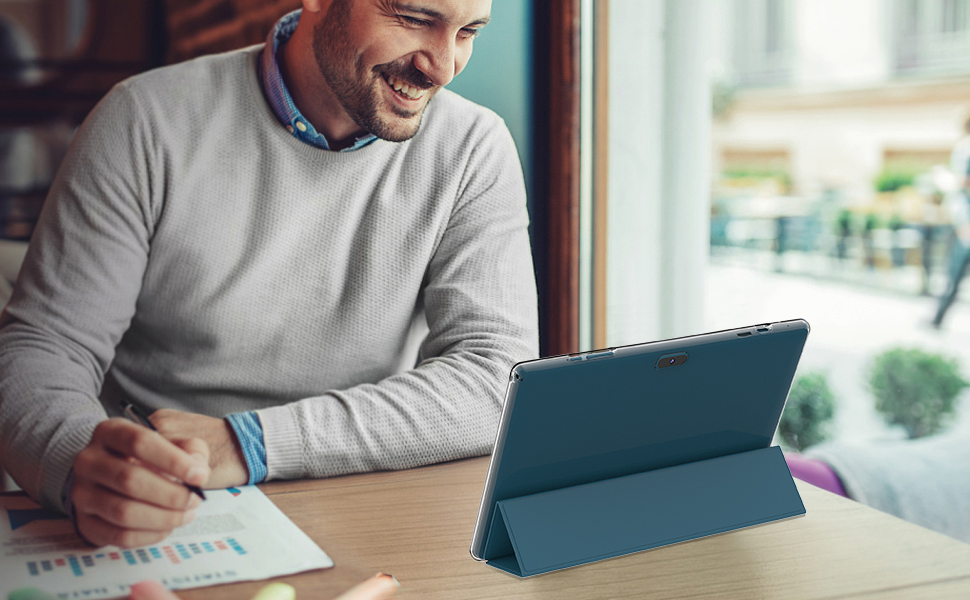
Image: The tablet screen showing Google Mobile Services (GMS) and various Google applications, confirming the Android 15 operating system is ready.
4. Connecting Accessories
Bluetooth Keyboard and Wireless Mouse
- Ensure the keyboard and mouse are charged or have fresh batteries.
- Turn on the keyboard and mouse. They should enter pairing mode (often indicated by a blinking LED).
- On your tablet, go to Settings > Connected devices > Bluetooth.
- Toggle Bluetooth On.
- Select the keyboard or mouse from the list of available devices to pair. Follow any on-screen prompts.
Stylus Pen
The provided stylus pen is a passive stylus and does not require Bluetooth pairing or charging. Simply use it directly on the tablet screen for navigation or writing.

Image: A user interacting with the tablet using the Bluetooth keyboard and stylus, demonstrating smart connectivity.
Operating Instructions
Basic Navigation
- Touch: Tap an icon to open an app or select an item.
- Swipe: Drag your finger across the screen to scroll through pages or content.
- Pinch-to-Zoom: Place two fingers on the screen and move them apart or together to zoom in or out.
- Home Button: Returns you to the home screen.
- Back Button: Returns to the previous screen.
- Recent Apps Button: Shows recently opened applications.
Display Features
Your tablet features a 10.1-inch 1280x800 HD IPS display with Widevine L1 support.
- IPS Panel: Provides accurate and vibrant colors with wide viewing angles.
- Widevine L1: Enables streaming of high-resolution content (1080p) from services like Netflix, Hulu, and Amazon Prime Video.
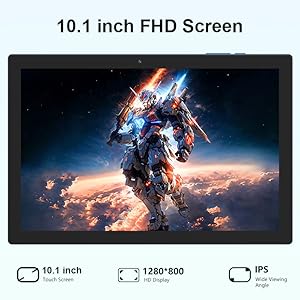
Image: The tablet screen showing a video playing, with icons for 10.1-inch screen size, Widevine L1, and IPS resolution, emphasizing media consumption capabilities.
Storage Management
The tablet comes with 128GB of internal storage (ROM) and supports expansion up to 2TB via a MicroSD card.
- To Insert MicroSD Card: Locate the MicroSD card slot on the side of the tablet. Gently insert the card until it clicks into place.
- To Remove MicroSD Card: Ensure the tablet is powered off or the card is unmounted via Settings > Storage. Press the card gently to eject it.

Image: A visual representation of the tablet's storage capacity, highlighting 128GB ROM and the option for 2TB expandable storage.
Connectivity
- 5G WiFi 6: Connect to high-speed wireless networks. Go to Settings > Network & internet > Wi-Fi to manage connections.
- Bluetooth 5.0: Connect to wireless headphones, speakers, keyboards, and mice. Go to Settings > Connected devices > Bluetooth.
Battery Usage
The tablet is equipped with a 6000mAh battery. Battery life can vary based on usage. To optimize battery life:
- Reduce screen brightness.
- Turn off Wi-Fi and Bluetooth when not in use.
- Close unused applications running in the background.
- Enable battery saver mode in Settings > Battery.
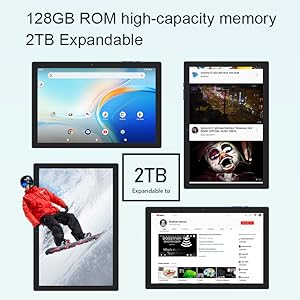
Image: The tablet displaying battery information, with estimated usage times for video playback, daily use, and reading.
Maintenance
Cleaning
- Use a soft, lint-free cloth to clean the screen and body of the tablet.
- For stubborn smudges, slightly dampen the cloth with water or a screen cleaner designed for electronics.
- Avoid using harsh chemicals, abrasive materials, or excessive moisture.
Software Updates
Regularly check for and install software updates to ensure your tablet has the latest features, security patches, and performance improvements. Go to Settings > System > System update.
Storage Optimization
- Regularly delete unnecessary files, photos, and videos.
- Uninstall apps you no longer use.
- Clear cache data for apps in Settings > Apps > (select app) > Storage & cache.
- Utilize cloud storage services for large files.
Troubleshooting
| Problem | Possible Solution |
|---|---|
| Tablet does not power on. | Ensure the tablet is sufficiently charged. Connect the charger and wait a few minutes before attempting to power on again. If unresponsive, perform a forced restart by holding the Power button for 10-15 seconds. |
| Screen is unresponsive or slow. | Restart the tablet. Close background applications. Clear app caches. Ensure sufficient free storage space. |
| Cannot connect to Wi-Fi. | Ensure Wi-Fi is enabled in settings. Restart your router and the tablet. Verify the Wi-Fi password. Try connecting to a different network if available. |
| Bluetooth accessories not pairing. | Ensure Bluetooth is enabled on the tablet and the accessory is in pairing mode. Make sure the accessory is charged. Try unpairing and re-pairing the device. |
| Tablet charges slowly or not at all. | Use the provided charging cable. Ensure the charging cable and adapter are not damaged. Try a different power outlet. Clean the USB-C port for any debris. |
| Applications crash frequently. | Update the app to its latest version. Clear the app's cache and data (this may delete app-specific settings). Reinstall the app. Ensure the tablet's operating system is up to date. |
Specifications
| Feature | Detail |
|---|---|
| Model | YQ10SMAX |
| Operating System | Android 15 |
| Processor | Quad-Core 2.0 GHz |
| RAM | 18GB (6GB physical + 12GB virtual) |
| Internal Storage (ROM) | 128GB |
| Expandable Storage | Up to 2TB via MicroSD card |
| Screen Size | 10.1 Inches |
| Screen Resolution | 1280 x 800 Pixels (HD IPS) |
| Wireless Connectivity | 5G WiFi 6 (802.11b/g/n) |
| Bluetooth | Bluetooth 5.0 |
| Battery Capacity | 6000mAh |
| Average Battery Life | Approximately 8 hours (video playback) |
| Dimensions (LxWxH) | 10 x 7 x 1.5 inches |
| Item Weight | 2.75 pounds |
| Widevine Support | Widevine L1 |
| Google Services | GMS Certified |
Warranty and Support
For warranty information and technical support, please refer to the documentation provided with your purchase or contact Aheadlink customer service. Details for contacting support are typically found on the manufacturer's website or on the product packaging.
If you are not satisfied with your purchase, please contact us in time, we will do our best to help you solve the problem.