Introduction
This manual provides detailed instructions for the setup, operation, and maintenance of your Generic GF10 Portable Mini GPS Tracker. Please read this manual thoroughly before using the device to ensure optimal performance and safety.
The GF10 is a compact and versatile GPS tracking device designed for real-time location monitoring of vehicles, assets, children, pets, and more. It features 4G-LTE global coverage, a long-lasting battery, and a user-friendly mobile application.
1. Setup
1.1 Unboxing and Initial Inspection
Upon opening the package, verify that all components are present and in good condition. The package should contain the GF10 GPS Tracker.
The GF10 GPS Tracker is designed for easy handling and installation. Its dimensions are approximately 2.2 inches (L) x 1.4 inches (W) x 0.7 inches (D), and it weighs 1.4 ounces.

Figure 1: GF10 GPS Tracker Dimensions. The image displays the compact size of the GF10 tracker, with precise measurements indicating its length, width, and depth.
1.2 Charging the Device
Before first use, fully charge the GF10 tracker. Connect the provided Type-C charging cable to the tracker's charging port and a standard USB power adapter (not included). A full charge typically takes approximately 2 hours.

Figure 2: Charging Port and Power Switch. This image highlights the Type-C charging port and the easy on/off switch on the side of the GF10 device.
1.3 Activating Service and App Download
The GF10 tracker requires an active data service plan for real-time tracking. A Pay-As-You-Go Global GPS card is included. Please refer to the included service activation guide for details on activating your service plan.
Download the official GPScards Mobile App from the Apple App Store or Google Play Store. This app is compatible with iPhone, Android, and iPad/Tablet devices. A web-based platform is also available for PC/Mac users.
1.4 Device Placement and Installation
The GF10 tracker can be discreetly placed in various locations due to its compact size and strong magnetic attachment. Common installation points include:
- Under the rear windshield
- Around the dashboard
- Under the front trim panel
- Inside the clinker shed of a vehicle roof
- Under the windshield or inside the center console (for cars/trucks)
- Installed in the headlight position
- Under the foot pedal
- Inside the lampshade, near the stopwatch
- Near the taillights
- Under the rear seat (for motorcycles/scooters)
The device features a strong 6lb earth magnet for secure attachment to metallic surfaces.
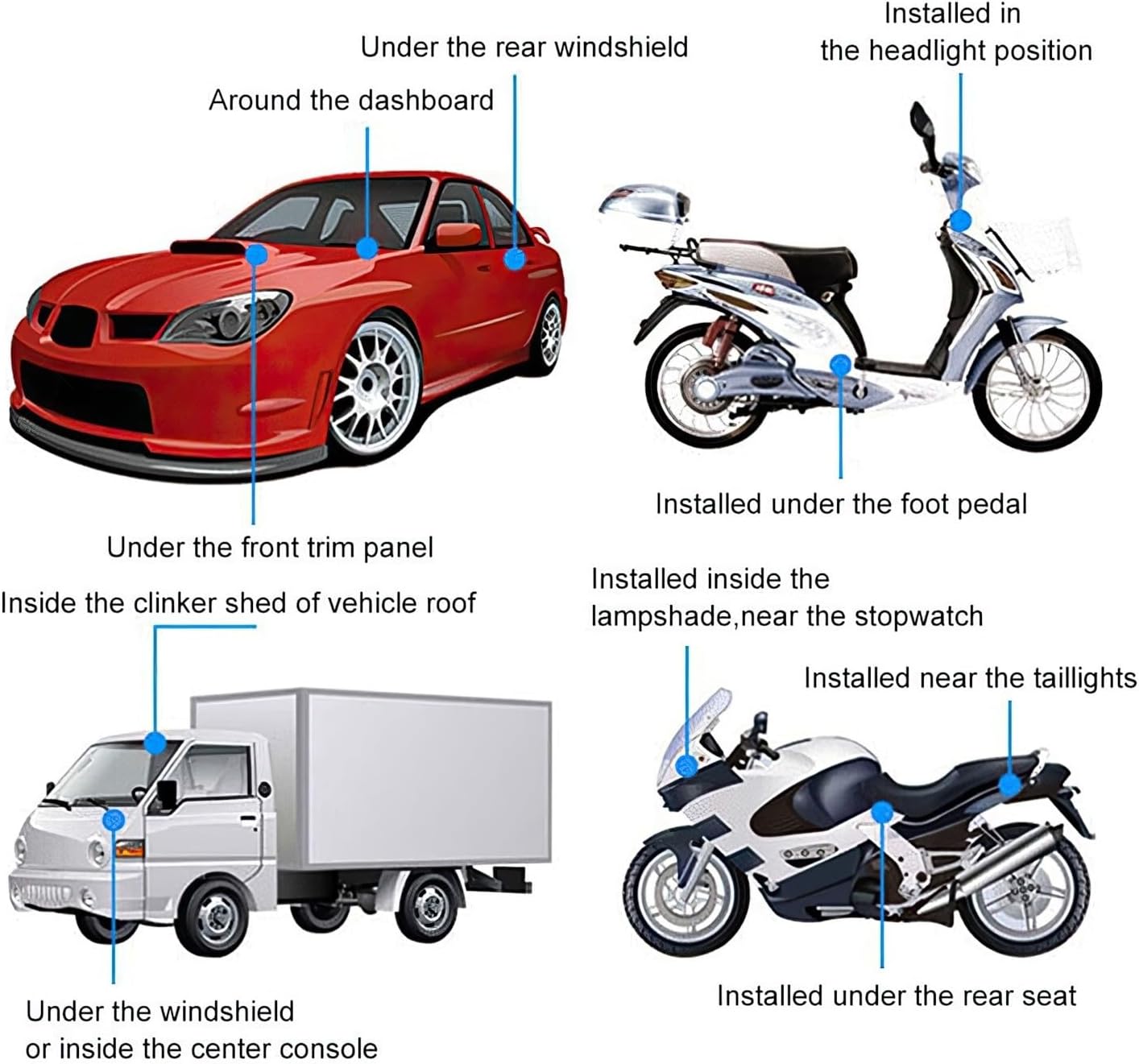
Figure 3: Recommended Installation Locations. This diagram illustrates diverse placement options for the GF10 tracker on different types of vehicles.

Figure 4: Magnetic Installation Example. The image demonstrates the GF10 tracker securely attached to a vehicle's undercarriage using its integrated magnet.
2. Operating the GF10 Tracker
2.1 Powering On/Off
To power on the device, slide the easy on/off switch to the 'On' position. To power off, slide it to the 'Off' position. Ensure the device is powered on for tracking functionality.
2.2 Real-Time Tracking
Once powered on and connected to the network, the GF10 tracker will begin transmitting its location data. You can view the real-time location through the GPScards Mobile App or the web platform.
The tracking platform provides:
- Google Maps integration (Standard, Street View, Satellite, Hybrid, Traffic)
- History of your GPS Tracker Locations (up to one year, with export option)
- Real-Time movement display
- Multiple user access for simultaneous viewing

Figure 5: GF10 Car GPS Tracker Features. This image highlights key functionalities such as long standby time, historical tracking, precise positioning, WiFi positioning, and an SOS feature.
2.3 Alerts and Notifications
The mobile app and web platform allow you to set up various alerts and notifications, including:
- Virtual Boundaries (Geofencing): Receive alerts when the tracker enters or leaves a predefined area.
- Speeding Alerts: Notification if the device exceeds a set speed limit.
- Low Battery Alerts: Notification when the battery level is low.
- Motion Detection: Alerts when the device starts or stops moving. Sensitivity can be adjusted.
- SOS Button: The device features an SOS button for emergency situations. When pressed, it can send an alert to pre-configured contacts.
Alerts can be received via email, mobile push notifications, or PC pop-ups.
3. Maintenance
3.1 Battery Management
The GF10 tracker is equipped with a Lithium-Ion HiCap Mini Battery. Battery life varies based on usage mode:
- Power Saving Mode: Up to 9 days of battery life.
- Workhorse Mode (constant tracking): Up to 3 days of battery life.
Recharge the device when a low battery alert is received. Use the provided Type-C cable and a compatible USB power source. Avoid exposing the device to extreme temperatures during charging or operation.
3.2 Cleaning
Wipe the device with a soft, dry cloth. Do not use harsh chemicals or abrasive cleaners. The device has an IP66 waterproof rating, meaning it is protected against dust ingress and powerful water jets, but it is not designed for submersion.
4. Troubleshooting
If you encounter issues with your GF10 GPS Tracker, please refer to the following common solutions:
| Problem | Possible Cause | Solution |
|---|---|---|
| Device not tracking | Device is off, low battery, no active service, or poor signal. | Ensure device is powered on. Charge the battery. Verify service plan is active. Move to an area with better GPS/cellular signal (e.g., outdoors, away from dense structures). |
| Inaccurate location data | Weak GPS signal, interference, or indoor placement. | Place the device in an open area with a clear view of the sky. Avoid placing it under metal objects or inside buildings where GPS signals are obstructed. |
| Battery drains quickly | Constant tracking mode (Workhorse Mode) or frequent alerts. | Switch to Power Saving Mode if continuous real-time tracking is not required. Reduce the frequency of alerts if possible. Ensure the device is fully charged. |
| Cannot connect to mobile app/web platform | Internet connectivity issues, incorrect login credentials, or app/platform maintenance. | Check your internet connection. Verify login details. Try accessing the platform later or contact support if the issue persists. |
5. Specifications
The following table details the technical specifications of the Generic GF10 Portable Mini GPS Tracker:
| Feature | Detail |
|---|---|
| Dimensions | 2.2L x 1.4W x 0.7D inches |
| Weight | 1.4 ounces |
| Waterproof Rating | IP66 |
| Battery Type | Lithium-Ion HiCap Mini Battery |
| Battery Usage (Power Saving) | Up to 9 days |
| Battery Usage (Workhorse Mode) | Up to 3 days |
| Battery Charge Time | Approximately 2 hours |
| Satellite Networks | GPS L1 Band + Glonass L1 Band + Galileo E1B/L1 (supports up to 64 satellites) |
| Data Networks | 4G Band +3 for 194 Countries, Backup GSM 850/900/1800/1900MHz |
| Tracking Storage History | Up to one year, with export option |
| Compatible With | Windows, Mac, iPhone, Android, iPad/Tablet |
| Language Support | English, Spanish, Portuguese, French |
| Features | Worldwide coverage, REAL 4G-Lte, Apple/Android App, Magnetic attachment |
| Functions | Easy Setup, Easy to Mount, Alerts, Apple & Android APPs |
| Recommended Usage | Car, Truck, Bike, Teens, Personal, Hikers, Pets, Motorcycles |
| Manufacturer | ElectroFlip |
6. Warranty Information
The GF10 Portable Mini GPS Tracker comes with a Lifetime Replacement Warranty. This warranty covers device replacement up to twice a year, provided there is an active annual service plan at the time of the claim. This warranty is subject to the terms and conditions provided by the manufacturer.
7. Customer Support
For technical assistance, service plan inquiries, or any questions regarding your GF10 GPS Tracker, please contact GPScards customer support. The company is based in Las Vegas, Nevada, and offers American support.
The mobile application and web platform are designed and supported by GPScards, ensuring a consistent user experience and ongoing updates.


