
1. Introduction
This manual provides instructions for the Zopsc Digital Camera, Model Zopscbhwz7mg8o4-14. This compact camera features 1080P video recording, 48MP photo resolution, an 8X digital zoom, and a 2.0-inch TFT HD color display. It includes functions such as MP3 playback, built-in games, anti-shake technology, and various filters for creative photography. Please read this manual thoroughly before using your camera to ensure proper operation and to maximize its features.

The 2.0-inch TFT HD screen accurately displays colors, making images appear more vivid. The camera is designed for capturing memorable moments.
2. Product Components
Familiarize yourself with the various parts of your Zopsc Digital Camera:
- Front: Lens, Flash, Microphone.
- Back: 2.0-inch TFT HD Screen, Control Buttons (Power, Shutter, Menu, Navigation, Playback).
- Top: Shutter Button, Power Button.
- Side: USB Port, Memory Card Slot.

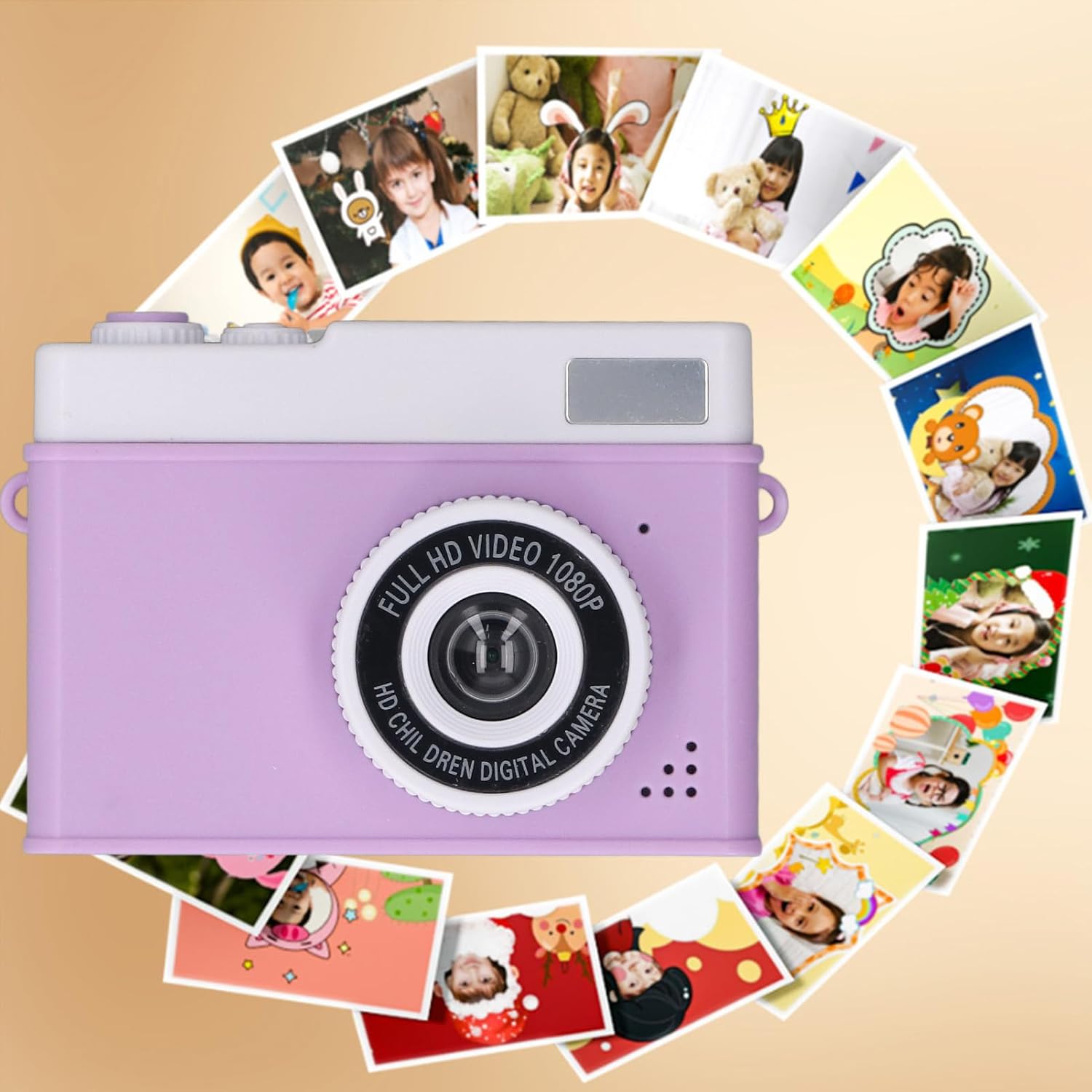
Front view of the Zopsc Digital Camera, highlighting the lens and built-in flash.
Rear view of the camera, displaying the 2.0-inch screen and various control buttons for navigation and function selection.
3. Setup
3.1. Charging the Battery
The camera is equipped with an 800mAh rechargeable lithium battery. Before first use, fully charge the battery.
- Connect the provided USB cable to the camera's USB port.
- Connect the other end of the USB cable to a USB power adapter (not included) or a computer's USB port.
- The charging indicator light will illuminate. Once charging is complete, the light will change or turn off.

The camera connected to its USB charging cable, alongside the included wrist strap.
3.2. Inserting a Memory Card
A memory card (not included) is required to store photos and videos.
- Locate the memory card slot on the side of the camera.
- Insert a compatible memory card (e.g., MicroSD) into the slot with the metal contacts facing the correct direction, until it clicks into place.
- To remove, gently push the card inward until it springs out.
3.3. Initial Power On and Settings
- Press and hold the Power button to turn on the camera.
- Upon first use, you may be prompted to set the language, date, and time. Use the navigation buttons to select and confirm your settings.
4. Operating Instructions
4.1. Taking Photos
- Turn on the camera. It will typically start in photo mode.
- Frame your shot using the 2.0-inch TFT HD screen.
- To use the 8X Digital Zoom, press the appropriate navigation buttons (usually up/down or left/right arrows) to zoom in or out. The intelligent anti-shake function helps stabilize images during zoom.
- For low-light conditions, activate the Fill Light feature through the menu settings to improve scene lighting.
- Press the Shutter button to capture the photo.

Illustration of the 8X digital zoom capability, showing progressive magnification.

The 2.0-inch screen displays images clearly, and the built-in fill light assists in low-light photography.
4.2. Recording Videos
- Switch the camera to video recording mode (refer to your camera's menu for mode selection).
- Press the Shutter button to start recording 1080P HD video. Press again to stop.
- The camera supports loop recording and timer recording, which can be configured in the video settings menu.
4.3. Playback and Special Features
- Viewing Media: Enter playback mode to review your captured photos and videos. Use navigation buttons to browse.
- MP3 Playback: The camera supports external MP3 playback. Transfer MP3 files to the memory card and access them through the dedicated MP3 function in the menu.
- Built-in Games: Access the built-in game function from the main menu for entertainment.
- Filters and Stickers: Apply various creative filters and stickers to your photos through the editing options in playback or capture mode.

The camera allows for applying various filters to photos, as demonstrated by the before-and-after comparison on the screen.
5. Maintenance
Proper care ensures the longevity and performance of your camera.
- Cleaning: Use a soft, lint-free cloth to clean the camera body and screen. For the lens, use a specialized lens cleaning cloth and solution. Avoid abrasive materials.
- Battery Care: Avoid fully discharging the battery frequently. Charge the battery regularly, even if the camera is not in use for extended periods, to maintain battery health.
- Storage: Store the camera in a cool, dry place away from direct sunlight, extreme temperatures, and high humidity. Remove the memory card and battery if storing for a very long time.
6. Troubleshooting
If you encounter issues, try these common solutions:
- Camera not turning on: Ensure the battery is charged. Connect the camera to a power source to check if it powers on while charging.
- Cannot take photos/videos: Check if a memory card is inserted and has sufficient free space. Ensure the camera is in the correct mode (photo or video).
- Blurry images: Ensure the lens is clean. Check lighting conditions and use the fill light if necessary. Hold the camera steady.
- Memory card error: Reinsert the memory card. Try formatting the card (this will erase all data) or use a different compatible memory card.
- Camera unresponsive: If the camera freezes, try removing and reinserting the battery (if accessible) or holding the power button for an extended period (10-15 seconds) to force a shutdown.
7. Specifications
| Feature | Specification |
|---|---|
| Model Number | Zopscbhwz7mg8o4-14 |
| Photo Resolution | Up to 48MP |
| Video Resolution | 1080P HD |
| Screen Size | 2.0 Inch TFT HD |
| Digital Zoom | 8X |
| Battery | 800mAh Rechargeable Li-battery |
| Item Weight | 4.1 ounces |
| Package Dimensions | 4.33 x 3.54 x 2.36 inches |
8. Warranty and Support
For warranty information, technical support, or service inquiries, please refer to the documentation provided with your purchase or contact the manufacturer directly. Keep your proof of purchase for warranty claims.