
1. Introduction
This manual provides essential information for the proper setup, operation, and maintenance of your Philips Wireless Keyboard and Mouse Combo, Model SPT6338BL. This combo utilizes 2.4G wireless technology for a stable connection, features an ergonomic design for comfort, and operates quietly for an undisturbed work environment. Its slim and portable design makes it suitable for various settings.
2. Setup
Follow these steps to set up your Philips Wireless Keyboard and Mouse Combo:
- Install Batteries:
- For the keyboard, open the battery compartment on the back and insert one AAA battery. Ensure you remove any transparent protective film from the battery before insertion.
- For the mouse, open the battery compartment on the bottom and insert one AA battery. Similarly, remove any protective film.
- Locate the USB Receiver: The 2-in-1 USB 2.4G receiver is typically stored within the mouse's battery compartment for convenience during transport. Carefully remove it.
- Connect the Receiver: Insert the USB 2.4G receiver into an available USB-A port on your computer (desktop, laptop, Chromebook, etc.).
- Power On Devices: Locate the ON/OFF switch on the back of the keyboard and the bottom of the mouse. Slide both switches to the 'ON' position.
- Automatic Driver Installation: Upon initial connection, your computer may take 15-60 seconds to automatically install the necessary drivers. No manual driver installation is typically required.

Image: Detailed view of the keyboard and mouse, highlighting the battery compartments and the USB receiver's storage location within the mouse.

Image: Step-by-step visual instructions for installing batteries, turning on devices, and connecting the USB receiver to a computer.
3. Operating Instructions
3.1. General Usage
- Wireless Connection: The 2.4G wireless technology provides a stable and reliable connection up to 20 meters (66 ft) from the USB receiver.
- Ergonomic Design: The keyboard features concave keycaps for precise positioning and enhanced tactile feedback, while the mouse is shaped to reduce hand fatigue during prolonged use.
- Quiet Operation: Both the keyboard and mouse are designed for reduced noise, ensuring a quiet work environment.

Image: Visual representation of the keyboard and mouse's low noise output, emphasizing a quiet user experience.
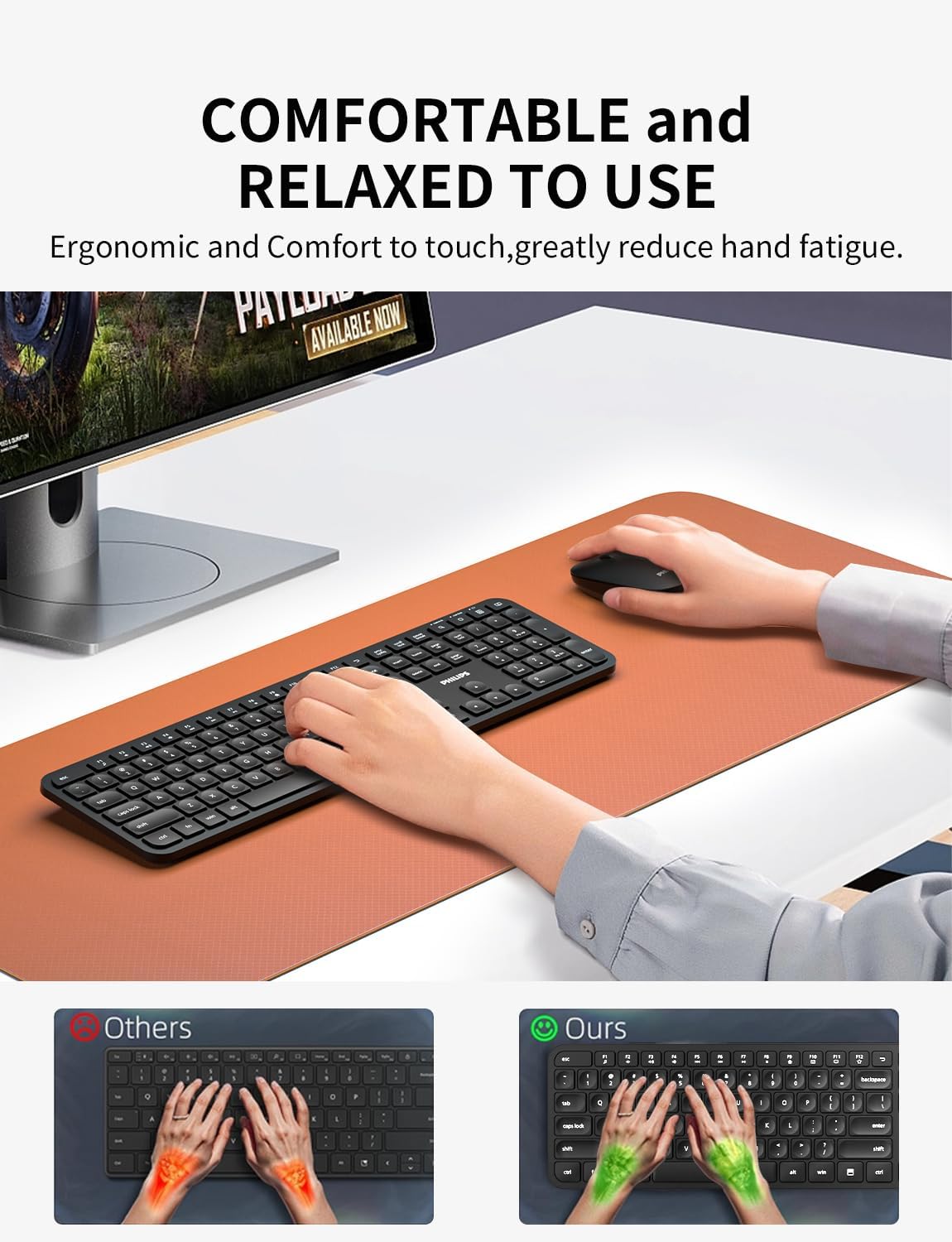
Image: Illustration demonstrating the ergonomic benefits of the Philips keyboard and mouse, promoting comfortable and relaxed use.
3.2. Power Saving Mode
- The keyboard and mouse automatically enter a low-power sleep mode after a period of inactivity to conserve battery life.
- To wake the devices, simply type any key on the keyboard or click any button on the mouse.
- A red indicator light on the keyboard will illuminate when the battery is low, signaling that replacement is needed.

Image: Overview of the durable and power-saving features, including auto-sleep times and expected battery life for both devices.
3.3. Keyboard Layout and Function Keys
- The keyboard features a full-size layout, including a numeric keypad for efficient data entry.
- Dedicated function keys (F1-F12) provide quick access to multimedia controls and system functions. Note that some multimedia functions may not be available on Mac OS.

Image: Detailed view of the keyboard layout, highlighting the function keys and their associated actions, designed to improve work efficiency.
4. Maintenance
- Cleaning: Use a soft, dry cloth to clean the surfaces of the keyboard and mouse. Avoid using harsh chemicals or abrasive materials.
- Battery Replacement: Replace batteries when the low battery indicator appears or when performance degrades. Ensure correct battery type (AAA for keyboard, AA for mouse) and polarity.
- Storage: If the keyboard and mouse will not be used for an extended period, it is recommended to switch them to the 'OFF' position or remove the batteries to prevent leakage and prolong battery life.
5. Troubleshooting
- No Connection/Unresponsive Devices:
- Ensure both the keyboard and mouse are switched 'ON'.
- Verify that the USB receiver is securely plugged into a working USB port on your computer.
- Check and replace batteries if they are low or depleted.
- Move the devices closer to the USB receiver to ensure they are within the 20-meter operating range.
- Lagging or Delayed Response:
- Interference from other wireless devices can affect performance. Try moving the receiver or devices to a different location.
- Ensure batteries are not low.
- Drivers Not Installing Automatically:
- Allow 15-60 seconds for the operating system to detect and install the necessary drivers.
- Try plugging the USB receiver into a different USB port.
- Restart your computer.
6. Specifications
| Feature | Detail |
|---|---|
| Product Dimensions | 17.32 x 4.72 x 1.18 inches |
| Item Weight | 1.68 pounds |
| Model Number | SPT6338BL |
| Batteries Required | 1x AA (mouse), 1x AAA (keyboard) (included) |
| Connectivity Technology | 2.4G USB Wireless |
| Special Features | Ergonomic, Lightweight, Portable, Quiet Operation, Power Saving |
| Compatible Devices | Laptop, Personal Computer |
| Operating Systems | Windows XP/7/8/10, Mac OS X10.4 or higher |
7. Warranty and Support
For detailed warranty information and customer support, please refer to the product packaging or visit the official Philips website. Keep your purchase receipt as proof of purchase for any warranty claims.