
A2Z EV Thunderstorm Max Plug (V4)
A2Z EV CCS1 to NACS DC Fast Charging Adapter for Cybertruck - User Manual
Model: Thunderstorm Max Plug (V4)
1. Introduction
This manual provides essential instructions for the safe and efficient use of your A2Z EV CCS1 to NACS DC Fast Charging Adapter, specifically designed for Cybertruck vehicles. Please read this manual thoroughly before operation and retain it for future reference.
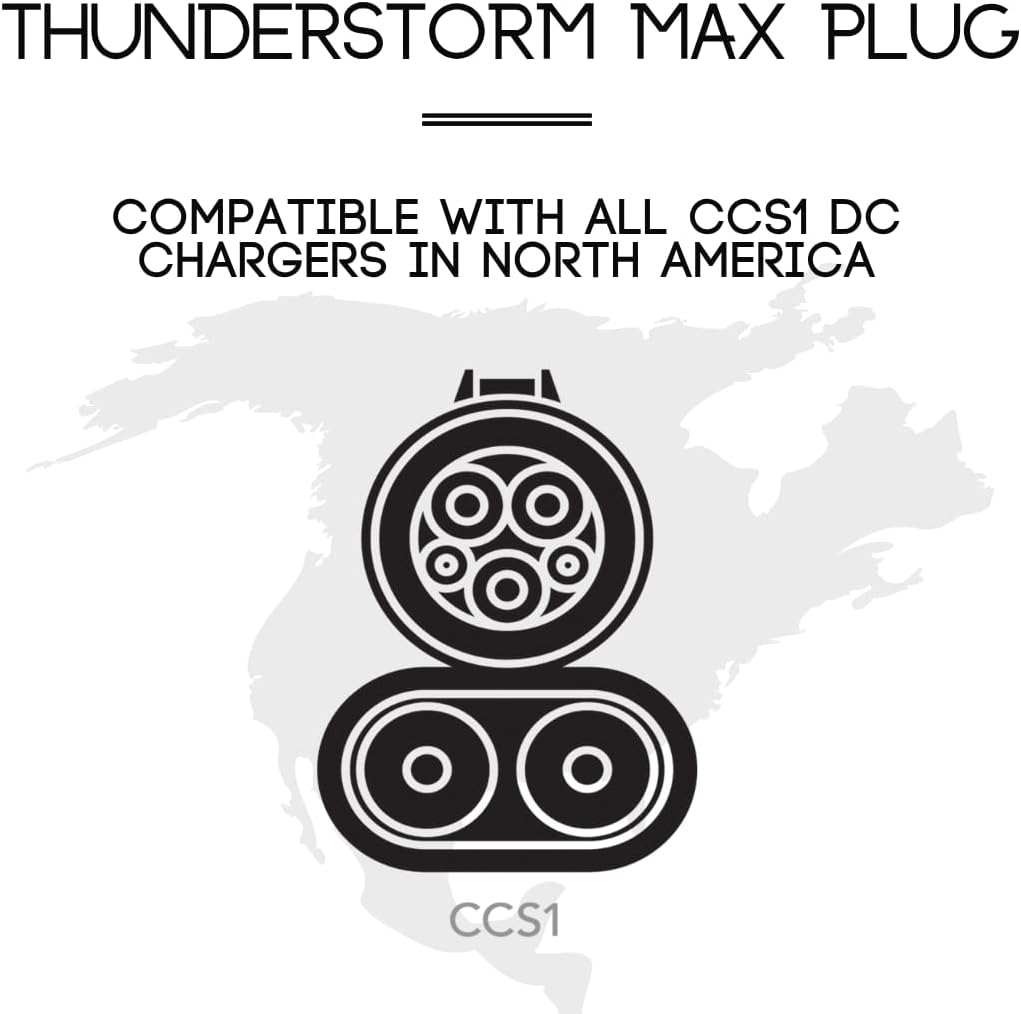
The A2Z EV CCS1 to NACS adapter enables seamless Level 3 DC fast charging at CCS1-enabled stations across North America, ensuring efficient power delivery and reduced charging times for your Cybertruck.
2. Safety Information
- High Voltage Warning: Handle with care. Ensure proper connection before use. Risk of electric shock and serious injury.
- Compatibility: This adapter is designed exclusively for Cybertruck vehicles with NACS ports and CCS1 charging stations. Misuse may result in damage to the adapter, vehicle, or charging station.
- Temperature Monitoring: The adapter features dual temperature sensors. If the adapter overheats, the charging process will automatically derate or halt to prevent damage. Charging can resume once the temperature normalizes and the adapter is reconnected.
- Secure Connection: The built-in latch locking system and interlock safety pin prevent accidental disconnections during active charging. Do not attempt to remove the adapter without proper authorization from your vehicle, phone app, or charging station.
- Environmental Protection: The adapter has an IP54 rating for the mating surface and an IP67 rating for the enclosure, providing protection against dust and water. However, avoid submerging the adapter in water or exposing it to extreme conditions beyond its operating temperature range (-30°C to 50°C).
- Storage: Always store the adapter in its protective hard case when not in use to prevent damage.
3. What's in the Box
- A2Z EV CCS1 to NACS DC Fast Charging Adapter
- Protective Hard Case

4. Setup
Before using the adapter, ensure your Cybertruck's software is updated to support CCS charging. Consult your vehicle's owner's manual or Tesla service for details on enabling CCS charging if necessary.
5. Operating Instructions
5.1. Connecting the Adapter
- Locate a compatible CCS1 DC fast charging station.
- Open the charging port cover on your Cybertruck.
- Take the A2Z EV CCS1 to NACS adapter from its protective case.
- Firmly insert the NACS end of the adapter into your Cybertruck's charging port until it clicks securely into place.
- Take the CCS1 charging cable from the charging station.
- Insert the CCS1 charging cable into the CCS1 port on the adapter. Ensure it is fully seated and locked.

5.2. Initiating Charging
- Once both the adapter and the charging cable are securely connected, follow the instructions on the charging station's display to initiate the charging session.
- Charging should begin immediately and remain stable. Monitor your vehicle's display or app for charging status.
5.3. Disconnecting the Adapter
- To end the charging session, authorize disconnection through your Cybertruck's infotainment system, the Tesla mobile app, or the charging station's control panel.
- Once authorized, carefully remove the CCS1 charging cable from the adapter.
- Then, press the release button on the adapter and gently pull it out from your Cybertruck's NACS port.
- Return the adapter to its protective hard case for storage.
6. Maintenance
- Cleaning: Use a dry, clean cloth to wipe the adapter. Do not use liquid cleaners or solvents.
- Inspection: Regularly inspect the adapter for any signs of damage, wear, or corrosion on the connectors. Do not use a damaged adapter.
- Storage: Always store the adapter in its protective hard case in a cool, dry place away from direct sunlight and extreme temperatures.

7. Troubleshooting
7.1. Charging Not Initiating
- Ensure both the CCS1 cable and the adapter are fully and securely connected.
- Verify that your Cybertruck's CCS charging is enabled in its settings.
- Check the charging station for error messages or operational status.
- Attempt to restart the charging session from the station or your vehicle's app.
7.2. Slow Charging Speed
- Confirm the charging station is a DC fast charger (Level 3).
- Check for adapter overheating. If the adapter is hot, charging speed may be reduced automatically. Allow it to cool down.
- Ensure the charging station is delivering its maximum power output.
7.3. Adapter Not Releasing
- Ensure the charging session has been properly terminated via your vehicle or the charging station.
- Press the release button on the adapter firmly while gently pulling.
- If the interlock safety pin is engaged, ensure the vehicle has authorized release.
8. Specifications
| Feature | Detail |
|---|---|
| Rated Amperage | 350A |
| Rated Voltage | 100~1000VDC |
| Conductor Material | Silver plated copper |
| Contact Resistance | 5 mΩ |
| Shell Material | UL-94-V0 PA66 |
| Operating Temperature | -30°C to 50°C |
| Security Features | Dual temperature sensor switch, Interlock safety pin |
| Sealing Gasket | Silicon rubber |
| Degree of Protection | IP54 (mating) & IP67 (enclosing) |
9. Warranty and Support
A2Z EV is committed to customer satisfaction. For any queries, feedback, or issues regarding your CCS1 to NACS adapter, please contact our professional customer support team. We are available to assist you before and after your purchase.
Please refer to the product packaging or the official A2Z EV website for specific warranty details and contact information.
Ask a question about this manual
Ask about setup, troubleshooting, compatibility, parts, safety, or missing instructions. Manuals+ will review the question and use this page’s manual context to help answer it.