
Mocagen MC20
Mocagen MC2 Mobile Gaming Controller Instruction Manual
Model: MC20
1. Introduction
The Mocagen MC2 Mobile Gaming Controller is designed to enhance your mobile gaming experience across multiple platforms. Featuring Hall Effect joysticks, analog triggers, programmable buttons, and customizable RGB lighting, this controller offers precision and comfort for extended gameplay. It is compatible with a wide range of devices including iPhone, Android phones, Nintendo Switch, Switch OLED, and Switch 2.
This manual provides detailed instructions for setting up, operating, and maintaining your MC2 controller, along with troubleshooting tips and product specifications.

Image: The Mocagen MC2 Mobile Gaming Controller with a smartphone inserted, illustrating its ergonomic design and multi-platform gaming capabilities.
2. Setup
2.1. Unboxing and Package Contents
Upon opening the package, ensure all components are present:
- Mocagen MC2 Mobile Gaming Controller
- USB-C Charging Cable
- User Manual (this document)
Video: An unboxing demonstration of the Mocagen Mobile Gaming Controller, showing the controller and its included accessories.
2.2. Charging the Controller
Before first use, fully charge the controller. Connect the provided USB-C cable to the charging port on the controller and to a compatible USB power source. A full charge typically takes approximately 2 hours and provides up to 18 hours of playing time.

Image: The controller's charging port and indicators for 2 hours charging time and 18 hours playing time.
2.3. Device Compatibility and Insertion
The Mocagen MC2 controller is designed to fit devices ranging from 4.5 to 8.1 inches in length. Its stretchable design accommodates most smartphones, including iPhone (17/16/15 series) and Android phones, even with a phone case attached, addressing potential camera bulge issues.
- Gently pull the two sides of the controller apart.
- Carefully insert your smartphone or tablet into the central slot.
- Ensure your device is securely seated within the controller's grips.

Image: The controller demonstrating its adjustable length (4.5-8.1 inches) and compatibility with various mobile devices and Nintendo Switch models.
2.4. Bluetooth Pairing
To connect your controller via Bluetooth:
- Ensure your phone's Bluetooth is turned on.
- Press and hold the HOME button on the controller for 3 seconds until the signal light flashes rapidly.
- Open your device's Bluetooth settings.
- For iOS devices, find "Wireless Controller" and click to connect.
- For Android devices, find "Xbox Wireless Controller" and click to connect.
- Once successfully paired, the LED4 signal light will remain steady.
Important Note:
- For initial connection, do not connect the controller to the phone while it is charging.
- Only after successful pairing can the controller be charged while in use.

Image: Visual guide for effortless Bluetooth pairing, showing the steps for both iOS and Android devices to connect to the controller.
3. Operating Instructions
3.1. Button Layout and Functions
The MC2 controller features a standard gamepad layout with additional programmable buttons for enhanced control:
- Left Side: Left Hall Effect Joystick, D-pad, M (Macro) button, FN (Function) button, Turbo button, Select button.
- Right Side: Right Hall Effect Joystick, A/B/X/Y action buttons, Home button, Start button.
- Top: Left and Right Triggers (LT/RT), Left and Right Bumpers (LB/RB).
- Back: Two programmable back buttons (ML/MR).
3.2. Programmable Buttons & Turbo Mode
Customize your gameplay with the two programmable back buttons (ML/MR) and the adjustable Turbo function.
- Programming Back Buttons: With the controller connected, simultaneously press the M button and one of the ML/MR buttons. The controller will vibrate once. Release your fingers, and the M button light will turn on and blink continuously, indicating it has entered programming mode.
- Setting Turbo Function: Press and hold the T button and then press one of the function buttons (A/B/X/Y/L1/L2/R1/R2) to activate manual rapid-fire for that function button.
- Adjusting Turbo Speed: The Turbo function has three adjustable speeds: 5, 12, or 20 presses per second. Press the T button and D-pad UP to increase speed, or T button and D-pad DOWN to decrease speed.
- Disabling Turbo: To disable rapid-fire for a specific button, press and hold the T button, then press the function button again. To disable rapid-fire for all function keys at once, press and hold the T button for approximately 5 seconds until the controller vibrates once.
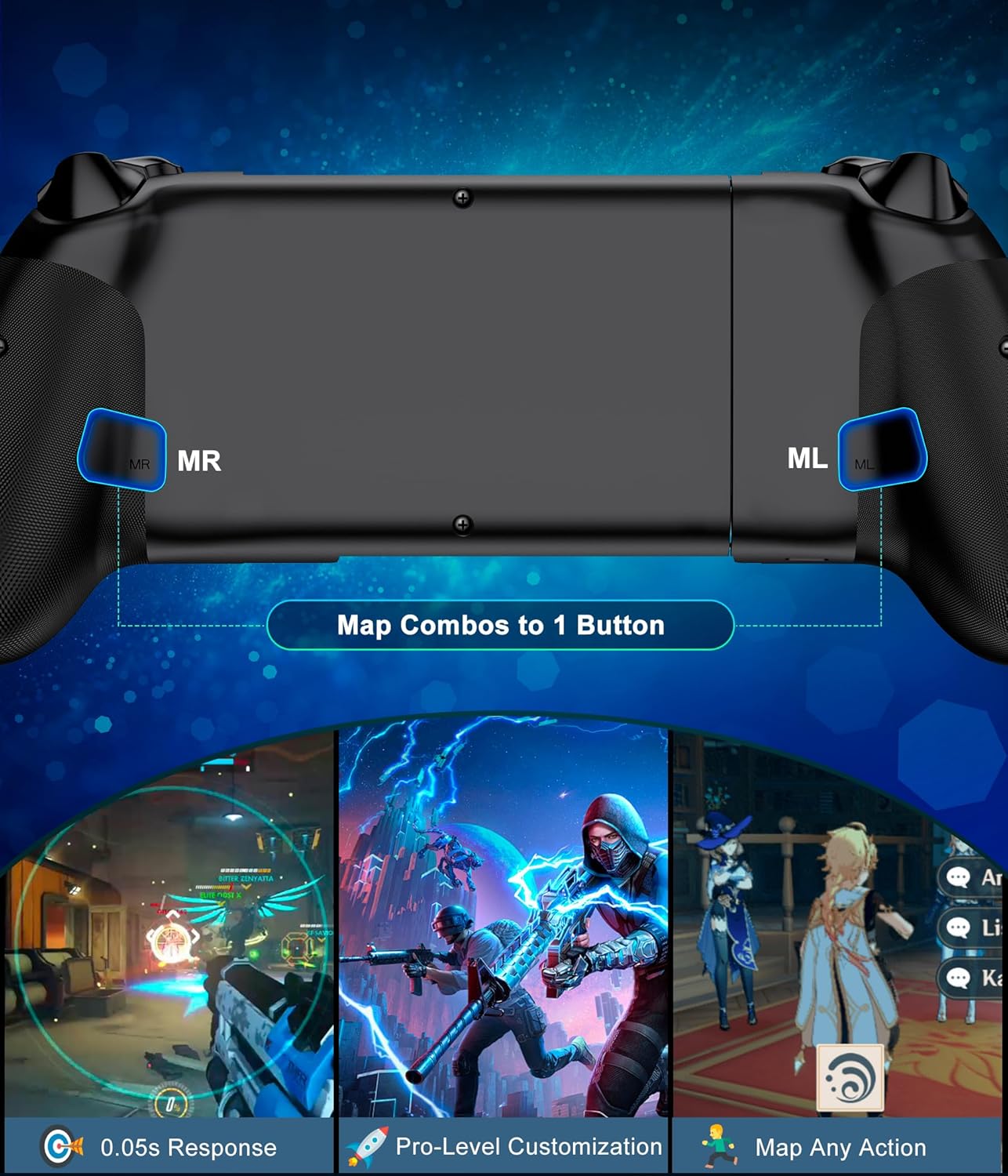
Image: The controller's rear view, emphasizing the programmable MR and ML buttons for custom command mapping and a 0.05s response time for competitive gaming.

Image: The controller's Turbo function, illustrating auto and manual modes with three adjustable speeds (5, 12, 20 shots/s) for rapid-fire actions.
Video: A demonstration of the Mocagen phone controller's programmable and analog buttons in action.
3.3. Hall Effect Joysticks & Analog Triggers
The controller is equipped with Hall Effect joysticks and analog triggers for superior precision and durability.
- Hall Effect Joysticks: These joysticks utilize magnetic sensors, eliminating physical contact and wear, which prevents stick drift and ensures zero dead zones for ultra-responsive control.
- Analog Triggers: Experience 256 levels of pressure sensitivity with the analog triggers, providing precise control for acceleration in racing games or nuanced actions in other titles. Switch to rapid-fire trigger mode for shooter and fighting games.

Image: Close-up view of the controller's Hall Effect Joysticks, emphasizing no drift and zero deadzone, and Analog Triggers with 256-level precision.
Video: A promotional video showcasing the precision and anti-drift capabilities of the Hall Effect Joysticks.
3.4. Customizable Lighting
The controller features dynamic multi-color RGB lighting around the joysticks and buttons, enhancing your gaming atmosphere. You can adjust the light level with 3 brightness settings and choose from 3 different lighting modes and 8 colors LED lights.
- Press the FN button and the M button simultaneously to cycle through lighting modes and colors.
Image: The controller's adjustable light level feature, offering 3 brightness levels, 3 lighting modes, and 8 LED colors for personalized aesthetics.
3.5. Multi-Platform Support
The Mocagen MC2 controller supports a wide array of gaming platforms and services, allowing you to play cloud and mobile handheld games effortlessly. Compatible platforms include:
- Xbox Game Pass
- Steam Link
- GeForce NOW
- MFi Apple Arcade
- Various mobile games (e.g., Fortnite, Call of Duty Mobile, Roblox, Genshin Impact)
Note:
- PS Remote Play is currently not supported.
- The controller cannot charge your phone while playing.

Image: The controller showcasing its broad compatibility with platforms like Xbox Game Pass, Steam Link, GeForce NOW, MFi Apple Arcade, and popular mobile games.
3.6. Dual Vibration
Experience immersive feedback with dual vibration motors that provide realistic sensations for every hit and explosion in supported games.

Image: The controller highlighting its dual vibration feature for a more realistic and immersive gaming experience.
4. Maintenance
Proper care and maintenance will extend the life of your Mocagen MC2 Mobile Gaming Controller.
- Cleaning: Use a soft, dry cloth to wipe down the controller. For stubborn dirt, slightly dampen the cloth with water or a mild cleaning solution. Avoid harsh chemicals or abrasive materials.
- Storage: Store the controller in a cool, dry place away from direct sunlight and extreme temperatures. When not in use, consider using a protective pouch to prevent dust accumulation and scratches.
- Battery Care: To maintain battery health, avoid fully discharging the controller frequently. If storing for an extended period, charge the battery to about 50% every few months.
5. Troubleshooting
If you encounter issues with your Mocagen MC2 controller, refer to the following common solutions:
| Problem | Possible Cause | Solution |
|---|---|---|
| Controller does not power on. | Low battery. | Charge the controller fully (approx. 2 hours). |
| Unable to pair via Bluetooth. | Bluetooth not enabled on device; incorrect pairing mode; interference. | Ensure Bluetooth is on. Hold HOME button for 3 seconds until light flashes. Try pairing in a different environment to avoid interference. |
| Buttons or joysticks are unresponsive/lagging. | Connection issue; game incompatibility; low battery. | Re-pair the controller. Ensure the game supports controller input. Charge the controller. Update game/device software. |
| Controller disconnects frequently. | Low battery; out of range; interference. | Charge the controller. Stay within close proximity to your device. Minimize other active Bluetooth devices. |
6. Specifications
| Feature | Detail |
|---|---|
| Model | MC20 |
| Compatibility | iPhone (17/16/15 series), Android phones, Nintendo Switch, Switch OLED, Switch 2, PC (wired) |
| Connection Type | Wireless (Bluetooth), Wired (USB-C) |
| Charging Port | USB-C |
| Charging Time | Approx. 2 hours |
| Playing Time | Up to 18 hours |
| Device Length Support | 4.5 - 8.1 inches |
| Joysticks | Hall Effect (no drift, zero dead zone) |
| Triggers | Analog (256-level precision) |
| Programmable Buttons | 2 back buttons (ML/MR) |
| Turbo Function | Adjustable speeds (5/12/20 presses/sec) |
| Lighting | Customizable RGB (3 brightness, 3 modes, 8 colors) |
| Vibration | Dual vibration motors |
| Item Weight | 13.4 ounces |
| Package Dimensions | 10.12 x 4.65 x 2.09 inches |
7. Warranty & Support
Mocagen provides a comprehensive warranty and support for your MC2 Mobile Gaming Controller:
- 1-Year Warranty: Covers manufacturing defects and malfunctions under normal use.
- 30-Day Return: Eligible for returns within 30 days of purchase.
- 60-Day Replacement: Eligible for replacement within 60 days of purchase for qualifying issues.
- Customer Service: For any inquiries or support needs, please contact customer service at service@woxcool.com. Responses are typically provided within 24 hours.
The warranty card, as seen in the unboxing video, details a 1-year warranty, 30-day return policy, and 60-day replacement policy. Customer support can be reached via email for assistance.
Ask a question about this manual
Ask about setup, troubleshooting, compatibility, parts, safety, or missing instructions. Manuals+ will review the question and use this page’s manual context to help answer it.