1. Introduction
The ACODO Z6 Language Translator Device is a portable, real-time translation tool designed to facilitate communication across language barriers. It supports a wide range of online and offline translation modes, including voice, photo, and text input, along with advanced features like AI transcription and a ChatGPT AI assistant. This manual provides detailed instructions for setting up, operating, and maintaining your device.
2. Safety Information
- Do not expose the device to extreme temperatures, direct sunlight, or high humidity.
- Avoid dropping or subjecting the device to strong impacts.
- Keep the device away from water and other liquids.
- Use only the provided charging cable and adapter.
- Do not attempt to disassemble or repair the device yourself. Contact customer support for assistance.
- Keep out of reach of children.
3. Package Contents
- ACODO Z6 Language Translator Device
- USB Charging Cable
- User Manual
4. Device Overview
Familiarize yourself with the main components of your ACODO Z6 translator.

Image: The ACODO Z6 translator device displaying its user interface with icons for Photo translation, Offline translation, Light and portable, Group translation, Realtime translation, Recording translation, 0.5S Fast translation, Long Battery Life, and 3-inch IPS touch screen.
Key Features:
- 3.0-inch HD IPS Touch Screen: For clear display and easy navigation.
- Microphones: For voice input during translation and recording.
- Speakers: For audio output of translations and playback.
- Power Button: To turn the device on/off and wake/sleep the screen.
- Volume Buttons: To adjust the audio volume.
- Translation Buttons (Red/Blue): Dedicated buttons for two-way voice translation.
- Camera: For photo translation.
- USB-C Port: For charging and data transfer.
5. Setup
5.1 Charging the Device
Before first use, fully charge the device. Connect the USB charging cable to the device's USB-C port and the other end to a compatible USB power adapter (not included) or a computer's USB port. The battery indicator on the screen will show charging status. A full charge typically takes 1-2 hours and provides up to 8 hours of continuous use or 7 days of standby time.

Image: The ACODO Z6 translator device highlighting its long battery life: 8 hours continuous translation, 7 days standby, and 90 minutes for a full charge, powered by a 1500mAh battery.
5.2 Powering On/Off
- To Power On: Press and hold the Power button until the screen lights up.
- To Power Off: Press and hold the Power button, then select 'Power Off' on the screen.
- To Wake/Sleep: Briefly press the Power button.
5.3 Connecting to Wi-Fi
For online translation and feature updates, connect your device to a 2.4GHz Wi-Fi network.
- From the home screen, tap on 'Settings'.
- Select 'WLAN' or 'Wi-Fi'.
- Toggle Wi-Fi on.
- Select your desired Wi-Fi network from the list.
- Enter the password and tap 'Connect'.
Video: This video demonstrates the initial setup of the translator device, including connecting to a 2.4GHz Wi-Fi network and setting the date and time. It also shows the device's main interface.
5.4 Setting Date and Time
Ensure the correct date and time are set for optimal performance.
- Go to 'Settings'.
- Select 'Date & time'.
- Enable 'Automatic date & time' and 'Automatic time zone' for convenience, or set them manually.
6. Operating Instructions
6.1 Online Translation (Two-Way Conversation)
This mode allows for real-time, two-way voice translation between 138 supported languages when connected to Wi-Fi.

Image: The ACODO Z6 translator device highlighting its capability to translate 137 languages and accents with 98% accuracy and a 0.5-second response time.
- From the home screen, tap 'Online translation'.
- Select the two languages for translation (e.g., English to Spanish).
- Press and hold the Red button to speak in the first language. Release to translate.
- Press and hold the Blue button to speak in the second language. Release to translate.
- Conversations can be replayed or deleted from the screen.

Image: The ACODO Z6 translator device being used for fast online translation during a business meeting, demonstrating its ease of use for natural communication.
6.2 Real-Time Long Translation Mode
Ideal for speeches, lectures, or conferences, this mode provides continuous real-time translation.
- Access this mode from the main translation interface.
- The device will continuously listen and translate spoken content, displaying it on the screen.
- Translation speed is approximately 0.2 seconds.
6.3 Offline Translation
The device supports offline translation for 17 common languages. Ensure language packages are downloaded prior to offline use.
- To download packages: Go to 'Offline package management' from the home screen.
- Select the languages you wish to download. A Wi-Fi connection is required for downloading.
- Once downloaded, select 'Offline translation' from the home screen and choose your downloaded languages.
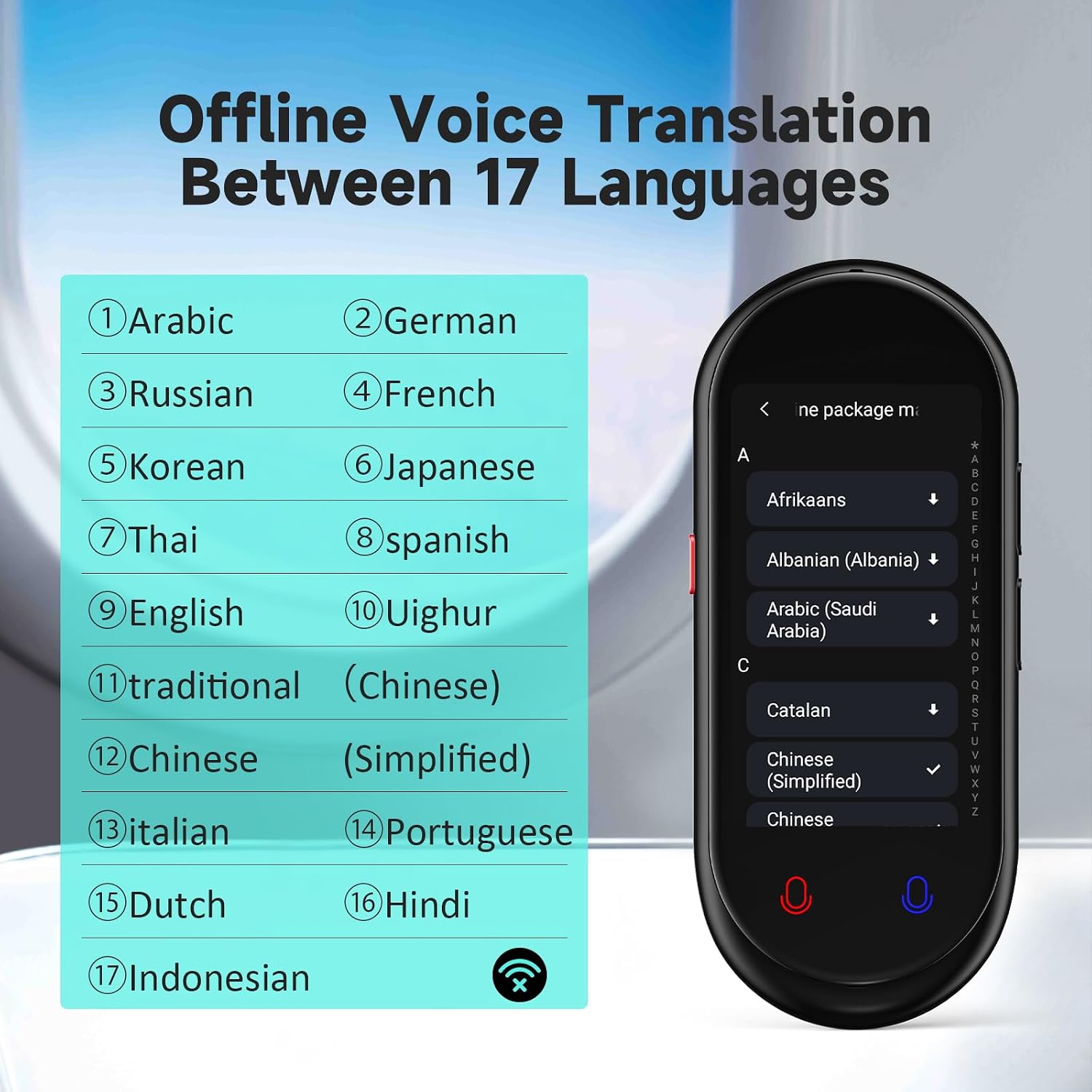
Image: The ACODO Z6 translator device displaying a list of 17 languages available for offline voice translation, including Arabic, German, Russian, French, Korean, Japanese, Thai, Spanish, English, Uighur, Traditional Chinese, Simplified Chinese, Italian, Portuguese, Dutch, Hindi, and Indonesian.
6.4 Photo Translation
Translate text from images using the built-in camera. Supports online photo translation for 74 languages and offline for 40 languages.
- Tap 'Photo translation' on the home screen.
- Select the source and target languages.
- Position the camera over the text you wish to translate.
- Tap the capture button. The device will recognize the text and display the translation.
6.5 Smart Recording (AI Transcription and Translation)
Record audio and have it transcribed and translated into text.
- Select 'Smart recording' from the home screen.
- Tap the record button to start recording.
- Once finished, the recording will be saved and can be replayed, transcribed, and translated.
6.6 Text Input Translation
Manually type text for translation.
- Tap 'Input translation' on the home screen.
- Select the source and target languages.
- Use the on-screen keyboard to enter text. The translation will appear automatically.
6.7 Language Learning and Accent Correction
Utilize the device to practice pronunciation and improve language skills.
- Select 'Language learning' from the home screen.
- Choose a language and phrase.
- Speak the phrase into the microphone. The device will provide feedback on your pronunciation.
6.8 ChatGPT AI Assistant
The device integrates a ChatGPT AI assistant for various queries and tasks. A subscription may be required for full access.
- Tap 'AI XiaoBei' or 'ChatGPT' icon on the home screen.
- Interact with the AI assistant using voice commands or text input.
- Explore various AI roles and functions available.
6.9 Group Translation
Connect multiple devices or phones for group conversations where each participant speaks and reads in their own language.
- Initiate a group translation session from the 'Group translation' menu.
- Other devices can join the session using a unique code.
- Each participant speaks into their device, and the translation is displayed on all connected devices in their respective languages.
6.10 Phone Translation
Extend group translation to smartphones, allowing up to 500 devices to participate.
- Access 'Phone translation' from the home screen.
- Follow the on-screen instructions to connect smartphones to the translation session.
- This feature is ideal for large meetings, classrooms, or conferences.
7. Maintenance
7.1 Cleaning
Wipe the device with a soft, dry cloth. Do not use liquid cleaners or abrasive materials.
7.2 Storage
Store the device in a cool, dry place away from direct sunlight and extreme temperatures when not in use for extended periods.
8. Troubleshooting
- Device not turning on: Ensure the device is fully charged. If the issue persists, try a different charging cable or adapter.
- Translation not working: Check your Wi-Fi connection for online translation. For offline translation, ensure the necessary language packages are downloaded. Verify correct source and target languages are selected.
- Poor audio quality: Ensure the microphone and speaker are not obstructed. Speak clearly and at a moderate volume.
- Screen unresponsive: Restart the device by holding the power button.
- Slow performance: Close any unused applications. Ensure the device software is up to date via OTA updates.
9. Specifications
| Feature | Detail |
|---|---|
| Model Number | Z6 |
| Brand | ACODO |
| Dimensions | 4.7 x 2 x 0.54 inches (11.9 x 5.1 x 1.37 cm) |
| Weight | 0.22 lbs (100 g) |
| Battery | 1500mAh Lithium Ion (rechargeable, included) |
| Continuous Working Time | Up to 8 hours |
| Standby Time | Up to 7 days |
| Charging Time | 1-2 hours |
| Online Translation Languages | 138 |
| Offline Translation Languages | 17 |
| Photo Translation Languages (Online) | 74 |
| Photo Translation Languages (Offline) | 40 |
| Screen | 3-inch IPS HD Touch Screen |
| Connectivity | Wi-Fi (2.4GHz) |
10. Warranty and Support
Your ACODO Z6 Language Translator Device comes with a standard manufacturer's warranty. For detailed warranty information, please refer to the warranty card included in your package or contact ACODO customer support. If you encounter any issues or have questions about your device, please visit our official website or contact our support team for assistance.