
1. Introduction
Thank you for choosing the IVEOPPE Keyboard Case for your iPad Air 13 inch. This manual provides essential information for setting up, operating, and maintaining your new keyboard case. Please read these instructions carefully before use to ensure optimal performance and longevity of the product.
2. Compatibility
This keyboard case is designed for specific iPad Air 13 inch models:
- iPad Air 13 inch M2 2024 (models: A2903 / A2898)
- iPad Air 13 inch M3 2025 (models: A3268 / A3269 / A3270 / A3271)
Please verify your iPad model number before attempting to install the case.

Image: Compatibility details for iPad Air 13 inch models.
3. What's in the Box
Upon unpacking, please ensure all the following items are present:
- 1 x iPad Air 13 inch Case
- 1 x Detachable Bluetooth Keyboard
- 1 x USB-C Charging Cable
- 1 x User Manual (this document)
4. Product Features
- Magnetically Detachable Bluetooth Keyboard: The keyboard can be easily attached or removed from the case, offering flexibility for various uses. It connects wirelessly via Bluetooth and is compatible with iOS, Android, and Windows devices.
- 7-Color Backlit Keyboard: Features 7 vibrant backlight colors with 3 adjustable brightness levels for comfortable typing in low-light conditions.
- Multiple Viewing Angles: The case provides 3 built-in viewing angles (110°, 120°, 130°) with non-slip slots, allowing you to adjust your iPad to a comfortable position for typing, reading, or watching.
- Built-in Pencil Holder: A dedicated slot keeps your Apple Pencil (or similar stylus, not included) securely in place and easily accessible.
- Long Battery Life: The keyboard is equipped with a 500mAh rechargeable battery, providing approximately 75 hours of use without backlight or 5 hours with backlight. It offers up to 80 hours of continuous work and 90 days of standby time.
- Full Protection & Auto Sleep/Wake: The durable PU material case offers 360° protection against scratches, bumps, and dents. The auto sleep/wake function helps conserve iPad battery life.
- Stain-Proof Folio Cover: The case material is designed to be easily wiped clean, protecting against spills and dirt.

Image: Overview of product functions.
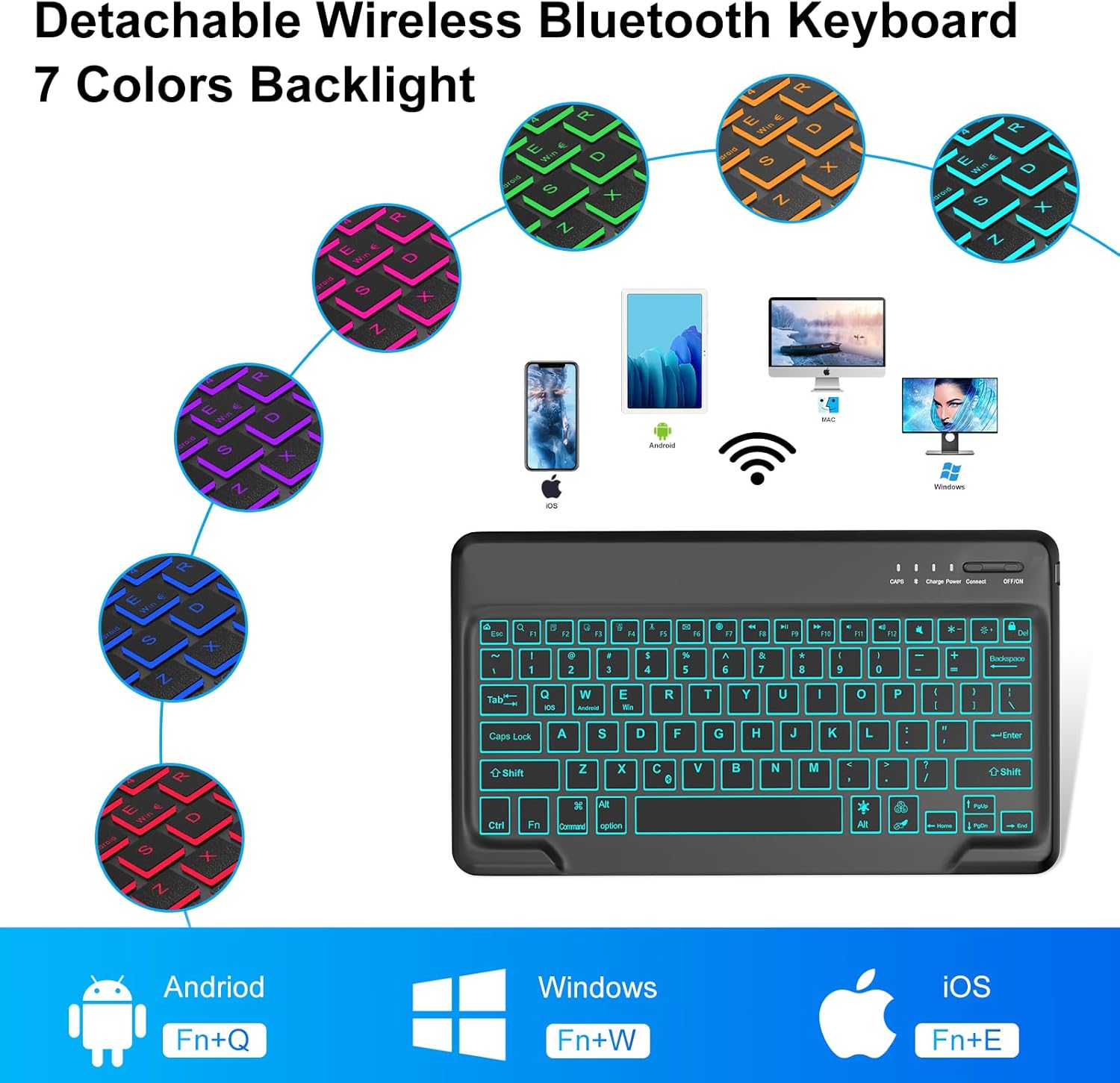
Image: Detachable keyboard with 7-color backlight.

Image: Multiple viewing angles feature.
5. Setup Instructions
5.1. Charging the Keyboard
Before first use, fully charge the keyboard for approximately 3-4 hours using the provided USB-C charging cable. Connect the cable to the keyboard's charging port and a standard USB power adapter (not included).

Image: Keyboard charging port and pencil holder.
5.2. Pairing the Bluetooth Keyboard with your iPad
- Turn on the keyboard: Locate the power switch on the keyboard and slide it to the 'ON' position.
- Activate Bluetooth pairing: Press the 'Connect' button on the keyboard. The Bluetooth indicator light will begin to blink, indicating it is in pairing mode.
- Connect on your iPad: Go to your iPad's 'Settings' app, then tap on 'Bluetooth'. Ensure Bluetooth is turned on. In the list of 'Other Devices', locate and tap on 'Bluetooth 3.0/5.0 Keyboard' (or similar name) to connect. The indicator light on the keyboard will stop blinking once successfully paired.

Image: Keyboard pairing instructions.
6. Operating Instructions
6.1. Using the Backlight
To activate the keyboard backlight, press the Light Bulb key. Pressing it repeatedly will cycle through the 7 available colors. To adjust the brightness, press the Fn key simultaneously with the Light Bulb key to cycle through 3 brightness levels.
6.2. Adjusting Viewing Angles
The case features three grooves that allow you to prop up your iPad at angles of 110°, 120°, or 130°. Simply place the edge of your iPad into the desired groove for a stable viewing position.
6.3. Auto Sleep/Wake Function
When the case is closed, your iPad will automatically enter sleep mode. Opening the case will wake your iPad. This feature helps conserve battery life for both your iPad and the keyboard.
6.4. Using the Pencil Holder
Insert your Apple Pencil or compatible stylus into the designated slot at the top of the case. This provides a secure and convenient storage location, protecting your pencil when not in use or during charging.
7. Maintenance
To ensure the longevity and appearance of your keyboard case:
- Cleaning: The folio cover is designed to be stain-proof. For minor spills or dirt, gently wipe the surface with a soft, damp cloth. Avoid harsh chemicals or abrasive cleaners.
- Storage: When not in use for extended periods, store the keyboard case in a cool, dry place. Ensure the keyboard is turned off to preserve battery life.
- Protection: While the case offers 360° protection, avoid dropping the device from significant heights or exposing it to extreme temperatures.
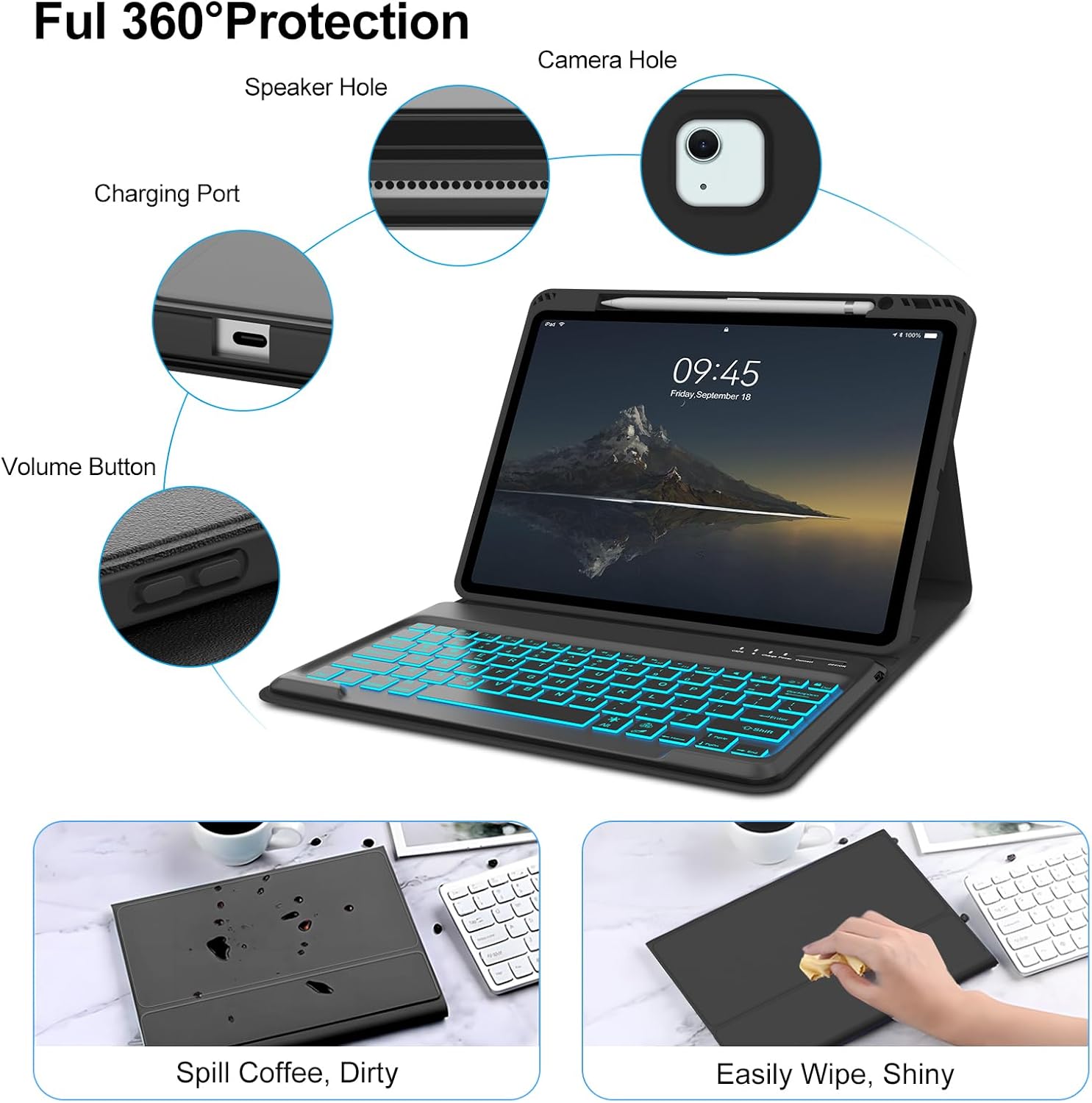
Image: Case protection and easy cleaning.
8. Troubleshooting
If you encounter issues with your keyboard case, please refer to the following common solutions:
- Keyboard not connecting or losing connection:
a. Ensure the keyboard is fully charged.
b. Turn the keyboard off and then on again.
c. On your iPad, go to Bluetooth settings, 'Forget This Device' for the keyboard, and then re-pair it following the instructions in Section 5.2.
d. Ensure no other Bluetooth devices are interfering with the connection. - Keys not responding:
a. Check if the keyboard is powered on and properly connected to your iPad.
b. Recharge the keyboard battery.
c. If specific keys are unresponsive, try cleaning around the keys to remove any debris. - Backlight not working:
a. Ensure the keyboard is powered on.
b. Press the Light Bulb key to activate the backlight.
c. Recharge the keyboard battery, as low battery can affect backlight functionality. - Auto Sleep/Wake not functioning:
a. Ensure your iPad's 'Lock/Unlock' setting is enabled. Go to iPad Settings > Display & Brightness > Lock/Unlock.
b. Ensure the iPad is correctly seated in the case and the cover is fully closed.
9. Specifications
| Product Dimensions | 10.04 x 8.46 x 0.24 inches |
| Item Weight | 1.1 pounds |
| Battery Capacity | 500mAh (Built-in rechargeable) |
| Compatible Devices | iPad Air 13 inch M2 2024 (A2903 / A2898), iPad Air 13 inch M3 2025 |
| Connectivity Technology | Bluetooth |
| Special Features | Backlit, Detachable Case, Hotkeys and Media Keys, Lightweight, Rechargeable |
| Keyboard Backlighting | 7 RGB Colors, 3 Brightness Levels |
10. Warranty and Support
For warranty information or technical support, please refer to the contact details provided with your purchase or visit the official IVEOPPE website. Keep your purchase receipt as proof of purchase for any warranty claims.