1. Introduction
This manual provides detailed instructions for the setup, operation, and maintenance of your Enstixsm Wireless Controller. Designed for versatility, this controller offers a premium gaming experience across multiple platforms including PlayStation 4 (PS4, Slim, Pro), PC, Steam, Android, iOS, and Tesla. Please read this manual thoroughly to ensure optimal performance and longevity of your device.

Image 1.1: Front and back view of the Enstixsm Wireless Controller, highlighting the ergonomic design and back paddles.
2. Product Overview
The Enstixsm Wireless Controller is engineered to enhance your gaming sessions with advanced features and robust compatibility.
- High-Precision ALPS Joysticks: Experience smoother, drift-free control with zero dead zones and instant response.
- Responsive Micro-Switch Buttons: Enjoy quicker, lighter actuation for competitive gameplay.
- Long-Lasting Battery: Equipped with a 1200mAh rechargeable battery, providing 10-12 hours of gameplay on a 2-hour USB-C charge.
- Multi-Platform Compatibility: Seamlessly connect to PS4, PS4 Slim, PS4 Pro, PC, Steam, Android, iOS, and Tesla.
- Ergonomic Design: Features an anti-slip matte shell and ergonomic curves for comfortable, extended gaming sessions.
- Integrated Features: Includes dual vibration motors, six-axis motion control, a clickable touchpad, built-in speaker, and a 3.5mm headphone jack.
- Programmable Back Paddles: Two customizable back paddles (MR, ML) for enhanced control.
- Turbo Mode: Activate for auto-fire or auto-building functions in supported games.

Image 2.1: Illustration of the high-performance thumbsticks, emphasizing zero deviation, dead zone, and drift.

Image 2.2: Battery specifications, indicating 1200mAh capacity, playing time, and charging time via USB-C.
3. Setup and Connection
3.1 Charging the Controller
Before first use, fully charge the controller. Connect the supplied USB-C cable to the controller's charging port and the other end to a USB power source (e.g., console, PC, USB wall adapter). The indicator light will show charging status and turn off when fully charged.
3.2 Connecting to PlayStation 4 (PS4/Slim/Pro)
- Ensure your PS4 console is powered on.
- Connect the controller to the PS4 console using the USB-C cable.
- Press the PS button on the controller. The controller will pair with the console.
- Once paired, you can disconnect the USB-C cable for wireless play.
3.3 Connecting to PC (Windows/Steam)
The controller supports both wireless Bluetooth and wired USB-C connections for PC.
Wireless Bluetooth Connection:
- On your PC, go to Settings > Devices > Bluetooth & other devices.
- Turn on Bluetooth and click Add Bluetooth or other device.
- Select Bluetooth.
- On the controller, press and hold the SHARE button and the PS button simultaneously until the light bar flashes rapidly.
- Select the controller from the list of available devices on your PC to pair.
Wired USB-C Connection:
Connect the controller to your PC using the USB-C cable. The PC should automatically detect and install the necessary drivers.
3.4 Connecting to Android/iOS Devices and Tesla
The controller connects to Android, iOS, and Tesla systems via Bluetooth.
- Enable Bluetooth on your device (phone, tablet, or Tesla infotainment system).
- On the controller, press and hold the SHARE button and the PS button simultaneously until the light bar flashes rapidly.
- Select the controller from the list of available Bluetooth devices on your Android/iOS device or Tesla screen to pair.
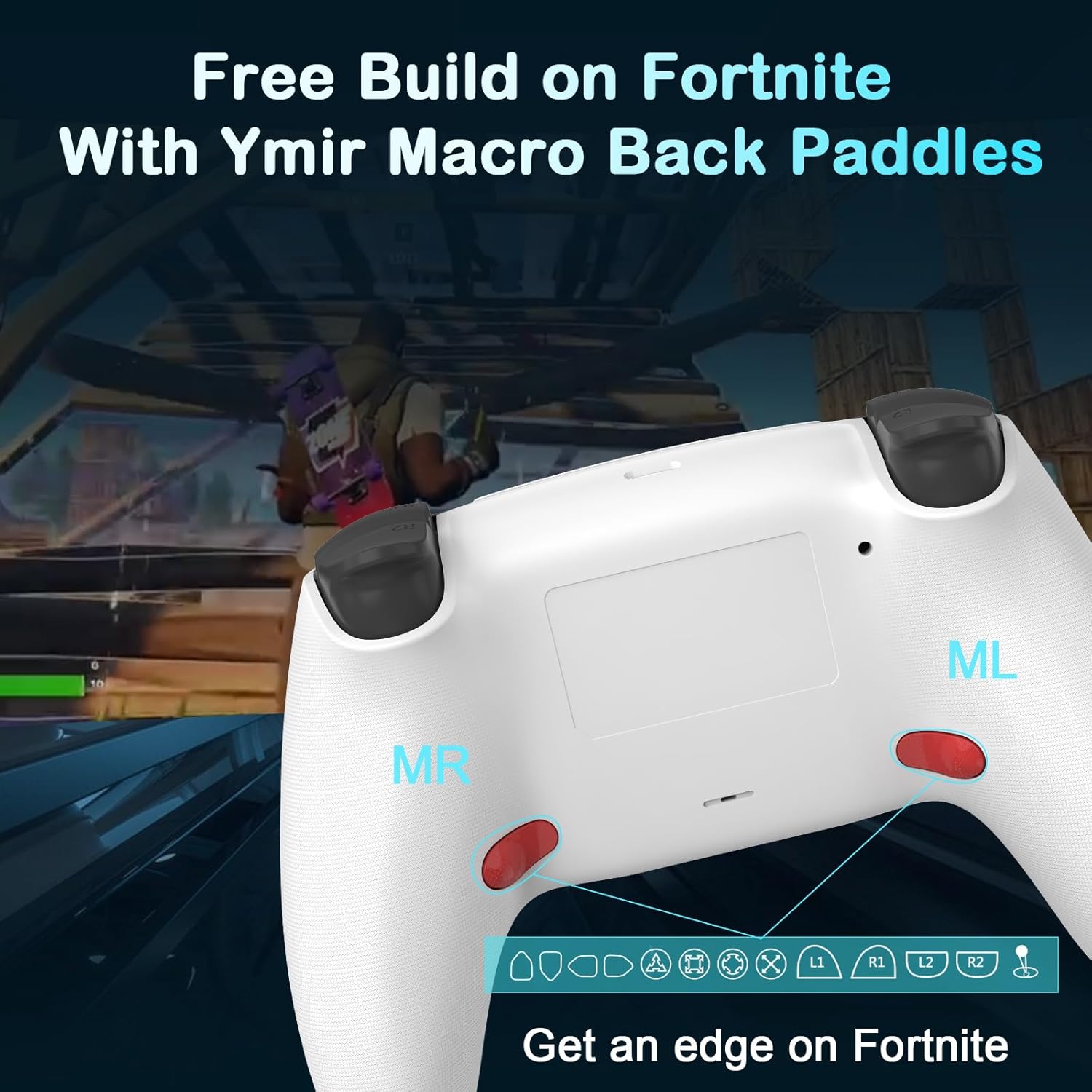
Image 3.1: Multi-platform compatibility of the controller, showing connections to various devices.
4. Operating Instructions
4.1 Button Layout and Functions
The controller features a standard layout with familiar buttons, including directional pad, action buttons (X, Circle, Square, Triangle), L1/R1/L2/R2 triggers, two analog sticks, a clickable touchpad, PS button, SHARE button, and OPTIONS button.
4.2 Programmable Back Paddles (MR/ML)
The MR (Macro Right) and ML (Macro Left) buttons on the back of the controller can be programmed to replicate other button inputs, providing quick access to complex actions.
- To Program: Press and hold the SET button (usually a small button near the paddles) until the indicator light flashes.
- Press the back paddle (MR or ML) you wish to program. The indicator light will flash slowly.
- Press the button(s) you want to assign to the paddle (e.g., X, R1, etc.).
- Press the SET button again to confirm. The indicator light will turn off.
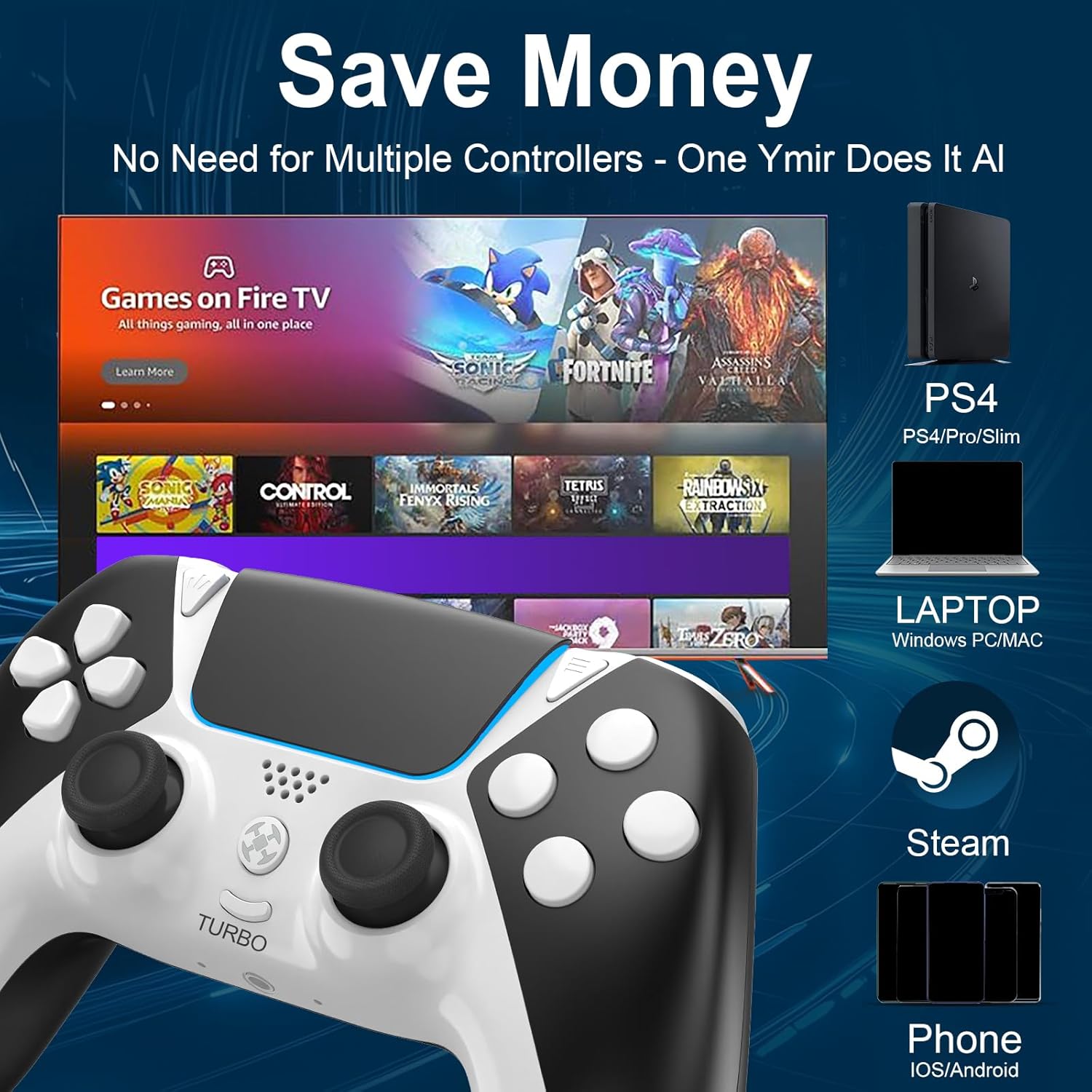
Image 4.1: Close-up view of the MR and ML back paddles on the controller.
4.3 Turbo Mode
Activate Turbo mode for rapid, continuous input of a selected button, useful for auto-fire or repetitive actions.
- Press and hold the TURBO button.
- While holding TURBO, press the action button you wish to apply Turbo function to (e.g., X, Square).
- Release both buttons. The selected action button will now continuously input when held down.
- To disable Turbo for a specific button, repeat the process. To disable all Turbo functions, press and hold the TURBO button for 3 seconds.

Image 4.2: The Turbo button and its function for rapid input.
4.4 Motion Control and Vibration Feedback
The controller features six-axis motion sensing (accelerometer and gyroscope) for intuitive control in supported games. Dual vibration motors provide immersive haptic feedback, enhancing realism during gameplay.

Image 4.3: Visual representation of motion control capabilities and immersive feedback.
4.5 Touchpad, Speaker, and 3.5mm Headphone Jack
The integrated touchpad offers additional input methods for compatible games. A built-in speaker provides audio cues directly from the controller, and the 3.5mm headphone jack allows for private audio and voice chat.
5. Maintenance
To ensure the longevity and optimal performance of your Enstixsm Wireless Controller, follow these maintenance guidelines:
- Cleaning: Use a soft, dry cloth to clean the controller. For stubborn dirt, slightly dampen the cloth with water. Avoid using harsh chemicals or abrasive materials.
- Storage: Store the controller in a cool, dry place away from direct sunlight and extreme temperatures.
- Battery Care: Avoid fully discharging the battery frequently. Charge the controller regularly, even if not in use for extended periods, to maintain battery health.
- Avoid Drops: Protect the controller from physical impact and drops, which can damage internal components.
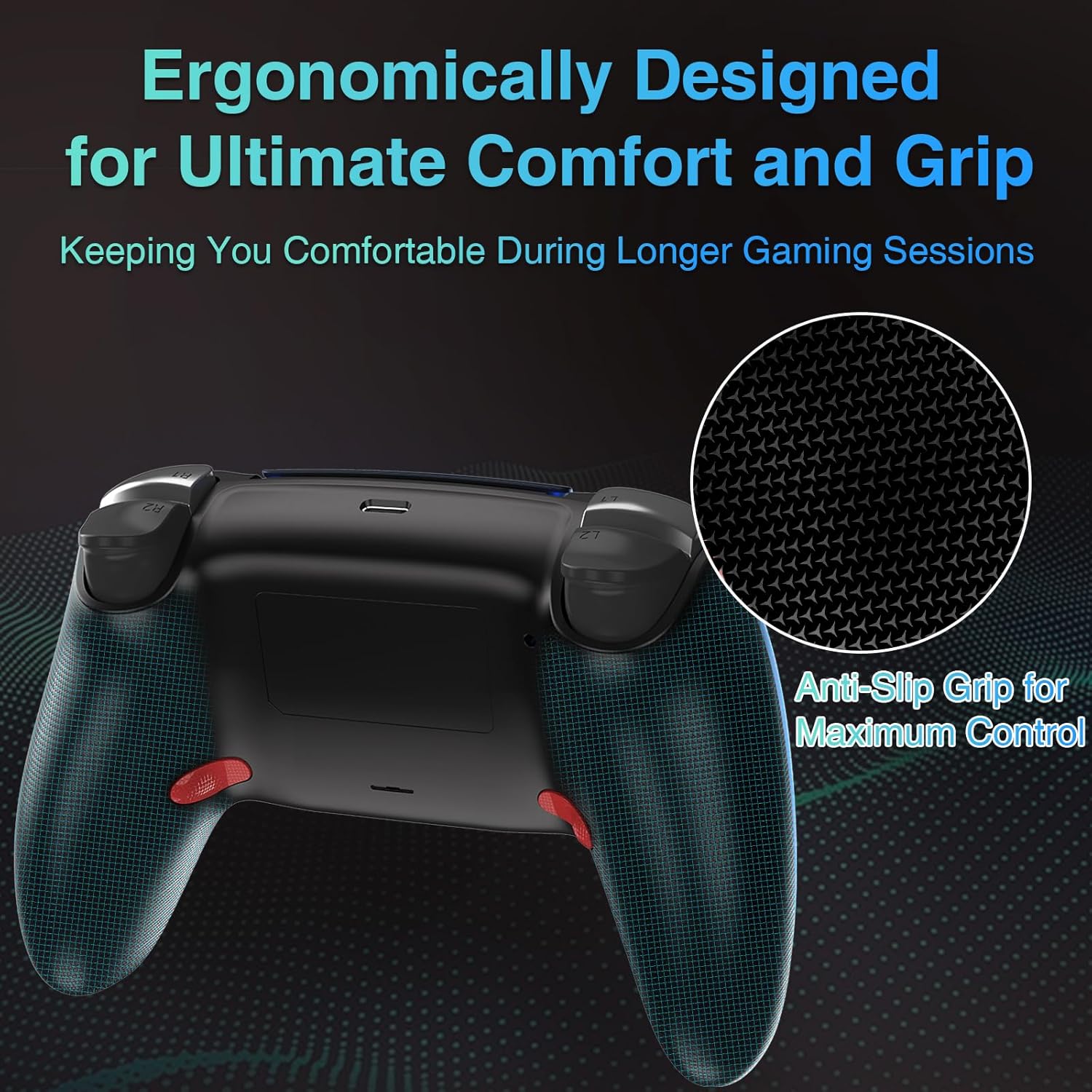
Image 5.1: The anti-slip grip texture designed for comfort and control during use.
6. Troubleshooting
If you encounter issues with your controller, refer to the following common solutions:
- Controller Not Connecting:
- Ensure the controller is charged.
- Verify Bluetooth is enabled on your device and the controller is in pairing mode (flashing light bar).
- Try connecting via USB-C cable to confirm functionality.
- Remove the controller from your device's Bluetooth list and attempt to re-pair.
- Joystick Drift/Inaccuracy:
- Perform the auto-calibration: Press and hold L1 + R1 + Left Stick (press down) + Circle button simultaneously for 3 seconds. This can help resolve minor drift issues.
- Ensure the controller's firmware is up to date (check the Enstixsm support website for updates).
- Buttons Unresponsive:
- Check if Turbo mode is accidentally activated for the button.
- Ensure the controller is fully charged.
- Test the button with a wired connection to rule out wireless interference.
- No Vibration Feedback:
- Verify that vibration is enabled in your game or console settings.
- Ensure the controller is fully charged.
7. Specifications
- Model Name: 5f8c829a-4be2-4999-9c9b-5dce9a65727c
- Connectivity Technology: Wireless Bluetooth Connection
- Controller Type: Wireless PC Controller (also compatible with PS4, Android, iOS, Tesla)
- Compatible Devices: PC, PlayStation 4, Television, Android, iOS, Tesla
- Battery Capacity: 1200 mAh
- Item Weight: 7.2 ounces
- Package Dimensions: 6.69 x 4.53 x 2.91 inches
- Manufacturer: Enstixsm
8. Warranty and Support
For warranty information, technical support, or further assistance, please contact Enstixsm customer service through the retailer where the product was purchased or visit the official Enstixsm website. Keep your purchase receipt as proof of purchase.