
1. Introduction
Thank you for choosing the ITAWEY MILANO-BK Wireless Tri-Mode Mouse & Pad Combo. This device offers versatile connectivity options (2 x Bluetooth 5.2 and 1 x 2.4G USB Receiver), a high-precision 3200 DPI sensor, quiet clicks, and a long-lasting rechargeable battery. This manual provides detailed instructions for setup, operation, and maintenance to ensure optimal performance.
2. Package Contents
Please verify that all items are present in your package:
- ITAWEY MILANO-BK Wireless Mouse
- Mouse Pad
- USB Nano Receiver (2.4G)
- 3.3-foot USB Charging Cable
- USB-C Cable Converter
3. Product Overview
Familiarize yourself with the components of your ITAWEY wireless mouse:

Figure 3.1: Mouse Components
- Textured Precision Wheel: For smooth scrolling.
- DPI Toggle: Adjusts cursor sensitivity.
- Right Button: Standard right-click function.
- Left Button: Standard left-click function (quiet click).
- USB-C Charging Port: For recharging the internal battery.
- Forward Button: Navigates forward in web browsers or file explorers.
- Backward Button: Navigates backward in web browsers or file explorers.

Figure 3.2: Mouse and Mouse Pad Features
- DPI Toggle (1200/2400/3200): Allows quick adjustment of cursor speed.
- Textured Scroll Wheel: Provides tactile feedback for precise scrolling.
- Mouse Pad: Features a non-slip rubber base, smooth braided surface for accuracy, and anti-fray stitching for durability.
4. Setup
4.1. Charging the Mouse
The mouse is powered by a built-in 500mAh rechargeable battery. Before first use, or when the battery is low, connect the mouse to a power source.
- Connect the included 3.3-foot USB charging cable to the USB-C charging port on the front of the mouse.
- Connect the other end of the charging cable to a USB-A power source (e.g., computer USB port, USB wall adapter).
- If your device only has USB-C ports, use the provided USB-C cable converter.

Figure 4.1: Charging the Mouse

Figure 4.2: USB-C Cable Converter
A full charge takes approximately 2 hours and provides up to 21 days of use. The mouse can be used while charging.
4.2. Connectivity Modes
The ITAWEY mouse supports three connection modes: 2.4G USB Receiver and two independent Bluetooth 5.2 channels (BT1, BT2). This allows seamless switching between up to three devices.

Figure 4.3: Mouse, Pad, and Adapters
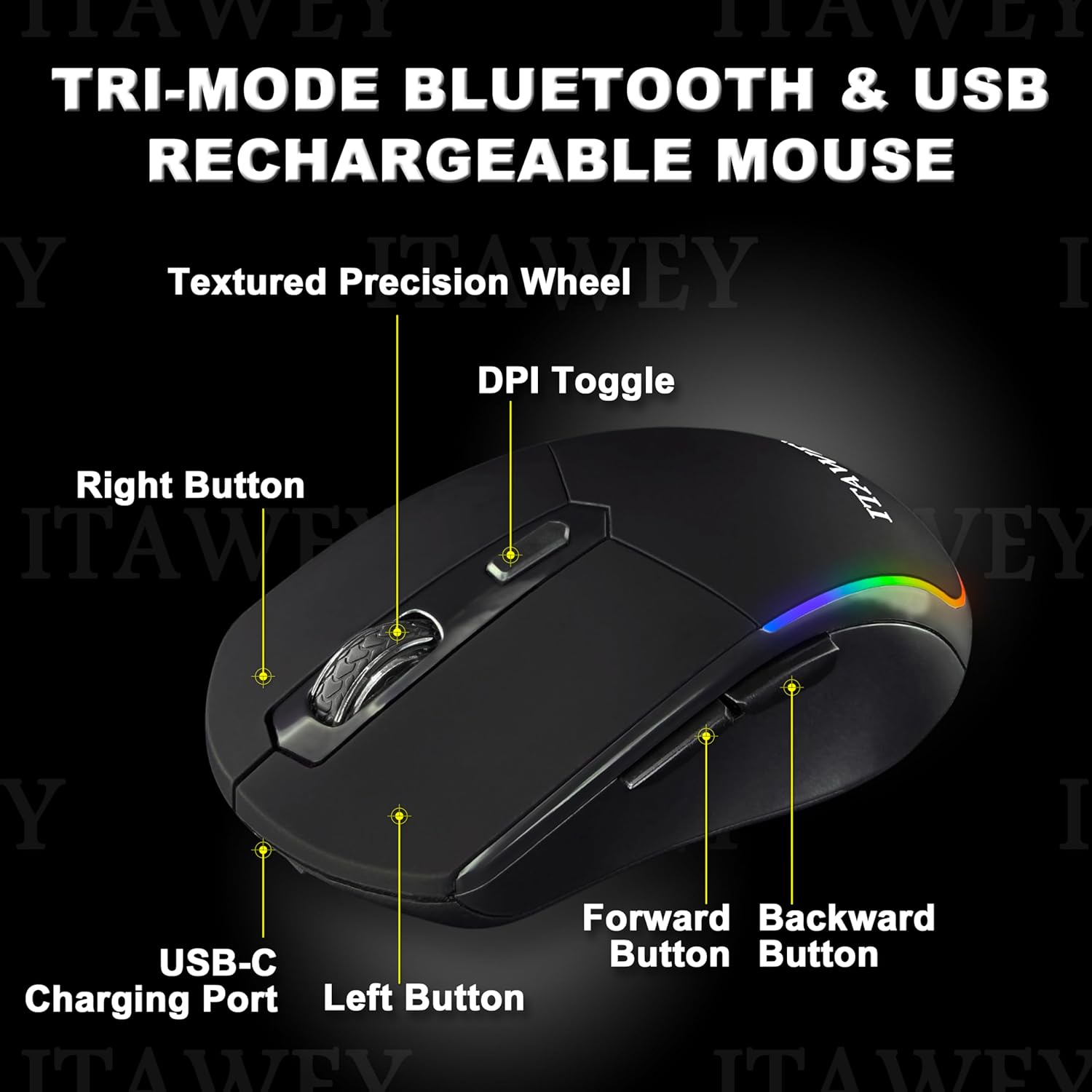
Figure 4.4: Mouse Bottom with Mode Switch
4.2.1. 2.4G USB Receiver Mode
- Locate the USB Nano Receiver stored in the compartment on the underside of the mouse.
- Insert the USB Nano Receiver into an available USB-A port on your computer or device. If your device only has USB-C ports, use the provided USB-C converter.
- Flip the ON/OFF switch on the bottom of the mouse to the 'ON' position.
- Set the MODE switch on the bottom of the mouse to 'USB'. The mouse will automatically connect.
4.2.2. Bluetooth Mode (BT1 / BT2)
- Flip the ON/OFF switch on the bottom of the mouse to the 'ON' position.
- Set the MODE switch on the bottom of the mouse to either 'BT1' or 'BT2'.
- Press and hold the MODE switch for 3-5 seconds until the LED indicator on the mouse starts flashing, indicating pairing mode.
- On your device (PC, laptop, tablet), open Bluetooth settings.
- Search for new devices and select 'ITAWEY Mouse' (or similar) from the list.
- Once paired, the LED indicator will stop flashing and remain solid for a few seconds before turning off.
To switch between connected devices, simply move the MODE switch to the desired channel (USB, BT1, or BT2).

Figure 4.5: Tri-Mode Connection Example
5. Operating Instructions
5.1. DPI Adjustment
The mouse features a DPI button on the top to quickly adjust cursor sensitivity. Press the DPI button to cycle through the following settings:
- 1200 DPI: Standard sensitivity for general use.
- 2400 DPI: Increased sensitivity for faster cursor movement.
- 3200 DPI: High sensitivity for precise tasks or gaming.
5.2. Energy Saving Mode
To conserve battery life, the mouse automatically enters sleep mode after 8 minutes of inactivity. To wake the mouse, simply click any button.

Figure 5.1: Energy Saving Features
5.3. Quiet Clicks
The left and right mouse buttons are designed for quiet operation, making the mouse suitable for environments where noise reduction is important, such as libraries or late-night work sessions.
6. Maintenance
To ensure the longevity and optimal performance of your mouse and mouse pad, follow these maintenance guidelines:
- Cleaning the Mouse: Use a soft, dry cloth to wipe the surface of the mouse. For stubborn dirt, a slightly damp cloth with mild soap can be used, but ensure no liquid enters the device.
- Cleaning the Mouse Pad: The mouse pad is washable. Hand wash with mild soap and water, then air dry completely before use.
- Storage: When not in use for extended periods, store the mouse in a cool, dry place. Turn off the mouse to conserve battery.
- Avoid Extreme Conditions: Do not expose the mouse to extreme temperatures, direct sunlight, or high humidity.
7. Troubleshooting
If you encounter issues with your ITAWEY mouse, refer to the following common problems and solutions:
| Problem | Possible Cause | Solution |
|---|---|---|
| Mouse not responding | Battery low/dead, mouse turned off, incorrect mode selected, connection issue. | Charge the mouse. Ensure the mouse is turned ON. Verify the MODE switch is set correctly (USB, BT1, or BT2). For 2.4G, re-insert the USB receiver. For Bluetooth, re-pair the device. |
| Cursor erratic or jumpy | Dirty sensor, unsuitable surface, low battery. | Clean the optical sensor on the bottom of the mouse. Use the provided mouse pad or a smooth, non-reflective surface. Charge the mouse. |
| Cannot connect via Bluetooth | Mouse not in pairing mode, device Bluetooth off, interference. | Ensure the mouse is in BT1 or BT2 mode and held down for 3-5 seconds to enter pairing mode. Check if Bluetooth is enabled on your device. Move closer to the device. |
| Mouse not charging | Faulty cable, power source issue, charging port damage. | Try a different USB cable and power source. Ensure the cable is fully inserted into the mouse's USB-C port. |
8. Specifications
| Feature | Detail |
|---|---|
| Model Number | MILANO-BK |
| Connectivity | 2 x Bluetooth 5.2, 1 x 2.4G USB Receiver |
| DPI Settings | 1200, 2400, 3200 |
| Battery Capacity | 500mAh Lithium Polymer (Rechargeable) |
| Charging Time | Approx. 2 hours |
| Battery Life | Up to 21 days (on a single charge) |
| Sleep Mode | Automatic after 8 minutes of inactivity |
| Buttons | 6 (Left, Right, Scroll Wheel, DPI, Forward, Backward) |
| Compatibility | Windows (11, 10, 7, XP), MacOS, iOS, iPad, Android Tablet, Chrome OS, Ubuntu |
| Mouse Dimensions | 4.72 x 2.56 x 0.04 inches (approx.) |
| Mouse Weight | 2.82 ounces (approx.) |
9. Warranty and Support
ITAWEY products are designed for reliability and performance. For warranty information or technical support, please refer to the contact details provided with your purchase or visit the official ITAWEY website. Please retain your proof of purchase for warranty claims.