

1. Introduction
Welcome to the G-Wolves HSK Plus Lite Wireless Gaming Mouse user manual. This guide provides essential information for setting up, operating, maintaining, and troubleshooting your new gaming mouse. Please read this manual thoroughly to ensure optimal performance and longevity of your device.
What's in the Box
- HSK Plus Lite Mouse (1 PCS)
- Receiver (1 PCS)
- Cable (1 PCS)
2. Product Overview
The G-Wolves HSK Plus Lite is a high-performance wireless gaming mouse designed for fingertip grip users, emphasizing ultra-lightweight design and precision. It features advanced sensor technology and customizable controls.
Key Features
- Wireless Precision: Utilizes 2.4 GHz communication technology for response times under 1ms.
- Ultra-Lightweight Design: Weighs approximately 38g (1.3 oz) with a solid plastic shell.
- Advanced Optical Sensor: Equipped with PixArt PAW3395 sensor, offering up to 21,000 CPI resolution and a 500 IPS rating.
- Durable Switches: Features Zippy 60 million-click switches for responsive feedback.
- Customizable Software Support: Full software support for DPI, polling rate, LOD, RGB lighting, debounce time, and macros.
- Ergonomic Design: Symmetrical shape optimized for fingertip grip, including 2 main buttons, 2 side buttons, and a mouse wheel.

Figure 2.1: Top view of the G-Wolves HSK Plus Lite Gaming Mouse.

Figure 2.2: User's hand demonstrating fingertip grip on the mouse.
3. Setup
3.1 Connecting the Mouse
The HSK Plus Lite mouse supports both 2.4G wireless and wired USB connections.
- Wireless Connection: Insert the included 2.4G receiver into an available USB port on your PC or Mac. The mouse should automatically connect.
- Wired Connection: Connect the mouse directly to your computer using the provided USB cable. This will also charge the mouse.
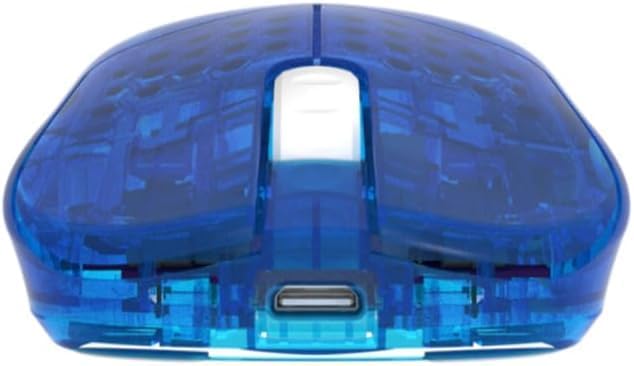
Figure 3.1: Front view of the mouse with the USB charging/connection port.
3.2 Charging the Mouse
The mouse is equipped with a rechargeable P76 battery. Connect the mouse to your computer using the USB cable to charge. The LED indicator will show charging status.
3.3 Software Installation
For full customization of DPI, polling rate, LOD, RGB lighting, debounce time, and macros, download the official G-Wolves software. The software is typically web-based and compatible with Windows, Android, and iOS. Visit mouse.xyz to access the web driver.
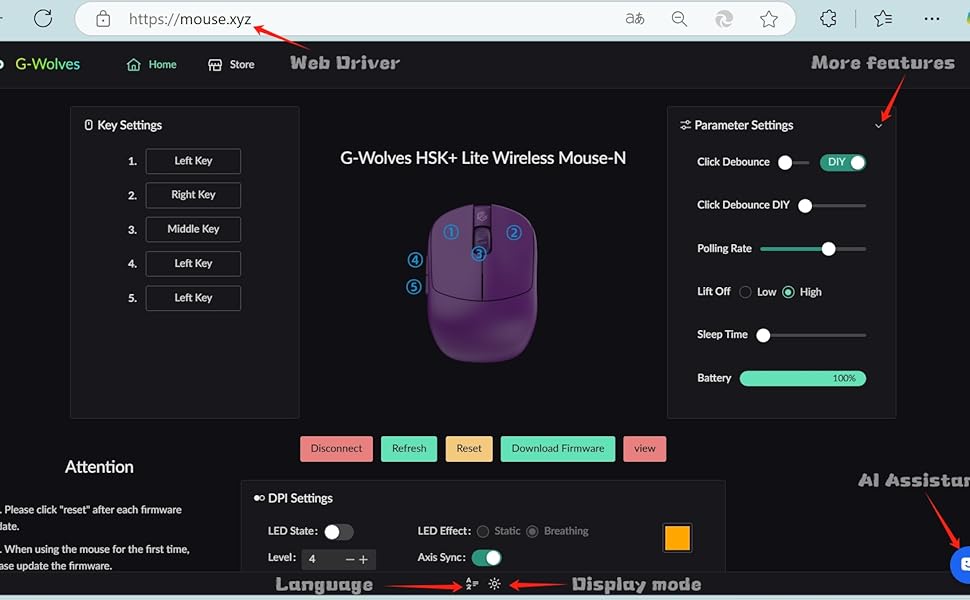
Figure 3.2: G-Wolves HSK Plus Lite web driver interface for customization.
4. Operating Instructions
4.1 Button Functions
The HSK Plus Lite mouse features 5 programmable buttons:
- Left Click Button
- Right Click Button
- Scroll Wheel (with Middle Click)
- Two Side Buttons
All buttons can be customized using the G-Wolves software to assign different functions, macros, or key bindings.

Figure 4.1: Top view highlighting the main buttons and scroll wheel.

Figure 4.2: Side view highlighting the two side buttons.
4.2 DPI Adjustment
The mouse features a PixArt PAW3395 sensor with up to 21,000 CPI. DPI settings can be adjusted through the G-Wolves software to match your preference and gaming style. Multiple DPI profiles can be saved to the mouse's on-board memory.
4.3 Advanced Customization
Utilize the G-Wolves software to fine-tune various parameters:
- Polling Rate: Adjust for desired responsiveness.
- LOD (Lift-Off Distance): Configure how high the mouse can be lifted before tracking stops.
- RGB Lighting: Customize lighting effects and colors.
- Debounce Time: Adjust to prevent accidental double-clicks.
- Macros: Create and assign complex command sequences to buttons.
5. Maintenance
5.1 Cleaning
To maintain optimal performance, regularly clean your mouse:
- Use a soft, dry cloth to wipe the surface of the mouse.
- For stubborn dirt, slightly dampen the cloth with water or a mild cleaning solution.
- Avoid using harsh chemicals or abrasive materials.
- Ensure no liquid enters the mouse's internal components.
5.2 Storage
When not in use, store the mouse in a cool, dry place away from direct sunlight and extreme temperatures.
6. Troubleshooting
6.1 Connection Issues
- Mouse not responding: Ensure the 2.4G receiver is securely plugged into a USB port. Try a different USB port.
- Intermittent connection: Ensure the mouse is within range of the receiver and there are no major obstructions. Avoid placing the receiver near other wireless devices that may cause interference.
- Wired connection not working: Check the USB cable for damage and ensure it's properly connected to both the mouse and the computer.
6.2 Performance Issues
- Lag or stuttering: Ensure the mouse is fully charged. Check for software updates for the mouse driver.
- Inaccurate tracking: Clean the optical sensor on the bottom of the mouse. Ensure you are using the mouse on a suitable surface (preferably a mouse pad).
6.3 Battery Issues
- Mouse not charging: Verify the USB cable is functional and connected correctly. Try charging from a different USB port or power source.
- Short battery life: Adjust RGB lighting settings to reduce power consumption. Ensure the mouse is fully charged before use.
7. Specifications
| Feature | Detail |
|---|---|
| Model Number | HSKPLUS |
| Brand | G-Wolves |
| Connectivity Technology | 2.4G Wireless, USB Wired |
| Movement Detection Technology | Optical (PixArt PAW3395) |
| Max CPI | 21,000 CPI |
| IPS Rating | 500 IPS |
| Switches | Zippy 60 Million-Click Switches |
| Weight | Approximately 38g (1.34 ounces) |
| Product Dimensions | 3.5 x 2.28 x 0.1 inches |
| Battery | 1 P76 battery (included) |
| Special Features | Lightweight, Portable, Wireless, On-Board Memory, Customizable RGB |
8. Warranty and Support
For warranty information, technical support, or further assistance, please visit the official G-Wolves website or contact their customer service. Keep your proof of purchase for warranty claims.