
1. Introduction
This manual provides essential information for the safe and efficient operation of your Acerpure Swift Series 43-inch UHD LED Smart Google TV. Please read this manual thoroughly before using the television and retain it for future reference. It contains instructions for setup, operation, maintenance, and troubleshooting.
2. What's in the Box
Carefully unpack the box and ensure all items are present and undamaged. If any items are missing or damaged, contact your retailer.
- Television Unit (1U)
- Remote Control (1U)
- AAA Batteries (2U)
- Table Stand (1U)
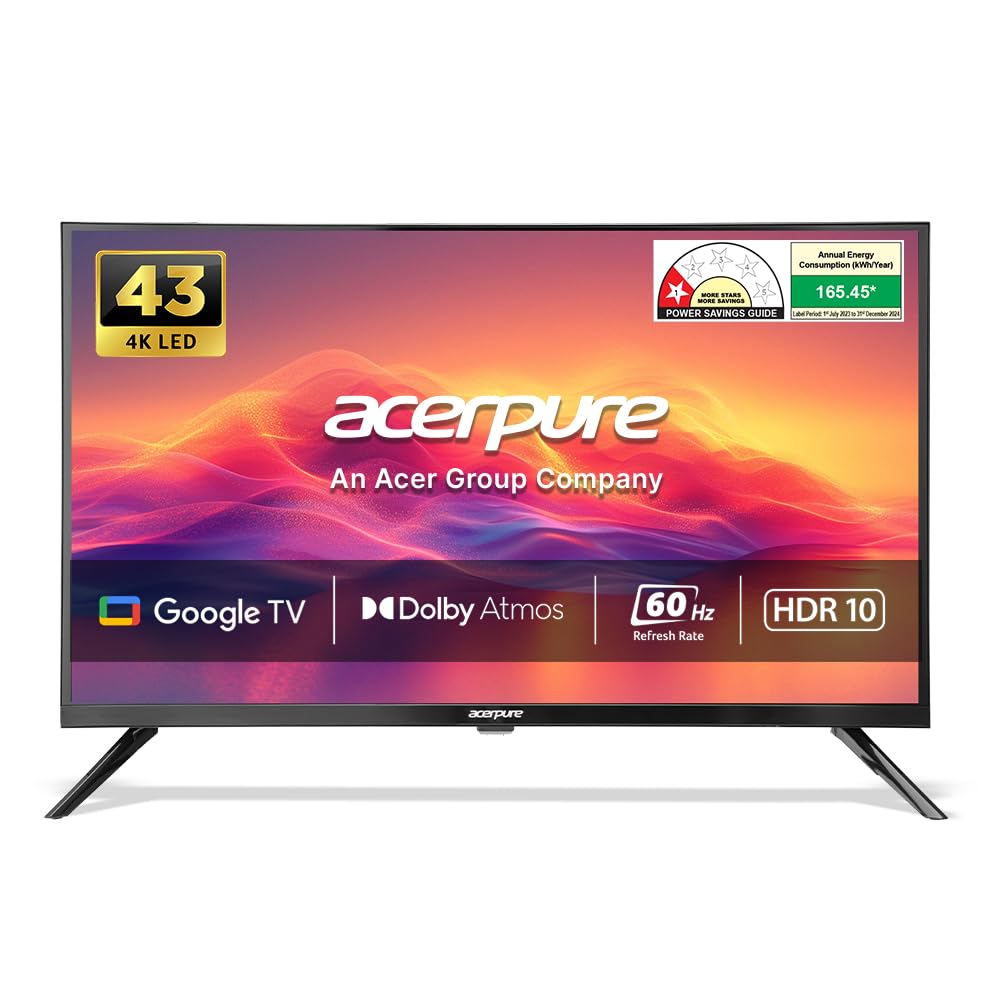
Image: The Acerpure Swift Series 43-inch UHD LED Smart Google TV with its included table stand.
3. Setup
3.1. Stand Installation
- Place the TV screen-down on a soft, flat surface to prevent damage.
- Align the table stand with the screw holes on the bottom of the TV.
- Secure the stand using the provided screws. Ensure the stand is firmly attached.
3.2. Wall Mounting (Optional)
This television is compatible with VESA standard wall mounts. Wall mount hardware is not included. Consult a professional for wall mounting installation to ensure safety and proper setup.
3.3. Connecting External Devices
Connect your external devices such as gaming consoles, set-top boxes, Blu-ray players, and USB storage devices to the appropriate ports on the TV.
- HDMI Ports: The TV features 3 HDMI ports (HDMI 2.0 x 3) for high-definition audio and video connections. One port supports eARC for enhanced audio return channel functionality.
- USB Ports: Two USB 2.0 ports are available for connecting USB devices like external hard drives or flash drives.
- Optical Audio Output: For connecting to external audio systems.
- Ethernet (RJ45): For a wired internet connection.
- AV Cable: For connecting older devices using composite video and stereo audio.

Image: Detailed view of the connectivity ports on the rear of the television.
3.4. Power On
- Connect the power cord to the TV and then to a power outlet.
- Press the power button on the remote control or on the TV to turn it on.
- Follow the on-screen instructions for initial setup, including language selection, network connection, and Google TV account setup.
4. Operating Instructions
4.1. Remote Control
The included remote control allows you to navigate the TV's features. Insert the two AAA batteries into the remote control, ensuring correct polarity.
- Power Button: Turns the TV on or off.
- Navigation Buttons (Up/Down/Left/Right/OK): For menu navigation and selection.
- Voice Assistant Button: Activates Google Assistant for voice commands.
- Volume Up/Down: Adjusts the audio volume.
- Channel Up/Down: Changes TV channels.
- Home Button: Returns to the Google TV home screen.
- App Shortcut Buttons: Direct access to popular streaming services like Netflix and Prime Video.

Image: The remote control for the Acerpure Swift Series TV, highlighting key buttons.
4.2. Smart TV Features (Google TV)
Your Acerpure TV runs on the Google TV operating system, providing access to a wide range of apps and content.
- Google TV OS: Offers a personalized content experience, organizing movies, shows, and live TV from various apps.
- Supported Apps: Access popular streaming services such as Netflix, Prime Video, YouTube, Zee5, and more.
- Hands-free Voice Control & Google Assistant: Use your voice to search for content, control smart home devices, and get information.
- Screen Mirroring: Cast content from your smartphone or tablet to the TV screen.
- In-Built WiFi (Dual Band): Connects to your home network for internet access.
- Bluetooth 5.0: Connect wireless headphones, speakers, or other Bluetooth devices.
Image: The Google TV home screen displaying various applications and content recommendations.
4.3. Display Settings
Optimize your viewing experience through the TV's display settings:
- 4K HDR & HDR10: Enhances contrast and color for a more realistic picture.
- Vivid Picture Engine 2: Processes images for improved clarity and vibrancy.
- Wide Color Gamut (DCI P3 94% typ, NTSC 88% typ): Reproduces a broader range of colors.
- Direct LED: Provides uniform backlighting for consistent brightness.
- 178-Degree Viewing Angle: Ensures clear picture quality from various positions.

Image: The television displaying content with a wide viewing angle, illustrating the 178-degree feature.
4.4. Audio Settings
Experience immersive sound with the TV's audio capabilities:
- Dolby Atmos: Delivers multi-dimensional sound that moves around you.
- DTS-HD: Provides high-quality surround sound.
- 20 Watts Output: Integrated speakers provide clear audio.

Image: The television displaying content with a visual representation of Dolby Atmos sound.
4.5. Performance Features
The TV is designed for smooth performance across various applications:
- 60 Hz Refresh Rate: Ensures smooth motion for most content.
- 2GB RAM & 16GB ROM: Provides sufficient memory for app performance and storage.
- ALLM (Auto Low Latency Mode): Reduces input lag for a more responsive gaming experience.

Image: The television screen displaying a high-action scene, with icons representing 60Hz refresh rate, 2GB RAM, and ALLM.
5. Maintenance
To ensure the longevity and optimal performance of your TV, follow these maintenance guidelines:
- Cleaning the Screen: Gently wipe the screen with a soft, lint-free cloth. For stubborn marks, use a screen-cleaning solution specifically designed for electronics, applied to the cloth, not directly to the screen.
- Cleaning the Frame: Use a soft, dry cloth to wipe the TV frame. Avoid using abrasive cleaners or solvents.
- Ventilation: Ensure the ventilation openings on the back of the TV are not blocked to prevent overheating.
- Power Off When Not in Use: Turn off the TV and unplug it from the power outlet during lightning storms or when it will be left unattended for extended periods.
6. Troubleshooting
If you encounter issues with your TV, refer to the following common troubleshooting steps:
- No Power: Check if the power cord is securely connected to both the TV and the power outlet. Ensure the power outlet is functioning.
- No Picture/Sound: Verify that the correct input source is selected. Check all cable connections (HDMI, AV, etc.). Try restarting the TV.
- Remote Control Not Working: Ensure the batteries are correctly inserted and not depleted. Point the remote directly at the TV's IR sensor.
- Network Connection Issues: Check your Wi-Fi router and internet connection. Try restarting the router and the TV. For wired connections, ensure the Ethernet cable is properly connected.
- Apps Not Loading/Crashing: Ensure the TV's software is up to date. Clear the cache for the problematic app or reinstall it.
If the problem persists after trying these steps, contact customer support.
7. Specifications
| Feature | Specification |
|---|---|
| Brand | Acerpure |
| Model | AP43UG51ASFTD |
| Screen Size | 43 Inches (109 cm) |
| Display Technology | LED & UHD (Direct LED) |
| Resolution | 4K Ultra HD (3840 x 2160) |
| Refresh Rate | 60 Hz |
| Operating System | Google TV |
| RAM | 2 GB |
| Internal Storage (ROM) | 16 GB |
| Connectivity | Dual Band Wi-Fi, Bluetooth 5.0, Ethernet |
| HDMI Ports | 3 (HDMI 2.0 x 3, including eARC) |
| USB Ports | 2 (USB 2.0 x 2) |
| Audio Output | 20 Watts, Dolby Atmos, DTS-HD, Optical |
| Special Features | 4K HDR, HDR10, Vivid Picture Engine 2, Wide Color Gamut, Voice Assistant, ALLM |
| Viewing Angle | 178 Degrees |
| Product Dimensions (DxWxH) | 8.2 x 96.3 x 62.7 cm |
| Item Weight | 5.5 kg |
| Power Source | AC |
| Wattage | 108 Watts |
8. Warranty and Support
Your Acerpure Swift Series TV comes with a comprehensive warranty:
- Product Warranty: 1 year comprehensive warranty from the date of purchase.
- Remote Control Warranty: 1-year standard warranty for technical defects in the remote controller.
Warranty claims can be processed using your Amazon e-invoice. For additional information or support, you may visit the brand's website or contact the Acerpure Call Centre at 18601202019.
9. Product Videos
9.1. Acerpure Swift Series 43-inch TV Overview
Video: A brief overview of the Acerpure Swift Series 43-inch TV, highlighting its key features such as 4K Ultra HD resolution, 60Hz refresh rate, 4K HDR display, 20W audio output, Dolby Atmos, Dual Band Wi-Fi, Bluetooth 5.0, Google TV OS, and various connectivity options.
9.2. Acerpure Aspire 43 UHD TV Introduction
Video: An introductory video for the Acerpure Aspire 43 UHD TV, showcasing its Realtek processor, Google TV interface, true bezel-less design, 1.07 billion colors display, 178-degree viewing angle, various input ports (AV, HDMI, USB), Dolby Atmos audio, and gaming features like Variable Refresh Rate (VRR) and Auto Low Latency Mode (ALLM).