
Introduction
The MOKiN 15-in-1 USB-C Laptop Docking Station is designed to expand the connectivity of your USB-C enabled laptop, providing a comprehensive solution for multiple peripherals, external displays, and power delivery. This docking station features 15 ports, including dual DisplayPort, HDMI, multiple USB-C and USB-A ports, SD/Micro SD card slots, Gigabit Ethernet, 100W Power Delivery, and a 3.5mm audio jack. It comes with a dedicated power adapter to ensure stable and full-power operation across all connected devices.

Image: MOKiN 15-in-1 USB-C Laptop Docking Station, showing the device, its included power adapter, and USB-C cable.
Features
This docking station offers a wide array of ports and capabilities:
- 15-in-1 Connectivity: Includes 2x DisplayPort, 1x HDMI, 2x USB-C 3.1, 1x USB-A 3.1, 2x USB-A 3.0, 1x USB-A 2.0, SD/Micro SD slots, Gigabit Ethernet, 100W PD charging, and 3.5mm audio jack.
- 8K Triple Display Support: Supports single monitor output up to 8K@30Hz or 4K@120Hz, dual 4K@60Hz, or triple 4K@60Hz + 4K@30Hz configurations.
- High-Speed Data Transfer: Dual USB-C 3.1 and USB-A 3.1 ports offer 10Gbps data transfer speeds. Dual USB-A 3.0 ports provide 5Gbps, and USB-A 2.0 provides 480Mbps.
- 100W Power Delivery: Provides up to 100W pass-through charging to your laptop (actual output up to 85W for safety) via the integrated 65W power adapter.
- Gigabit Ethernet: Ensures stable and high-speed wired network connectivity (10/100/1000Mbps).
- SD/Micro SD Card Readers: Supports simultaneous reading and writing for SD and Micro SD cards.
- Audio Connectivity: Integrated 3.5mm audio jack for headphones or speakers.

Image: Detailed diagram illustrating all 15 ports of the MOKiN docking station, including DisplayPort, HDMI, USB-C, USB-A, SD/TF, Ethernet, and audio.
Setup Guide
Follow these steps to set up your MOKiN Docking Station:
- Connect Power Adapter: Plug the included 65W power adapter into the DC-IN port on the docking station, then connect it to a wall outlet. This ensures stable power for all connected devices and optimal performance.
- Connect to Laptop: Use the provided USB-C to USB-C cable to connect the docking station's HOST port to a fully functional USB-C port (supporting data, video, and power delivery), Thunderbolt 3/4, or USB4 port on your laptop.
- Connect External Displays: Connect your monitors to the docking station using the HDMI and/or DisplayPort cables. The docking station supports up to three external displays.
- Connect Peripherals: Plug in your USB devices (keyboard, mouse, external hard drives, etc.) into the available USB-A and USB-C ports. Insert SD or Micro SD cards into their respective slots if needed.
- Connect Ethernet (Optional): For a stable wired network connection, connect an Ethernet cable from your router/modem to the RJ45 Ethernet port on the docking station.
- Connect Audio (Optional): Plug your headphones or speakers into the 3.5mm audio jack.
The docking station is designed for plug-and-play operation. Your operating system should automatically detect and configure the connected devices.

Image: Important tip indicating that the docking station is only applicable to laptops with fully functional USB-C ports, Thunderbolt 3/4, or USB4 ports, showing icons for each compatible type.
Operating Instructions
Display Modes
The docking station supports various display configurations depending on your operating system and laptop's capabilities (DP 1.4 required for optimal performance).
For Windows with DP 1.4:
- Mirror Mode (AAA): All displays show the same content.
- Extend Mode (ABB): Laptop display (A) and two external monitors (B) show extended content.
- Extend Mode (ABC): Laptop display (A) and two external monitors (B, C) show different extended content.
- Extend Mode (ABBB): Laptop display (A) and three external monitors (B) show extended content.
- Extend Mode (ABCD): Laptop display (A) and three external monitors (B, C, D) show different extended content.

Image: Diagram illustrating various display modes for Windows laptops (Mirror, Extend ABB, Extend ABC, Extend ABBB, Extend ABCD).
For macOS with DP 1.4:
- Mirror Mode (AAA): All displays show the same content.
- Extend Mode (ABB): Laptop display (A) and two external monitors (B) show extended content.
- Extend Mode (ABBB): Laptop display (A) and three external monitors (B) show extended content.
Note: macOS only supports Single Stream Transport (SST) mode. All connected monitors will show the same content in extended mode (e.g., ABB, ABBB). Multi-stream Transport (MST) for independent extended displays is not supported by macOS.

Image: Diagram illustrating display modes for macOS laptops (Mirror, Extend ABB, Extend ABBB), with a note about macOS not supporting MST for independent extended displays.
Data Transfer
Utilize the high-speed USB ports for quick data transfers:
- USB-C 3.1 (10Gbps): For high-bandwidth devices like external SSDs.
- USB-A 3.1 (10Gbps): For high-speed USB devices.
- USB-A 3.0 (5Gbps): For general USB devices and flash drives.
- USB-A 2.0 (480Mbps): Suitable for keyboards, mice, and other low-bandwidth peripherals.

Image: Visual representation of data transfer speeds for different USB port types: 10Gbps for USB-C 3.1 and USB-A 3.1, 5Gbps for USB-A 3.0, and 480Mbps for USB-A 2.0.
Power Delivery
The docking station provides up to 100W Power Delivery to your connected laptop. The included 65W power adapter ensures the docking station itself has sufficient power to operate all ports and charge your laptop simultaneously. The actual power output to the laptop is limited to 85W for safety.
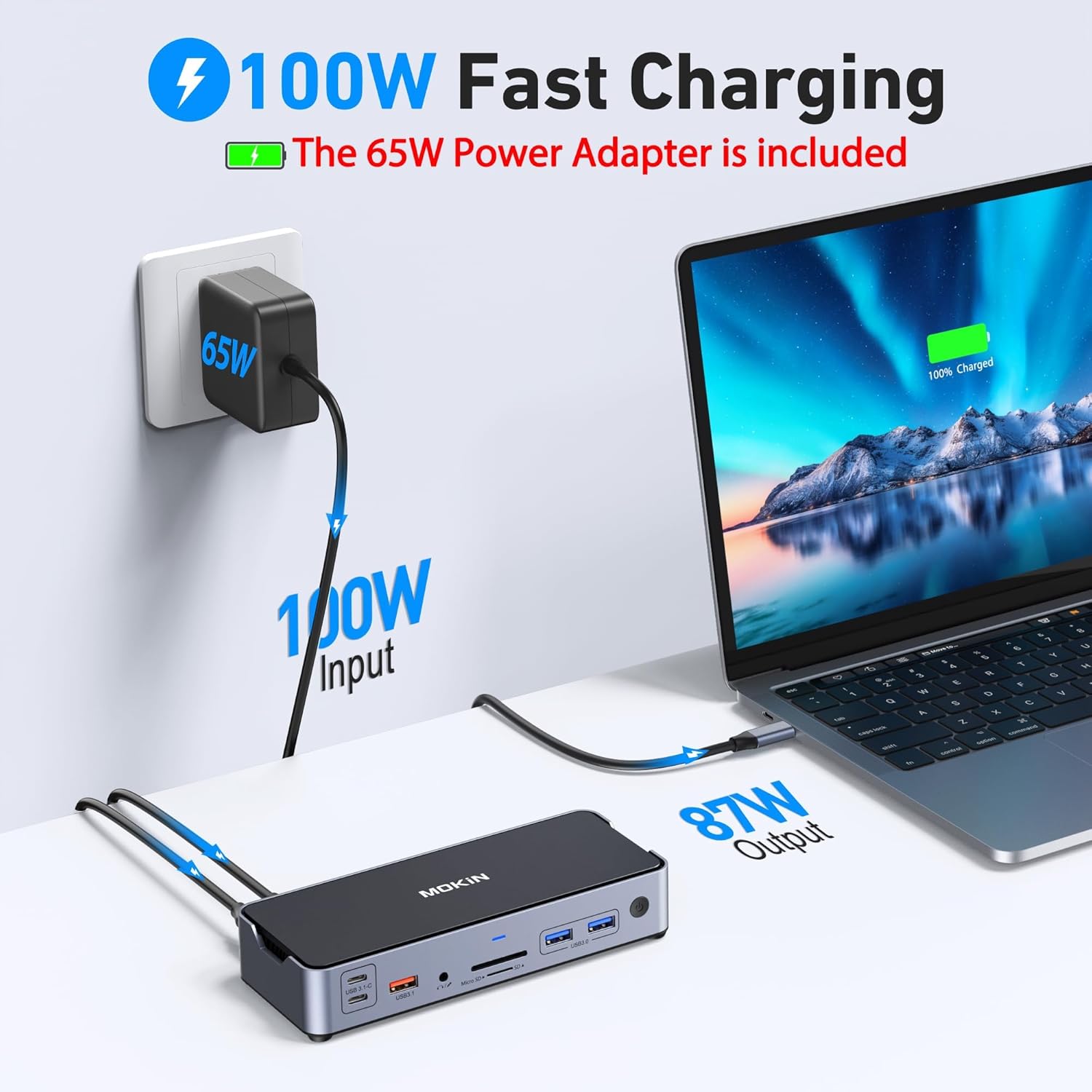
Image: Diagram illustrating the 100W fast charging capability, showing 100W input from the adapter and 87W output to the laptop (note: text in manual states 85W for safety).
Ethernet Connection
For a reliable and fast internet connection, use the Gigabit Ethernet port. It supports 10/100/1000Mbps speeds, providing a stable alternative to Wi-Fi.

Image: Close-up of the RJ45 Ethernet port on the docking station with an Ethernet cable connected, indicating 10/100/1000Mbps speeds.
SD/Micro SD Card Readers
The integrated card readers allow for fast access to your SD and Micro SD cards, supporting simultaneous reading and writing.

Image: Close-up of the SD and Micro SD card slots on the docking station, showing cards inserted and indicating faster read speeds.
Audio Jack
Connect your headphones or speakers to the 3.5mm audio jack for immersive sound.

Image: Close-up of the 3.5mm audio and microphone port on the docking station with headphones connected.
Power Switch and Security Slot
The docking station includes a power switch for easy on/off control and a security slot for physical locking mechanisms.

Image: Close-up view highlighting the power switch and security slot on the docking station.
Compatibility
The MOKiN Docking Station is broadly compatible with laptops featuring a fully functional USB-C port, Thunderbolt 3/4, or USB4 port. It supports various operating systems.
Broad Compatibility Examples:
| Brand | Compatible Models (Examples) |
|---|---|
| Dell | XPS (13/15/9500...), Latitude (7410/5310...), Precision (5550/7550...), Inspiron (7506 2-in-1/5502...), Vostro (5501/3491...), Alienware (m15 R4/Area-51m...) |
| HP | Spectre (x360 13/15...), Envy (x360 13/15...), EliteBook (840 G8/x360 1030 G8...), Pavilion (14/x360 15...), ProBook (450 G8/x360 435 G8...) |
| Lenovo | ThinkPad (T14/T14s/P50/P52...), IdeaPad (5/Flex 5...), Yoga (9/7i...), Legion (5/7...) |
| Apple | MacBook Pro (2016-2022), MacBook Air/Mac mini (2018-2020), iMac (2020)/iMac Pro (2017-2019), iPad/ Pro (2018-Newest) |
| ASUS | ZenBook (14/Pro Duo...), VivoBook (S15/Flip 14...), ROG (Zephyrus G14/Strix Scar 15...), TUF Gaming (A15/F15...) |
| Other | Microsoft Surface, Samsung Galaxy, Acer (Not a full list) |
Supported Operating Systems: Windows, macOS, Chrome OS, iPad OS, Android.

Image: Chart showing broad compatibility with various laptop brands and operating systems.
Incompatibility Examples:
Please note that this docking station may not be compatible with the following models or types of devices:
- MacBook Air (before 2018) / MacBook Pro 2015 / iMac 2021
- ASUS VivoBook series (Q547 / Q503U / Q203MA / L203MA / TUF 17.3 Gaming Laptop)
- ASUS Zenbook (UX333FN / UX330UA-AH55 / Flip 14 UX461FN-DH74T / Zenbook Q407)
- Acer Aspire (E5-575 / E5-576G / R15 / Predator Helios 300 / Swift X 14)
- MSI (Gl65 / GF63 / GF65 THIN 9SD-252 / GEVR 7RF Apache Pro / GS73VR 7RG Stealth Pro / GE73 Raider 8RF)
- Microsoft Surface Pro 3 / Surface Pro 4 / Surface Pro 6 / Surface Book 3
- HP Spectre x360 (13 / 14 / 15T)
- HP EliteBook (840 G3 / 840 G4 / 820 G4)
- HP ProBook (600 / 640 / 650 G2 / Folio 1020 B&O)
- Earlier HP Pavilion series / HP 340S C7 / HP Envy 15 / EVGA SC15 / HP 7265NGW
- Dell Inspiron (17-5000 series / 15-5000 series / 14-5410 / 15-3000 / 15-3583 / 17-3793 Business)
- Dell Latitude (E7270 / E7470 / E7440 / E7450 / 3520)
- Lenovo ThinkPad (T570 / IdeaPad Y520 / Yoga 710 / X1 Carbon (1490) / E580)
- Lenovo IdeaPad (3 / 5 / L340 / L350 / Flex-15WL / Flex-14 / Flex-6 14KB)
- High-power equipment / USB Super Drive / CD/DVD player

Image: Chart listing specific laptop models and types that are incompatible with the docking station.
Specifications
| Attribute | Value |
|---|---|
| Model Number | MODK1402-C |
| Brand | imokin |
| Hardware Interface | USB Type C |
| Total USB Ports | 6 (2x USB-C 3.1, 1x USB-A 3.1, 2x USB-A 3.0, 1x USB-A 2.0) |
| Video Output Ports | 2x DisplayPort, 1x HDMI |
| Max Resolution (Single Monitor) | 8K@30Hz / 4K@120Hz |
| Max Resolution (Dual Monitor) | 4K@60Hz |
| Max Resolution (Triple Monitor) | 4K@60Hz + 4K@30Hz |
| Power Delivery | 100W (Input), 85W (Output to laptop) |
| Ethernet | 10/100/1000Mbps Gigabit Ethernet |
| Card Reader | SD/Micro SD (simultaneous read/write) |
| Audio Port | 3.5mm Audio & Mic Jack |
| Package Dimensions | 7.87 x 7.4 x 1.93 inches |
| Item Weight | 1.44 pounds (0.66 Kilograms) |
| Included Accessories | 100W Power Adapter, USB-C to USB-C Cable, Manual |
Troubleshooting
If you encounter issues with your MOKiN Docking Station, please refer to the following common solutions:
- No Display Output:
- Ensure your laptop's USB-C port supports video output (DisplayPort Alternate Mode).
- Verify that the docking station is properly connected to the laptop and the external power adapter is plugged in.
- Check display cable connections (HDMI/DisplayPort) to both the docking station and the monitor.
- Try updating your laptop's graphics drivers.
- For macOS, remember that MST (Multi-Stream Transport) for independent extended displays is not supported; monitors will mirror or extend as a single stream.
- Laptop Not Charging:
- Confirm your laptop's USB-C port supports Power Delivery (PD).
- Ensure the docking station's power adapter is securely connected and providing power.
- While the docking station supports 100W input, the output to the laptop is limited to 85W. If your laptop requires more than 85W, it may charge slowly or not at all under heavy load.
- USB Devices Not Recognized/Working:
- Ensure the docking station is powered and properly connected to the laptop.
- Try connecting the USB device to a different port on the docking station.
- Disconnect and reconnect the docking station from your laptop.
- Avoid connecting high-power devices (e.g., external optical drives) directly to the docking station without sufficient external power.
- Ethernet Connection Issues:
- Check the Ethernet cable connection to both the docking station and your router/modem.
- Verify network settings on your laptop.
- Ensure network drivers are up to date.
- Intermittent Connectivity:
- Ensure all cables are securely connected.
- Avoid placing the docking station near strong electromagnetic interference sources.
- Ensure your laptop's USB-C port is fully functional and not loose.
Maintenance
To ensure the longevity and optimal performance of your MOKiN Docking Station, follow these maintenance guidelines:
- Cleaning: Use a soft, dry cloth to clean the exterior of the docking station. Do not use liquid cleaners or aerosols.
- Storage: Store the docking station in a cool, dry place away from direct sunlight and extreme temperatures.
- Handling: Avoid dropping or subjecting the docking station to strong impacts. Do not attempt to disassemble the device.
- Ventilation: Ensure the docking station has adequate ventilation to prevent overheating, especially during prolonged use with multiple connected devices.
Warranty and Support
The MOKiN 15-in-1 Docking Station comes with an 18-month warranty. For any product-related inquiries, technical assistance, or warranty claims, please contact MOKiN customer support. 24/7 customer support is available to assist you.
For further assistance, please refer to the contact information provided with your product packaging or visit the official MOKiN website.
