
1. Introduction
Thank you for choosing the AC85-265V 16A Tuya WiFi Smart Socket. This device is designed to provide intelligent control and comprehensive monitoring of your electrical appliances. With its integrated digital wattmeter, you can track real-time voltage, current, power consumption, and energy usage directly on the device display or via the Tuya/Smart Life mobile application. This manual will guide you through the setup, operation, and maintenance of your smart socket to ensure optimal performance and energy efficiency.
2. Safety Information
- This device is designed for indoor use only. Do not expose to moisture or extreme temperatures.
- Ensure the total load of connected appliances does not exceed the maximum current rating of 16A.
- Do not disassemble or modify the device. Refer all servicing to qualified personnel.
- Keep out of reach of children.
- Always plug the smart socket into a properly grounded US standard outlet (120V).
- Unplug the device from the wall outlet before cleaning.
3. What's in the Box
- 1 x AC85-265V 16A Tuya WiFi Smart Socket
- 1 x User Manual
4. Product Features
- Smart Connectivity: Connects to your home WiFi and works with the Tuya and Smart Life apps, allowing remote control from your smartphone.
- Power Monitoring: The digital display shows real-time voltage, current, power usage, frequency, and power factor, helping you track electricity consumption.
- Scheduling: Set schedules and timers to automatically turn devices on or off at specific times for energy savings and convenience.
- US Plug: Features a standard US plug design that fits into any 120V wall outlet.
- Compact Design: Sleek and compact form factor, easily plugged into tight spaces without obstructing other outlets.
- Protection Functions: Includes over-voltage, over-current, and over-power protection for enhanced safety.
5. Specifications
| Specification | Value |
|---|---|
| Product Dimensions | 3.5 x 2.5 x 0.1 inches |
| Weight | 9.6 ounces |
| Brand | Generic (Manufacturer: Atorch) |
| Color | White |
| Voltage Range | AC 85-265V |
| Max Current | 16A |
| Material | Acrylonitrile Butadiene Styrene (ABS) |
| Connector Type | Type B (US Standard) |
6. Product Overview

Image: The smart socket displaying real-time electricity data, alongside a smartphone showing the corresponding mobile application interface for remote control and monitoring. A side view of the compact plug is also visible.

Image: Illustration highlighting the smart socket's built-in safety features, including over-voltage, over-current, and over-power protection, indicated by visual cues and a protective shield icon.

Image: A diagram showing the smart socket at the center, connected wirelessly to a smartphone, and controlling various household appliances such as a washing machine, fan, lamp, blender, microwave, and refrigerator, demonstrating remote control capabilities.
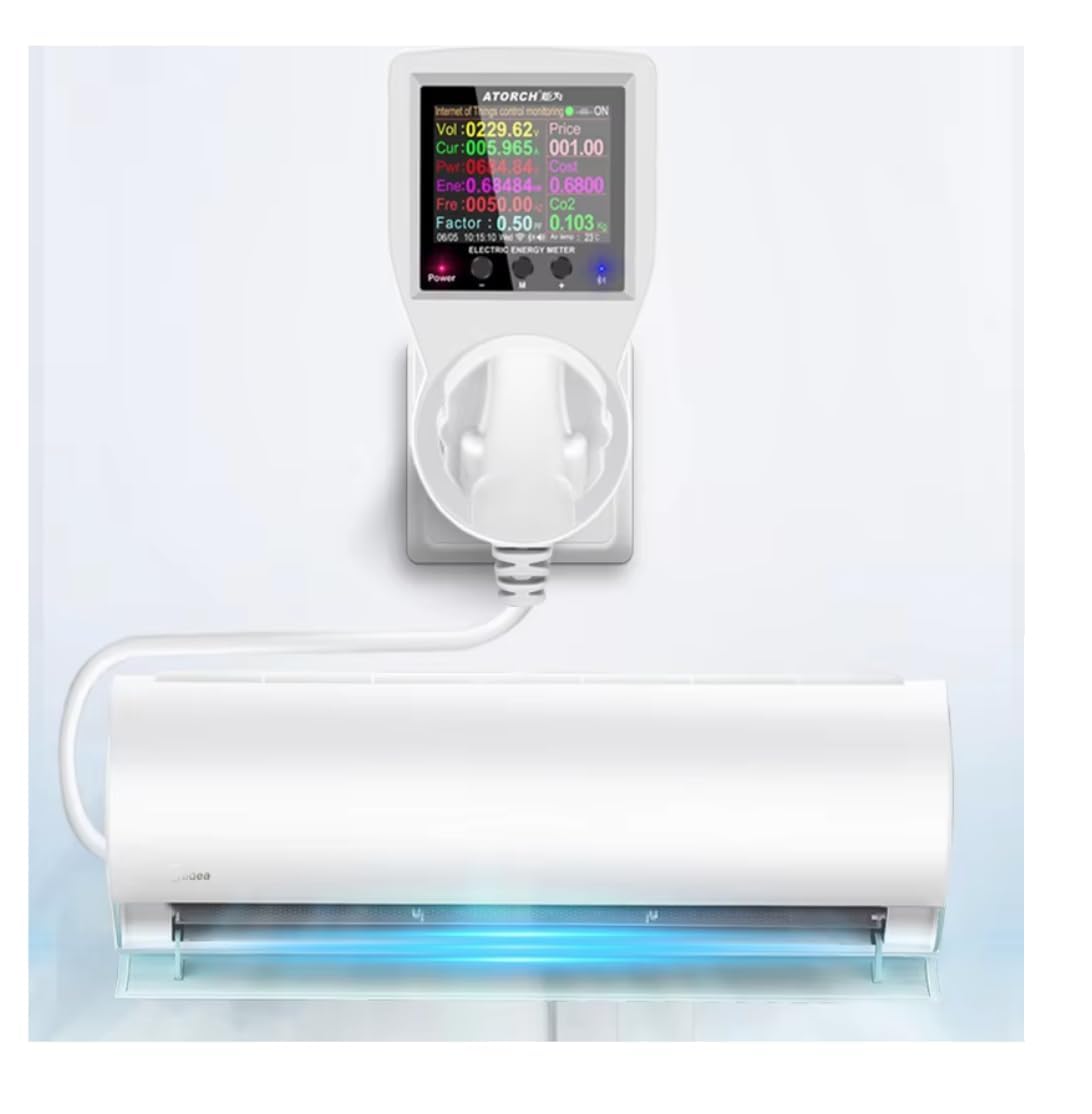
Image: The smart socket plugged into a wall outlet, with an air conditioning unit connected to it. The socket's digital display shows real-time power consumption data for the connected appliance, illustrating its energy monitoring function.
7. Setup and Installation
7.1 Physical Installation
- Plug the AC85-265V 16A Tuya WiFi Smart Socket into a standard US wall outlet.
- Plug the appliance you wish to control and monitor into the smart socket.
7.2 App Installation and Pairing
- Download the App: Search for "Tuya Smart" or "Smart Life" in your mobile app store (App Store for iOS, Google Play Store for Android) and download the application.
- Register/Log In: Open the app and register a new account or log in if you already have one.
- Add Device: Tap the "+" icon in the top right corner of the app to add a new device.
- Select Device Type: Choose "Electrical Outlet" or "Socket (Wi-Fi)" from the list of device types.
- Enter Wi-Fi Details: Ensure your phone is connected to a 2.4GHz Wi-Fi network. Enter your Wi-Fi network password in the app.
- Pairing Mode: On the smart socket, press and hold the power button for 5-7 seconds until the Wi-Fi indicator light starts blinking rapidly. This indicates it's in pairing mode.
- Confirm Blinking: In the app, confirm that the indicator light is blinking rapidly and proceed.
- Connect: The app will begin searching for and connecting to the device. Once connected, you can rename the device and assign it to a room.
8. Operating Instructions
8.1 Remote Control via App
- From the app's main screen, tap on the smart socket's icon to access its control interface.
- Tap the large power button to turn the connected appliance ON or OFF remotely.
8.2 Scheduling and Timers
- Within the device control interface in the app, navigate to the "Schedule" or "Timer" section.
- Schedule: Set specific times for the socket to turn ON or OFF daily or on selected days of the week.
- Timer: Set a countdown timer for the socket to turn ON or OFF after a specified duration.
8.3 Real-time Power Monitoring
- On-Device Display: The smart socket's built-in screen continuously displays real-time voltage (V), current (A), power (W), and accumulated energy consumption (kWh).
- App Monitoring: In the app, access the device's interface and look for the "Statistics" or "Power" section to view detailed real-time and historical energy consumption data, including voltage, current, power, and power factor.
9. Maintenance
- Ensure the device is unplugged before cleaning.
- Wipe the surface with a soft, dry cloth. Do not use abrasive cleaners or liquids.
- Keep the device free from dust and debris to ensure proper ventilation.
10. Troubleshooting
- Device not powering on: Ensure the smart socket is securely plugged into a live wall outlet. Check the appliance connected to the socket to ensure it is functioning correctly.
- Cannot connect to Wi-Fi:
- Ensure your Wi-Fi network is 2.4GHz. 5GHz networks are not supported.
- Check your Wi-Fi password for accuracy.
- Move the smart socket closer to your Wi-Fi router.
- Reset the smart socket by unplugging it for 10 seconds and plugging it back in, then attempt pairing again.
- Ensure your router is not blocking new device connections.
- Inaccurate power readings: Ensure the connected appliance is within the specified voltage and current limits. If issues persist, try plugging a different appliance to verify.
- Remote control not working: Check your internet connection on your smartphone and ensure the smart socket is still connected to your home Wi-Fi network.
11. Warranty and Support
This product comes with a standard manufacturer's warranty. For specific warranty terms, please refer to the documentation provided at the time of purchase or contact your retailer. For technical support, troubleshooting assistance, or inquiries regarding your smart socket, please contact the seller or manufacturer directly through the platform where the product was purchased.