1. Overview
This manual provides instructions for the dunfirn Wireless Foldable Keyboard and Mouse Combo, Model ZDJP-002. This portable combo is designed for use with various devices, including iPads, Windows, iOS, and Android tablets, smartphones, and laptops. It offers both Bluetooth and 2.4G wireless connectivity for versatile use.

Image 1.1: The dunfirn Wireless Foldable Keyboard and Mouse Combo, showcasing its compact and portable design.
2. What's Included
The package for your dunfirn Wireless Foldable Keyboard and Mouse Combo contains the following items:
- 1 x Rechargeable Foldable Keyboard
- 1 x Rechargeable Wireless Mouse
- 1 x USB Receiver (located in the battery compartment of the mouse)
- 1 x USB-C Charging Cable
- 1 x User Manual (this document)
- 1 x Adjustable Phone/Tablet Stand
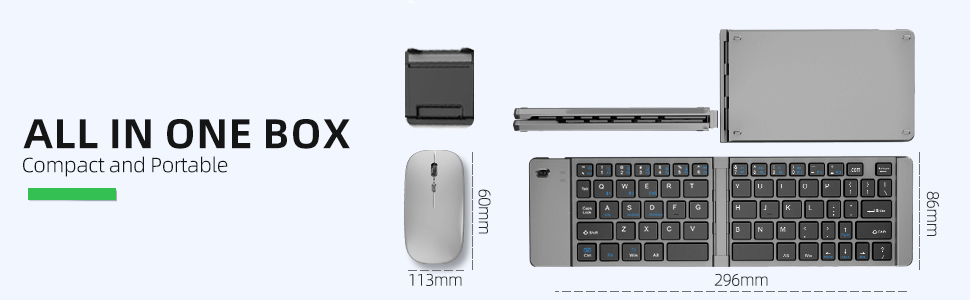
Image 2.1: Diagram illustrating all components included in the product package: the foldable keyboard, wireless mouse, and adjustable stand.
3. Setup Instructions
3.1 Keyboard Connection
The keyboard supports connection to up to three devices simultaneously via Bluetooth (BT1, BT2) and 2.4G wireless.
3.1.1 Bluetooth Connection (First Device)
- Ensure the keyboard is charged.
- Press the Fn key and the BT1 key simultaneously. The indicator light will flash, indicating pairing mode.
- On your device (e.g., iPad, smartphone), go to Bluetooth settings and search for "Bluetooth 5.2 Keyboard" or a similar name.
- Select the keyboard to pair and establish the connection.
3.1.2 Bluetooth Connection (Second Device)
- Ensure the keyboard is charged.
- Press the Fn key and the BT2 key simultaneously. The indicator light will flash, indicating pairing mode.
- On your second device, go to Bluetooth settings and search for "Bluetooth 5.2 Keyboard" or a similar name.
- Select the keyboard to pair and establish the connection.
3.1.3 2.4G Wireless Connection (for PC/Laptop)
- Locate the USB receiver in the mouse's battery compartment.
- Insert the USB receiver into an available USB port on your PC or laptop.
- The keyboard will automatically connect via 2.4G wireless. No additional drivers are typically required.
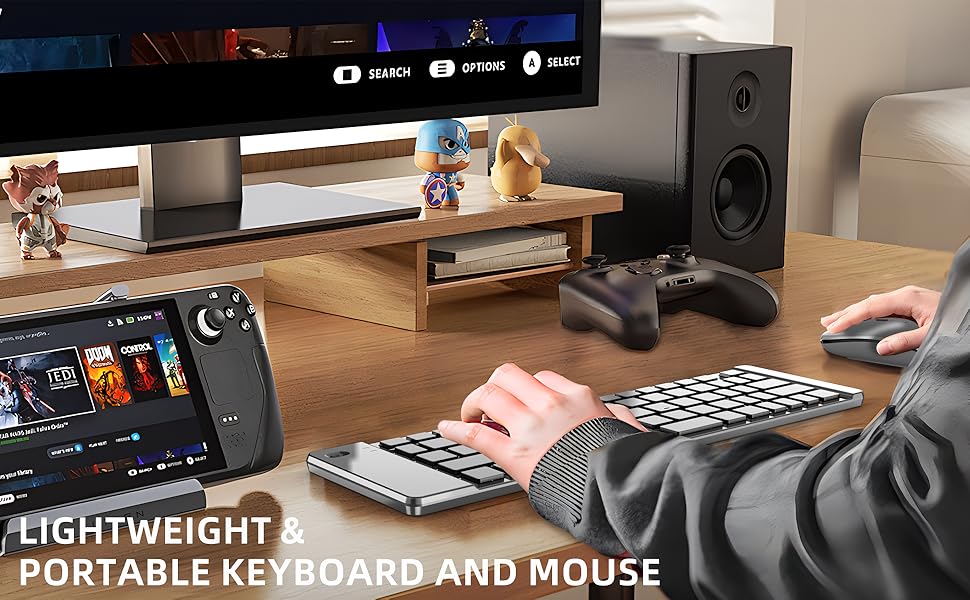
Image 3.1: The keyboard and mouse connected to a monitor, laptop, and smartphone, demonstrating multi-device compatibility across Windows, iOS, and Android operating systems.
3.2 Mouse Connection
The mouse connects via 2.4G wireless using the included USB receiver. The receiver is stored inside the mouse's battery compartment.
- Open the battery compartment of the mouse and remove the USB receiver.
- Insert the USB receiver into an available USB port on your computer or device.
- Turn on the mouse using the power switch located on its underside. The mouse should connect automatically.
4. Operating Instructions
4.1 Switching Between Devices (Keyboard)
To switch between connected devices, press the following key combinations:
- Press Fn + BT1 to switch to the first Bluetooth-connected device.
- Press Fn + BT2 to switch to the second Bluetooth-connected device.
- Press Fn + 2.4G to switch to the device connected via the 2.4G USB receiver.
4.2 Keyboard Layout and Features
The keyboard features a standard layout with quiet scissor-switch keys for a comfortable typing experience.
4.2.1 Operating System Switching
To optimize key functions for different operating systems, use the following combinations:
- Press Fn + Q for iOS devices.
- Press Fn + W for Android devices.
- Press Fn + E for Windows devices.
4.2.2 Quiet Typing
The keyboard is equipped with upgraded quiet scissor switches and low-profile keys, designed to minimize typing noise and prevent mistypes. The key sizes are comparable to a laptop keyboard for ease of use.
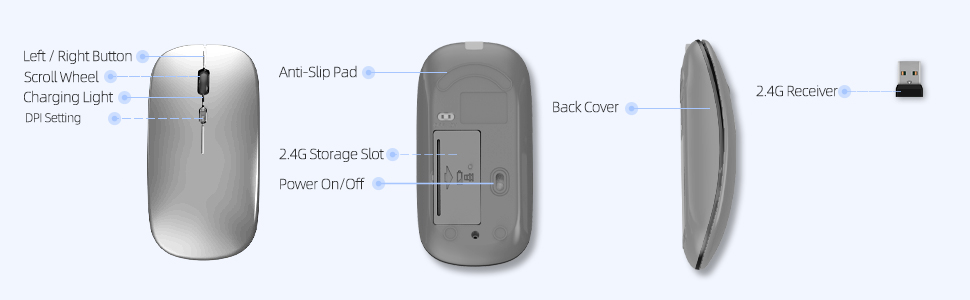
Image 4.1: A close-up view of the keyboard keys, emphasizing the comfortable and quiet typing experience provided by the scissor-switch mechanism.

Image 4.2: A detailed illustration of the interior scissor mechanism beneath a keyboard key, which contributes to quiet and responsive typing.
4.3 Mouse Features
The wireless mouse is designed for quiet operation and precise control.
4.3.1 DPI Adjustment
The mouse offers three adjustable DPI (Dots Per Inch) levels to suit different user preferences and tasks. To change the DPI setting, press the DPI button located on the top of the mouse, behind the scroll wheel. The available DPI levels are 800, 1200, and 1600.
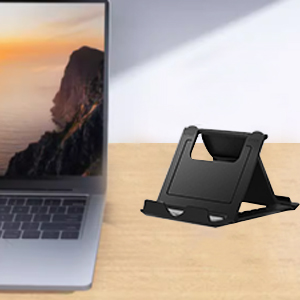
Image 4.3: An illustration of the mouse, indicating the location of the DPI adjustment button and the three available DPI settings (800, 1000, 1200).
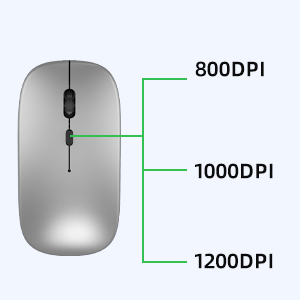
Image 4.4: The wireless mouse, depicted with a sleeping baby in the background, to illustrate its quiet clicking and operation.
5. Maintenance and Battery
5.1 Charging
Both the keyboard and mouse feature rechargeable batteries. Use the provided USB-C charging cable to charge the devices.
- Charging Time: Approximately 2-3 hours for a full charge.
- Battery Life (Keyboard): Up to 48 hours of continuous use, or 60 days standby time.
- Battery Life (Mouse): Up to 84 hours of continuous use, or 200 days standby time.

Image 5.1: The wireless mouse connected to a USB-C charging cable, indicating its rechargeable battery feature.
5.2 Automatic Sleep Mode
To conserve battery power, both the keyboard and mouse will automatically enter sleep mode after 10 minutes of inactivity. To reactivate, simply press any key on the keyboard or move/click the mouse. The devices will automatically reconnect to the last paired device.
6. Troubleshooting
6.1 Connection Failure
If you experience issues connecting the keyboard or mouse, follow these steps:
- Charge the Devices: Ensure both the keyboard and mouse are fully charged (allow 2 hours for a full charge).
- Clear Bluetooth Records: On your device (e.g., tablet, smartphone), remove or delete all previous Bluetooth connection records for the keyboard.
- Refresh Bluetooth: Turn off your device's Bluetooth, wait a few seconds, and then turn it back on to refresh the connection.
- Re-pair: Follow the setup instructions in Section 3 to attempt connection again.
6.2 General Tips
- Ensure the devices are within the effective operating range (up to 33 feet for Bluetooth).
- Avoid using the devices on highly reflective or uneven surfaces, especially the mouse.
- If using 2.4G, ensure the USB receiver is securely plugged into a working USB port.
7. Product Specifications
Detailed specifications for the dunfirn Wireless Foldable Keyboard and Mouse Combo:
| Feature | Specification |
|---|---|
| Model Number | ZDJP-002 |
| Brand | dunfirn |
| Connectivity Technology | Bluetooth 5.2, 2.4G USB Wireless |
| Compatible Devices | Laptop, Personal Computer, Smartphone, Tablet, Television |
| Special Features | Ergonomic, Foldable, Lightweight, Portable, Quiet Keys, Adjustable DPI |
| Color | Silver |
| Item Weight | 13.1 ounces (approximately 371 grams) |
| Package Dimensions | 10.4 x 4.96 x 1.26 inches |
| Batteries | 1 CR5 battery required (included, rechargeable) |
| Manufacturer | Zcyzbb |
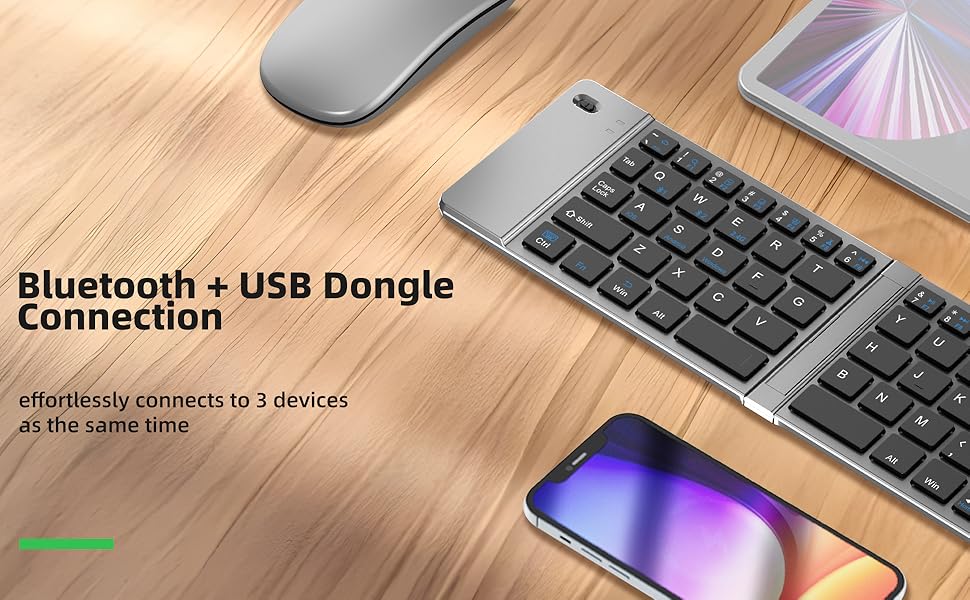
Image 7.1: An overhead view of the unfolded keyboard and mouse, illustrating their dimensions for reference.

Image 7.2: The folded keyboard and mouse placed inside a bag, demonstrating their compact size and portability for travel.
8. Warranty and Customer Support
dunfirn products are designed for reliability and performance. For any technical issues or inquiries regarding your Wireless Foldable Keyboard and Mouse Combo, please contact our customer service support team. We are committed to providing prompt assistance for any problems encountered during purchase or use.
Please refer to your purchase documentation for specific warranty terms and contact information.