
Introduction
This manual provides comprehensive instructions for the installation, operation, and maintenance of your Wuden Tuya WiFi Smart Dimmer Switch Module. Please read this manual thoroughly before installation and use to ensure safe and correct operation. Keep this manual for future reference.
Safety Information
- Electrical Installation: Installation must be performed by a qualified electrician in accordance with all local and national electrical codes.
- Power Disconnection: Always disconnect power at the circuit breaker before installing or servicing the device.
- Voltage Compatibility: Ensure the module's voltage rating (AC100-240V 50/60Hz) matches your electrical supply.
- Load Capacity: Do not exceed the maximum load capacity of LED (AC230V 150W / AC120V 80W). Overloading can cause damage or fire.
- Indoor Use Only: This device is designed for indoor use in dry locations.
- Children Safety: Keep the device out of reach of children.
Product Overview
The Wuden Tuya WiFi Smart Dimmer Switch Module allows you to convert traditional switches into smart switches, enabling remote control and dimming capabilities via the Smart Life app. It supports 2-way control and is designed for 1-gang setups.

Image 1: Two Wuden Tuya WiFi Smart Dimmer Modules. Each module is white, rectangular, with screw terminals labeled L, L1, N, S1, and displays voltage and load specifications.

Image 2: Close-up view of a single Wuden Tuya WiFi Smart Dimmer Module, highlighting the terminal labels (L, L1, N, S1) and the internal wiring diagram printed on its casing.
Specifications
| Product Dimensions | 2.36 x 1.97 x 2.36 inches |
| Weight | 2.96 ounces |
| Brand | Wuden |
| Voltage | AC100-240V 50/60Hz |
| Max. Load (LED) | AC230V 150W / AC120V 80W |
| Control Type | WiFi, 2-Way Control (via app or traditional switch) |
| Compatibility | Tuya Smart Life App |
Installation and Wiring
WARNING: Ensure power is disconnected at the circuit breaker before beginning installation. Improper wiring can lead to electric shock or fire.
- Prepare Wiring: Identify the Live (L), Neutral (N), Load (L1), and Switch (S1) wires in your existing switch box.
- Connect Module:
- Connect the Live wire from your mains to the 'L' terminal on the module.
- Connect the Neutral wire from your mains to the 'N' terminal on the module.
- Connect the Load wire (to your light fixture) to the 'L1' terminal on the module.
- If using a traditional wall switch for 2-way control, connect one terminal of the traditional switch to the 'S1' terminal on the module and the other terminal of the traditional switch to the 'L' terminal (Live).
- Secure Module: Carefully place the module into the switch box, ensuring no wires are pinched.
- Restore Power: Once all connections are secure and the module is safely housed, restore power at the circuit breaker.

Image 3: Wiring Diagram for the Wuden Tuya WiFi Smart Dimmer Module. This diagram illustrates connections for single control, double switch control, and operation without a traditional switch.
Operating Instructions
Manual Control
If a traditional wall switch is connected to the S1 terminal, you can operate the light by toggling the physical switch. The module will remember the last dimming state or turn the light on/off.
App Remote Control
The primary method of control is through the Smart Life or Tuya Smart app, which allows for remote operation and dimming from your smartphone.

Image 4: A person using a smartphone to remotely control smart home lighting, demonstrating the app's functionality.
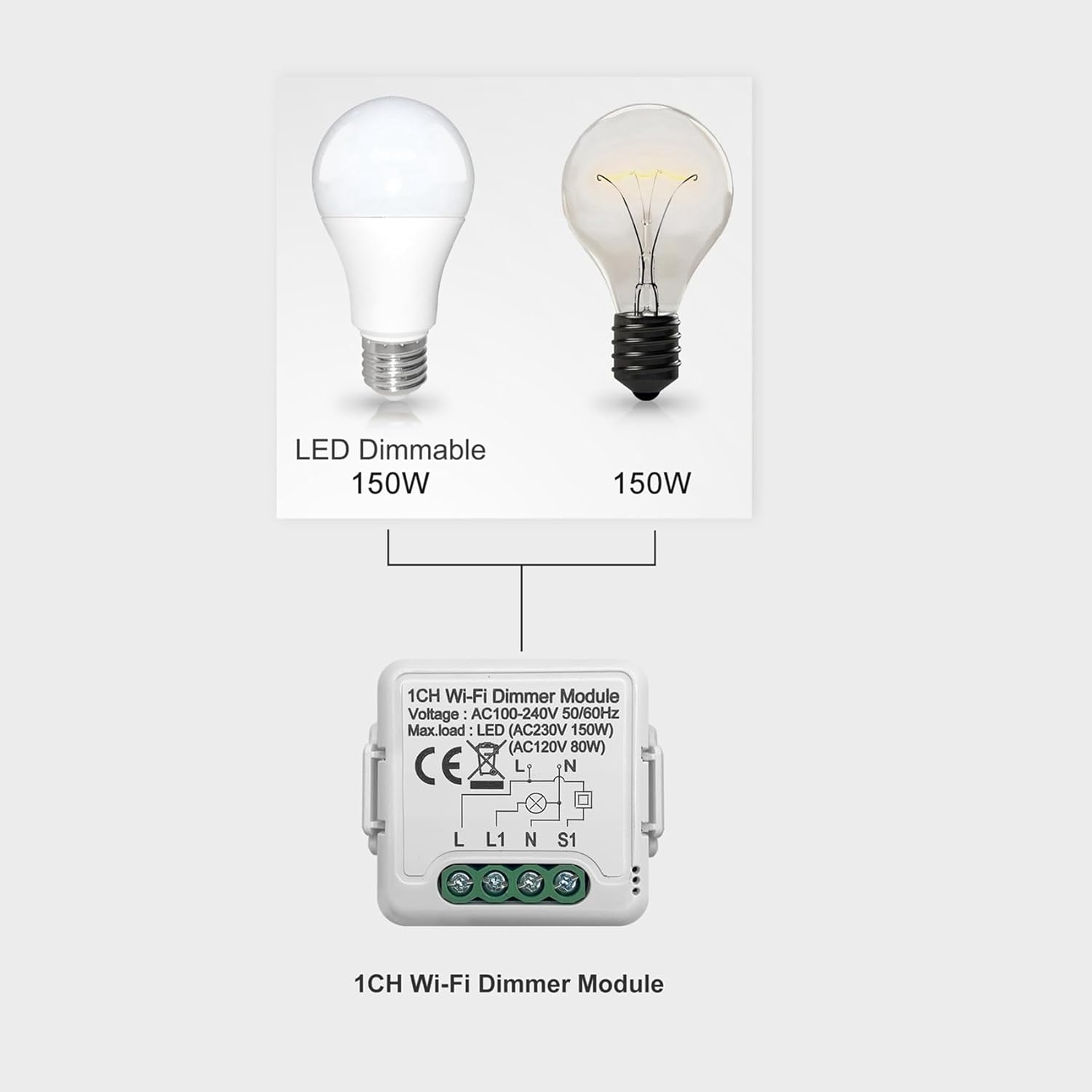
Image 5: An illustration showing compatibility with LED dimmable bulbs (up to 150W) and traditional incandescent bulbs (up to 150W), connected to the 1CH Wi-Fi Dimmer Module.
Pairing with Smart Life App
- Download App: Download the "Smart Life" or "Tuya Smart" app from your smartphone's app store (iOS or Android).
- Register/Login: Open the app and register for a new account or log in with an existing one.
- Enter Pairing Mode: After installation and power restoration, the module should automatically enter pairing mode (often indicated by a rapidly blinking light on the module, if available, or by cycling the connected light switch quickly several times). Refer to the app's instructions for specific pairing mode activation.
- Add Device: In the app, tap the "+" icon (usually in the top right corner) to add a new device.
- Select Device Type: Choose "Lighting" or "Switch (Wi-Fi)" from the device list.
- Connect to Wi-Fi: Follow the in-app instructions to connect the module to your 2.4GHz Wi-Fi network. Ensure your phone is also connected to the same 2.4GHz network during pairing.
- Control: Once successfully paired, you can rename the device and control it from the app, including turning it on/off and adjusting brightness.
Maintenance
- Cleaning: Ensure power is off before cleaning. Wipe the module's exterior with a soft, dry cloth. Do not use harsh chemicals or abrasive cleaners.
- Firmware Updates: Periodically check the Smart Life app for firmware updates for the module to ensure optimal performance and security.
- Environmental Conditions: Avoid exposing the module to extreme temperatures, humidity, or direct sunlight.
Troubleshooting
- Module Not Responding:
- Check power supply at the circuit breaker.
- Verify wiring connections are secure according to the diagram.
- Ensure the connected light bulb is dimmable and within the module's load capacity.
- Cannot Pair with App:
- Ensure your Wi-Fi network is 2.4GHz. The module does not support 5GHz Wi-Fi.
- Confirm your phone is connected to the same 2.4GHz Wi-Fi network during pairing.
- Bring your phone closer to the module and Wi-Fi router.
- Try resetting the module to factory settings (usually by cycling power 3-5 times rapidly) and re-entering pairing mode.
- Dimming Issues:
- Verify the connected bulb is specifically designed for dimming.
- Ensure the total wattage of connected bulbs does not exceed the module's maximum load.
Warranty and Support
Wuden products are designed for reliability and performance. For warranty information or technical support, please refer to the retailer where the product was purchased or visit the official Wuden website (if available). Please have your product model and purchase date ready when contacting support.