

1. Introduction
Thank you for choosing the vapourd Stream Control Deck. This device is designed to enhance your workflow for streaming, video editing, music creation, and office tasks by providing quick access to functions and applications. It features customizable LCD buttons and rotary knobs for intuitive control over various software and system settings.
This manual provides detailed instructions for setting up, operating, and maintaining your Stream Control Deck, along with troubleshooting tips.
2. Package Contents
- vapourd Stream Control Deck
- USB-C Connection Cable
- Removable Non-Slip Stand
- User Manual (this document)
3. Product Overview
The vapourd Stream Control Deck features a compact design with multiple interactive elements:
- 6 Adjustable LCD Buttons: These buttons can be customized with icons and assigned to various actions, macros, or application shortcuts.
- 3 Round Buttons: Located below the LCD buttons, these can be assigned additional functions.
- 3 Rotary Knobs: These provide tactile control for adjusting parameters like volume, screen brightness, or other software-specific settings. Each knob also functions as a pressable button.
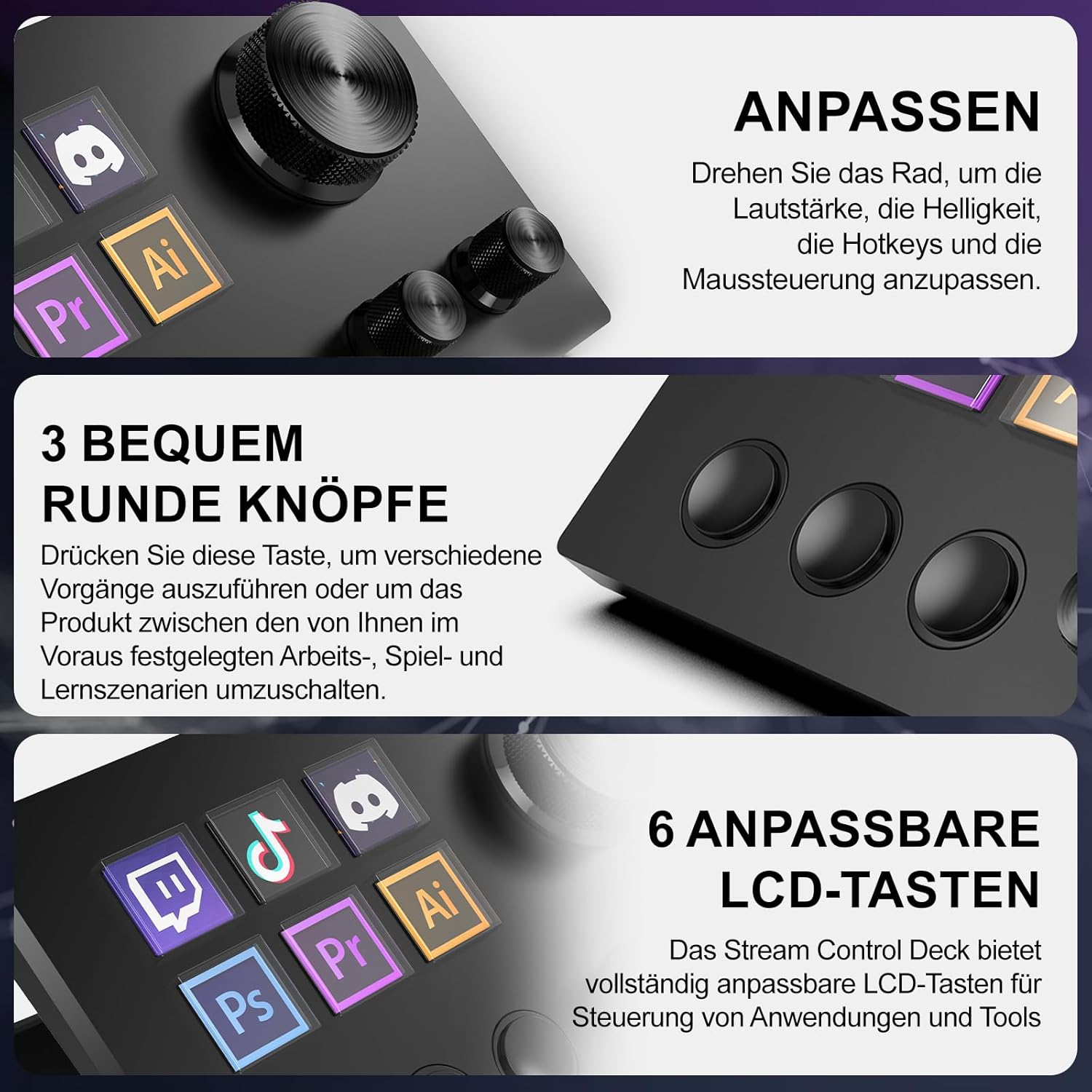
Image: Detailed view of the Stream Control Deck's interface, highlighting the six customizable LCD buttons, three rotary knobs (each with a press function), and three additional round buttons. The image also shows German labels indicating customization options for volume, brightness, hotkeys, and mouse control.

Image: This image illustrates the physical design elements of the Stream Control Deck, including the USB-C connection port, the 45-degree angled removable stand for ergonomic viewing, and the anti-slip pads on the base for stability.
4. Setup Guide
4.1 Physical Connection
- Place the Stream Control Deck on a stable surface.
- Attach the removable non-slip stand to achieve an ergonomic 45-degree viewing angle.
- Connect the provided USB-C cable to the port on the back of the Stream Control Deck and to an available USB port on your computer (Mac or PC).
- The device will power on automatically.
4.2 Software Installation
To fully utilize the customization features of your Stream Control Deck, you must install the accompanying software. Please note: The software download link provided in some printed manuals may be incorrect or outdated. Use the following verified link to download the latest software:
Verified Software Download Link: https://mirabox.key123.vip/download
- Visit the provided link in your web browser.
- Download the appropriate software version for your operating system (Mac or PC).
- Run the installer and follow the on-screen instructions to complete the installation.
- Once installed, launch the Stream Control Deck software. The device should be automatically detected and connected.

Image: A screenshot of the Stream Control Deck's software interface, demonstrating the powerful integrated control center where users can configure buttons and knobs. The interface shows options for various applications and system controls.

Image: This image illustrates the user-friendly drag-and-drop functionality within the Stream Control Deck software, making it easy to assign actions and applications to the customizable buttons.
5. Operating Instructions
The Stream Control Deck offers extensive customization to streamline your workflow across various applications.
5.1 Customizing Buttons and Knobs
- Launch the Software: Open the Stream Control Deck application on your computer.
- Select a Button/Knob: In the software interface, click on the representation of the button or knob you wish to customize.
- Assign an Action:
- Application Launch: Assign a button to open any application, folder, or web page.
- Hotkeys/Macros: Create custom hotkey combinations or complex macros to execute multiple actions simultaneously or sequentially.
- System Controls: Adjust system volume, screen brightness, or media playback controls.
- Streaming Software Integration: Directly control functions in supported streaming software like OBS Studio (version 27.0.0 and above), Twitch, YouTube, Twitter, Discord, Spotify, and Philips Hue.
- Customize Icons: For LCD buttons, upload your own icons to visually represent the assigned action.
- Create Profiles: Set up different profiles for various applications (e.g., one for OBS, one for video editing, one for general desktop use). The device can automatically switch profiles based on the active application.

Image: This visual demonstrates the Stream Control Deck's capability for quick switching between virtual keyboard layouts and various applications, including creative suites (Photoshop, Premiere Pro, Illustrator) and communication/streaming platforms (Discord, TikTok, Twitch).
5.2 Using Rotary Knobs
- Rotation: Turn the knobs left or right to adjust assigned parameters incrementally (e.g., volume up/down, brightness up/down).
- Press Function: Each rotary knob can also be pressed down to trigger an additional action, such as muting audio or resetting a setting.
5.3 Application Scenarios
- Live Streaming: Control OBS scenes, mute microphones, trigger sound effects, or manage chat.
- Video Editing: Assign shortcuts for common editing tasks, timeline navigation, or tool selection in software like Adobe Premiere Pro.
- Music Production: Control DAW functions, adjust instrument parameters, or trigger samples.
- Office Work: Quickly launch frequently used applications, manage virtual desktops, or execute complex text macros.
6. Maintenance
- Cleaning: Use a soft, dry cloth to wipe the surface of the device. Avoid abrasive cleaners or solvents.
- Storage: Store the device in a cool, dry place away from direct sunlight and extreme temperatures.
- Software Updates: Periodically check the official software download page (https://mirabox.key123.vip/download) for software updates to ensure optimal performance and access to new features.
7. Troubleshooting
- Device Not Detected:
- Ensure the USB-C cable is securely connected to both the device and your computer.
- Try connecting to a different USB port on your computer.
- Restart your computer and the Stream Control Deck software.
- Verify that the correct software drivers are installed from the official download link.
- Software Download Link Not Working:
- As noted in user feedback, some printed manuals contain an incorrect software link. Always use the verified link: https://mirabox.key123.vip/download.
- Ensure your internet connection is stable.
- Buttons/Knobs Not Responding:
- Check the software to ensure actions are correctly assigned to the unresponsive buttons/knobs.
- Make sure the Stream Control Deck software is running in the background.
- Restart the software and, if necessary, your computer.
- Static Electricity Warning:
The product packaging includes a general warning regarding static electricity. To avoid damage to the device or computer components, always handle the device with care, especially when connecting or disconnecting, and ensure your computer is powered off when replacing components.
Image: A warning label, typically found on product packaging, advising caution regarding static electricity to prevent damage to electronic components.
8. Specifications
| Model | B0DPP9BKRL |
| Brand | vapourd |
| Dimensions (Package) | 6.61 x 5 x 2.64 inches |
| Item Weight | 10.2 ounces |
| Connectivity | USB-C |
| Compatibility | Mac, PC (Windows 10/11) |
| Customizable Elements | 6 LCD Buttons, 3 Rotary Knobs (with press function), 3 Round Buttons |
| Supported Software | OBS Studio (v27.0.0+), Twitch, YouTube, Twitter, Discord, Spotify, Philips Hue, Adobe applications (e.g., Premiere Pro, Photoshop) |
9. Support
For further assistance or technical support, please refer to the official software download page for potential contact information or FAQs, or consult the retailer where the product was purchased.
Official Software & Support Link: https://mirabox.key123.vip/download


