
DQ03 TV Stick
DQ03 Mini Android TV Stick User Manual
Model: DQ03 TV Stick
Introduction
This manual provides comprehensive instructions for the setup, operation, and maintenance of your DQ03 Mini Android TV Stick. Designed for seamless streaming and entertainment, this device transforms any HDMI-enabled display into a smart TV, offering access to a wide range of applications and media content.
The DQ03 TV Stick features a powerful Quad Core ARM Cortex A53 processor, 4K H.265 support, and dual-band Wi-Fi for a smooth and immersive viewing experience. Please read this manual carefully to ensure proper use and to maximize the performance of your device.

Image: The DQ03 Mini Android TV Stick, its remote control, and the product packaging, illustrating the compact design and included accessories.
What's in the Box
Upon opening the package, please verify that all the following items are included:
- DQ03 TV Stick
- Remote control
- HD cable (HDMI cable)
- IR Extend Cable
- Power cable
- Manual

Image: A visual representation of all items included in the DQ03 TV Stick package, including the TV stick, remote, various cables, and the manual.
Setup Guide
Follow these steps to set up your DQ03 Mini Android TV Stick:
- Connect the TV Stick: Insert the DQ03 TV Stick directly into an available HDMI port on your television. If space is limited, use the provided HD cable (HDMI extension cable) to connect the stick to the TV.
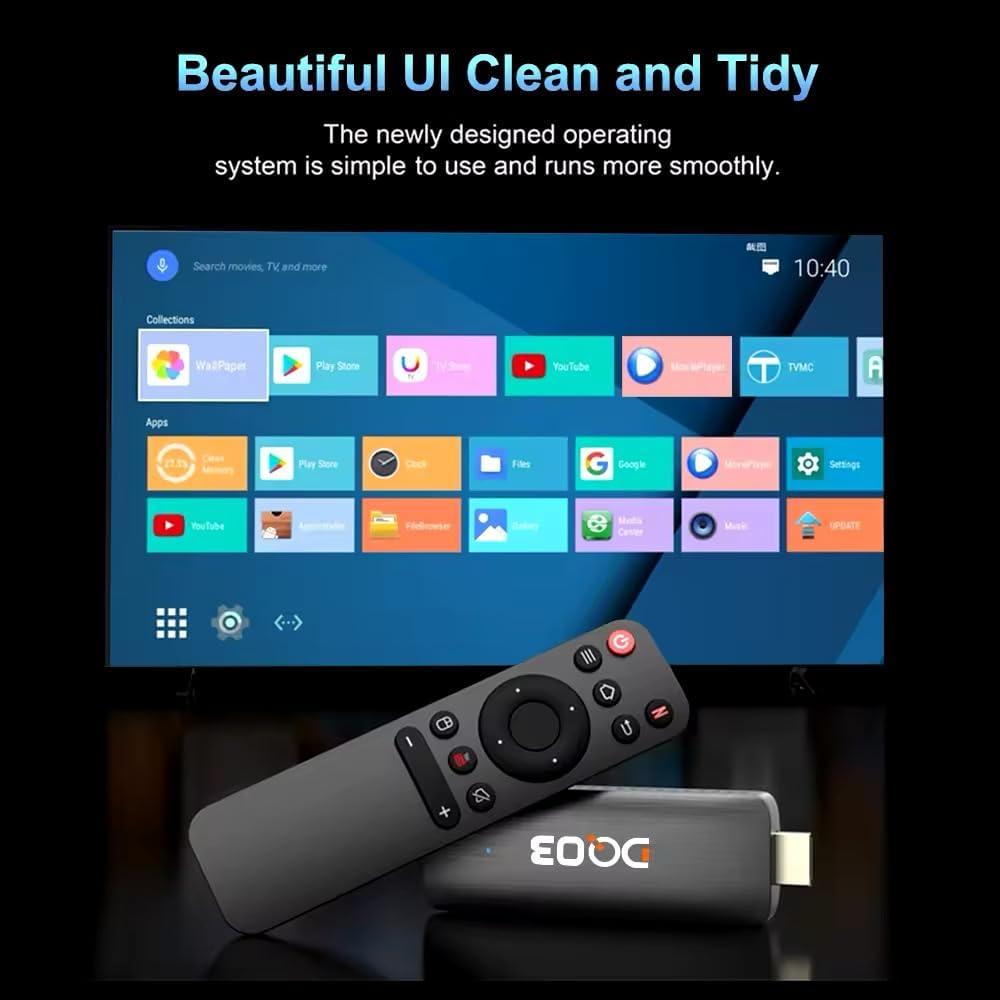
Image: The DQ03 TV Stick connected to a television using an HDMI extension cable, highlighting the HDMI port and connection point.
- Connect Power: Connect the power cable to the TV Stick's power input port and then plug the other end into a suitable power outlet. The device will power on automatically.
- Insert Remote Batteries: Open the battery compartment on the back of the remote control and insert two AAA batteries (not included), ensuring correct polarity.

Image: The DQ03 TV Stick alongside its dedicated remote control, showing the overall design of both components.
- Select HDMI Input: On your television, use the TV remote to select the correct HDMI input source to which the DQ03 TV Stick is connected.
- Initial Setup Wizard: Follow the on-screen instructions to complete the initial setup. This typically includes:
- Language selection
- Network connection (Wi-Fi setup)
- Google account sign-in (optional, but recommended for app access)
- Date and time settings
Operating Instructions
Once set up, you can begin using your DQ03 Mini Android TV Stick to access various entertainment options.
Navigating the Interface
The DQ03 TV Stick runs on Android 10 Big TV OS, providing a user-friendly interface. Use the remote control's directional pad and OK button to navigate through menus and select items. The Home button will always return you to the main screen.

Image: A screenshot of the DQ03 TV Stick's user interface, displaying various app icons and navigation elements.
Accessing Applications
Pre-installed applications like Netflix, Prime Video, and YouTube are readily available. You can download additional apps from the Google Play Store. Ensure you are signed in with your Google account to access the Play Store.

Image: A family watching YouTube content in 4K resolution on a television, demonstrating the high-quality output of the DQ03 TV Stick.
Key Features
- 4K@60fps & HDR10+ Support: Enjoy ultra-high-definition content with vibrant colors and enhanced contrast. The device supports H.265 decoding for efficient streaming of 4K video.
- Dual-Band Wi-Fi: Connect to either 2.4GHz or 5.8GHz Wi-Fi networks for stable and fast internet connectivity.
- Google Voice Input: Use the voice search feature on your remote (if supported) to quickly find content, launch apps, or get information.
- Screen Sharing: The DQ03 TV Stick supports Airplay, DLNA, and Miracast, allowing you to cast content from your Android or iOS devices to your TV.

Image: A diagram illustrating the screen sharing capabilities (Airplay, DLNA, Miracast) of the DQ03 TV Stick, showing content being cast from a mobile device to a television.

Image: A collage of images depicting various entertainment activities enabled by the DQ03 TV Stick, such as playing games, watching movies, viewing sports, and screen sharing.
Maintenance
To ensure the longevity and optimal performance of your DQ03 Mini Android TV Stick, consider the following maintenance tips:
- Cleaning: Gently wipe the device and remote control with a soft, dry cloth. Do not use liquid cleaners or abrasive materials.
- Ventilation: Ensure the TV Stick is placed in a well-ventilated area to prevent overheating. Avoid covering its ventilation holes.
- Software Updates: Periodically check for system updates in the device settings. Keeping the software updated can improve performance and security. For firmware updates and additional support, visit the official software link: https://www.vontar.cn/pages/download.
- Power Cycle: If the device becomes unresponsive, disconnect the power cable, wait a few seconds, and then reconnect it to perform a power cycle.
Troubleshooting
If you encounter issues with your DQ03 Mini Android TV Stick, refer to the following common problems and solutions:
| Problem | Possible Cause | Solution |
|---|---|---|
| No power/Device not turning on | Power cable not connected properly; Power outlet issue | Ensure power cable is securely connected. Try a different power outlet. |
| No signal on TV screen | Incorrect HDMI input selected; Loose HDMI connection | Select the correct HDMI input on your TV. Reconnect the HDMI cable firmly. |
| Wi-Fi connection issues | Incorrect Wi-Fi password; Router too far; Network interference | Double-check Wi-Fi password. Move device closer to router. Restart router. |
| Apps crashing or freezing | Insufficient memory; App specific issue; Outdated software | Close background apps. Clear app cache/data. Update the app or system software. |
| Remote control not responding | Low or dead batteries; Obstruction between remote and device | Replace batteries. Ensure clear line of sight to the TV Stick. |
Specifications
Detailed technical specifications for the DQ03 Mini Android TV Stick:
| Feature | Detail |
|---|---|
| Model Name | DQ03 TV Stick |
| CPU | Quad Core ARM Cortex A53 |
| GPU | Mali G31 |
| Operating System | Android 10 Big TV OS |
| RAM | DDR3, 1GB/2GB options (as per model variant) |
| Storage | 8GB/16GB eMMC (as per model variant) |
| Resolution Support | 4K@60fps, HDR10+, H.265 decoding |
| Connectivity | HDMI, Dual-Band Wi-Fi (2.4G & 5.8G) |
| Supported Internet Services | Netflix, Prime Video, YouTube (and others via Google Play Store) |
| Dimensions | 18 x 4 x 10 cm; 180 g |
| Color | Black |
| Manufacturer | Fazalom-store |

Image: A visual comparison demonstrating the superior quality and efficiency of H.265/HEVC decoding compared to H.264, highlighting deeper colors and smoother playback.
Image: A detailed diagram showing the dimensions of the DQ03 TV Stick from multiple angles, including length, width, and thickness.
Support
For further assistance, firmware updates, or additional support, please visit the official software download page:
Official Software & Support Link
Please note that warranty information is typically provided with your purchase documentation. Retain your proof of purchase for any warranty claims.
Ask a question about this manual
Ask about setup, troubleshooting, compatibility, parts, safety, or missing instructions. Manuals+ will review the question and use this page’s manual context to help answer it.