
1. Introduction
Thank you for choosing the JJGJ 11-inch Android 14 Tablet. This manual provides essential information to help you set up, operate, and maintain your new device. Please read this manual thoroughly before using the tablet to ensure optimal performance and longevity.
2. What's in the Box
Carefully unpack your JJGJ Tablet and ensure all items are present. If any items are missing or damaged, please contact customer support.
- 1 x JJGJ 11-inch Android Tablet
- 1 x Keyboard
- 1 x Mouse
- 1 x Stylus
- 1 x Protective Case
- 1 x USB Charger
- 1 x Type-C Cable
- 1 x OTG Cable
- 1 x User Manual
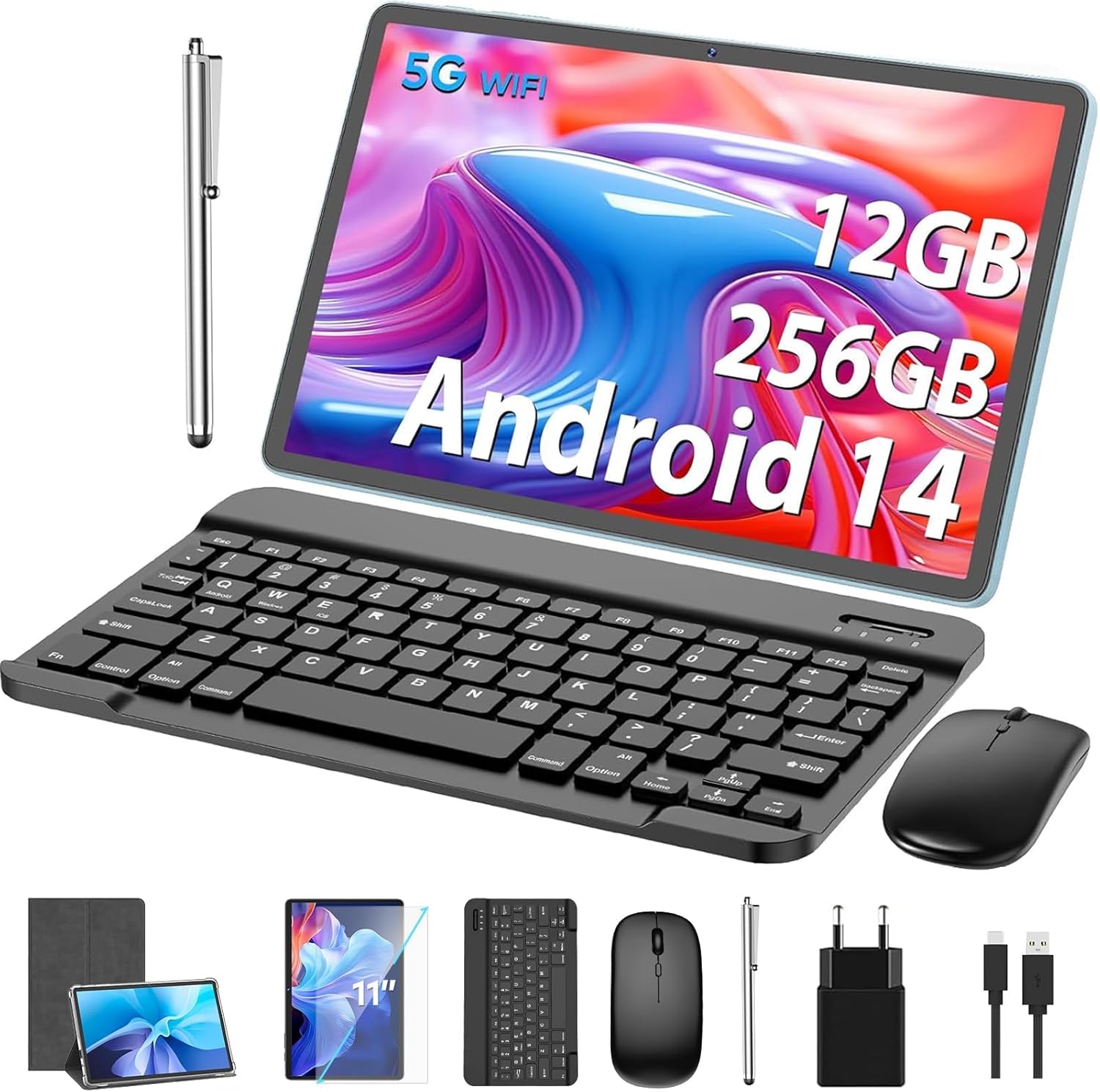
Figure 2.1: JJGJ Tablet and all included accessories.
3. Product Overview
The JJGJ 11-inch Android 14 Tablet is designed for both entertainment and productivity, offering a versatile 2-in-1 experience with its included accessories.
3.1 Key Features
- Operating System: Android 14 with optimized privacy settings and permission control.
- Processor: Faster octa-core processor for enhanced efficiency.
- Memory & Storage: 12GB (6+6) RAM and 256GB ROM, expandable up to 1TB via Micro SD card.
- Display: 11-inch IPS touchscreen with 1280 x 800 resolution for vivid visuals.
- Cameras: 13MP rear camera and 5MP front camera for capturing moments and video calls.
- Battery: High-performance 8000mAh battery with 18W fast charging.
- Connectivity: 2.4G/5G WiFi, Bluetooth 5.0, Hotspot, FM.

Figure 3.1: The tablet's 2-in-1 functionality for productivity and communication.
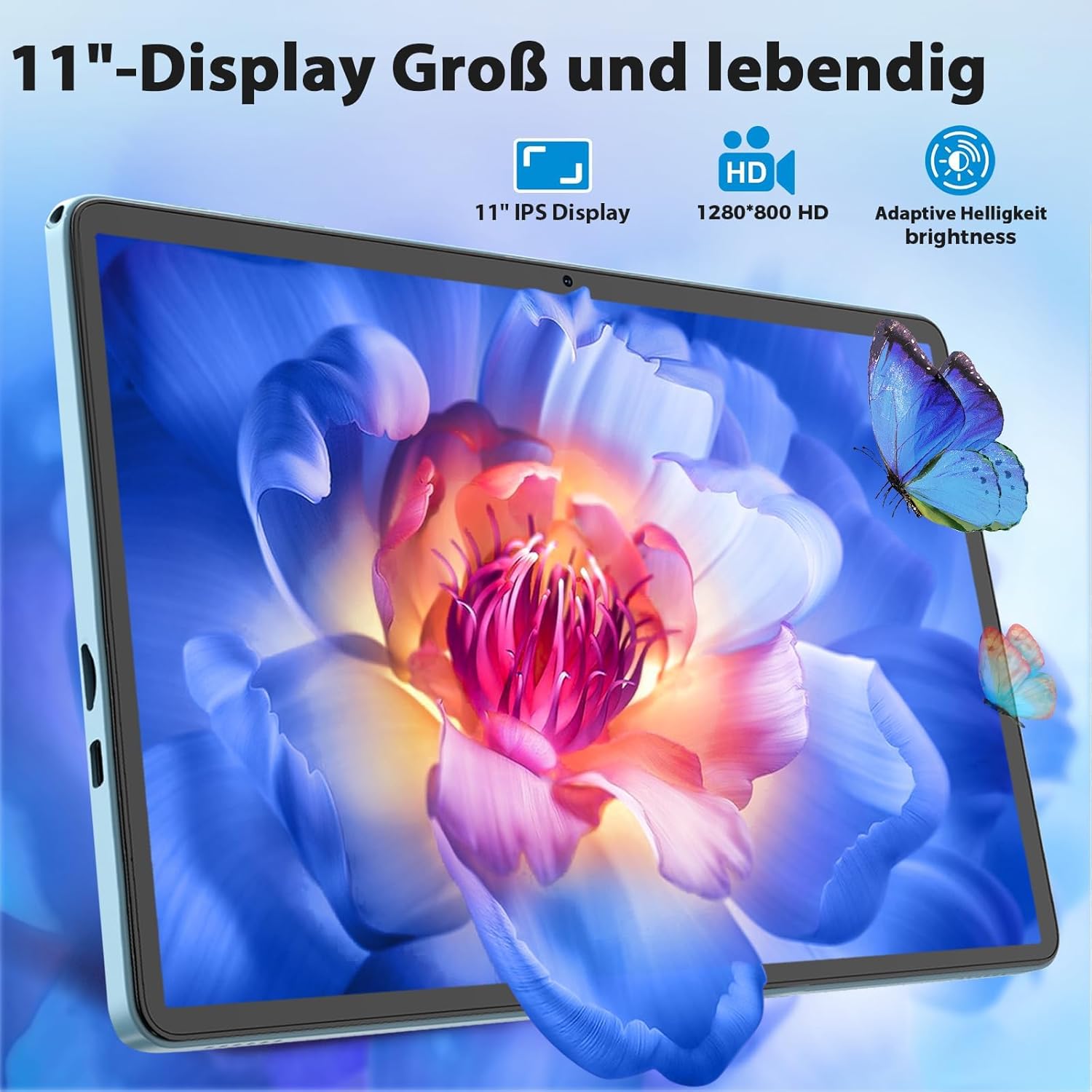
Figure 3.2: The 11-inch IPS display offers a large and vibrant viewing experience.
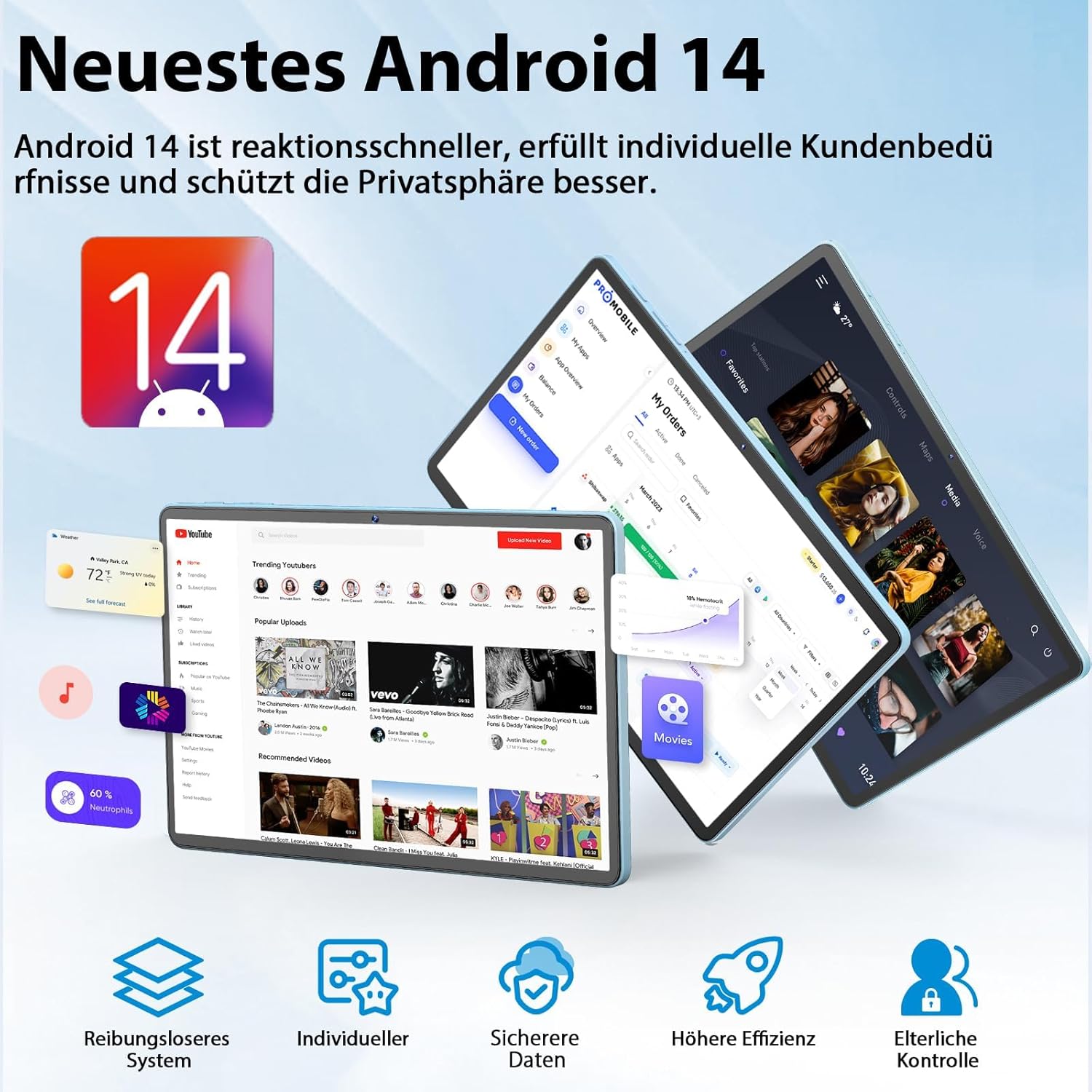
Figure 3.3: The tablet runs on the latest Android 14 operating system.
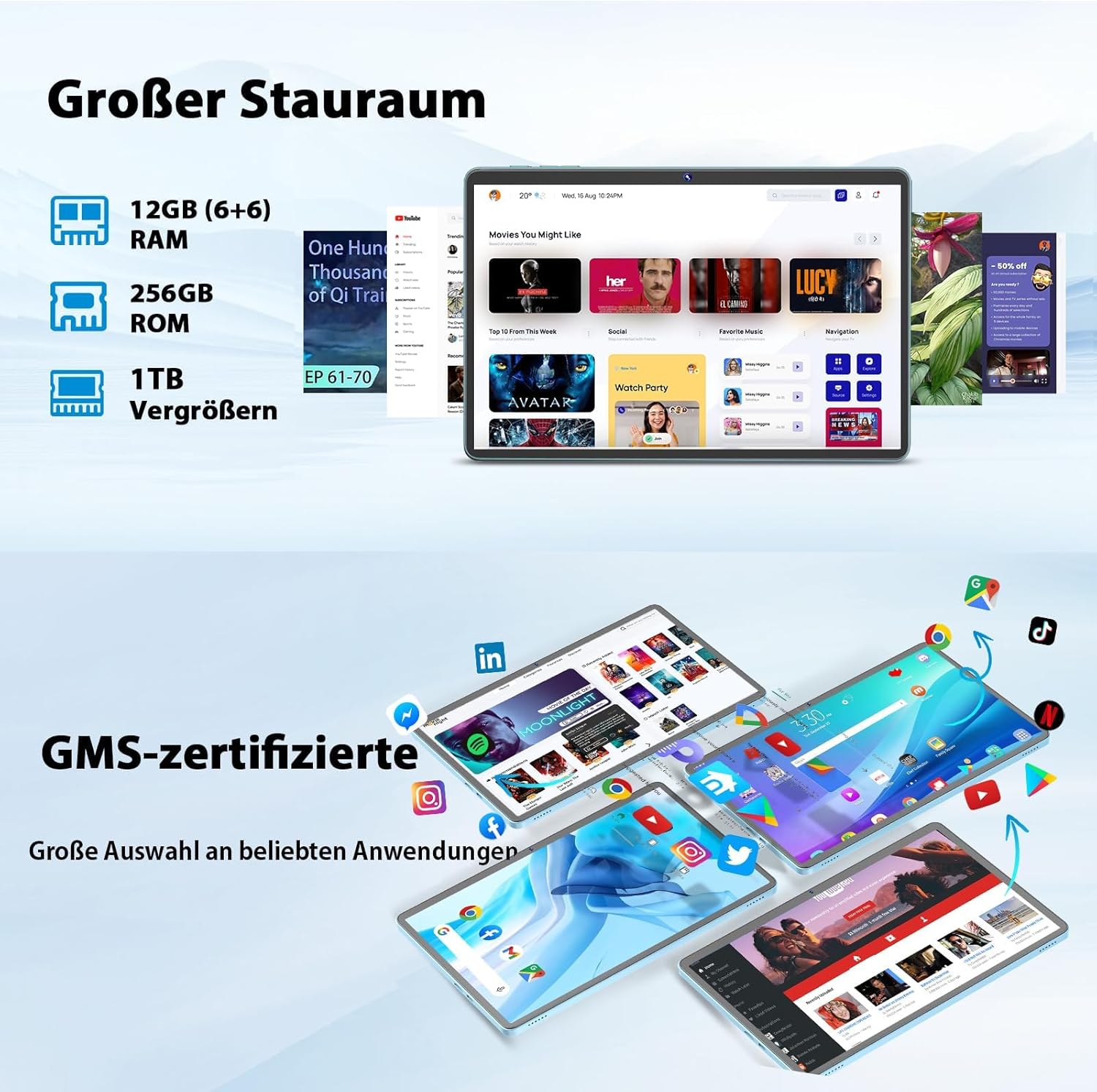
Figure 3.4: Ample storage for all your apps, media, and documents.

Figure 3.5: The 8000mAh battery provides extended usage time.

Figure 3.6: Capture precious moments with the tablet's dual cameras.
4. Setup
4.1 Initial Charging
- Connect the Type-C cable to the tablet's charging port.
- Connect the other end of the cable to the USB charger.
- Plug the charger into a power outlet.
- Allow the tablet to charge fully before first use. The battery indicator on the screen will show charging status.
4.2 Powering On/Off
- To Power On: Press and hold the Power button (usually located on the side or top edge) until the JJGJ logo appears.
- To Power Off: Press and hold the Power button until the power options menu appears. Select "Power off" and confirm.
- To Restart: From the power options menu, select "Restart."
4.3 Initial Setup Wizard
Upon first power-on, the tablet will guide you through an initial setup wizard. Follow the on-screen prompts to:
- Select your language.
- Connect to a Wi-Fi network.
- Sign in with your Google account (or create a new one).
- Set up screen lock (PIN, pattern, password).
- Review and accept terms and conditions.
5. Operating Instructions
5.1 Basic Navigation
- Touch: Tap an icon to open an app or select an item.
- Swipe: Drag your finger across the screen to scroll or navigate between home screens.
- Pinch-to-Zoom: Use two fingers to zoom in or out on photos, maps, or web pages.
- Long Press: Press and hold an item to reveal additional options or move icons.
5.2 Connecting Accessories
5.2.1 Keyboard and Mouse
The included keyboard and mouse connect via Bluetooth. Ensure both accessories are charged or have fresh batteries.
- Turn on the keyboard and mouse. Look for a power switch or button.
- Put the keyboard/mouse into pairing mode (usually by pressing a dedicated Bluetooth button or holding the power button).
- On your tablet, go to Settings > Connected devices > Bluetooth.
- Ensure Bluetooth is enabled.
- Tap "Pair new device" and select the keyboard or mouse from the list of available devices.
- Follow any on-screen prompts to complete pairing.
5.2.2 Stylus
The stylus is typically a passive stylus and does not require pairing. Simply use it directly on the screen for navigation, drawing, or writing.
5.3 Wi-Fi and Bluetooth Connectivity
Access these settings from the Quick Settings panel (swipe down from the top of the screen) or via Settings > Network & internet.
- Wi-Fi: Tap the Wi-Fi icon to toggle it on/off. Tap and hold to view available networks and connect.
- Bluetooth: Tap the Bluetooth icon to toggle it on/off. Tap and hold to manage paired devices or pair new ones.
5.4 Storage Expansion
To expand storage, insert a Micro SD card (up to 1TB) into the dedicated Micro SD card slot on the tablet. The tablet will prompt you to format the card for use as portable or internal storage.
5.5 Camera Usage
Open the Camera app from your home screen or app drawer.
- Switch Cameras: Tap the camera switch icon to toggle between the 13MP rear camera and the 5MP front camera.
- Take Photo: Tap the shutter button.
- Record Video: Switch to video mode and tap the record button to start/stop recording.
- Settings: Access camera settings for options like resolution, flash, and timer.
6. Maintenance
6.1 Battery Care
- Use only the provided charger or a certified compatible charger.
- Avoid extreme temperatures, as they can degrade battery life.
- Do not let the battery completely drain frequently. Charge it before it reaches very low levels.
- For long-term storage, charge the tablet to about 50% and power it off.
6.2 Cleaning
- Power off the tablet before cleaning.
- Use a soft, lint-free cloth to wipe the screen and body.
- For stubborn smudges, slightly dampen the cloth with water or a screen cleaner designed for electronics. Avoid harsh chemicals.
6.3 Software Updates
Regularly check for and install software updates to ensure your tablet has the latest features, security patches, and performance improvements.
- Go to Settings > System > System update.
- Tap "Check for update" and follow the on-screen instructions if an update is available.
7. Troubleshooting
This section addresses common issues you might encounter with your JJGJ Tablet.
| Problem | Possible Cause | Solution |
|---|---|---|
| Tablet won't turn on | Low battery; System crash | Charge the tablet for at least 30 minutes. Perform a forced restart by holding the Power button for 10-15 seconds. |
| Wi-Fi connection issues | Incorrect password; Router issue; Tablet Wi-Fi disabled | Check Wi-Fi password. Restart your router. Ensure Wi-Fi is enabled on the tablet. Forget and reconnect to the network. |
| Slow performance | Too many apps running; Low storage; Outdated software | Close unused apps. Clear cache. Free up storage space. Check for system updates. Restart the tablet. |
| Keyboard/Mouse not connecting | Not in pairing mode; Bluetooth off; Low battery | Ensure accessories are in pairing mode and charged. Check tablet's Bluetooth settings. Try re-pairing. |
| Apps crashing or freezing | App bug; Insufficient RAM; Software conflict | Force close and reopen the app. Clear app cache/data. Uninstall and reinstall the app. Check for system updates. |
8. Specifications
Detailed technical specifications for the JJGJ 11-inch Android 14 Tablet (Model: P80).
| Feature | Specification |
|---|---|
| Brand | JJGJ |
| Model Name | P80 |
| Color | Silver |
| Operating System | Android 14 |
| Processor Brand | AMD (Octa-core) |
| Screen Size | 11 Inches |
| Display Resolution | 1280 x 800 Pixels (IPS) |
| RAM | 12 GB (6+6) |
| Internal Storage (ROM) | 256 GB |
| External Memory Support | Micro SD up to 1 TB |
| Front Camera | 5 MP |
| Rear Camera | 13 MP |
| Battery Capacity | 8000 mAh (Lithium-polymer) |
| Connectivity | WiFi (2.4G/5G), Bluetooth 5.0, Hotspot, FM |
| Interfaces | Type-C Port, Micro SD Card Slot, Headphone Jack |
| Dimensions (L x W x H) | 11 x 6 x 1.5 cm |
| Weight | 1.46 kilograms |
| Special Features | Stylus Support |
For more detailed product information and energy efficiency data, please refer to the official EPREL database: https://eprel.ec.europa.eu/qr/2385342
9. Warranty and Support
9.1 Warranty Information
This JJGJ Tablet comes with a 12-month warranty from the date of purchase. This warranty covers manufacturing defects and malfunctions under normal use. It does not cover damage caused by misuse, accidents, unauthorized repairs, or normal wear and tear.
Please retain your proof of purchase for warranty claims.
9.2 Customer Support
If you encounter any issues not covered in this manual or require further assistance, please contact JJGJ customer support through the retailer where you purchased the product or visit the official JJGJ website for contact information.
Please note that information regarding spare parts availability and guaranteed software updates is currently unavailable.