
eLinkSmart YL-P8bf-OBlack
eLinkSmart Fingerprint Padlock User Manual
Model: YL-P8bf-OBlack
Introduction
The eLinkSmart Fingerprint Padlock provides advanced, keyless security for various applications. This smart padlock integrates fingerprint recognition and Bluetooth app control, offering convenience and enhanced monitoring capabilities. Its robust design ensures durability for everyday use.

Image: The eLinkSmart Fingerprint Padlock, demonstrating its connectivity with a smartphone and a smartwatch for unlocking.
What's in the Box
Upon opening your eLinkSmart Fingerprint Padlock package, you will find the following components:
- Fingerprint App Padlock (Obsidian Black)
- USB Charging Cable
- User Manual
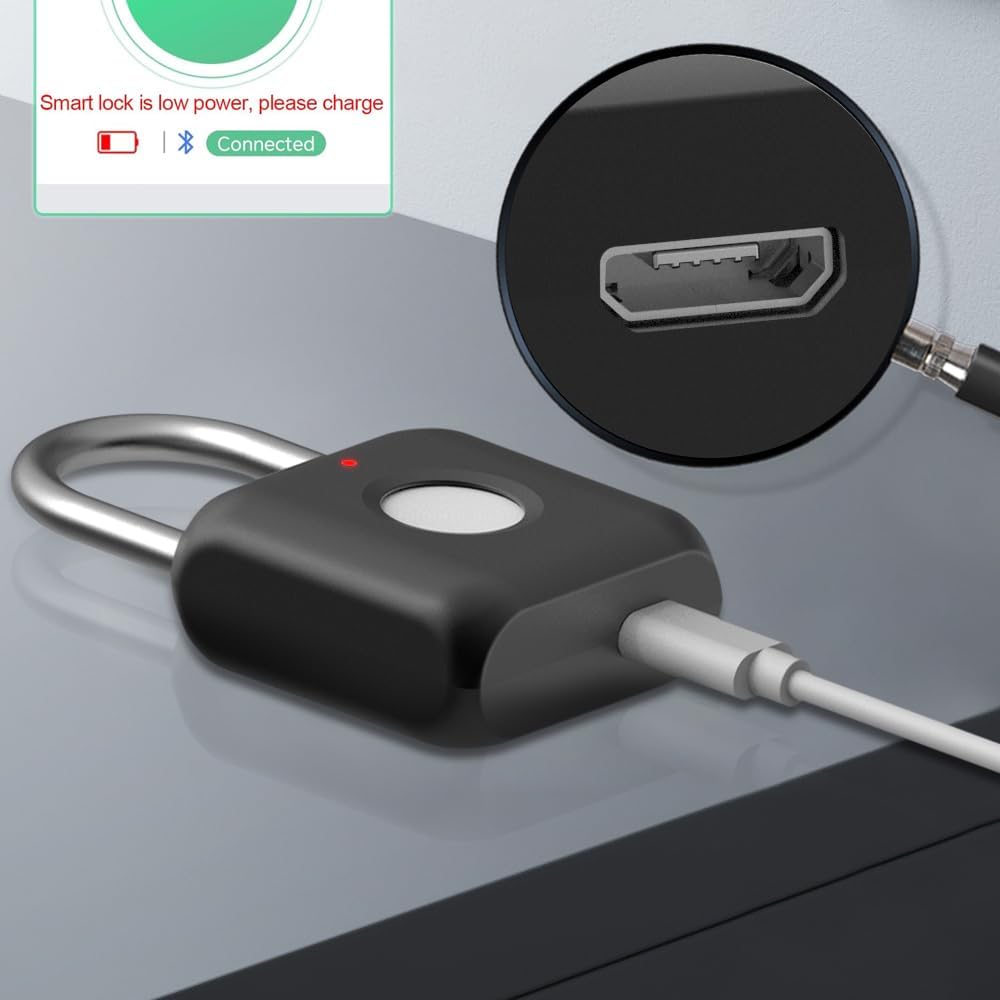
Image: The padlock connected to its USB charging cable, illustrating the charging port location.
Setup
1. App Download and Registration
To begin, download the eSmartLock app from your device's App Store (iOS or Android). Follow the on-screen prompts to register your account.

Image: A screenshot of the eSmartLock app interface, highlighting key functions such as unlocking, adding fingerprints, managing sub-accounts, and viewing unlock records.
2. Device Pairing
After registration, open the app and enable Bluetooth on your smartphone. The app will guide you through the process of discovering and pairing with your eLinkSmart padlock. You may also modify the padlock's name within the app for easier identification, especially if you own multiple locks.
3. Fingerprint Registration
Once paired, you can register fingerprints. The padlock supports up to 20 different fingerprints, including 2 administrator fingerprints. Follow these steps:
- In the app, navigate to the 'Add Fingerprint' section.
- Place your finger on the padlock's fingerprint sensor.
- Lift and reposition your finger as instructed by the app to capture different angles of your fingerprint. This typically involves several readings.
- Ensure your fingers are clean and dry for optimal recognition.
- Once all readings are complete, your fingerprint will be stored and ready for use.
Operating Instructions
1. Fingerprint Unlock
To unlock the padlock using your registered fingerprint, simply place your finger on the fingerprint sensor. The padlock will unlock in approximately 0.1 seconds if the fingerprint is recognized.
2. App Unlock
You can also unlock the padlock via the eSmartLock app. Open the app, ensure your device is connected to the padlock via Bluetooth, and tap the 'Unlock' button. The app allows administrators to authorize family, friends, or colleagues to unlock the padlock, with options to set unlock periods and schedules.

Image: A visual comparison demonstrating both fingerprint and app unlocking methods for the eLinkSmart padlock.
3. Unlock Records
The eSmartLock app maintains a detailed history of all unlock events. This includes unlocks via fingerprint and app, providing a timestamp and the username associated with each unlock. This feature allows you to monitor access to your secured items.

Image: A smartphone screen displaying the eSmartLock app's interface for authorizing users and setting unlock schedules.
Maintenance
Battery Life and Charging
The eLinkSmart padlock is designed for extended use, supporting up to 6 months of standby time or over 2000 unlocks on a single charge. When the battery is low, the padlock will display a red light, and the app will provide voice prompts. To recharge, simply plug in the included USB charging cable to a USB power source or a power bank.

Image: A close-up view of the padlock's micro USB charging port, indicating where to connect the charging cable.
Troubleshooting
- App Not Working / App Hangs: If the eSmartLock app experiences issues or hangs upon opening, try reinstalling the app. Ensure your device's operating system is up to date and that the app has necessary system resource permissions.
- Fingerprint Recognition Issues (Wet Fingers): The padlock's fingerprint sensor may not function optimally with wet or pruned fingers (e.g., after swimming or showering). Ensure your fingers are clean and dry before attempting to unlock.
- Trouble Storing Fingerprints: If the app and lock have difficulty storing new fingerprints, try renaming the user name for the prints within the app. Sometimes, a simple change in the user profile name can resolve the final step of the registration process.
Specifications
| Feature | Detail |
|---|---|
| Brand | eLinkSmart |
| Model Name | YL-P8bf-OBlack |
| Lock Type | Biometric |
| Control Method | App |
| Material | Zinc Alloy (Body), Stainless Steel (Shackle) |
| Color | Obsidian Black |
| Item Dimensions (L x W x H) | 1.3 x 0.59 x 2.31 inches |
| Item Weight | 3.52 ounces |
| Fingerprint Capacity | Up to 20 (including 2 admin) |
| Battery Life | 6 months standby or 2000+ unlocks |
| Shackle Diameter | 0.4 CM |
| Recommended Uses | Gym, School & Fence, Toolbox, Cases, Chests, Cabinets |

Image: The compact size of the eLinkSmart padlock demonstrated by its placement next to a standard soda can.
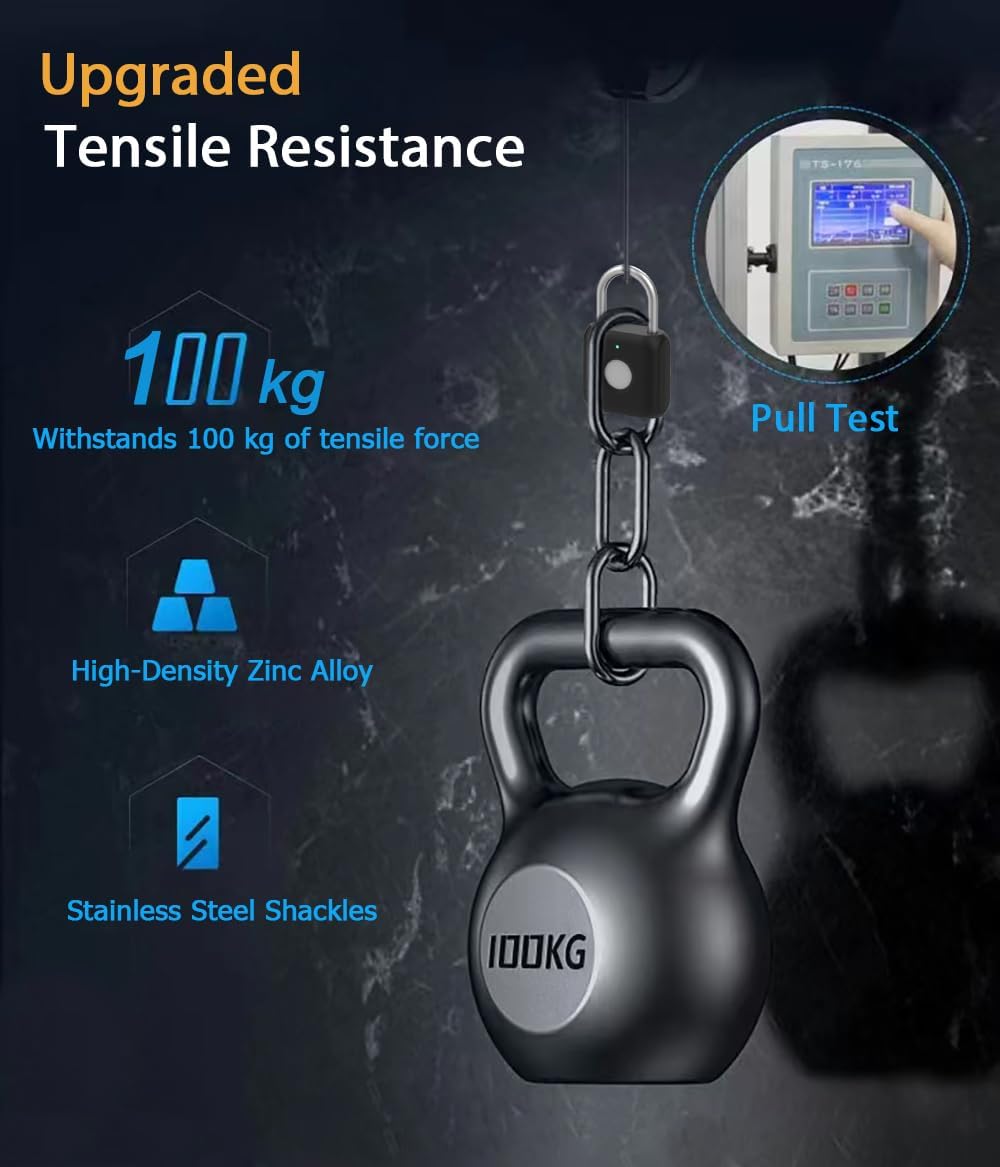
Image: The padlock attached to a weight, illustrating its upgraded tensile resistance and durability under stress.
Warranty & Support
For information regarding product warranty, technical support, or any inquiries not covered in this manual, please refer to the official eLinkSmart website or contact their customer service directly. Contact details are typically provided on the product packaging or the manufacturer's website.
Related Documents - YL-P8bf-OBlack
 |
eLinkSmart T8 Door Lock FAQs: Installation, Fingerprint Registration & Sleep Mode Troubleshooting Find answers to common questions about the eLinkSmart T8 Door Lock. This FAQ covers installation guides, troubleshooting fingerprint registration, and resolving issues with the lock's sleep mode. Learn more about your keyless entry smart lock. |
 |
eLinkSmart T8 Smart Door Lock Installation Guide Detailed installation instructions for the eLinkSmart T8 Smart Door Lock, covering component identification, step-by-step assembly, and final checks for keyless entry and smart security. |
 |
T8 Fingerprint Door Lock User Manual and Instructions Comprehensive guide for the T8 Fingerprint Door Lock, covering setup, operation, passcode management, factory resets, app connectivity, and advanced features like smart linkage and volume control. |
 |
eLinkSmart 904Z/905Z/906Z/907Z Keyless Entry Door Lock Manual: Installation & Setup Guide Comprehensive user manual for the eLinkSmart 904Z, 905Z, 906Z, and 907Z keyless entry deadbolt door locks. Learn how to install, set up master and user codes, fingerprints, and utilize advanced features like vacation and silent modes. |
 |
Keyless Deadbolt Lock Operation Manual Comprehensive guide for setting up and operating a keyless deadbolt lock, including instructions for adding users, managing codes, and utilizing various functions like vacation mode and self-testing. |
 |
eLinkSmart F3BC Smart Cabinet Lock User Manual User manual for the eLinkSmart F3BC Smart Cabinet Lock, detailing technical specifications, installation, setup guides, app usage, and other functions. Learn how to connect via Bluetooth, manage RFID cards, and use app features. |
Ask a question about this manual
Ask about setup, troubleshooting, compatibility, parts, safety, or missing instructions. Manuals+ will review the question and use this page’s manual context to help answer it.