
1. Introduction
Thank you for choosing the EPOMAKER TH99 Tri-Mode Wireless Mechanical Keyboard. This manual provides detailed instructions on how to set up, operate, and maintain your new keyboard. The TH99 is designed for versatility and performance, featuring tri-mode connectivity, a gasket-mounted structure, hot-swappable switches, and dynamic RGB backlighting.

Figure 1: EPOMAKER TH99 Tri-Mode Wireless Mechanical Keyboard (Blue&White)
2. Package Contents
Please ensure all items are present in your package:
- EPOMAKER TH99 Mechanical Keyboard
- Detachable USB-C Keyboard Cable
- Switch & Keycap Puller Tool
- Multilingual User Manual (this document)
- Additional Switches (2 pieces)
3. Key Features
- Tri-Mode Connectivity: Seamlessly switch between wired USB-C, 2.4GHz wireless, and Bluetooth 5.0 connections for maximum flexibility across various devices.
- Gasket-Mounted Structure: Experience a soft, flexible, and acoustically pleasing typing feel with the advanced gasket mount design, complemented by 5 layers of sound-dampening materials.
- Hot-Swappable Switches: Customize your typing experience without soldering. The PCB supports 3/5-pin mechanical switches, allowing for easy switch replacement. The keyboard comes pre-installed with EPOMAKER Creamy Jade switches.
- Dynamic RGB Backlighting: Personalize your setup with 102 south-facing per-key RGB LEDs, offering a wide range of lighting effects and colors.
- PBT Keycaps: Durable, grease-resistant PBT keycaps with Cherry profile ensure longevity and a comfortable typing experience.
- 1800 Compact Layout: A space-saving 96% layout that retains a full Numpad and dedicated function keys for enhanced productivity.
- Long-Lasting Battery: Equipped with an 8000mAh battery, providing extended usage in wireless modes.
- Low Latency Performance: Enjoy responsive input with 2-5ms latency in wired and 2.4G modes, ideal for gaming and fast-paced tasks.
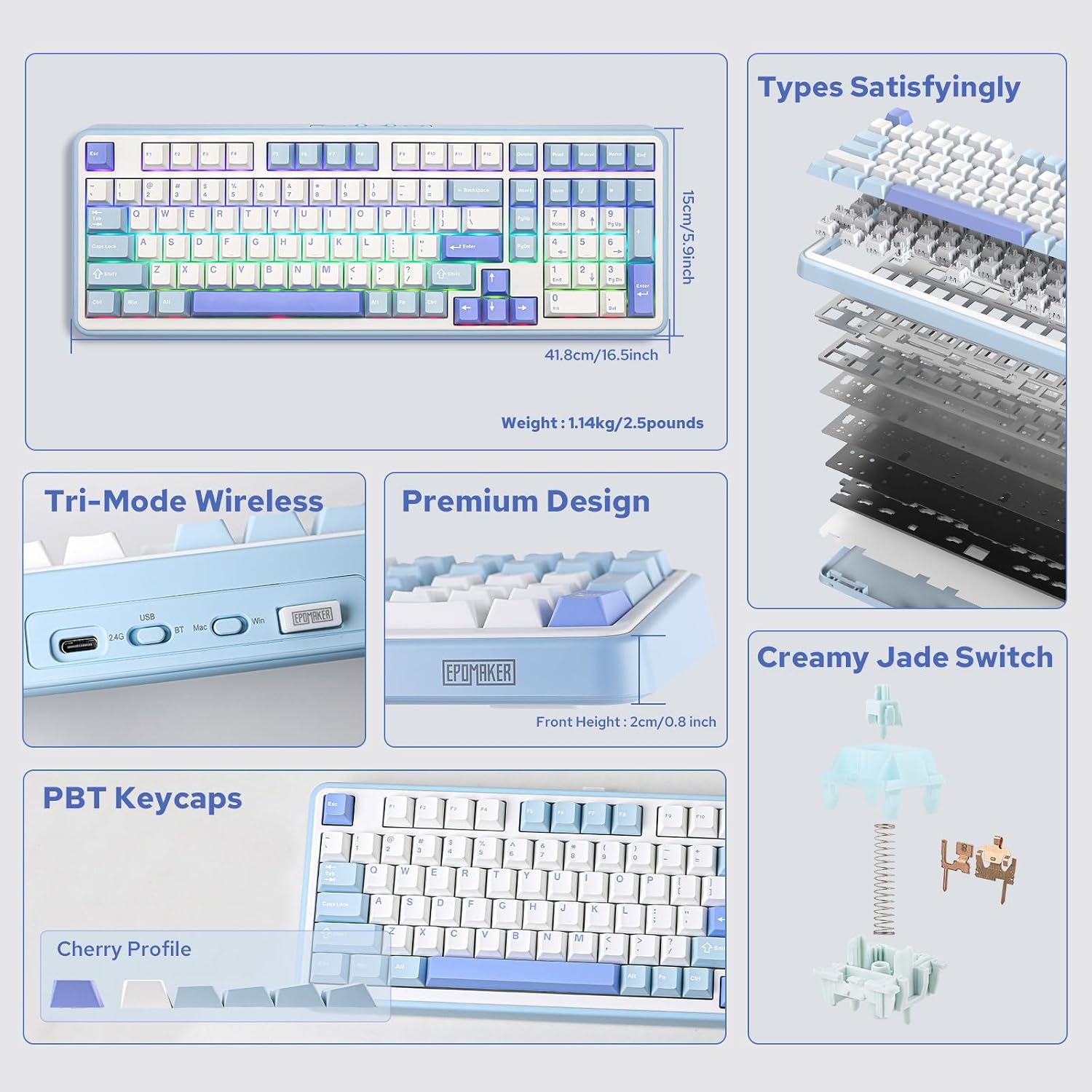
Figure 2: Overview of EPOMAKER TH99 features and internal structure.
4. Setup
4.1. Connecting Your Keyboard
The EPOMAKER TH99 offers three connection methods:
- Wired Mode (USB-C):
- Connect the provided USB-C cable to the keyboard's USB-C port.
- Connect the other end of the cable to an available USB port on your computer.
- Ensure the mode switch on the back of the keyboard is set to 'USB'.
- The keyboard will be automatically recognized by your system.
- 2.4GHz Wireless Mode:
- Locate the 2.4GHz USB dongle (usually stored in a slot on the keyboard).
- Plug the dongle into an available USB port on your computer.
- Set the mode switch on the back of the keyboard to '2.4G'.
- The keyboard should connect automatically. If not, press Fn + R to initiate pairing.
- Bluetooth Mode:
- Set the mode switch on the back of the keyboard to 'BT'.
- On your device (PC, Mac, tablet, smartphone), enable Bluetooth and search for new devices.
- Press and hold Fn + Q, Fn + W, or Fn + E for 3-5 seconds to enter pairing mode for one of the three Bluetooth channels. The corresponding key (Q, W, or E) will flash rapidly.
- Select 'EPOMAKER TH99' from the list of available Bluetooth devices on your host device.
- Once paired, the key will stop flashing and remain steadily lit.
- You can switch between paired Bluetooth devices by pressing Fn + Q/W/E.

Figure 3: Tri-mode connectivity options for the TH99 keyboard.
4.2. Operating System Compatibility
The TH99 keyboard is compatible with both Windows and Mac operating systems.
- Use the 'Win/Mac' toggle switch on the back of the keyboard to select the appropriate operating system mode.
- In Mac mode, the 'Alt' key functions as 'Option' and the 'Win' key functions as 'Command'.

Figure 4: Multi-system compatibility of the TH99 keyboard.
5. Operation
5.1. RGB Backlighting Control
The TH99 keyboard features extensive RGB backlighting customization:
- Change Lighting Effect: Press Fn + Ins to cycle through various pre-programmed RGB lighting effects.
- Toggle Backlight On/Off: Press Fn + Backspace to turn the backlighting on or off.
- Adjust Brightness: Press Fn + ↑ (up arrow) to increase brightness, and Fn + ↓ (down arrow) to decrease brightness.
- Adjust Speed: Press Fn + ← (left arrow) to slow down the effect speed, and Fn + → (right arrow) to speed up the effect.
- Change Color (for static effects): Press Fn + Del to cycle through different static colors.

Figure 5: RGB and single color backlight controls.
Video 1: EPOMAKER TH99 RGB Effect Show.
5.2. Function Key Combinations
The TH99 keyboard utilizes the Fn key for various secondary functions:
- Fn + F1-F12: Access multimedia controls and system functions (e.g., volume, play/pause, brightness). Refer to the keycap legends for specific functions.
- Fn + R: Initiate 2.4G pairing.
- Fn + Q/W/E: Switch between Bluetooth channels 1, 2, and 3, respectively. Hold for 3-5 seconds to enter pairing mode.
- Fn + Win: Lock/Unlock the Windows key.
- Fn + Alt: Switch between Mac and Windows layout (also controlled by the physical switch on the back).
5.3. Customization Software
For advanced customization, including key remapping, macro settings, and detailed backlight configuration, please download the official EPOMAKER software from the manufacturer's website. The software allows for a personalized user experience beyond the onboard controls.
6. Maintenance
6.1. Cleaning the Keyboard
To maintain your keyboard's appearance and functionality:
- Disconnect the keyboard from your device before cleaning.
- Use a soft, lint-free cloth slightly dampened with water or a mild cleaning solution to wipe down the keycaps and case.
- For deeper cleaning, use the provided keycap puller to remove keycaps and clean underneath with compressed air or a small brush.
- Avoid using harsh chemicals or abrasive materials.
6.2. Replacing Keycaps and Switches
The TH99 features hot-swappable switches, allowing for easy replacement:
- Use the provided keycap puller to gently remove the desired keycap by hooking it onto the keycap and pulling upwards.
- Once the keycap is removed, use the switch puller to grasp the switch firmly from the top and bottom clips, then pull upwards to remove it.
- To install a new switch, align its pins with the holes on the PCB. Ensure the pins are straight to avoid bending. Gently push the switch down until it clicks into place.
- Place the keycap back onto the new switch, ensuring it is securely seated.

Figure 6: Hot-swappable PCB and tools for switch replacement.
Video 2: Creamy Jade Switch VS Sea Salt Silent Switch sound test.
Video 3: EPOMAKER TH99 Typing with Creamy Jade Switch.
6.3. Battery Care
To maximize battery life and ensure safe operation:
- Charge the keyboard using the provided USB-C cable connected to a standard USB power source (e.g., computer USB port, wall adapter).
- Avoid exposing the keyboard to extreme temperatures.
- If storing the keyboard for an extended period, charge it to approximately 50% and store in a cool, dry place.
7. Troubleshooting
- Keyboard not responding:
- Ensure the keyboard is charged.
- Check the connection mode switch (USB, 2.4G, BT) is correctly set.
- For wireless modes, ensure the dongle is properly inserted or Bluetooth is paired.
- Try connecting via USB-C cable to rule out wireless issues.
- RGB backlighting not working:
- Ensure the backlight is not turned off (Fn + Backspace).
- Check brightness levels (Fn + ↑/↓).
- If using customization software, ensure no conflicting settings are applied.
- Keys not registering or double-typing:
- This could indicate a faulty switch. Use the provided tools to replace the affected switch.
- Ensure keycaps are properly seated.
- Connectivity issues (2.4G/Bluetooth):
- Ensure the keyboard is within range of the receiver/device.
- Avoid interference from other wireless devices.
- Re-pair the keyboard with your device.
8. Specifications
| Feature | Detail |
|---|---|
| Product Dimensions | 16.46"L x 5.91"W x 1.65"H |
| Item Weight | 2.51 pounds |
| Connectivity Technology | 2.4GHz Wireless, Bluetooth 5.0, USB-C Wired |
| Keyboard Description | Mechanical |
| Special Features | Backlit, Creamy Sound, Hot-Swappable, Programmable Keys, Three Modes of Connectivity |
| Keyboard Backlighting | RGB |
| Battery Capacity | 8000mAh |
| Compatible Devices | Gaming Console, Laptop, PC, Smartphone, Tablet |
| Keycap Material | PBT |
| Switch Type | Creamy Jade (Linear, Pre-lubed) |
9. Warranty and Support
EPOMAKER products come with a standard manufacturer's warranty. For detailed warranty information, technical support, or to download the latest customization software and firmware updates, please visit the official EPOMAKER website or contact their customer service directly. Keep your purchase receipt as proof of purchase for warranty claims.


