
1. Introduction
The SEANCHEER R1 is a versatile Bluetooth remote control designed to enhance your mobile experience. It allows for remote scrolling on social media platforms like TikTok, page turning in the Kindle App, and serves as a camera shutter controller for photos and videos on compatible smartphones. This manual provides detailed instructions for setup, operation, and troubleshooting.
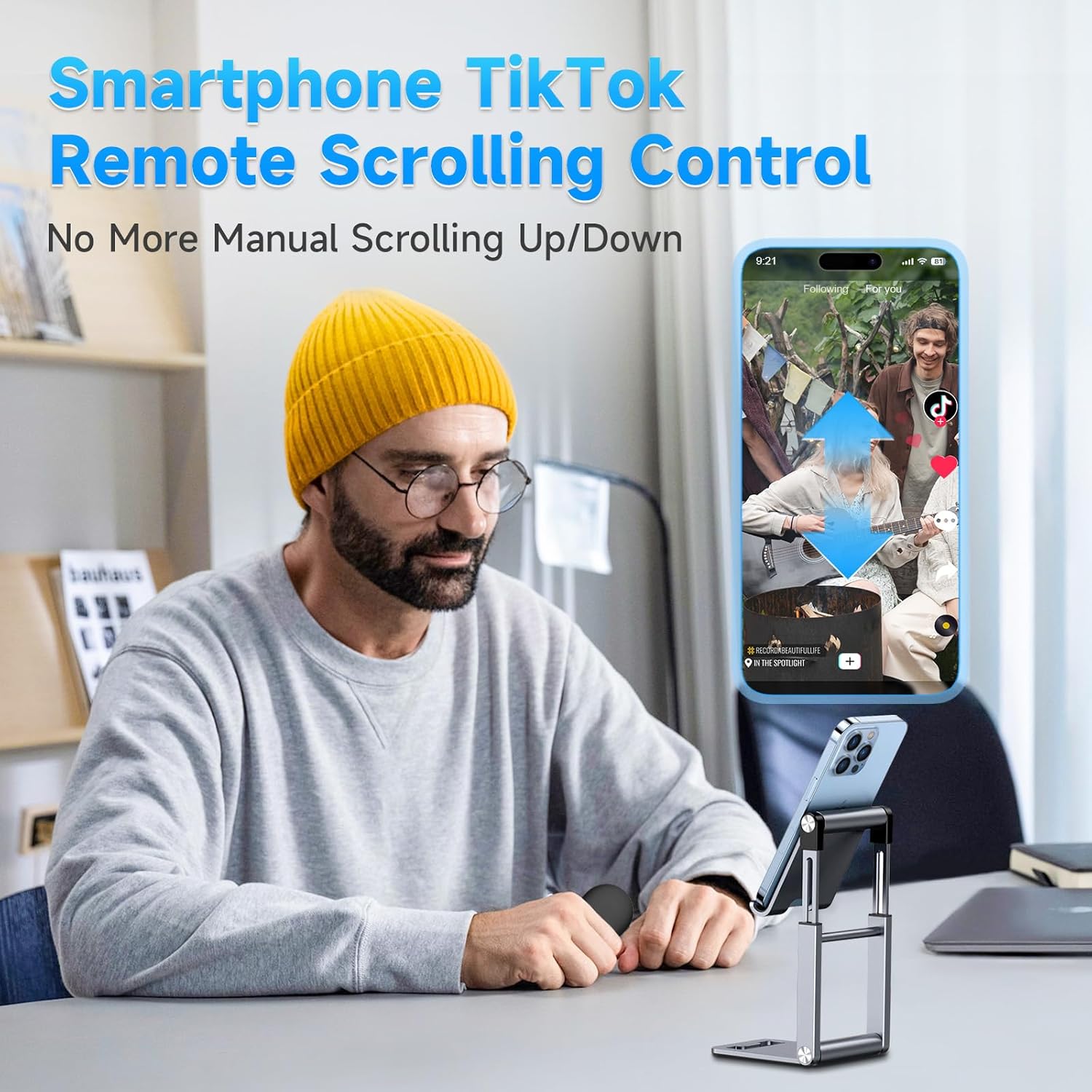
Image 1.1: User operating the SEANCHEER R1 remote control for TikTok scrolling.
2. Package Contents
Please verify that all items are present in your package:
- SEANCHEER R1 Remote Control
- USB-C Charging Cable
- User Manual (this document)
3. Product Features and Controls
The SEANCHEER R1 remote control features intuitive buttons for various functions:

Image 3.1: Detailed view of the SEANCHEER R1 remote control buttons.
- Up/Down Arrows: Scroll up/down in apps like TikTok or turn pages in the Kindle App.
- Left/Right Arrows: Navigate between videos or content (functionality may vary by app).
- OK Button: Double-click to 'like' videos on TikTok, single-click for play/pause.
- Camera Button: Activates the camera shutter for photos and videos in your phone's built-in camera app.
- Volume Buttons (V+/V-): Adjust volume.
- Power Switch: Located on the side to turn the device on/off.
4. Setup Instructions
4.1. Initial Charging
Before first use, fully charge the remote control for 3-5 hours. The front indicator light will flash red when the battery is critically low. Use the provided USB-C cable for charging.
4.2. Bluetooth Pairing
- Ensure the SEANCHEER R1 remote is charged.
- Turn on the remote control using the side power switch. A blue indicator light will flash, indicating it's in pairing mode.
- On your smartphone (iPhone or Android), go to Settings > Bluetooth.
- Search for available devices and select "Beauty-R1" (or similar name starting with R1) to connect.
- Confirm pairing if prompted. The blue indicator light on the remote will turn off once successfully connected.
4.3. iOS Specific Settings (for iPhone 11 with iOS 14+ and newer models)
For optimal functionality on iOS devices, especially for scrolling and page turning, you may need to enable AssistiveTouch:
- Go to Settings > Accessibility > Touch > AssistiveTouch.
- Toggle AssistiveTouch ON.
- You may need to adjust custom actions within AssistiveTouch for specific app behaviors (e.g., single tap for scrolling).
Video 4.1: Official SEANCHEER R1 TikTok Bluetooth Remote Control setup and usage demonstration.
5. Operating Instructions
5.1. TikTok Scrolling
Once paired, open the TikTok app:
- Use the Up/Down Arrows to scroll through videos.
- Double-click the OK Button to 'like' a video.
- Single-click the OK Button to play or pause a video.
- Use V+/V- buttons to adjust video volume.
5.2. Kindle App Page Turner
Open the Kindle App on your iPhone or Android phone:
- Use the Up/Down Arrows to turn pages forward or backward.
Note: This remote is compatible with the Kindle App on smartphones only. It does NOT support Kindle devices, iPads, or other tablets, nor is it compatible with audiobooks in the Kindle App.

Image 5.1: Using the SEANCHEER R1 remote to turn pages in the Kindle App on a smartphone.
5.3. Camera Shutter Controller
Open your smartphone's built-in camera app:
- Press the Camera Button to capture photos or start/stop video recording.
Note: This function only works with your phone's built-in camera app and does not support third-party camera applications.
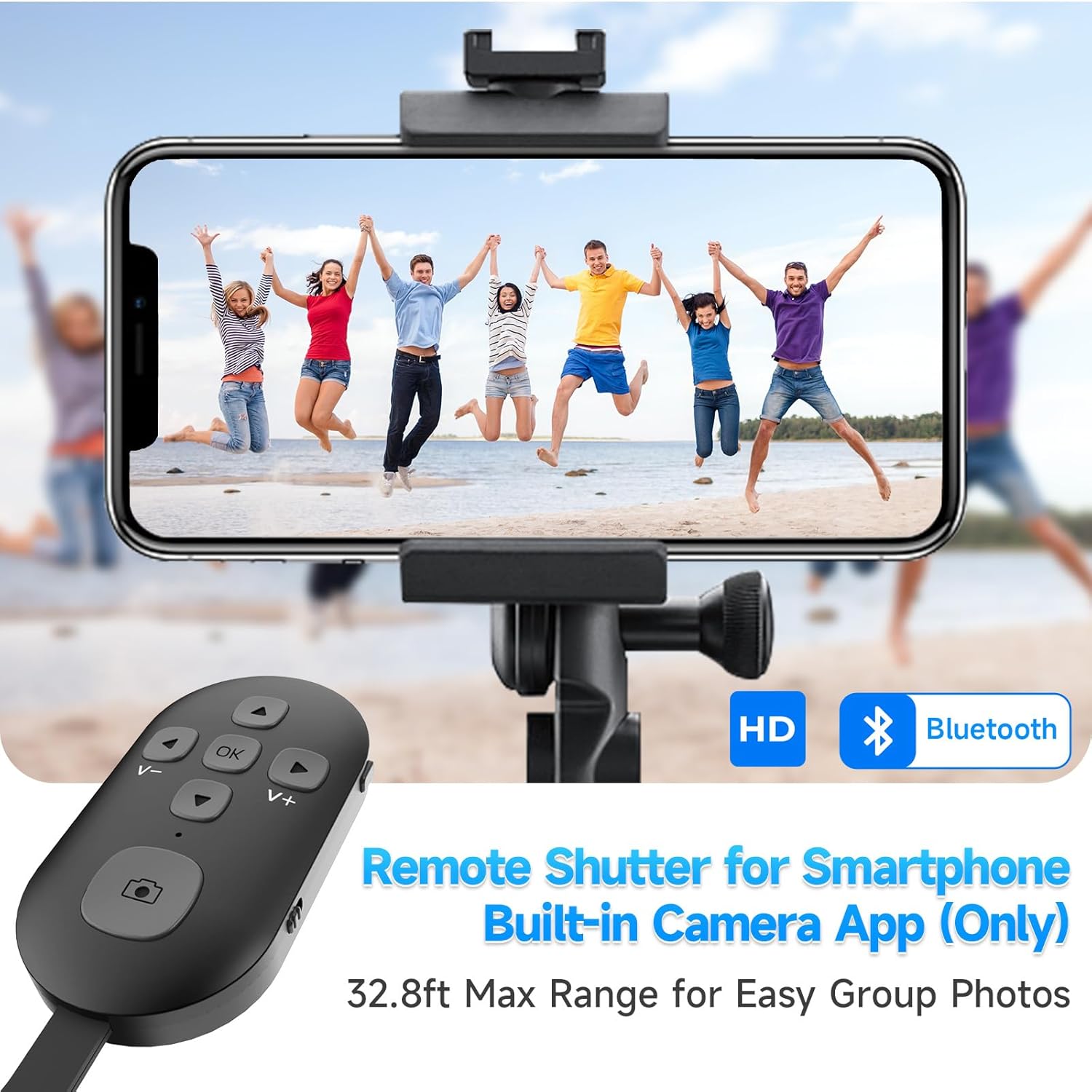
Image 5.2: The SEANCHEER R1 remote control functioning as a camera shutter for a smartphone.
6. Charging and Battery Information
The SEANCHEER R1 features a 150mAh high-capacity battery, providing over 7 days of use on a single charge.
- Charging: Connect the remote to a power source using the provided USB-C cable.
- Low Battery Warning: The front indicator light will flash red when the battery is critically low. Please charge the device promptly.
7. Compatibility
The SEANCHEER R1 is compatible with:
- iPhone 11 (iOS 14+) and newer models.
- Android Phones running Android 7.0+ (excluding foldable phones).
Incompatible Devices/Apps:
- Kindle devices, iPads, or other tablets.
- All music apps.
- All audiobook apps.
- All video apps except TikTok.
- Swiping through all web pages.

Image 7.1: Visual representation of compatible iOS and Android phones, and incompatible foldable phones.

Image 7.2: Apps that are not compatible with the SEANCHEER R1 remote control.
8. Troubleshooting
- Difficulty Connecting: If the remote has difficulty connecting, try turning it off and on again. Ensure Bluetooth is enabled on your phone and the remote is within range. Re-pair the device if necessary.
- Functions Not Working on iOS: Ensure AssistiveTouch is enabled in your iPhone's Accessibility settings.
- Incompatible Devices/Apps: The remote is designed for specific apps and phone types. Refer to the Compatibility section (Section 7) to ensure your device and app are supported. For example, it does not support Kindle devices, only the Kindle App on compatible smartphones.
- Buttons Not Responding: Check the battery level. If the indicator light is flashing red, recharge the device.
9. Specifications
| Feature | Detail |
|---|---|
| Model Number | R1 |
| Brand | SEANCHEER |
| Item Weight | 1.44 ounces |
| Package Dimensions | 4.06 x 2.76 x 0.87 inches |
| Batteries | 1 Lithium Ion battery (included) |
| Special Feature | Rechargeable |
| Color | Black |
| Max Number of Supported Devices | 1 |
| Compatible Devices | Smartphone (iPhone 11/iOS 14+ and newer, Android 7.0+ excluding foldable phones) |
10. Warranty and Support
For warranty information or technical support, please contact SEANCHEER customer service through the retailer's platform or visit the official SEANCHEER store online. Please retain your proof of purchase for warranty claims.