
1. Introduction and Overview
The Generic DP30P is a portable thermal label printer designed for various labeling needs. It features a 300 DPI high-resolution printhead, enabling clear and precise printing of text, images, barcodes, and QR codes. This device supports both Bluetooth and USB wired connections, offering flexibility for use with Apple, Android, HarmonyOS, and Windows operating systems. Its compact design and long-lasting battery make it suitable for on-the-go use.
Please note that this label printer produces monochrome (black and white) prints only.
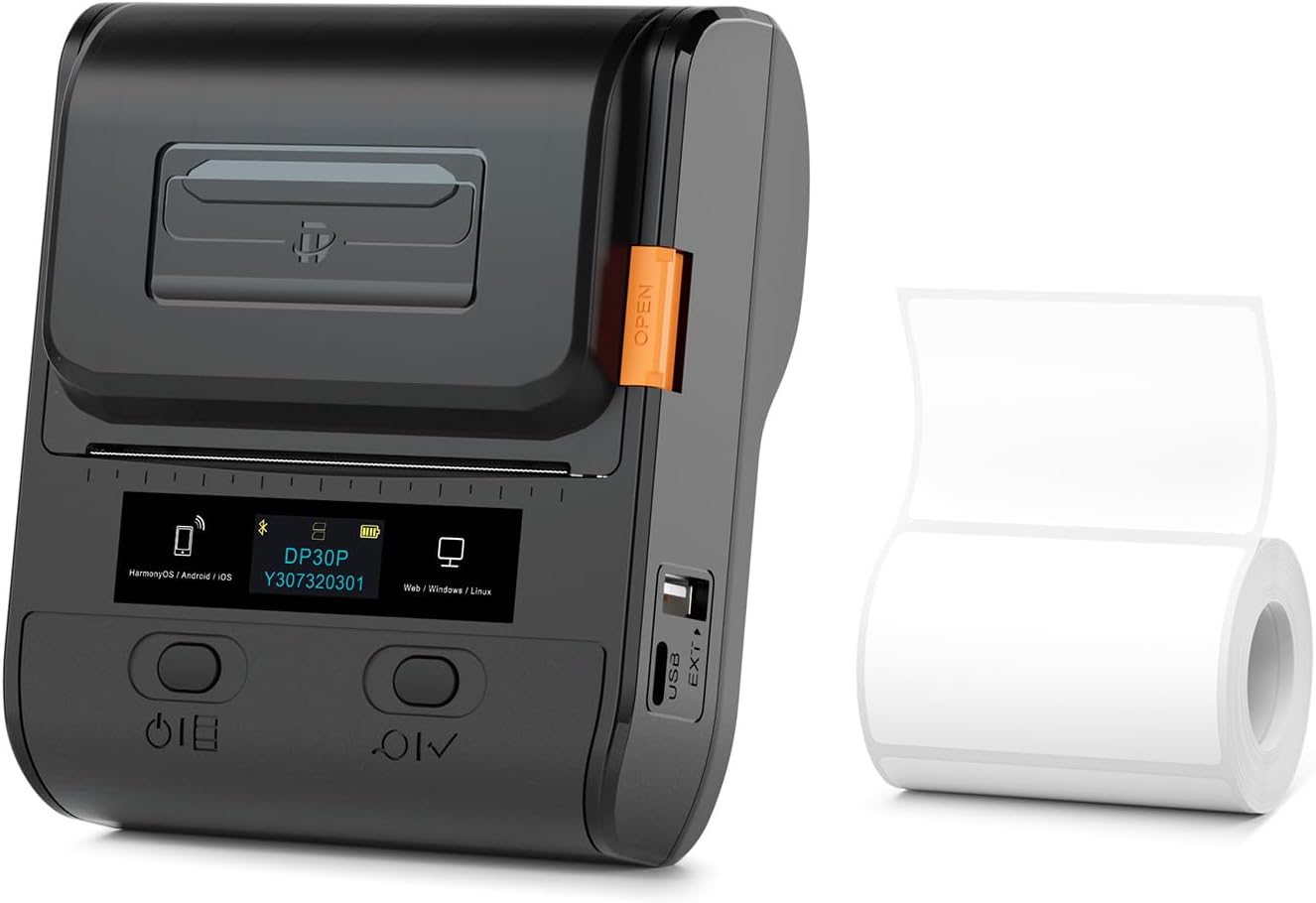
Image 1.1: The DP30P Portable Thermal Label Printer shown with a roll of thermal labels.

Image 1.2: Visual comparison illustrating the enhanced clarity of 300 DPI printing compared to 203 DPI.
2. Package Contents
Before proceeding with setup, please verify that all items listed below are included in your package:
- 1 x DP30P Label Printer
- 1 x White Thermal Label Paper (70*50 mm)
- 1 x Type-C USB Charging Cable
- 1 x User Manual (this document)
- 1 x QC Pass Card

Image 2.1: The DP30P printer and the included roll of thermal labels.
3. Setup Guide
3.1 Charging the Printer
Before initial use, fully charge the printer using the provided Type-C USB charging cable. Connect the cable to the printer's Type-C port and a compatible USB power adapter (not included). The charging indicator will show the charging status.
3.2 Loading Label Paper
- Locate the 'OPEN' tab on the side of the printer and gently slide it to open the paper compartment cover.
- Insert the thermal label paper roll into the compartment, ensuring the printing side of the paper faces upwards and feeds out smoothly.
- Pull a small length of paper out beyond the print head.
- Close the paper compartment cover firmly until it clicks into place.
- Adjust the slide stopper to secure the label roll and prevent skewed printing.
Important: The included white label paper is 70x50 mm and can print approximately 140 labels. Avoid exposing thermal label paper to high temperatures for extended periods, as this can cause fading.
3.3 App and Software Installation
To operate the DP30P printer, you will need to install the dedicated application or software:
- For Mobile Devices (iOS, Android, HarmonyOS): Download the 'WePrint' app from your device's respective app store (Apple App Store, Google Play Store).
- For Computers (Windows, Linux): Download the 'WeiDa Online Web' software. Refer to the manufacturer's website or the QR code in the manual for download links.

Image 3.1: Instructions for downloading the 'WePrint' app on mobile devices.
3.4 Connecting the Printer
The DP30P printer supports both Bluetooth and USB connections.
- Bluetooth Connection: Turn on the printer and enable Bluetooth on your mobile device. Open the 'WePrint' app and connect to the printer directly within the app. Do not connect the printer via your device's Bluetooth settings directly.
- USB Connection: Connect the printer to your computer using the Type-C USB cable. Ensure the 'WeiDa Online Web' software is installed and running.
4. Operating Instructions
4.1 Power On/Off
Press and hold the power button on the printer to turn it on or off.
4.2 Printing via Mobile App (WePrint)
- Ensure the printer is powered on and connected via Bluetooth within the 'WePrint' app.
- Open the 'WePrint' app. You can create new labels using various templates or import existing data.
- The app provides options for adding text, symbols, logos, certifications, barcodes (Code39, Code128, EAN, UPC), QR codes (PDF417, Data Matrix), images, and time stamps.
- Customize your label design as needed.
- Once your label is ready, tap the print icon to send the job to the printer.
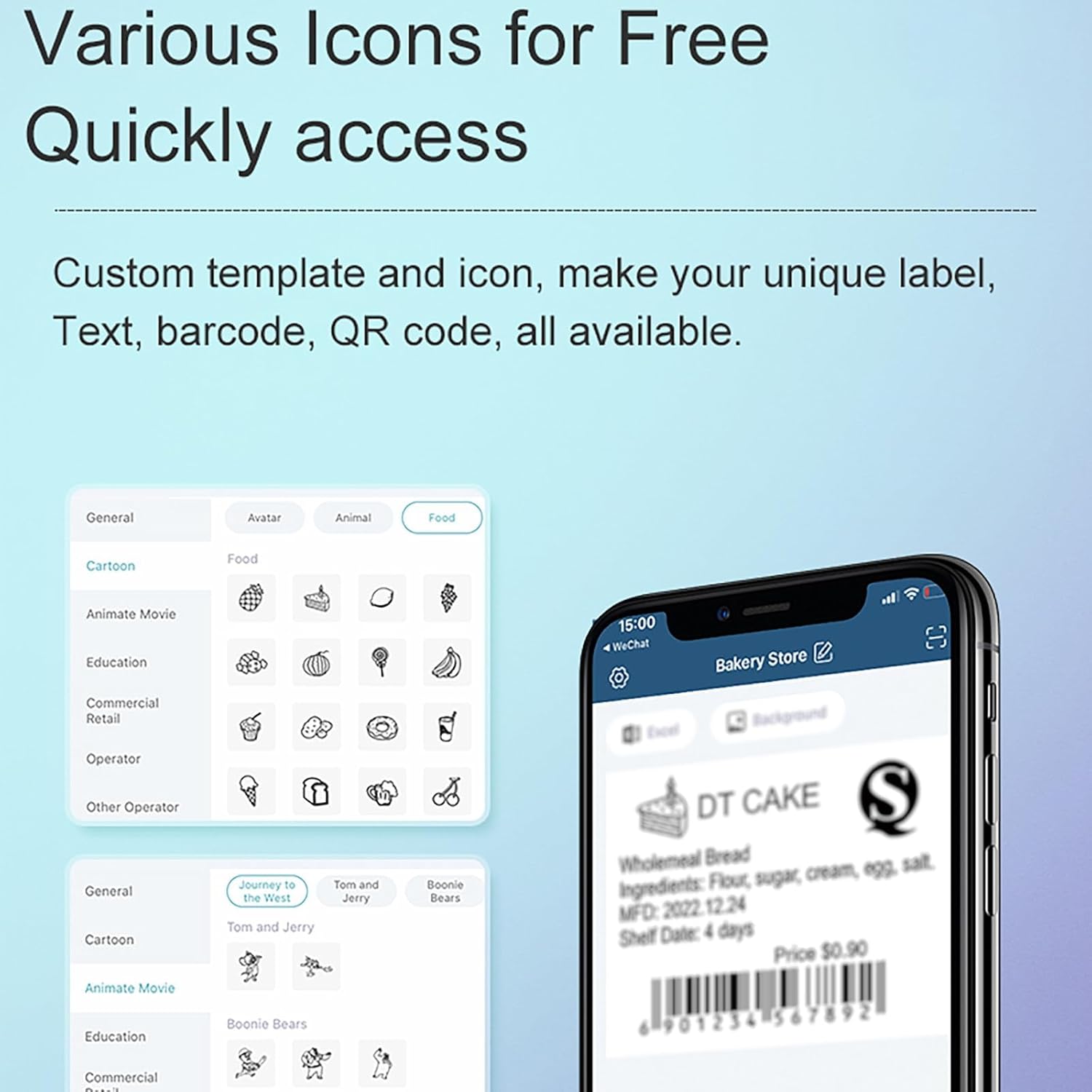
Image 4.1: Examples of icons and templates available within the WePrint app for label customization.
4.3 Printing via Computer Software (WeiDa Online Web)
- Connect the printer to your computer via USB.
- Launch the 'WeiDa Online Web' software.
- You can create labels or import data, including Excel files for bulk printing.
- Design your labels using the software's features.
- Initiate the print command from the software.

Image 4.2: Workflow for bulk printing data from Excel using the WePrint app.
4.4 Supported Languages
The 'WePrint' app supports multiple interface languages, including Simplified Chinese, Traditional Chinese, English, Korean, Portuguese, Japanese, German, Italian, French, Spanish, Russian, and Vietnamese.

Image 4.3: Examples of various labels that can be created and printed with the DP30P.
5. Maintenance
5.1 Cleaning the Printer
Regular cleaning helps maintain print quality and extends the printer's lifespan.
- Ensure the printer is turned off and disconnected from any power source.
- Gently wipe the exterior of the printer with a soft, dry cloth.
- To clean the print head, use a cotton swab lightly dampened with isopropyl alcohol. Wipe the print head gently to remove any dust or residue. Allow it to dry completely before use.
5.2 Battery Care
The printer is equipped with a 1500mAh lithium-ion battery. To optimize battery life:
- Avoid fully discharging the battery frequently.
- Store the printer in a cool, dry place if not used for extended periods.
- Charge the printer regularly, even if not in active use, to maintain battery health.
5.3 Label Paper Storage
Store thermal label paper in a cool, dark place away from direct sunlight and high temperatures to prevent premature fading or damage to the thermal coating.
6. Troubleshooting
This section addresses common issues you might encounter with your DP30P printer.
- No Print Output / Blank Labels:
Ensure the label paper is loaded correctly with the printing side facing up. Check if the paper roll is properly seated and the cover is closed. Verify that the printer has sufficient battery charge. - Poor Print Quality / Faded Prints:
Clean the print head as described in the Maintenance section. Ensure you are using high-quality thermal label paper. Check if the label paper has been exposed to high temperatures or direct sunlight, which can degrade its thermal properties. - Printer Not Connecting via Bluetooth:
Confirm that you are connecting through the 'WePrint' app and not directly through your device's Bluetooth settings. Restart both the printer and your mobile device. Ensure Bluetooth is enabled on your device. - Skewed Printing:
Ensure the label roll is properly aligned within the paper compartment and the slide stopper is adjusted to hold the roll firmly in place. - Printer Not Responding:
Try turning the printer off and then on again. If the issue persists, connect the printer to a power source and attempt a reset if a reset button is available (refer to the device for specific button locations).
7. Specifications
| Feature | Specification |
|---|---|
| Model Name | DP30P |
| Printing Method | Direct Thermal |
| Print Color | Black and White (Monochrome) |
| Resolution | 300 dpi |
| Maximum Paper Width | 3.15 inches (80 mm) |
| Maximum Printing Width | 3 inches (76 mm) |
| Printing Speed | 30-50 mm/s |
| Media Thickness | 0.05 ~ 0.2 mm |
| Dimensions (L x W x H) | 4.92 x 4.25 x 2.4 inches |
| Weight | 0.86 lbs (13.8 ounces) |
| Battery Capacity | 1500mAh (2 Lithium-ion Batteries) |
| Charging Time | Approx. 4 hours |
| Fully-Charged Working Time | Approx. 4 hours |
| Connectivity | Bluetooth, USB (Type-C) |
| System Support Platform | Android, iOS, Windows, HarmonyOS, Linux |
| Operating Temperature | 0°C ~ 45°C |
| Operating Humidity | 20% - 90% |
| Certifications | CCC, CE, FCC, RoHS, UKCA |
8. Warranty and Support
For warranty information, technical support, or service inquiries, please refer to the manufacturer's official website or contact their customer service department. Details are typically provided on the product packaging or a separate warranty card.
Please retain your purchase receipt as proof of purchase for any warranty claims.