
1. Introduction
This manual provides instructions for the installation, operation, and maintenance of your WYZE Duo Cam Pan Indoor/Outdoor IP65 2K 360° Pan/Tilt Smart Home Security Camera. Please read this manual thoroughly before using the product to ensure proper functionality and safety.
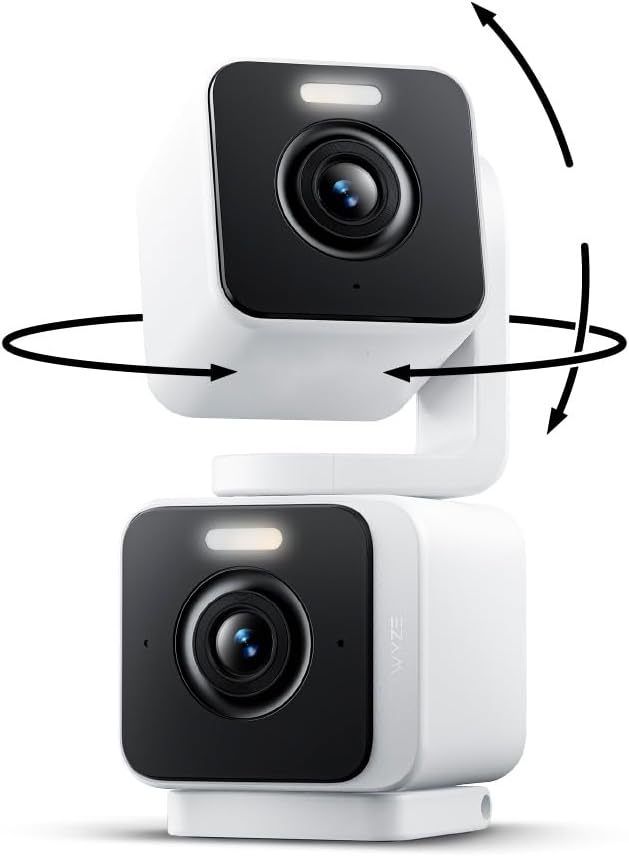
Image: The WYZE Duo Cam Pan, illustrating its dual camera design and pan/tilt capabilities with directional arrows.
2. What's in the Box
Verify that all components are present in the package:
- Wyze Duo Cam Pan
- Quick Start Guide
- Mounting Kit
- Wall Plate
- USB-C to USB-A Cable (6-foot, flat)
- Indoor Power Adapter (5V, 1.5A)
3. Key Features
The WYZE Duo Cam Pan offers advanced security features for both indoor and outdoor environments:
- Dual Camera System: Two independent 2K lenses provide simultaneous coverage of two distinct areas, eliminating blind spots. One camera can pan and tilt, while the other maintains a fixed view.
- Pan & Tilt Motion Tracking: Detects, follows, and records motion with 360° horizontal pan and 180° vertical tilt for comprehensive area monitoring.
- 2K HD Resolution with WDR and Color Night Vision: Captures clear details in 2K resolution. Wide Dynamic Range (WDR) balances light and dark areas. Color Night Vision provides vivid detail in low-light conditions, up to 25 times darker than traditional cameras.
- Integrated Spotlights + Siren: Features two motion-activated spotlights for deterrence or illumination, and a loud 98dB siren for security alerts.
- Pan Scan & Custom Waypoints: Allows the camera to patrol a defined route with up to 4 custom waypoints.
- Indoor/Outdoor IP65 Weather Resistance: Designed for versatile placement, resistant to dust and water jets, suitable for various weather conditions. Mounting kit included.
- Two-Way Audio: Enables clear communication with people and pets through a powerful on-board amplifier and microphone.
- 24/7 Local Recording with MicroSD Card: Supports continuous local recording to a microSD card up to 512 GB (sold separately), requiring no subscription.
- Smart Home Integration: Compatible with Amazon Alexa, Google Assistant, and IFTTT for convenient control and automation.

Image: A comparison of a single camera view versus the dual views provided by the Wyze Duo Cam Pan on a smartphone interface.

Image: An overhead diagram illustrating the combined coverage of the 360° Pan & Tilt camera and a 127° Fixed View camera.

Image: A side-by-side comparison demonstrating the enhanced clarity and color provided by Color Night Vision compared to standard night vision.

Image: The camera with its integrated spotlights activated, indicating active recording and a siren function.

Image: A diagram showing how Pan Scan and custom waypoints define the camera's patrol path within a room.

Image: The camera mounted outdoors, highlighting its IP65 weather resistance against rain, snow, and sun.

Image: The camera facilitating a two-way audio conversation, demonstrating its communication capability.

Image: A smartphone displaying camera footage alongside a WYZE 512GB microSD card, indicating local storage functionality.

Image: A smart display showing camera feed, highlighting compatibility with Alexa, Google Assistant, and IFTTT.
4. Setup Guide
4.1 Initial Setup
- Download the Wyze App: Search for 'Wyze' in your smartphone's app store and download the official application.
- Create an Account: Open the Wyze app and follow the on-screen instructions to create a new account or log in to an existing one.
- Add Device: In the app, tap the '+' icon to add a new device. Select 'Cameras' and then 'Wyze Duo Cam Pan'.
- Power On: Connect the USB-C cable to the camera and the USB-A end to the indoor power adapter. Plug the adapter into a power outlet. The camera will begin its startup sequence.
- Bluetooth Setup: The camera supports hassle-free Bluetooth setup. Follow the app's prompts to connect to the camera via Bluetooth. No QR code scanning is required for initial pairing.
- Wi-Fi Connection: Select your 2.4 GHz Wi-Fi network and enter the password. The camera supports Wi-Fi 6 for a stronger connection (Wi-Fi 6 router required for full benefits).
- Finalize Setup: Once connected, follow any remaining instructions in the app to name your camera and complete the setup process.
4.2 Mounting the Camera
The Wyze Duo Cam Pan can be placed on a shelf, tabletop, or mounted on a wall or ceiling. The IP65 rating allows for both indoor and outdoor installation.
- Choose a Location: Select a location that provides the desired viewing angle and has access to a power outlet. Ensure the Wi-Fi signal is strong at the chosen spot.
- Prepare Mounting Surface: If mounting to a wall or ceiling, use the included mounting kit. Mark the drill holes using the wall plate as a template.
- Install Wall Plate: Drill pilot holes if necessary and secure the wall plate to the surface using the provided screws.
- Attach Camera: Align the camera with the wall plate and slide it into place until it clicks securely.
- Adjust Angle: Once mounted, adjust the camera's pan and tilt manually or via the app to achieve the optimal viewing area.
5. Operating Instructions
5.1 Live View and Recording
- Open the Wyze app and select your Duo Cam Pan from the device list to access the live view.
- From the live view, you can manually record video, take screenshots, and listen to audio.
- If a microSD card is installed, the camera will continuously record 24/7. You can review recorded footage via the 'Events' or 'Playback' sections in the app.
5.2 Pan and Tilt Control
- In the live view, use the directional controls (arrows) in the app to remotely pan (horizontal) and tilt (vertical) the movable camera lens.
- Pan Scan: Configure a patrol route by setting up to 4 custom waypoints in the camera settings. The camera will automatically move between these points.
- Motion Tracking: Enable motion tracking in the app settings. The camera will automatically detect and follow moving objects within its field of view.
5.3 Two-Way Audio
- Tap the microphone icon in the live view to activate two-way audio. Speak into your phone to transmit audio through the camera's speaker.
- Tap the speaker icon to listen to audio from the camera's microphone.
5.4 Integrated Spotlights and Siren
- The spotlights can be set to activate automatically upon motion detection in low light conditions. Adjust settings in the app.
- The siren can be manually activated from the live view or set to trigger automatically with specific motion/sound detection events.
5.5 Smart Home Integration
- To connect with Amazon Alexa or Google Assistant, enable the Wyze skill/action in their respective apps and link your Wyze account.
- For IFTTT integration, connect your Wyze account to IFTTT and create custom applets.
6. Maintenance
6.1 Cleaning
- Ensure the camera is powered off before cleaning.
- Use a soft, dry cloth to wipe the camera body.
- For the lens, use a lens cleaning cloth specifically designed for optics to avoid scratches. Do not use harsh chemicals or abrasive cleaners.
6.2 Firmware Updates
- Regularly check for firmware updates through the Wyze app. Updates often include performance improvements, new features, and security enhancements.
- Follow the in-app instructions to download and install firmware updates. Ensure the camera remains powered during the update process.
6.3 MicroSD Card Management
- If using a microSD card for local storage, periodically check its status in the Wyze app.
- Format the microSD card through the app if you experience recording issues or wish to erase all stored footage.
7. Troubleshooting
7.1 Common Issues and Solutions
- Camera Offline:
- Check Wi-Fi signal strength. Move the camera closer to the router or use a Wi-Fi extender.
- Ensure the camera is powered on and the power adapter is securely connected.
- Restart the camera by unplugging it for 10 seconds and plugging it back in.
- Verify your Wi-Fi network is operational and connected to the internet.
- Poor Video Quality:
- Ensure the camera lens is clean.
- Check your internet upload speed. A stable and fast connection is required for 2K streaming.
- Adjust video quality settings in the Wyze app if your network bandwidth is limited.
- Motion Detection Not Working:
- Verify motion detection is enabled in the Wyze app settings for the specific camera.
- Adjust motion detection sensitivity.
- Ensure there are no obstructions blocking the camera's view.
- Two-Way Audio Issues:
- Check volume settings on your phone and in the Wyze app.
- Ensure your phone's microphone is not muted or blocked.
- Verify the camera's microphone and speaker are not obstructed.
7.2 Resetting the Camera
If issues persist, you may need to reset the camera to factory settings. Locate the reset button (usually a small pinhole) on the camera. Use a paperclip to press and hold the reset button for approximately 10-15 seconds until the camera indicates a reset (e.g., a voice prompt or LED change). After resetting, you will need to set up the camera again as a new device in the Wyze app.
8. Specifications
| Model Name | WYZEC-DUO-WH |
| Indoor/Outdoor Usage | Indoor, Outdoor |
| International Protection Rating | IP65 |
| Video Capture Resolution | 2K |
| Viewing Angle | 360 Degrees (Pan), 180 Degrees (Tilt) |
| Connectivity Technology | 2.4 GHz Wi-Fi, Bluetooth® 5.0, Wired |
| Power Source | Corded Electric (5V, 1.5A) |
| Compatible Devices | Desktop, Smartphone, Tablet |
| Controller Type | Amazon Alexa, Google Assistant, IFTTT |
| Low Light Technology | Color Night Vision |
| Storage | MicroSD Card (up to 512 GB, sold separately) |
| Dimensions (L x W x H) | 5.63 x 3.7 x 5.63 inches |
| Item Weight | 0.98 Pounds (15.7 ounces) |
9. Warranty & Support
9.1 Warranty Information
WYZE products typically come with a limited manufacturer's warranty. Please refer to the warranty card included with your product or visit the official WYZE website for the most current and detailed warranty information regarding your specific model.
9.2 Customer Support
For technical assistance, troubleshooting, or any questions regarding your WYZE Duo Cam Pan, please contact WYZE customer support:
- Phone: 866-853-4942
- Online Support: Visit the official WYZE support website for FAQs, articles, and contact options.

Image: WYZE offers free expert help for setup, optimization, and security, available via phone at 866-853-4942.