
1. Introduction
This manual provides essential information for the proper use and care of your Yunseity R36PRO Handheld Game Console. The R36PRO is a portable gaming device featuring a 3.5-inch high-resolution screen, dual 3D joysticks, and a powerful RK3326 chipset, designed to support a wide range of retro emulator games. Please read this manual thoroughly before operating the device to ensure optimal performance and longevity.

Figure 1: Yunseity R36PRO Handheld Game Console overview. This image displays the console's front view with its screen showing a racing game, surrounded by other game screenshots in the background.
2. Setup
2.1 Unboxing and Included Components
Carefully unpack your Yunseity R36PRO Handheld Game Console. Verify that all components listed below are present.
- Yunseity R36PRO Handheld Game Console
- User Manual (this document)
- Charging Cable (USB-A to USB-C)
- Game Console Case
- Memory Card (pre-installed or included separately)

Figure 2: Included accessories. This image shows the Yunseity R36PRO console, its USB charging cable, and the protective carrying case.
2.2 Charging the Device
Before first use, fully charge the console.
- Connect the small end of the charging cable (USB-C) to the charging port on the console.
- Connect the large end of the charging cable (USB-A) to a compatible USB power adapter (not included) or a computer's USB port.
- The charging indicator light will illuminate. A full charge typically takes approximately 2-3 hours.
- Once fully charged, the indicator light may change color or turn off. Disconnect the charging cable.
2.3 Inserting the Memory Card
The console requires a memory card to store games and system files. A memory card is typically included.
- Locate the TF card slot on the side of the console.
- Gently insert the memory card into the slot with the gold contacts facing down until it clicks into place.
- To remove, push the card in slightly until it springs out.
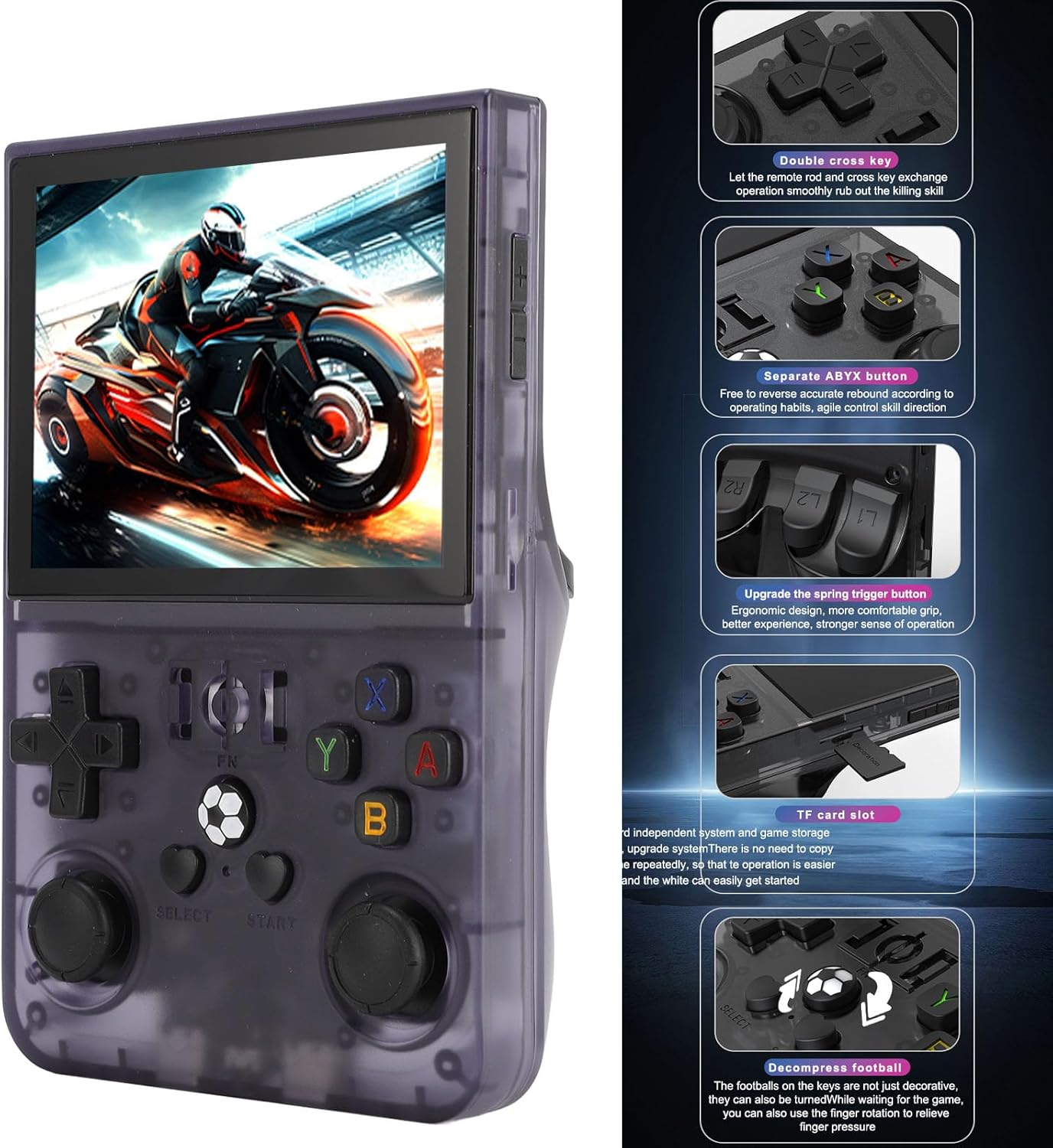
Figure 3: Console features and TF card slot location. This image highlights various buttons and the TF card slot on the side of the Yunseity R36PRO console.
2.4 Powering On/Off
- To Power On: Press and hold the Power button (usually located on the top or side) for a few seconds until the screen illuminates.
- To Power Off: Press and hold the Power button until a power-off menu appears on the screen. Select "Power Off" or "Shutdown". Alternatively, a quick press may put the device into sleep mode.
3. Operating Instructions
3.1 Controls Overview
The Yunseity R36PRO features a standard set of gaming controls. Refer to Figure 3 for button locations.
- D-Pad (Directional Pad): For directional input in games and menu navigation.
- Dual 3D Joysticks: Analog input for precise movement and camera control in supported games.
- Action Buttons (A, B, X, Y): Primary action buttons for gameplay.
- L1/L2, R1/R2 (Shoulder/Trigger Buttons): Located on the top rear of the console, used for various in-game actions.
- SELECT/START Buttons: For in-game menus, pausing, or system functions.
- FN Button: Function button, typically used for system-level shortcuts or emulator specific functions.
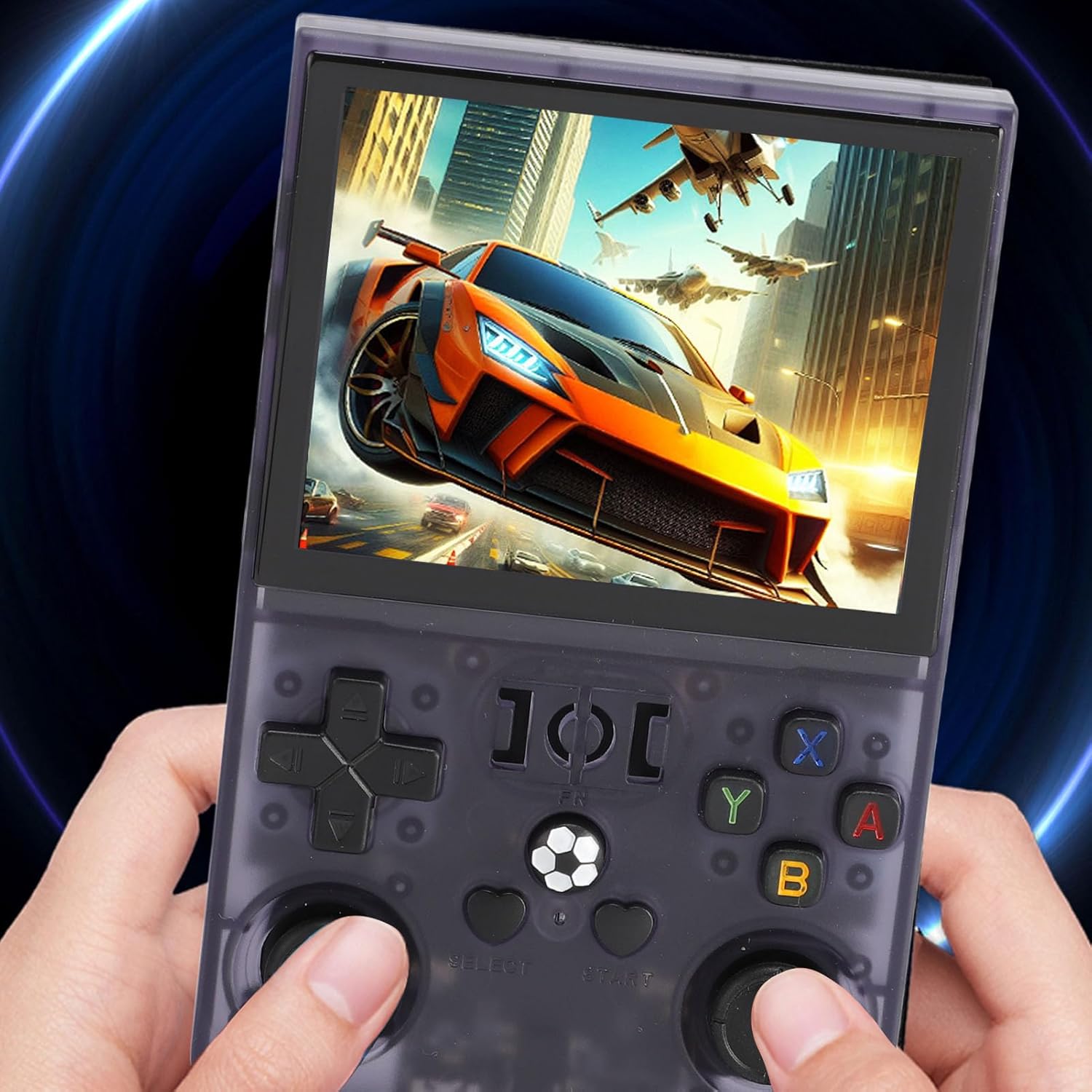
Figure 4: Console in use. This image shows a user holding the Yunseity R36PRO console, demonstrating its ergonomic design during gameplay.
3.2 Navigating the System Interface
Upon powering on, the console will display its main operating system interface.
- Use the D-Pad or Left Joystick to navigate through menus and select options.
- Press the A button (or equivalent) to confirm a selection.
- Press the B button (or equivalent) to go back to the previous screen.
- The main interface typically categorizes games by emulator or allows browsing of game files.
3.3 Loading and Playing Games
The console supports over 60 emulators. Games are typically pre-loaded on the memory card or can be added by the user.
- From the main menu, navigate to the desired emulator or game category.
- Select the game you wish to play from the list.
- Press the A button to launch the game.
- During gameplay, specific button combinations (often involving the FN button) may be used to access emulator menus for saving/loading states, exiting games, or adjusting settings. Refer to the emulator's specific documentation if available.
3.4 System Settings
Access system settings to adjust display brightness, volume, language, and other console-specific options. The method to access settings may vary depending on the installed operating system (e.g., a dedicated "Settings" icon or a combination of buttons).
4. Maintenance
4.1 Cleaning the Device
- Use a soft, dry, lint-free cloth to wipe the screen and console body.
- For stubborn smudges, slightly dampen the cloth with water or a screen-safe cleaner. Avoid harsh chemicals.
- Do not spray liquids directly onto the console.
- Use a soft brush or compressed air to clean dust from ports and button crevices.
4.2 Battery Care
- Avoid fully discharging the battery frequently.
- Charge the device regularly, even if not in use, to maintain battery health.
- Store the console in a cool, dry place when not in use for extended periods.
- The 4000mAh polymer battery is designed to be removable for intuitive status checks and safer charging/discharging.
4.3 Software Updates
Periodically check the manufacturer's official website or community forums for potential firmware or operating system updates. Updates can improve performance, add features, or fix bugs. Follow update instructions carefully to avoid damaging the device.
4.4 Storage
When not in use, store the console in its protective case to prevent scratches and damage from dust or impacts. Keep it away from extreme temperatures, direct sunlight, and moisture.
5. Troubleshooting
| Problem | Possible Cause | Solution |
|---|---|---|
| Device won't turn on. | Low battery; System crash. | Charge the device for at least 30 minutes. Perform a hard reset by holding the Power button for 10-15 seconds. |
| Games not loading or crashing. | Corrupt game file; Incompatible emulator settings; Memory card issue. | Ensure game files are correct and compatible. Check emulator settings. Reinsert or reformat the memory card (backup data first). |
| Screen flickering or no display. | Software glitch; Hardware issue. | Restart the device. Ensure the battery is charged. If the problem persists, contact support. |
| Buttons unresponsive. | Software freeze; Physical damage. | Restart the device. Check for any physical obstructions or damage to the buttons. |
| Short battery life. | High screen brightness; Background processes; Aging battery. | Reduce screen brightness. Close unnecessary applications. Ensure the battery is fully charged before use. |
If you encounter issues not listed here or if the suggested solutions do not resolve the problem, please refer to the Warranty & Support section for further assistance.
6. Specifications
| Model | R36PRO |
| Brand | Yunseity |
| Screen Size | 3.5 inches |
| Screen Resolution | 640x480 |
| Chipset | RK3326 (64-bit, 1.5Ghz) |
| Emulators Supported | 60+ (e.g., MD, CPS, SMD) |
| Battery Capacity | 4000mAh Polymer Battery |
| Battery Life | Approximately 4 hours on a full charge |
| Storage | Memory card expansion slot (128GB version specified) |
| Material | ABS |
| Item Dimensions | 6.3 x 5.12 x 1.97 inches |
7. Warranty and Support
7.1 Product Warranty
The Yunseity R36PRO Handheld Game Console comes with a standard manufacturer's warranty. Please refer to the warranty card included in your product packaging or visit the official Yunseity website for detailed warranty terms and conditions. Keep your proof of purchase for warranty claims.
7.2 Customer Support
For technical assistance, troubleshooting beyond this manual, or warranty inquiries, please contact Yunseity customer support.
- Online Support: Visit the official Yunseity website for FAQs, support resources, and contact forms.
- Email Support: Refer to your product packaging or the official website for the customer support email address.
When contacting support, please have your product model number (R36PRO) and purchase information ready.