
ATMPC T10
ATMPC T10 Tablet User Manual
Model: T10
Introduction
Thank you for choosing the ATMPC T10 Tablet. This 10-inch Android 14 tablet is designed for productivity and entertainment, featuring a powerful Octa-Core processor, ample memory, and advanced connectivity. This manual provides essential information for setting up, operating, maintaining, and troubleshooting your device to ensure optimal performance and user experience.

Image: Front and back view of the ATMPC T10 Tablet, highlighting its sleek design and dual camera setup.
What's in the Box
Verify that all items are present in the package:
- ATMPC T10 Tablet
- USB-C Cable
- User Manual (this document)
Product Overview
Familiarize yourself with the key components and features of your ATMPC T10 Tablet.

Image: An overview diagram illustrating the tablet's features including Android 14 OS, 10.1" HD display, 64GB ROM, 12GB RAM, A523 Octa-Core processor, WiFi 6, 6000mAh battery, Dual-Camera, and TF Card slot for up to 1TB expansion.
Key Features:
- Display: 10.1-inch IPS Touchscreen with 1280x800 resolution.
- Processor: 2.0 GHz Octa-Core Processor (A523).
- Memory: 12GB RAM.
- Storage: 128GB ROM, expandable up to 1TB via TF card (not included).
- Operating System: Android 14.
- Cameras: 2MP Front Camera, 5MP Rear Camera.
- Battery: 6000mAh.
- Connectivity: WiFi 6 (Dual-band 2.4G+5G), Bluetooth 5.4.
- Ports: USB Type-C, 3.5mm Audio Jack.
Getting Started
1. Initial Charging
Before first use, fully charge your tablet. Connect the provided USB-C cable to the tablet's USB-C port and the other end to a compatible USB power adapter (not included) or a computer's USB port. The battery indicator on the screen will show charging status.
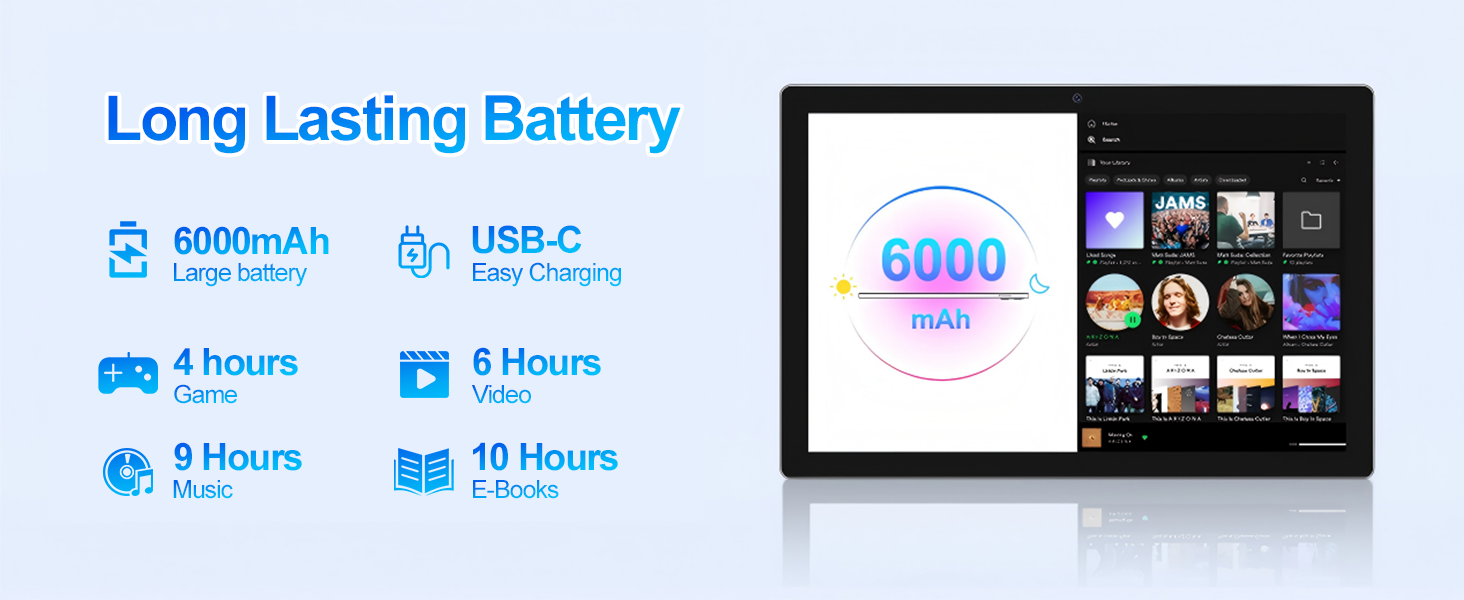
Image: Visual representation of the tablet's 6000mAh battery capacity and the convenience of USB-C charging, indicating extended usage times for various activities like gaming, video, music, and e-books.
2. Power On/Off
- Power On: Press and hold the Power button located on the side of the tablet until the ATMPC logo appears.
- Power Off: Press and hold the Power button until the power options menu appears. Select 'Power off' and confirm.
- Restart: From the power options menu, select 'Restart'.
3. Initial Setup
Upon first power-on, the tablet will guide you through the initial setup process:
- Select your preferred language.
- Connect to a Wi-Fi network.
- Sign in with your Google account or create a new one. This is necessary to download apps from the Google Play Store.
- Follow the on-screen prompts to complete the setup, including setting up security (PIN, pattern, or password) and privacy settings.
4. Inserting a TF Card (MicroSD Card)
To expand storage, insert a TF card (MicroSD card) into the designated slot. The tablet supports up to 1TB of external storage.
- Locate the TF card slot on the side of the tablet.
- Gently insert the TF card into the slot with the gold contacts facing down until it clicks into place.
- The tablet will detect the new storage. You may be prompted to format the card for optimal use with the device.
Operating Your Tablet
Basic Navigation
The ATMPC T10 Tablet uses a multi-touch IPS display for intuitive interaction.
- Tap: To select an item or open an app.
- Tap & Hold: To access contextual menus or move icons.
- Swipe: To scroll through pages or lists.
- Pinch-to-Zoom: To zoom in or out on images and web pages.
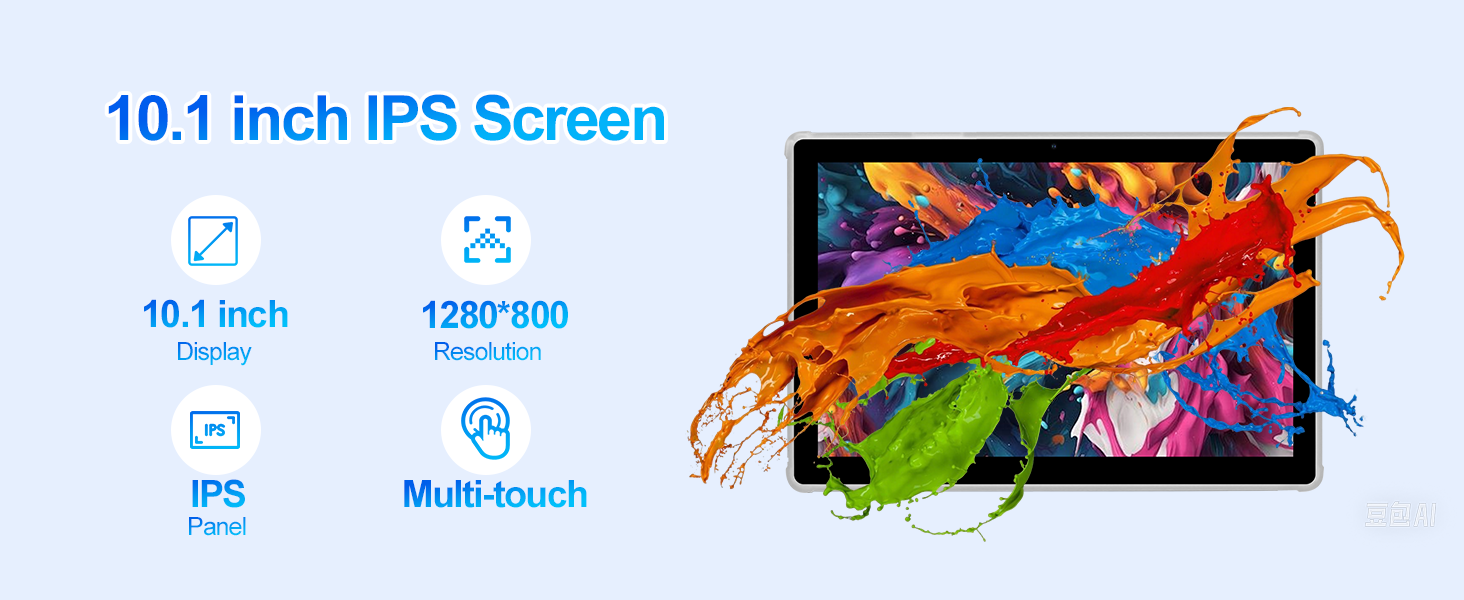
Image: A detailed view of the tablet's 10.1-inch IPS screen, highlighting its 1280x800 resolution, IPS panel technology, and multi-touch capabilities for a clear and responsive user experience.
Connectivity (Wi-Fi & Bluetooth)
Your tablet supports advanced wireless standards for fast and stable connections.
- Wi-Fi 6: Go to Settings > Network & internet > Wi-Fi. Turn on Wi-Fi and select your desired network. Enter the password if prompted.
- Bluetooth 5.4: Go to Settings > Connected devices > Connection preferences > Bluetooth. Turn on Bluetooth and pair with compatible devices like headphones or keyboards.
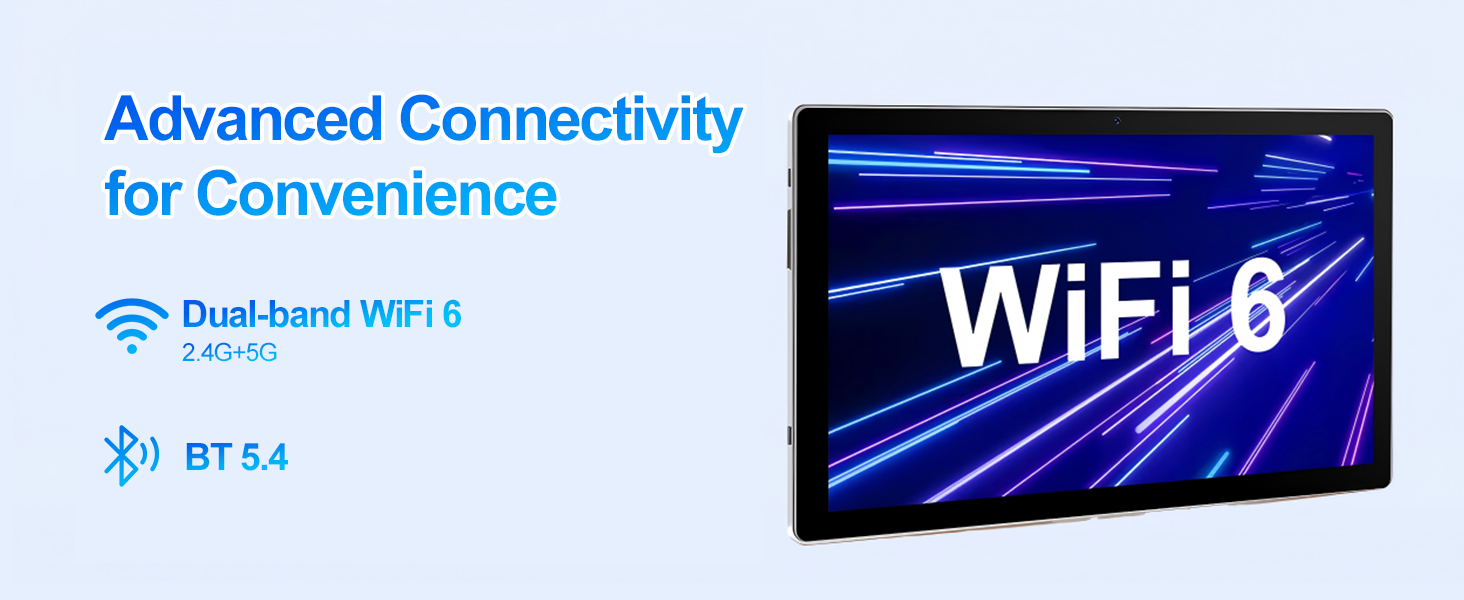
Image: A visual representation of the tablet's advanced connectivity, featuring Dual-band WiFi 6 for faster internet speeds and Bluetooth 5.4 for seamless device pairing.
Camera Usage
The tablet is equipped with a 2MP front camera and a 5MP rear camera for photos and video calls.
- Open the 'Camera' app from the home screen or app drawer.
- Switch between front and rear cameras using the camera icon.
- Tap the shutter button to take a photo or start/stop video recording.
App Management
The tablet comes with Google Play Store pre-installed, allowing access to millions of apps.
- Downloading Apps: Open the 'Play Store' app, search for your desired app, and tap 'Install'.
- Uninstalling Apps: Tap and hold the app icon on the home screen or app drawer, then drag it to 'Uninstall' or select 'App info' and choose 'Uninstall'.
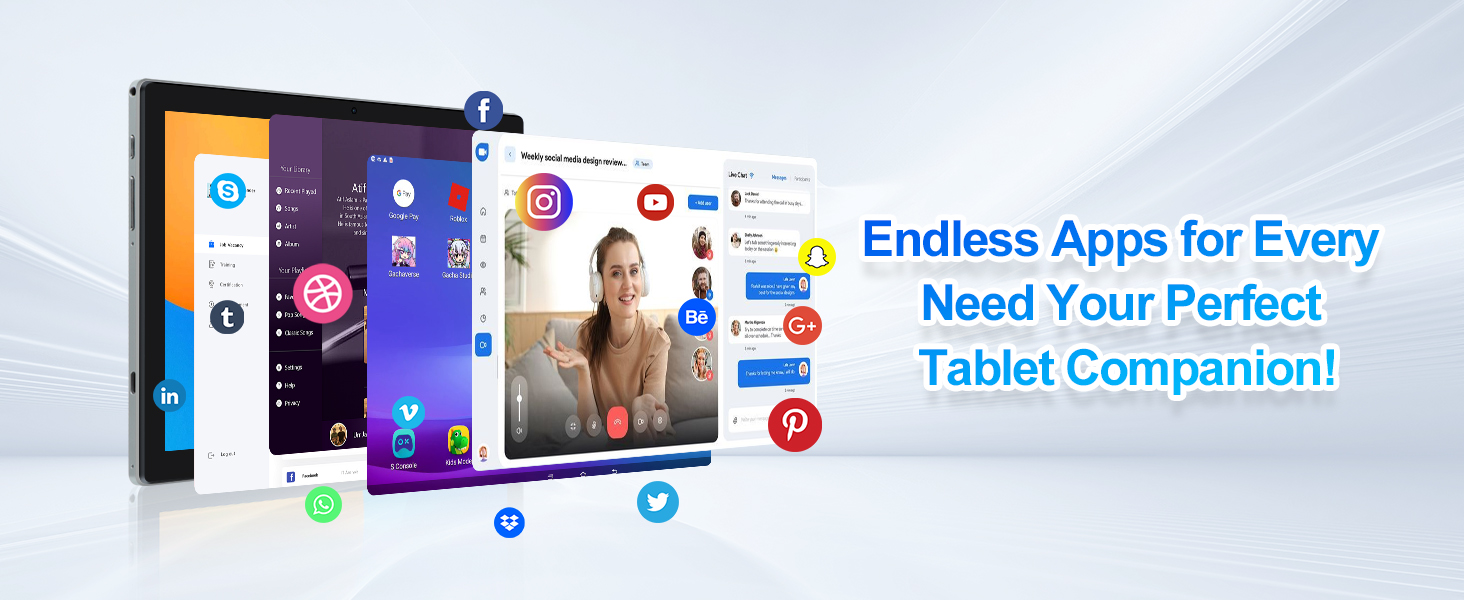
Image: A collage of popular social media and entertainment apps displayed on the tablet screen, illustrating the wide range of applications available for download and use.
Parental Control
Android 14 offers features to manage and control tablet usage, especially useful for children.
- Screen Time Limit: Set daily limits for tablet usage.
- Safe Mode: Restrict access to certain apps or content.
- Content Management: Filter inappropriate content.
These settings can typically be found under Settings > Digital Wellbeing & parental controls.
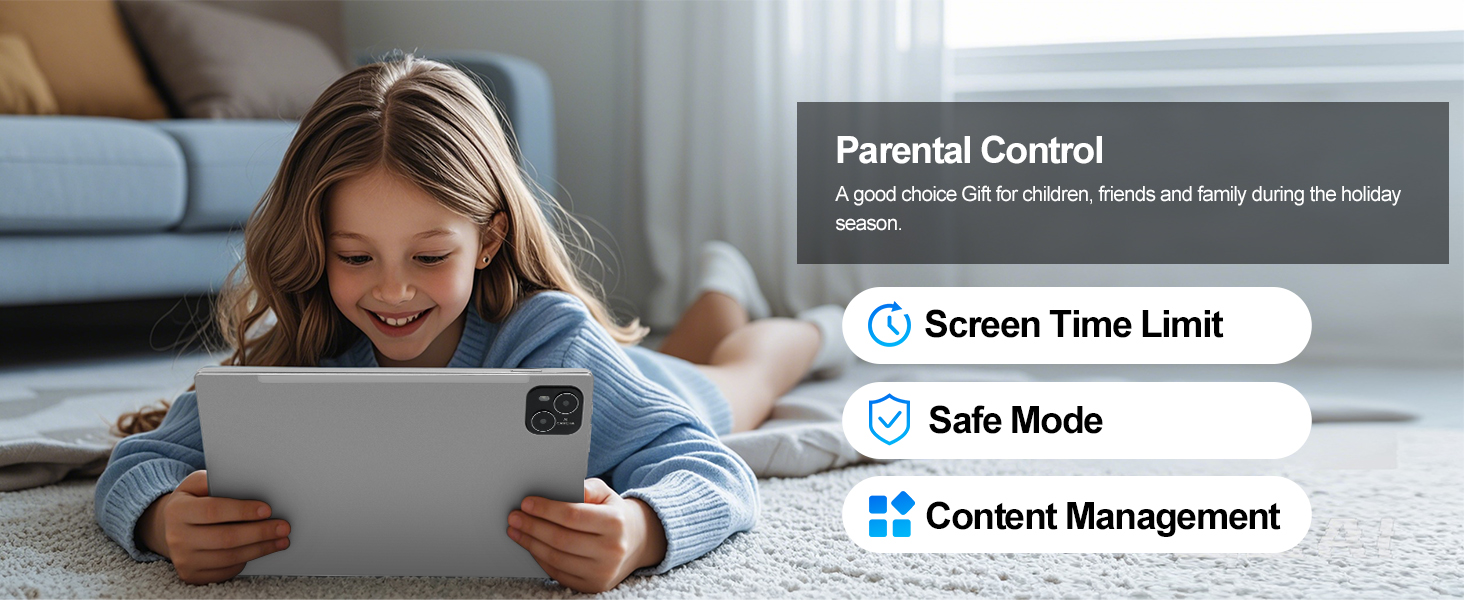
Image: A young girl using the tablet, with overlaid text highlighting parental control features such as screen time limits, safe mode, and content management, emphasizing the tablet's suitability for family use.
Audio Features
Experience immersive audio with the tablet's stereo sound and convenient 3.5mm audio jack.
- Stereo Sound: Enjoy rich audio output from the tablet's built-in speakers.
- 3.5mm Audio Jack: Connect your favorite wired headphones or external speakers for a private or enhanced listening experience.
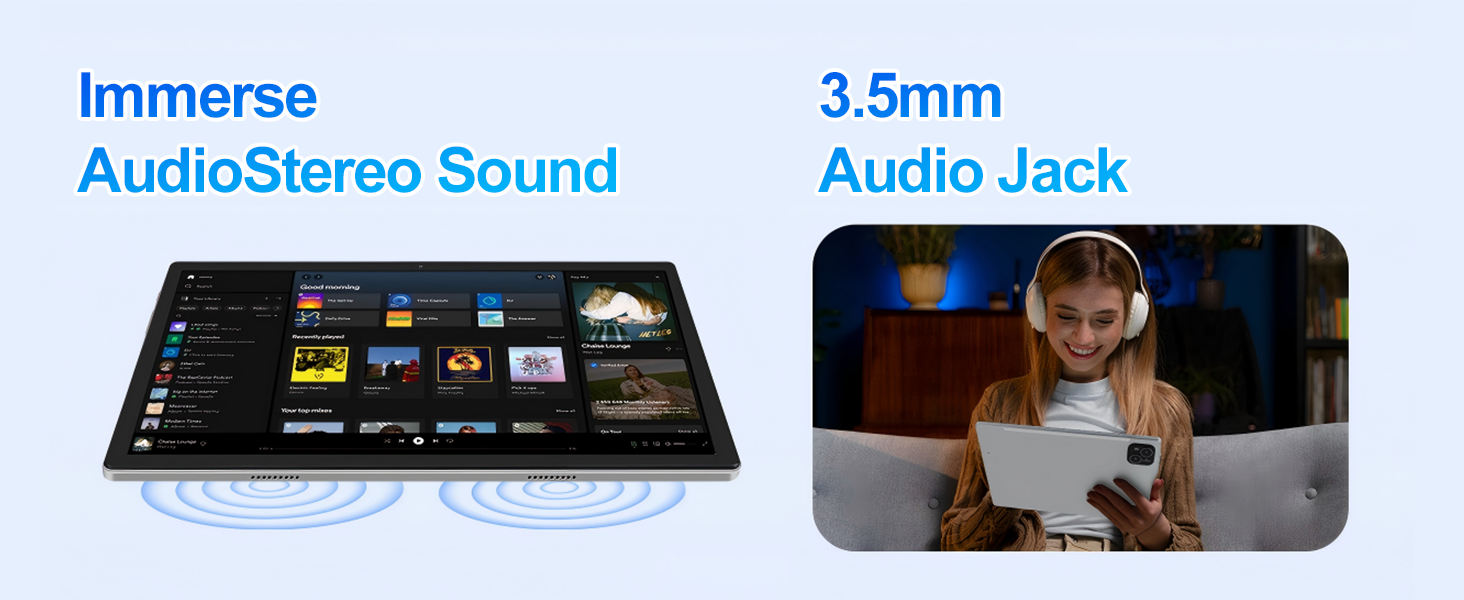
Image: A visual demonstrating the tablet's stereo sound capabilities with sound waves emanating from the device, alongside an image of a person using headphones connected via the 3.5mm audio jack.
Maintenance
Cleaning Your Tablet
- Use a soft, lint-free cloth to clean the screen and body of the tablet.
- For stubborn smudges, slightly dampen the cloth with water or a screen cleaner designed for electronics.
- Avoid using harsh chemicals, abrasive materials, or excessive moisture.
Storage
- Store the tablet in a cool, dry place away from direct sunlight and extreme temperatures.
- If storing for an extended period, ensure the battery is charged to about 50% to prevent deep discharge.
Software Updates
Regularly check for and install software updates to ensure your tablet has the latest features, security patches, and performance improvements. Go to Settings > System > System update.
Troubleshooting
This section addresses common issues you might encounter with your ATMPC T10 Tablet.
| Problem | Possible Solution |
|---|---|
| Tablet won't turn on |
|
| Screen is unresponsive |
|
| Wi-Fi connection issues |
|
| Apps crashing or freezing |
|
| Battery drains quickly |
|
Specifications
Detailed technical specifications for the ATMPC T10 Tablet.
| Feature | Detail |
|---|---|
| Model | T10 |
| Operating System | Android 14 |
| Screen Size | 10.1 Inches |
| Screen Resolution | 1280 x 800 Pixels (IPS Touchscreen) |
| Processor | 2.0 GHz Octa-Core (A523) |
| RAM | 12GB |
| Internal Storage (ROM) | 128GB |
| Expandable Storage | Up to 1TB via TF Card (MicroSD) |
| Rear Camera | 5 MP |
| Front Camera | 2 MP |
| Battery Capacity | 6000mAh (Average Battery Life: 8 Hours) |
| Wireless Connectivity | WiFi 6 (802.11ax), Bluetooth 5.4 |
| Ports | USB Type-C, 3.5mm Audio Jack |
| Dimensions (LxWxH) | 9.6 x 6.4 x 0.37 inches |
| Item Weight | 1.83 pounds |
Warranty and Support
ATMPC is committed to providing high-quality products and customer satisfaction.
- Warranty: This product comes with a 1-Year Manufacturer Warranty.
- Returns: Enjoy 30 Days Free Return from the date of purchase.
- Customer Support: For any inquiries or technical assistance, please contact ATMPC customer service.
For the most up-to-date support information, please refer to the official ATMPC store or contact details provided at the time of purchase.
Ask a question about this manual
Ask about setup, troubleshooting, compatibility, parts, safety, or missing instructions. Manuals+ will review the question and use this page’s manual context to help answer it.