
Introduction
This manual provides essential information for the setup, operation, and maintenance of your Hedlaoy 3D Pandora Box 88S Pro Arcade Game Console. Please read it thoroughly before use to ensure optimal performance and longevity of your device.

Figure 1: Hedlaoy 3D Pandora Box 88S Pro Arcade Game Console, showing the two separated joystick units.
What's in the Box
Verify that all components are present upon unboxing:
- 1 x Power Adapter
- 1 x Connecting Cable (for linking the two joystick units)
- 1 x HDMI Data Cable
- 1 x VGA Data Cable and adapter
- 1 x USB Cable
- 2 x Joysticks (pre-installed on units)
- Additional Buttons (for customization or replacement)
- User Manual (this document)

Figure 2: Included accessories: Power Adapter, HDMI Cable, VGA Cable, USB Cable, Connecting Cable, 2 Joysticks, 2 Buttons, and User Manual.
Setup Instructions
- Connect Joystick Units: Use the provided Connecting Cable to link the two separated joystick units. This cable connects the main unit (Player 1) to the secondary unit (Player 2).
- Connect to Display:
- For HDMI connection: Use the HDMI Data Cable to connect the console to your TV, monitor, or projector.
- For VGA connection: Use the VGA Data Cable and adapter to connect the console to your display.
- Connect Power: Plug the Power Adapter into the console's DC 12V input and then into a power outlet.
- Power On: Locate the Main Switch on the console and turn it on. The system will boot up automatically.
- Adjust Volume: Use the Volume control knob on the console to adjust the audio output.

Figure 3: Product application diagram illustrating connections to PC monitors, TVs, projectors, and external controllers via HDMI, VGA, and USB ports.
Connecting External Controllers
The console supports connecting additional controllers for 3-4 player games. Use the USB ports (U1, U2, U3) on the main unit to connect external gamepads. A USB hub may be required for more than two additional controllers.

Figure 4: Example of connecting external gamepads to the console via a USB port for multiplayer gaming.
Operating Instructions
Basic Controls
Each joystick unit features an 8-way joystick and six action buttons (A, B, C, D, E, F), along with dedicated Player, Pause, Coin, and Start buttons. The main unit (Player 1) controls the system navigation.

Figure 5: Layout of the 8-way joystick and customizable buttons on the control panels.
System Navigation and Game Selection
The console comes preloaded with 36,800 games, including 255 3D titles. Navigate the main menu using the Player 1 joystick. You can:
- Search Games: Use the search function to quickly find specific titles.
- Save Games: Save your game progress.
- Hide Games: Remove unwanted games from the visible list.
- Pause Games: Temporarily pause gameplay.
- Favorite List: Add frequently played games to a favorites list for easy access.

Figure 6: Main system interface displaying options for key settings, game settings, language, Wi-Fi, and game market access.
Wi-Fi Function and Online Game Market
The console supports Wi-Fi connectivity to access an online game market with over 20,000 additional games for download. To connect:
- Press the "Setting" button on the console to enter the settings page.
- Navigate to the Wi-Fi settings and connect to your preferred network.
- Once connected, access the "Game Store" to browse and download games.
If Wi-Fi is unstable, a network cable can be connected as an alternative.

Figure 7: Steps to access the settings page and the online Game Store for downloading additional titles.
Language Settings
The system supports multiple languages. You can switch the language from the settings menu for a personalized experience.

Figure 8: The arcade controllers feature LED lighting, which can be customized or adjusted.
Maintenance
Protective Film Removal
Before first use, gently peel off any protective film from the surface of the joystick units to reveal the clear acrylic finish.

Figure 9: Removing the protective film from the controller surface.
General Care
To maintain the console's condition, wipe surfaces with a soft, dry cloth. Avoid using abrasive cleaners or solvents. Keep the device away from direct sunlight, excessive heat, and moisture.
Troubleshooting
If you encounter any issues with your Hedlaoy 3D Pandora Box 88S Pro Arcade Game Console, please refer to the following general advice:
- No Power: Ensure the power adapter is securely connected to both the console and a working power outlet. Check the main switch is in the 'On' position.
- No Display: Verify that the HDMI or VGA cable is correctly connected to both the console and your display device. Ensure your display is set to the correct input source.
- No Sound: Check the volume control knob on the console and your display device.
- Controller Unresponsive: Ensure the connecting cable between the two joystick units is secure. If using external USB controllers, ensure they are properly plugged into the USB ports.
- Wi-Fi Connection Issues: Double-check your Wi-Fi password and network selection in the settings menu. Ensure the console is within range of your Wi-Fi router. Consider using a wired network connection if Wi-Fi remains unstable.
For persistent problems or specific game-related issues, please contact customer support.
Specifications
| Feature | Detail |
|---|---|
| Model Number | HL2400015WF |
| Number of Games | 36,800 (including 255 3D titles) |
| Output Resolution | 1280x720 HD |
| CPU | 12-core |
| RAM | 64GB |
| Memory Storage Capacity | 64 GB (internal) |
| Number of Players | 1-4 |
| Controller Type | Button Control, Joystick |
| Hardware Interface | HDMI, USB, VGA |
| Power Source | Corded Electric |
| Material Type | Metal |
| Item Dimensions (L x W x H) | 25" x 9" x 4.6" |
| Platform | TV Plug & Play |

Figure 10: Visual comparison demonstrating the clarity of 1280x720 HD output.

Figure 11: Illustration of the console's 12-core CPU and 64GB RAM for enhanced performance.
Customer Support
For any inquiries, including a games list or technical assistance, please contact Hedlaoy customer support. Our team aims to respond to your request within 24 hours.
To reach support, navigate to the product page on Amazon, locate the "Hedlaoy" option beneath the "Buy Now" button, and select "Ask a Question."
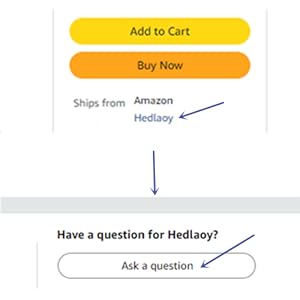
Figure 12: Guide on how to access customer support via the Amazon product page.