
1. Product Overview
The WOOCARTY Single Wireless Side View Camera (Model W701S) is designed to enhance visibility for vehicles, particularly when used with compatible WF7 and WF703 systems. This camera provides a wide-angle view, aiding in maneuvering and improving safety by offering a clear perspective of blind spots.
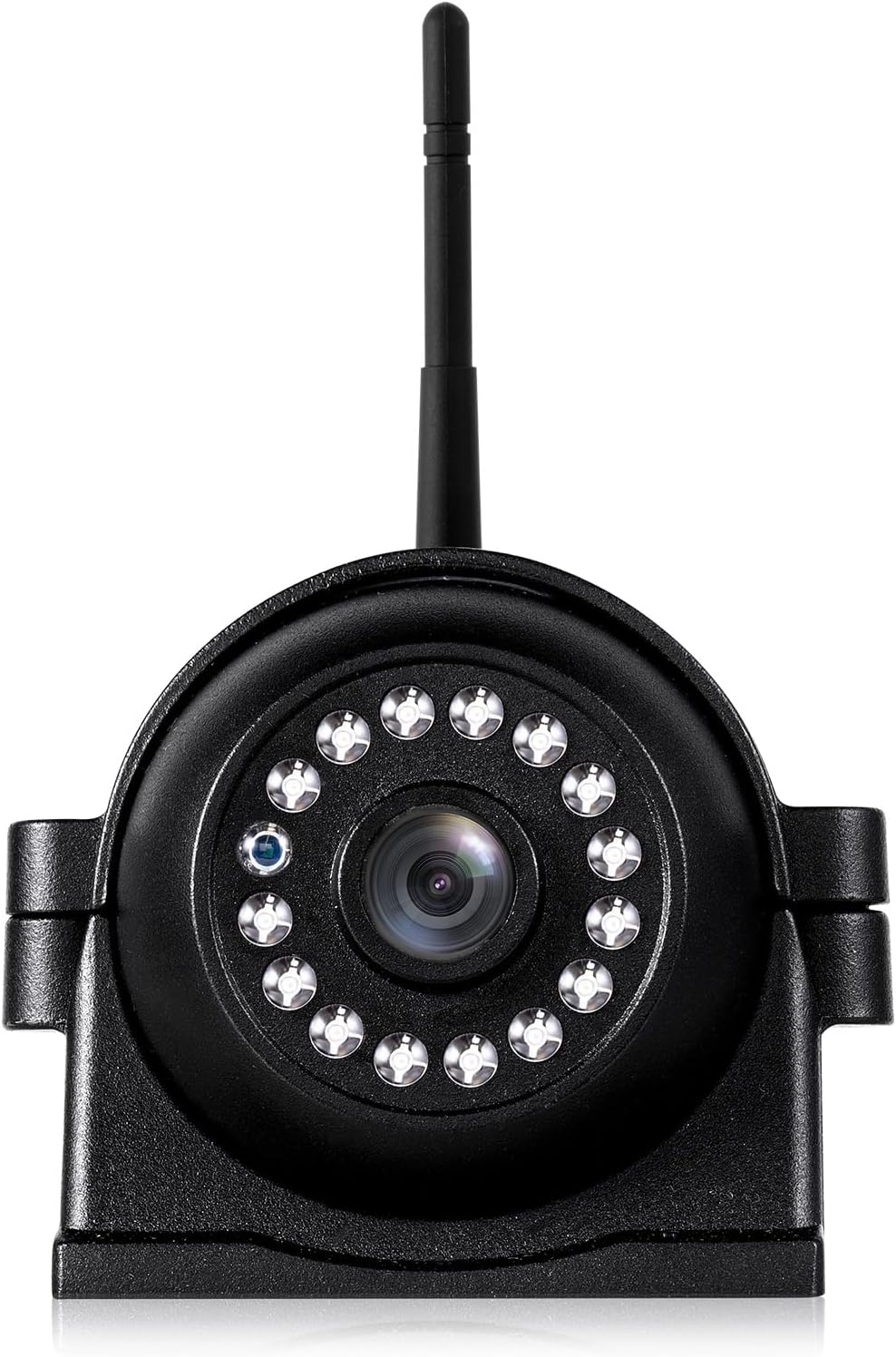
Figure 1: WOOCARTY Single Wireless Side View Camera (W701S). This image displays the compact, black camera unit with its antenna and multiple infrared LEDs for night vision, mounted on an adjustable bracket.
2. What's in the Box
- Side View Camera x 1
3. Specifications
| Feature | Detail |
|---|---|
| Product Dimensions | 7 x 0.9 x 4.7 inches (7"L x 0.9"W x 4.7"H) |
| Item Weight | 1.06 pounds |
| Wireless Technology | Yes |
| Installation Type | Roof Mount |
| Lens Type | Wide Angle |
4. Setup and Installation
This section provides guidance for setting up your WOOCARTY Single Wireless Side View Camera. For detailed visual instructions, please refer to the embedded video below.
4.1 Adjusting Camera Angle for Mounting
The magnetic side camera offers flexibility in mounting. To adjust the camera angle for different orientations (horizontal or vertical), follow these steps:
- Remove the rubber plate located on the left side of the camera.
- Loosen the left-side screws.
- Adjust the camera to the desired angle. When mounted horizontally, the camera provides a 90° vertical tilt adjustment range for an expanded viewing angle. When mounted vertically, manually adjust the camera angle approximately 90° to achieve proper image alignment on the screen. The camera offers 180° rotation capability.
- After adjusting, tighten the screws to lock the camera in the correct screen display.
Video 1: How to adjust the magnetic side camera viewing image. This video demonstrates the process of loosening screws, adjusting the camera's viewing angle for horizontal or vertical mounting, and then tightening the screws to secure the position.
4.2 General Installation Overview
The WOOCARTY wireless camera system is designed for straightforward installation. The camera is typically mounted to the rear or side of your vehicle, often utilizing existing marker light wiring for power. Ensure proper sealing around any drilled holes to prevent water intrusion.
Video 2: WOOCARTY - WF703 RV Backup Camera Installation & Operation. This video provides a general overview of the installation process for the WF703 RV backup camera system, which includes the W701S side view camera.
5. Operating Instructions
Once installed, the camera wirelessly transmits video to your compatible monitor. The monitor typically allows for switching between different camera views (if multiple cameras are connected) and adjusting display settings.
5.1 Monitor Navigation and Display Modes
Your monitor will have buttons for navigation, such as 'M' (Menu), 'OK', and 'CH' (Channel). These buttons allow you to access settings, confirm selections, and switch between camera views or split-screen modes.
6. Troubleshooting
6.1 Fixing Upside-Down Menu After Reset
If your monitor's menu appears upside down after a reset, follow these steps to correct the display orientation:
- Long-press the 'M' (Menu) button for 5 seconds.
- Press the 'OK' button to navigate to the Rotation menu.
- Press the '-' button to select 'MODE 2'.
- Press the 'OK' button four times to save and exit the settings page.
Video 3: Fixing the Upside Down Menu After Reset. This video provides a step-by-step guide to correct an inverted menu display on your monitor after a system reset.
6.2 General Troubleshooting Tips
- No Signal: Ensure the camera is powered on and within range of the monitor. Check all connections.
- Poor Image Quality: Verify the camera lens is clean and free from obstructions. Check for strong wireless interference.
- Power Issues: Confirm the camera is receiving adequate power. For solar-powered models, ensure the solar panel is clean and exposed to sunlight.
7. Maintenance
- Cleaning: Regularly clean the camera lens with a soft, damp cloth to ensure clear visibility. Avoid abrasive cleaners.
- Connection Check: Periodically inspect all wiring and connections for wear, corrosion, or looseness.
- Firmware Updates: Check the manufacturer's website for any available firmware updates for your system.
8. Warranty and Support
For warranty information, technical support, or further assistance, please refer to the contact details provided with your product packaging or visit the official WOOCARTY website.