
1. Product Overview
The Reyke Wallet Tracker Card is a slim, rechargeable device designed to help you locate your personal items using the Apple Find My network. Its ultra-thin profile allows it to fit seamlessly into wallets, luggage, or other personal belongings.

Image 1.1: Reyke Wallet Tracker Card with iPhone displaying Apple Find My app interface. This visual demonstrates the primary function of the device in conjunction with Apple's tracking ecosystem.
Key Features:
- Ultra-Thin Design: At just 1.6mm, it's comparable to two credit cards, fitting easily into any wallet.
- Wireless Charging: Rechargeable internal battery provides up to 5 months of use on a single charge.
- Apple Find My Compatibility: Works exclusively with Apple devices via the 'Find My' app (iOS only).
- Audible Alert: Built-in speaker emits a 90-100dB sound to help locate nearby items.
- Left-Behind Reminders: Receive notifications on your iPhone when the card is out of Bluetooth range.
- Lost Mode: Utilize the global Apple Find My network to locate lost items.
- IP68 Waterproof: Resistant to water immersion up to 3 feet for 30 minutes.
- Privacy Protection: Location data is anonymous and encrypted, not stored publicly.
2. Setup Guide
Follow these steps to pair your Reyke Wallet Tracker Card with your Apple device.

Image 2.1: Four-step guide for setting up the Reyke Wallet Tracker Card with the Apple Find My app. This visual guide details the steps to connect your card.
- Step 1: Activate the Tracker Card
Press the power button on the Reyke Wallet Tracker Card once. The device will enter pairing mode, indicated by a flashing LED. - Step 2: Enable Bluetooth and Open Find My App
On your Apple iPhone, iPad, or Mac, ensure Bluetooth is enabled. Open the 'Find My' application. - Step 3: Add New Item
Navigate to the 'Items' tab within the 'Find My' app. Tap on the '+' icon, then select 'Add Other Supported Item'. - Step 4: Connect and Name
The 'Find My' app will detect your Reyke Smart Card. Tap 'Connect' and follow the on-screen prompts to name your tracker card (e.g., "Emily's Wallet", "Keys", "Luggage").
Note: Android devices are not supported for use with the Reyke Wallet Tracker Card.
3. Operating Instructions
3.1 Locating Your Item
- Find Nearby (Bluetooth Range): If your item is within Bluetooth range (up to 164 feet / 50 meters), open the 'Find My' app, select your Reyke Card, and tap 'Play Sound'. The card will emit a loud sound (90-100dB) to help you pinpoint its location.
- Locate on Map (Out of Range): If your item is outside Bluetooth range, the 'Find My' app will display its last known location on a map.
- Lost Mode: If an item is truly lost, activate 'Lost Mode' in the 'Find My' app. The vast Apple Find My network (hundreds of millions of Apple devices) can help locate your item. When another Apple device detects your Reyke Card, you will receive an anonymous notification of its location.
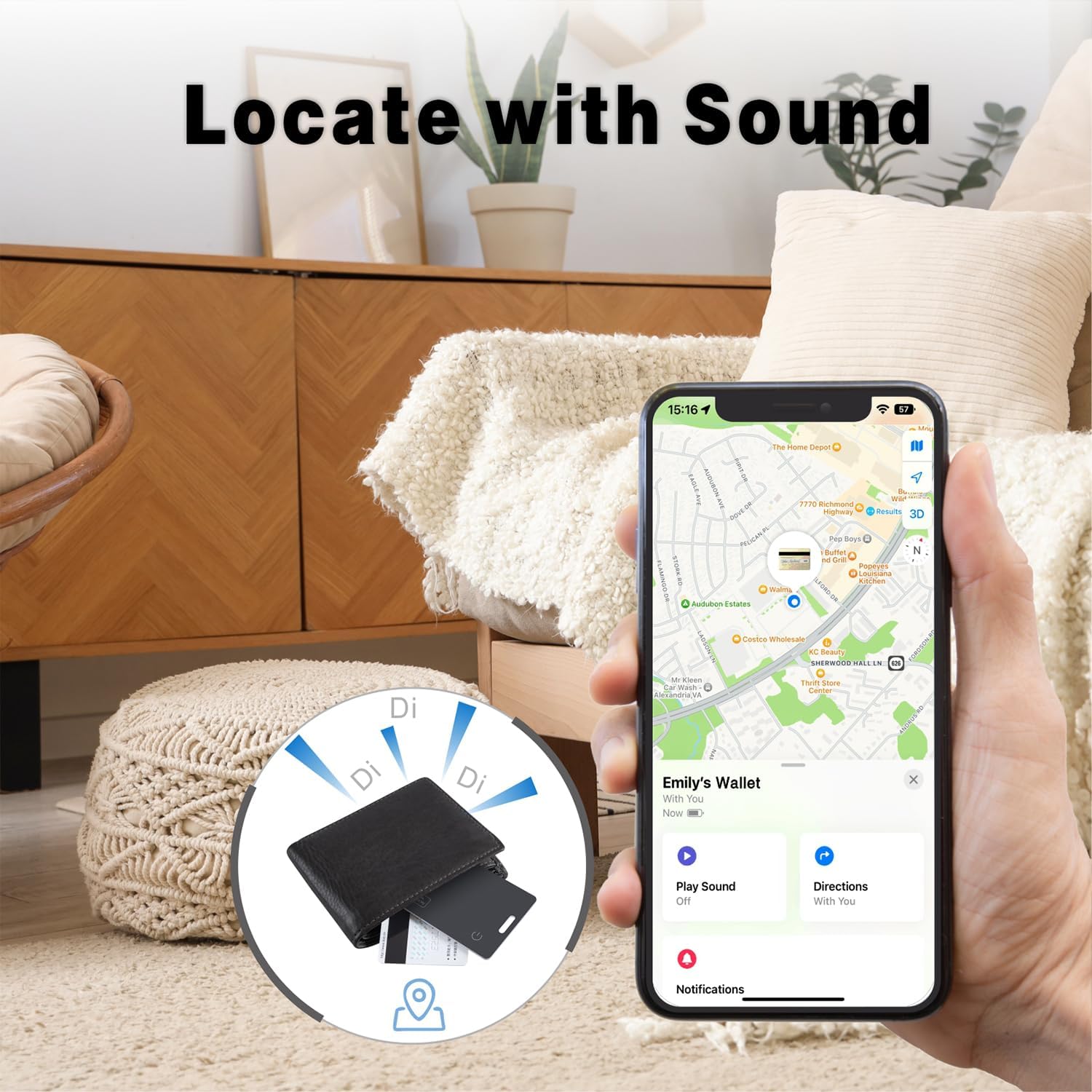
Image 3.1: Reyke Wallet Tracker Card in a wallet, with an iPhone showing the 'Play Sound' option in the Find My app. This demonstrates how to locate the card using its built-in speaker.
3.2 Left-Behind Reminders
The Reyke Wallet Tracker Card can notify you if you leave your item behind. When the card moves out of Bluetooth range from your iPhone, you will receive a notification on your device, showing the last detected location before disconnection.

Image 3.2: Reyke Wallet Tracker Card in a wallet, with an iPhone displaying a 'left behind' notification. This illustrates the 'Left-Behind Remind' feature.
3.3 Sharing Your Item (iOS 17+)
With iOS 17 or later, you can share your Reyke Wallet Tracker Card's location with up to 5 other Apple users. This allows friends or family to also see the item's location on a map. Borrowers will not receive tracking notifications as the item moves with them.

Image 3.3: iPhone screen displaying the 'Share This Item' feature within the Apple Find My app for the Reyke Wallet Tracker Card. This feature allows users to share the tracker card's location with others.
4. Maintenance
4.1 Charging the Device
The Reyke Wallet Tracker Card features wireless charging. A full charge can last up to 5 months. The LED indicator light will change color to show charging status.
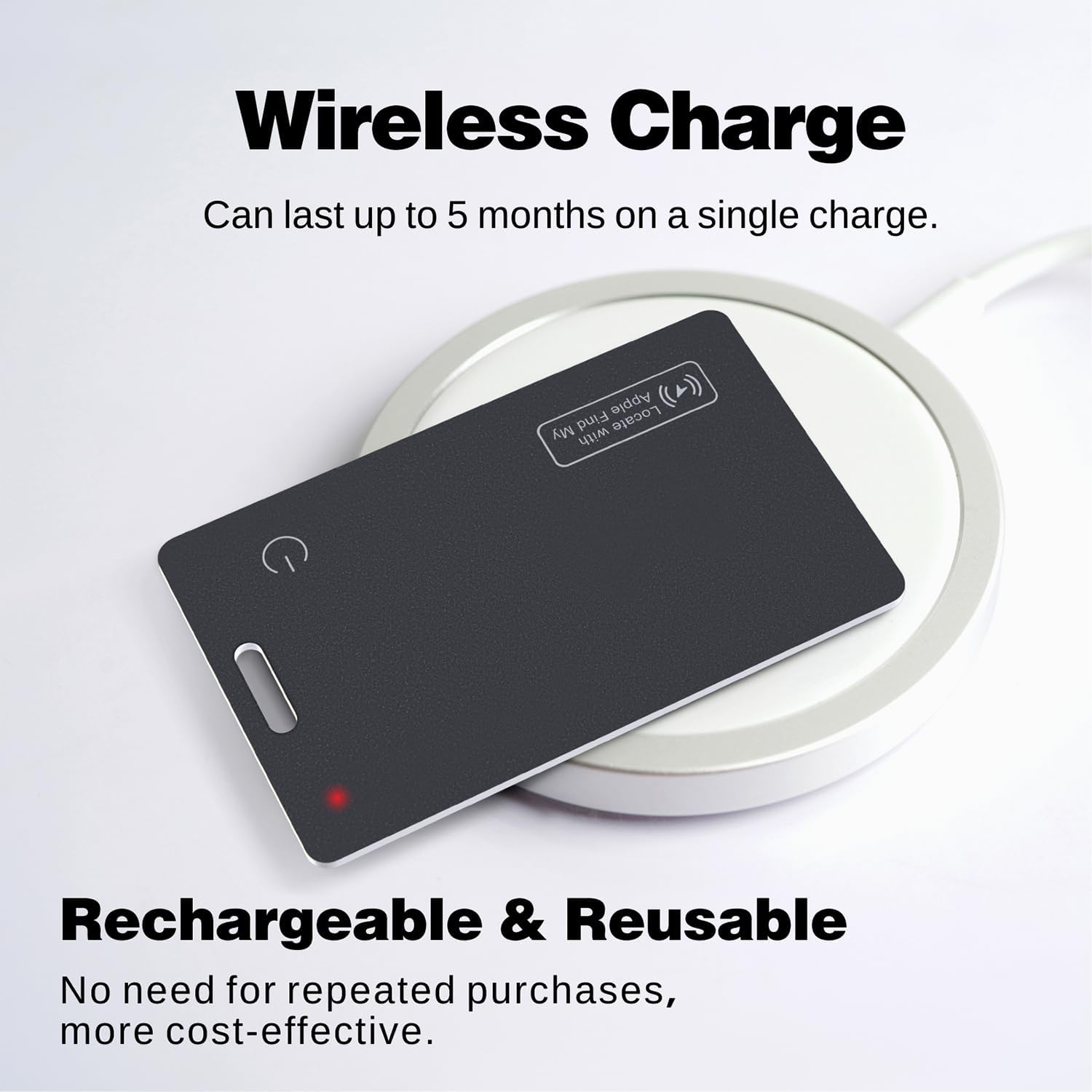
Image 4.1: Reyke Wallet Tracker Card on a wireless charging pad with a red indicator light. A red indicator light on the card signifies that it is currently charging.

Image 4.2: Diagram showing correct and incorrect ways to wirelessly charge the Reyke Wallet Tracker Card. Ensure the side with the power icon is facing downwards on the charging pad for proper connection.
4.2 Water and Dust Resistance
The Reyke Wallet Tracker Card has an IP68 rating, meaning it is resistant to dust and can withstand immersion in water up to 3 feet (1 meter) for 30 minutes. While durable, avoid prolonged submersion or exposure to high-pressure water jets.
5. Troubleshooting
- Card not pairing:
Ensure Bluetooth is enabled on your Apple device. Press the power button on the card to ensure it's in pairing mode. Try restarting your Apple device and the Find My app. - Card not found in Find My app:
Verify that the card is charged. Ensure you are within Bluetooth range for initial setup. If previously paired, check the 'Items' tab in the Find My app. - No sound from card:
Confirm the card is charged and within Bluetooth range. Check the volume settings on your Apple device. - Inaccurate location:
Location accuracy can be affected by environmental factors (e.g., dense urban areas, indoors). Ensure your Apple device has a strong network connection. - Battery draining quickly:
Ensure the card is fully charged. Extreme temperatures can affect battery performance. If the issue persists, contact customer support.
6. Specifications
| Feature | Detail |
|---|---|
| Model Number | HB12-D |
| Dimensions | 0.06"L x 0.06"W x 0.06"Th (1.6mm thickness) |
| Weight | 1.76 ounces |
| Connectivity | Bluetooth |
| Compatibility | Apple Find My (iOS Only) |
| Battery | Rechargeable Lithium Ion (up to 5 months per charge) |
| Water Resistance | IP68 (up to 3 feet for 30 minutes) |
| Sound Level | 90-100dB |
| Color | Black |
| Material | Plastic |
7. Warranty and Support
For warranty information and customer support, please refer to the official Reyke website or contact your retailer. Keep your proof of purchase for any warranty claims.