
1. Introduction
This manual provides detailed instructions for the setup, operation, and maintenance of your Forc Thermal Label Printer POS-9250. This printer is designed for efficient and high-quality label printing, featuring both Bluetooth and USB connectivity, making it suitable for various business and personal shipping needs. Please read this manual thoroughly before using the printer to ensure proper function and longevity.
2. Package Contents
Upon unpacking, please verify that all items listed below are present in your package. If any items are missing or damaged, please contact customer support.

Image showing the contents included in the Forc Thermal Label Printer package: the thermal printer, power adapter, power cable, USB cable, Type-C adapter, USB drive, user manual, and 30 test labels.
- Forc Thermal Label Printer (POS-9250)
- Power Adapter
- Power Cable
- USB Cable
- USB Drive (containing drivers and software)
- Type-C Adapter
- User Manual
- 30 Test Labels
3. Product Overview
The Forc Thermal Label Printer POS-9250 is a compact and efficient device designed for high-volume label printing without the need for ink or toner. It supports various label sizes and offers flexible connectivity options.
3.1 Key Features
- Connectivity: Bluetooth (for Android/iOS) and USB (for Windows/Mac OS).
- Printing Technology: Direct Thermal.
- Resolution: 203 DPI for clear and professional prints.
- Print Speed: Up to 160 mm/s.
- Label Width: Supports labels from 0.8 inches (20mm) to 4.1 inches (104mm).
- Label Types: Compatible with roll labels and fan-fold labels.
- Built-in Label Bin: Integrated design for convenience, eliminating the need for an external label holder.
3.2 Printer Dimensions
- Depth: 22.6 cm
- Width: 22.9 cm
- Height: 11.9 cm
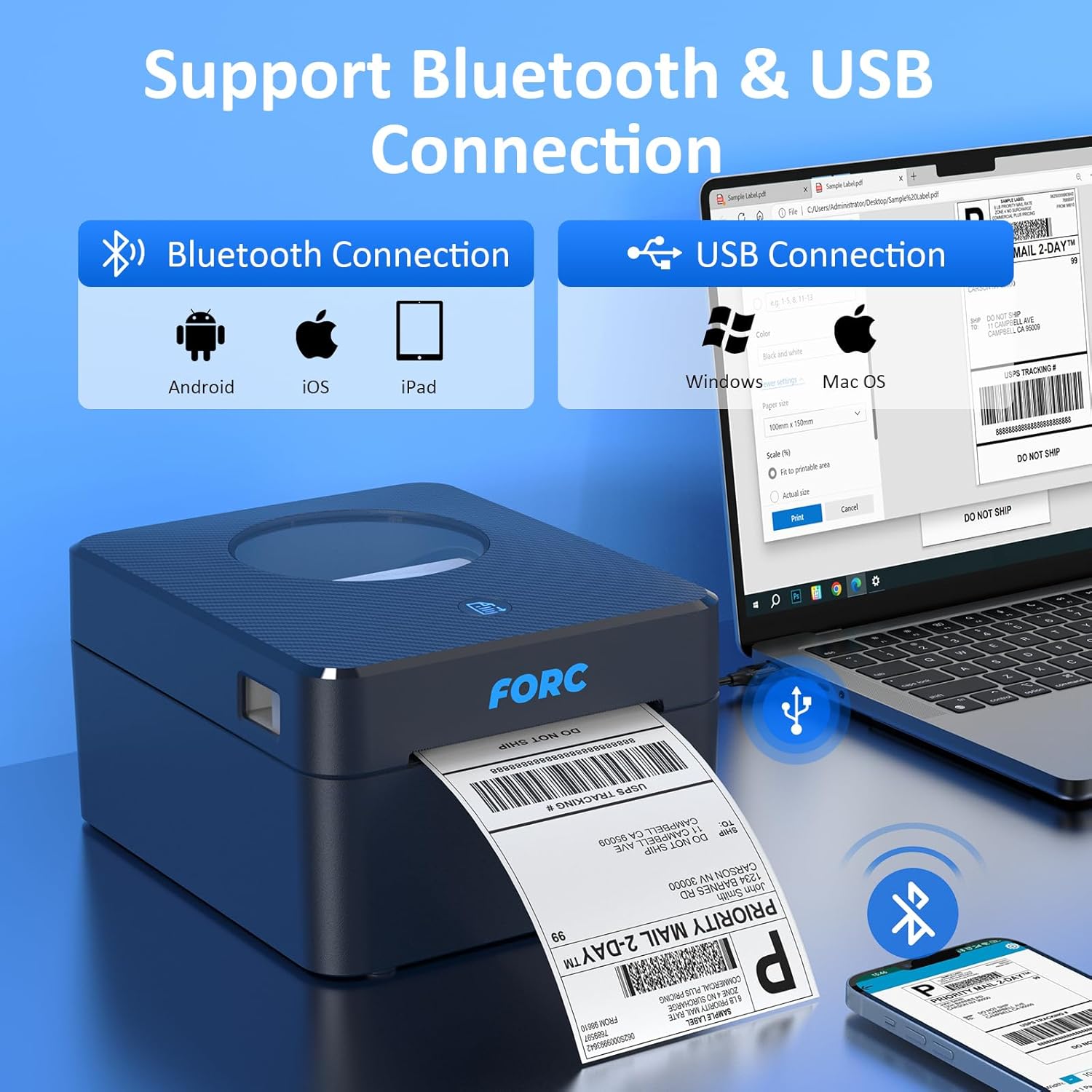
Image illustrating the Forc Thermal Label Printer's connectivity options, showing Bluetooth connection for Android, iOS, and iPad devices, and USB connection for Windows and Mac OS computers.

Image highlighting the printer's speed of 160mm/s and resolution of 203 DPI for fast and clear label printing.

Image demonstrating the built-in label bin of the Forc Thermal Label Printer, emphasizing no ink, no toner, ease of use, and environmental friendliness. It also shows support for fan-fold paper loaded from the back.
4. Setup
4.1 Hardware Connection
- Power Connection: Connect the power adapter to the printer's power port and then plug the power cable into a wall outlet.
- USB Connection (for Windows/Mac OS): Connect one end of the USB cable to the printer and the other end to an available USB port on your computer.
4.2 Software and Driver Installation
- For Windows/Mac OS: Insert the provided USB drive into your computer. Locate and install the appropriate printer drivers for your operating system. Follow the on-screen instructions.
- For Android Devices: Download the "Printed Label" application from the Google Play Store.
- For iOS Devices: Download the "Zlabel" application from the Apple App Store.
4.3 Loading Labels
The printer supports both roll labels and fan-fold labels. Ensure labels are loaded correctly for optimal printing.
- Roll Labels: Open the printer cover and place the roll of labels into the built-in label bin. Ensure the labels feed smoothly through the printer's mechanism.
- Fan-Fold Labels: Fan-fold labels can be fed from the back of the printer. Adjust the label guides to fit the width of your labels.
5. Operating Instructions
The Forc Thermal Label Printer offers flexible printing options via Bluetooth for mobile devices and USB for computers.
5.1 Printing via Bluetooth (Android/iOS)
- Ensure the printer is powered on and Bluetooth is enabled on your mobile device.
- Open the installed application ("Printed Label" for Android or "Zlabel" for iOS).
- Within the app, search for and connect to your Forc printer via Bluetooth.
- Select the label file you wish to print. It is recommended to save your labels as PDF files first.
- Adjust print settings (e.g., label size, orientation) within the app as needed.
- Initiate the print command.
5.2 Printing via USB (Windows/Mac OS)
- Ensure the printer is powered on and connected to your computer via USB.
- Open the document containing your label (e.g., a PDF file).
- Select the print option from your application.
- Choose the Forc Thermal Label Printer from the list of available printers.
- Adjust print settings (e.g., paper size, orientation) to match your label dimensions. The printer supports label widths from 0.8 to 4.1 inches, including common sizes like 4x6 inches.
- Initiate the print command.
5.3 Supported Platforms
The Forc Thermal Label Printer is compatible with major shipping and e-commerce platforms. It is recommended to save your labels as PDF files before printing.
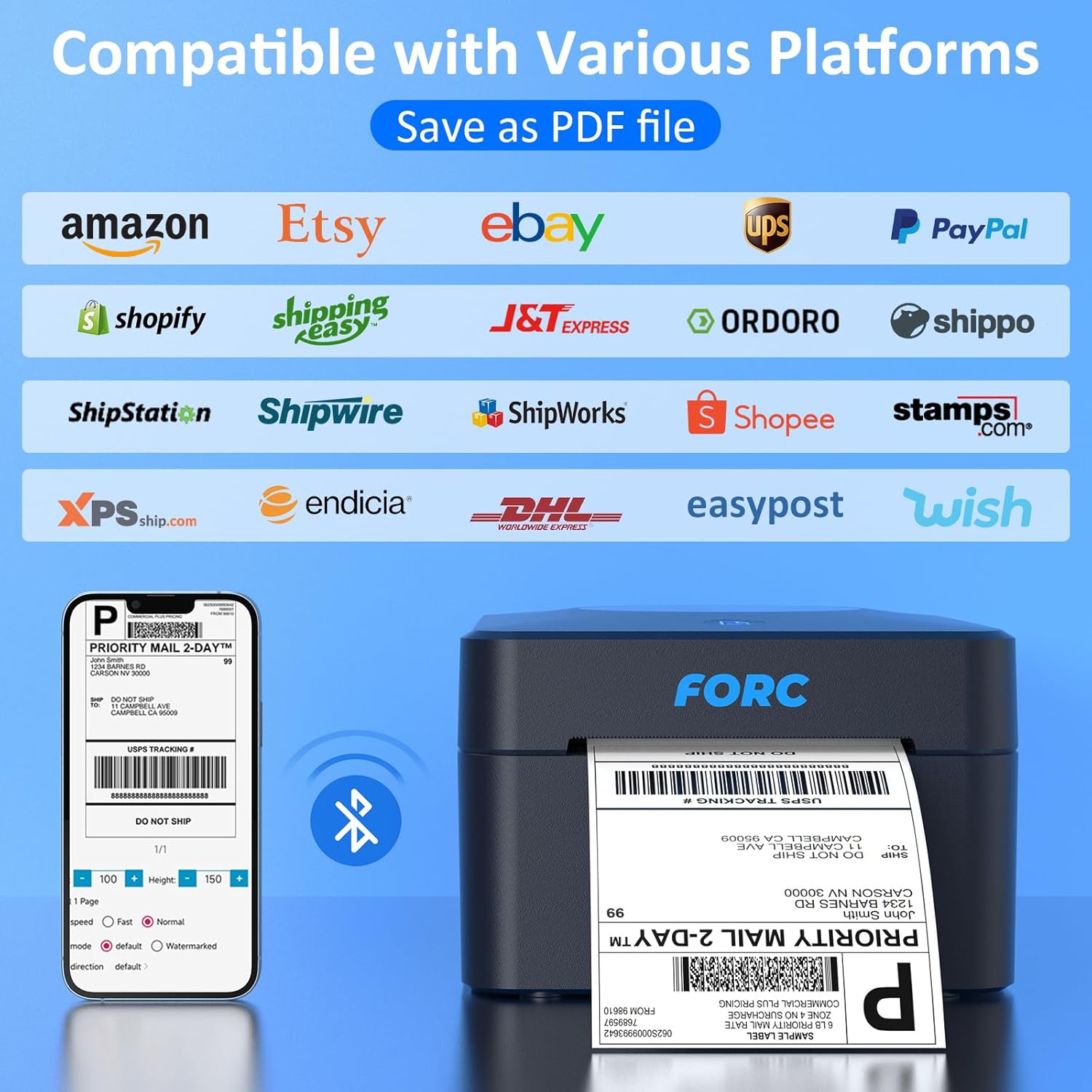
Image displaying the Forc Thermal Label Printer's compatibility with various shipping platforms such as Amazon, Etsy, eBay, UPS, PayPal, Shopify, ShippingEasy, J&T Express, Ordoro, Shippo, ShipStation, Shipwire, ShipWorks, Shopee, Stamps.com, XPS.ship.com, Endicia, DHL, EasyPost, and Wish. It also shows a smartphone screen with a label preview and the printer in action.

Image illustrating the Forc Thermal Label Printer's support for various label sizes, including circular, 2x1 inch, 3x2 inch, 4x4 inch, and 4x6 inch labels, with a label width range of 0.8 to 4.1 inches.
6. Maintenance
Regular maintenance ensures the longevity and optimal performance of your thermal label printer.
6.1 Cleaning the Print Head
The print head is a critical component and should be cleaned periodically to prevent print quality issues.
- Turn off the printer and unplug the power cable.
- Open the printer cover.
- Gently wipe the print head with an alcohol swab or a lint-free cloth lightly dampened with isopropyl alcohol.
- Allow the print head to dry completely before closing the cover and powering on the printer.
6.2 Cleaning the Exterior
Wipe the exterior of the printer with a soft, dry cloth. Avoid using abrasive cleaners or solvents.
7. Troubleshooting
If you encounter issues with your printer, refer to the following common problems and solutions.
| Problem | Possible Cause | Solution |
|---|---|---|
| Printer not powering on | Power cable not connected; Power outlet issue | Check power cable connections; Try a different power outlet. |
| No print output | No labels loaded; Labels loaded incorrectly; Printer not connected; Driver issue | Load labels correctly; Check USB/Bluetooth connection; Reinstall printer drivers. |
| Poor print quality (faded, blurry) | Dirty print head; Low-quality labels; Incorrect print settings | Clean the print head (refer to Maintenance section); Use high-quality thermal labels; Adjust print density settings. |
| Bluetooth connection failure | Bluetooth not enabled; Incorrect app; Printer not discoverable | Ensure Bluetooth is on; Use "Printed Label" (Android) or "Zlabel" (iOS); Restart printer and device. |
| Labels jamming | Labels loaded incorrectly; Damaged labels | Ensure labels are aligned properly; Remove any damaged labels. |
8. Specifications
| Feature | Specification |
|---|---|
| Brand | Forc |
| Model Name | POS-9250 |
| Connectivity Technology | Bluetooth, USB |
| Printing Technology | Thermal |
| Special Feature | Bluetooth and USB Connection |
| Color | Black |
| Printer Output | Monochrome |
| Product Dimensions (LxWxH) | 22.6 x 22.9 x 11.9 cm |
| Maximum Media Size | 4x6 inches |
| Included Components | Labels, Power Adapter, Power Cable, USB Cable, USB Drive, Type-C Adapter, User Manual |
9. Warranty and Support
Forc offers a 1-year warranty on the Thermal Label Printer POS-9250. For technical support, warranty claims, or any other inquiries, please refer to the contact information provided on the product packaging or the official Forc website.


