
IntelliPlay Intelliplay 9-inch Android Car Stereo
Intelliplay Touch Screen 9 Inches Android Car Stereo
User Manual
1. Introduction
Welcome to the Intelliplay Touch Screen 9 Inches Android Car Stereo user manual. This guide provides comprehensive instructions to help you set up, operate, and maintain your new car stereo system. Designed to transform your vehicle into a connected car, this device offers advanced infotainment and connectivity features, including an in-built 4G SIM, CarPlay, and Android Auto.
Please read this manual thoroughly before using the product to ensure proper installation and optimal performance. Keep this manual for future reference.

Figure 1.1: Intelliplay 9-inch Android Car Stereo and its packaging. The image displays the sleek design of the stereo unit alongside its product box, highlighting key features like 4G connectivity and Android OS.
2. Safety Information
To ensure safe operation and prevent damage, please observe the following precautions:
- Do not attempt to disassemble or modify the unit. This may cause damage and void the warranty.
- Ensure proper ventilation around the unit to prevent overheating.
- Avoid exposing the unit to extreme temperatures, direct sunlight, or excessive moisture.
- Always operate the device responsibly and avoid distractions while driving.
- Installation should be performed by qualified professionals to prevent electrical damage or improper functioning.
- Disconnect the vehicle's battery before performing any installation or wiring.
3. Package Contents
Verify that all items listed below are included in your package:
- Android car stereo unit
- Frame (specific to car model)
- 4G GSM Antenna
- External Microphone
- Canbus (if applicable for vehicle integration)
- OEM Camera Activator
- RCA Cable
- Bluetooth Cable
- Power Cable
- Warranty Card
4. Product Overview and Features
The Intelliplay Android Car Stereo is equipped with advanced features for a superior in-car experience:
- Octa-Core Processor: Ensures smooth and responsive performance for multitasking.
- Memory: 2GB RAM and 32GB ROM for ample storage and efficient operation.
- Display: 9-inch HD 2.5D Curved Glass IPS Display with split-screen functionality.
- Connectivity: In-built 4G SIM for seamless internet, Bluetooth, and USB 2.0 interface.
- Navigation: Pre-installed Google Maps with in-built GPS and voice navigation.
- Smartphone Integration: Supports Apple CarPlay and Android Auto for hands-free convenience.
- Audio: High-quality audio output with built-in DSP.
- Camera Support: Rear camera and 360° camera supported (for selected models).
- Additional Features: Alexa Enabled, Built-in Tracker, Live Vehicle Tracking, Geo-Fence Notification, Live Location Sharing, Over Speeding Alerts, Vehicle Finder, Steering Wheel Control Support, External Mic.

Figure 4.1: Comprehensive overview of Intelliplay Car Stereo features. This image visually lists key specifications and functionalities such as Octa Core Processor, Full HD Display, 4G LTE, CarPlay, Android Auto, GPS, and various tracking and alert systems.
5. Setup and Installation
Professional installation is highly recommended for the Intelliplay Android Car Stereo to ensure proper functionality and avoid damage to your vehicle's electrical system.
5.1 Free Installation Service
Intelliplay offers a free installation service for eligible customers. Follow these steps to avail the service:
- Place Order: Complete your purchase of the Intelliplay Android Car Stereo.
- Share Details: After placing the order, share your car brand, model, and year on WhatsApp at 8448189276 or call 8010-80-8010 for installation support. Provide your contact number and order ID.
- Order Delivery: Our team will contact you once your order is delivered.
- Installation Booking: Fill out the installation form. We will call you within 24 to 48 hours to confirm car details and book an installation slot. Access the form here: Installation Form.
- Engineer Visit: An installation engineer will visit as per your booked slot.
Note: Frames and wiring kits are available for selected car models only. Customers may need to visit the nearest car accessories shop for installation assistance if their model is not covered or for specific wiring needs.

Figure 5.1: Visual guide to the Intelliplay free installation process. This diagram illustrates the four steps: Place Order, Share Contact & Car Details, Team Contact after Delivery, and Engineer Visit for installation.
5.2 Basic Wiring Diagram (General)
While professional installation is recommended, a general understanding of the wiring connections is useful. Refer to the specific wiring diagram provided with your unit for detailed instructions, as connections may vary by vehicle model.
- Power Cable: Connect to vehicle's power supply (ACC, B+, GND).
- Speaker Wires: Connect to vehicle's speaker system.
- RCA Cables: For external amplifiers, subwoofers, or video output.
- USB Ports: For external devices, USB drives, or smartphone connection.
- GPS Antenna: Mount in a location with clear sky view for optimal signal reception.
- 4G GSM Antenna: Connect for cellular data connectivity.
- External Microphone: Connect for clear voice calls and commands.
- Reverse Camera Input: Connect your reverse camera for automatic display when reversing.
- CANBUS Decoder: If included, connect to integrate with vehicle's steering wheel controls and other systems.
6. Operating Instructions
6.1 Powering On/Off
- The unit will typically power on automatically when the vehicle's ignition is turned on.
- To manually power off, press and hold the power button (if available) or turn off the vehicle's ignition.
6.2 Touch Screen Interface
Navigate the system using the responsive 9-inch touch screen. Tap icons to open applications, swipe to scroll, and use pinch-to-zoom gestures for maps.
6.3 Home Screen and Apps
The home screen provides quick access to frequently used functions like navigation, music, and phone. You can customize the layout and add widgets. Access all installed applications from the app drawer.

Figure 6.1: The Intelliplay Car Stereo displaying various entertainment and utility applications. The screen shows icons for Amazon Prime Video, Spotify, Car Setting, Bluetooth, YouTube, Play Store, Disney Hotstar, and Contacts, indicating the wide range of apps available.
6.4 System Settings
Access the system settings menu to configure network connections, display options, sound settings, date/time, and other system preferences.
7. Connectivity
7.1 In-built 4G SIM and Free Internet
The stereo features an in-built 4G SIM for seamless internet access. This provides lifetime free internet, allowing you to stream music, browse, and use online services without additional data costs.
- Activation: KYC (Know Your Customer) is mandatory to activate the SIM and device as per government regulations. Follow the instructions provided during initial setup or contact support for activation.
- Usage: Once activated, the device will automatically connect to the 4G network.
7.2 Bluetooth Connection
Connect your smartphone via Bluetooth for hands-free calling and audio streaming.
- Go to "Settings" > "Bluetooth".
- Turn on Bluetooth on both the stereo and your phone.
- Search for available devices on your phone and select "Intelliplay" (or similar device name).
- Confirm the pairing code on both devices.
7.3 Wi-Fi Connection
Connect to a Wi-Fi hotspot (e.g., from your phone or home network) for additional internet access or software updates.
- Go to "Settings" > "Network & Internet" > "Wi-Fi".
- Turn on Wi-Fi and select your desired network.
- Enter the password if prompted.
7.4 USB Connectivity
Use the USB 2.0 interface to connect USB drives for media playback or to connect compatible devices.
8. Navigation
The Intelliplay stereo comes with Google Maps pre-installed and features an in-built GPS module for accurate navigation.
- Google Maps: Launch the Google Maps application from the home screen or app drawer.
- Voice Navigation: Utilize voice commands for hands-free navigation input and directions.
- Live Location Sharing: Share your live location via WhatsApp with Geo-Fencing capabilities.
- GPS Signal: Ensure the GPS antenna is properly installed and has a clear view of the sky for optimal signal reception.
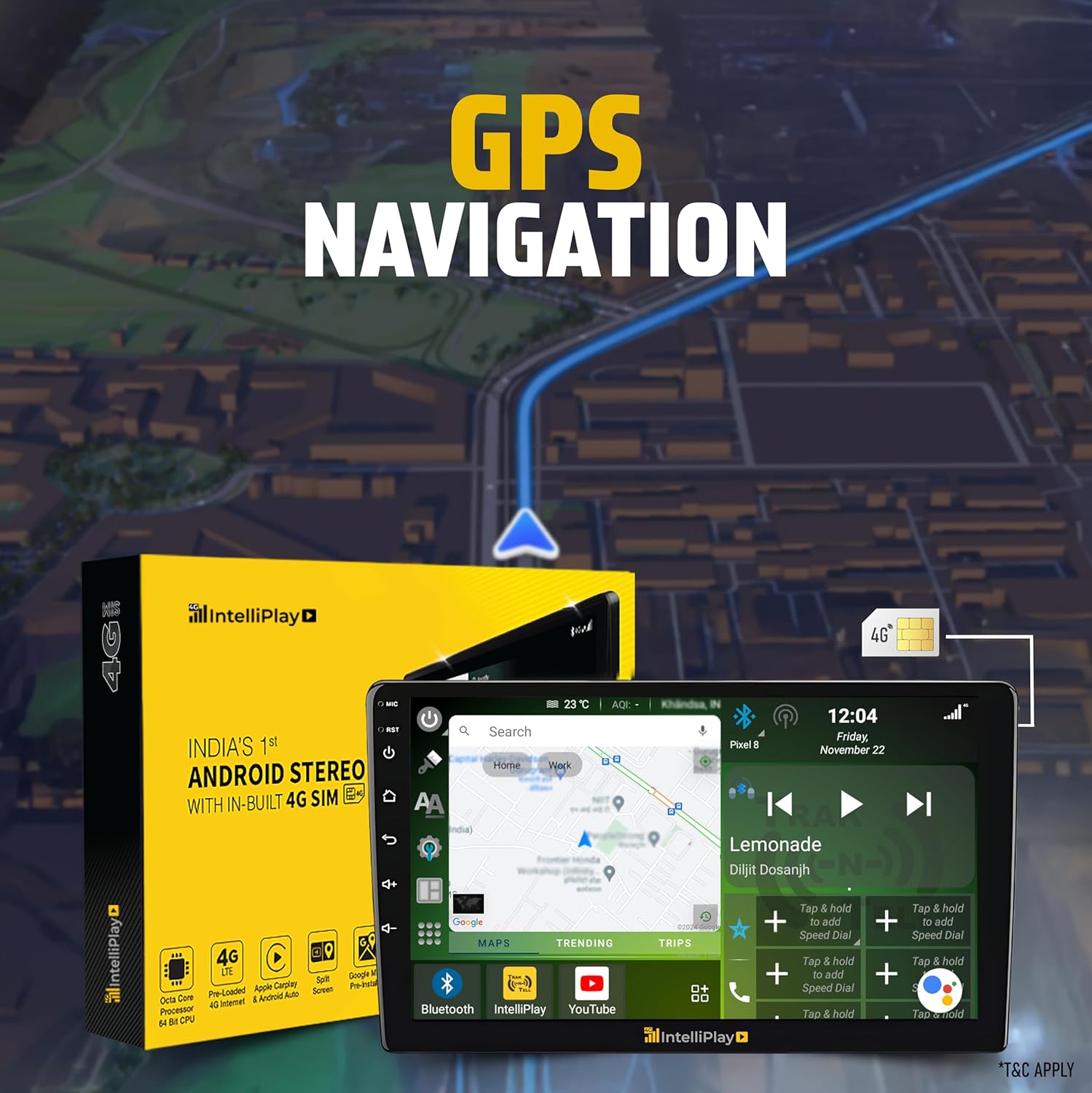
Figure 8.1: Intelliplay Car Stereo showcasing its GPS navigation capabilities. The image highlights the stereo's screen displaying Google Maps with a route, emphasizing the integrated GPS functionality and the included 4G SIM for online map access.
9. Multimedia
Enjoy a wide range of multimedia options on your Intelliplay stereo:
- Audio Playback: Play music from internal storage, USB drives, or streaming apps like Spotify and Amazon Prime Music.
- Video Playback: Watch videos from internal storage, USB drives, or streaming apps like YouTube and Disney Hotstar on the HD display.
- Radio: Tune into your favorite FM/AM radio stations.
- Audio Output: Connect to external amplifiers or subwoofers via RCA cables for enhanced sound.
- Audio/Video Input: Connect external audio/video sources if supported.
10. Apple CarPlay and Android Auto
The Intelliplay stereo supports both Apple CarPlay and Android Auto, allowing seamless integration with your smartphone for a safer and more convenient driving experience.
- Connect Your Phone: Connect your iPhone via USB for Apple CarPlay or your Android phone via USB for Android Auto. Some units may support wireless connections.
- Access Features: Once connected, you can access navigation, make calls, send messages, and listen to music directly from the stereo's touch screen using a simplified interface optimized for driving.
- Voice Control: Use Siri (for CarPlay) or Google Assistant (for Android Auto) for voice commands.
11. Maintenance
To ensure the longevity and optimal performance of your Intelliplay car stereo, follow these maintenance guidelines:
- Cleaning the Screen: Use a soft, lint-free cloth to gently wipe the touch screen. For stubborn smudges, slightly dampen the cloth with water or a screen cleaner designed for electronics. Do not use abrasive cleaners or solvents.
- General Cleaning: Keep the unit free from dust and debris. Use a soft brush or compressed air to clean vents and ports.
- Software Updates: Periodically check for software updates through the system settings to ensure you have the latest features and bug fixes.
- Avoid Liquids: Do not spill any liquids on the unit. In case of accidental spills, immediately power off the unit and disconnect it from power.
12. Troubleshooting
If you encounter issues with your Intelliplay car stereo, refer to the following common troubleshooting steps:
| Problem | Possible Cause | Solution |
|---|---|---|
| Unit does not power on. | Loose power connection, blown fuse, vehicle battery issue. | Check power cables and connections. Inspect vehicle fuses. Ensure vehicle battery is charged. Consult a professional for wiring inspection. |
| No sound from speakers. | Incorrect speaker wiring, volume too low, mute enabled, audio settings. | Check speaker connections. Increase volume. Disable mute. Verify audio output settings. |
| GPS signal lost or inaccurate. | GPS antenna obstructed or improperly installed, weak signal area. | Ensure GPS antenna has a clear view of the sky. Check antenna connection. Move to an open area. |
| Bluetooth connection issues. | Bluetooth off, device not discoverable, interference. | Ensure Bluetooth is enabled on both devices. Make the stereo discoverable. Delete previous pairings and re-pair. Reduce interference. |
| Touch screen unresponsive. | System freeze, temporary software glitch. | Restart the unit (turn vehicle ignition off and on). If issue persists, perform a factory reset (note: this will erase data). |
| 4G internet not working. | SIM not activated, poor network coverage, data settings. | Ensure SIM KYC is completed and activated. Check network signal strength. Verify APN settings in network settings. |
If the problem persists after trying these solutions, please contact customer support.
13. Specifications
| Feature | Detail |
|---|---|
| Display Size | 9 Inches |
| Operating System | Android |
| Memory (RAM/ROM) | 2GB RAM + 32GB ROM |
| Processor | Octa-Core Processor |
| Connectivity | In-built 4G SIM, Bluetooth, USB, Wi-Fi |
| Special Features | Android Auto, Apple CarPlay, Built-In Bluetooth, GPS Navigation, Touchscreen |
| Map Type | Worldwide (Google Maps pre-installed) |
| Mounting Type | Dashboard Mount |
| Product Dimensions (LxWxH) | 23 x 8 x 16 Centimeters |
| Item Weight | 1 kg 500 g |
| Manufacturer | Bits N Bytes Soft Private Limited |
| Warranty | 1-Year Conditional Warranty (External damages or water damage not covered) |
14. Warranty and Support
14.1 Warranty Information
The Intelliplay Touch Screen Android Car Stereo comes with a 1-Year Conditional Warranty. Please note that any external damages or water damage will not be covered under this warranty. Retain your purchase receipt and warranty card for any claims.
14.2 Customer Support
For any technical assistance, installation support, or warranty claims, please contact Intelliplay customer service:
- WhatsApp Support: +91 8448189276
- Phone Support: +91 8010-80-8010
- Manufacturer: Bits N Bytes Soft Private Limited
Please have your product model and purchase details ready when contacting support.
Ask a question about this manual
Ask about setup, troubleshooting, compatibility, parts, safety, or missing instructions. Manuals+ will review the question and use this page’s manual context to help answer it.