
Introduction
This manual provides detailed instructions for the setup, operation, and maintenance of your Port Designs Bluetooth Wireless Mouse (Model 910201). This mouse is designed for professional performance, offering dual connectivity (2.4GHz and Bluetooth), silent clicks, and adjustable DPI settings for various tasks. It features a sleek gray design with a metal finish and is powered by a USB-C rechargeable battery.
Product Overview
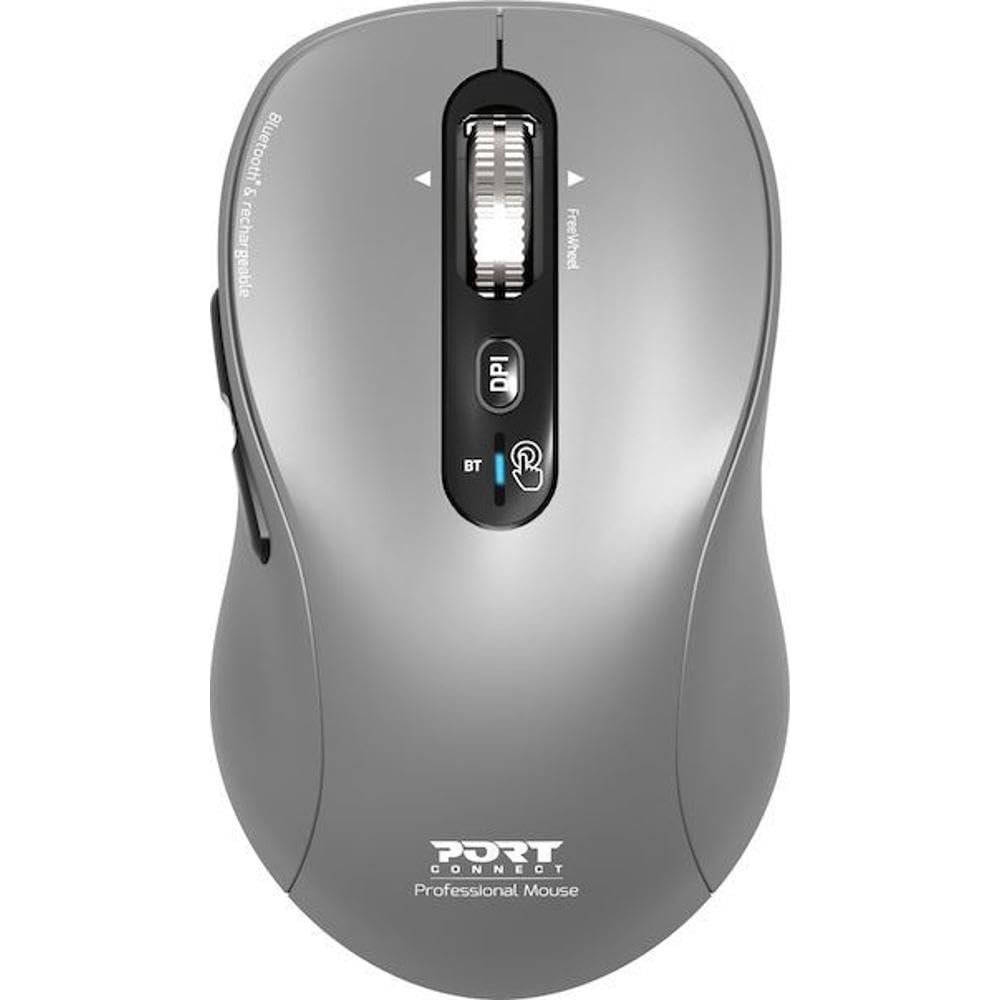
Image: The Port Designs Bluetooth Wireless Mouse in gray. It features a scroll wheel, DPI button, and connectivity indicator on the top, along with side buttons. A USB-C charging port is visible at the front.
The mouse is equipped with six buttons, including the left and right click buttons, a scroll wheel with FreeWheel functionality, a DPI adjustment button, and two side buttons. It supports both 2.4GHz wireless and Bluetooth connectivity, allowing connection to up to three devices.
Setup
- Unpacking: Carefully remove the mouse from its packaging. Ensure all components are present.
- Charging the Mouse: The mouse is powered by a USB-C rechargeable battery. Connect the included USB-C cable to the charging port on the front of the mouse and to a USB power source. The LED indicator will show charging status. A full charge is recommended before first use.
- Connecting via Bluetooth:
- Turn on the mouse.
- Press and hold the Bluetooth pairing button (often located on the bottom or near the DPI button) until the LED indicator flashes, indicating pairing mode.
- On your device (computer, tablet), go to Bluetooth settings and search for new devices.
- Select "Port Designs Mouse" or a similar name from the list of available devices to pair.
- The LED indicator will become solid when successfully paired.
- Connecting via 2.4GHz Wireless:
- Locate the USB receiver (if included, typically stored in a compartment on the mouse's underside).
- Plug the USB receiver into an available USB port on your computer.
- Turn on the mouse. It should automatically connect to the receiver.
- Multi-Device Pairing: The mouse can connect to up to three devices simultaneously. Use the connectivity switch or button (often near the DPI button) to cycle between the 2.4GHz connection and two separate Bluetooth connections (BT1, BT2).
Operating the Mouse
- Power On/Off: Use the power switch on the underside of the mouse to turn it on or off.
- DPI Adjustment: Press the DPI button (located near the scroll wheel) to cycle through sensitivity settings: 1000, 1600, 2400, and 3200 DPI. Choose the setting that best suits your task and preference.
- Silent Clicks: The mouse features silent click technology, providing a quiet working environment.
- FreeWheel Scrolling: The scroll wheel offers FreeWheel functionality for smooth and precise navigation through documents and web pages.
- Side Buttons: The two side buttons typically function as 'Forward' and 'Backward' for web browsing and file navigation. Their functionality may vary depending on the operating system or specific application.
- Switching Devices: If you have paired the mouse with multiple devices, use the dedicated connectivity button/switch to quickly switch between the connected devices (e.g., 2.4GHz, BT1, BT2).
Maintenance
- Cleaning: Use a soft, dry cloth to clean the mouse. For stubborn dirt, slightly dampen the cloth with water. Avoid using harsh chemicals or abrasive materials.
- Battery Care: To prolong battery life, avoid fully discharging the mouse frequently. Charge the mouse when the low battery indicator appears. Store the mouse in a cool, dry place when not in use for extended periods.
- Storage: When transporting or storing the mouse, ensure it is turned off to conserve battery and prevent accidental activation.
Troubleshooting
- Mouse not responding:
- Ensure the mouse is turned on.
- Check the battery level and charge if necessary.
- For 2.4GHz connection, ensure the USB receiver is securely plugged in.
- For Bluetooth connection, ensure Bluetooth is enabled on your device and the mouse is properly paired. Try re-pairing if necessary.
- Try connecting to a different USB port or device to rule out port/device issues.
- Cursor movement is erratic or slow:
- Clean the optical sensor on the underside of the mouse.
- Ensure you are using the mouse on a suitable surface (non-reflective, opaque).
- Adjust the DPI setting using the DPI button to a higher sensitivity.
- Cannot switch between devices:
- Ensure all desired devices are properly paired or connected.
- Press the device switching button firmly to cycle through connections.
Specifications
| Feature | Detail |
|---|---|
| Brand | Port Designs |
| Model Number | 910201 |
| Color | Gray |
| Connectivity | 2.4GHz Wireless, Bluetooth (connects up to 3 devices) |
| Number of Buttons | 6 |
| DPI Settings | 1000, 1600, 2400, 3200 |
| Scrolling | FreeWheel Roller |
| Battery | USB-C Rechargeable |
| Item Weight | 0.16 Kilograms |
Warranty and Support
For warranty information or technical support, please refer to the documentation included with your purchase or visit the official Port Designs website. You may also contact customer service through the retailer where the product was purchased.