1. Introduction
This manual provides essential information for the proper setup, operation, and maintenance of your GOWENIC BT Thermal Label Printer. Please read these instructions carefully before using the device to ensure optimal performance and longevity.
2. Package Contents
Verify that all items are present in the package:
- 1 x GOWENIC BT Thermal Label Printer
- 1 x Charging Cable
- 1 x User Manual (this document)
- 1 x Roll of Test Paper
3. Setup Guide
3.1 Charging the Printer
Before initial use, fully charge the printer. Connect the provided charging cable to the printer's charging port and a suitable USB power adapter. The charging time is approximately 2-3 hours for the 1000mAh battery.
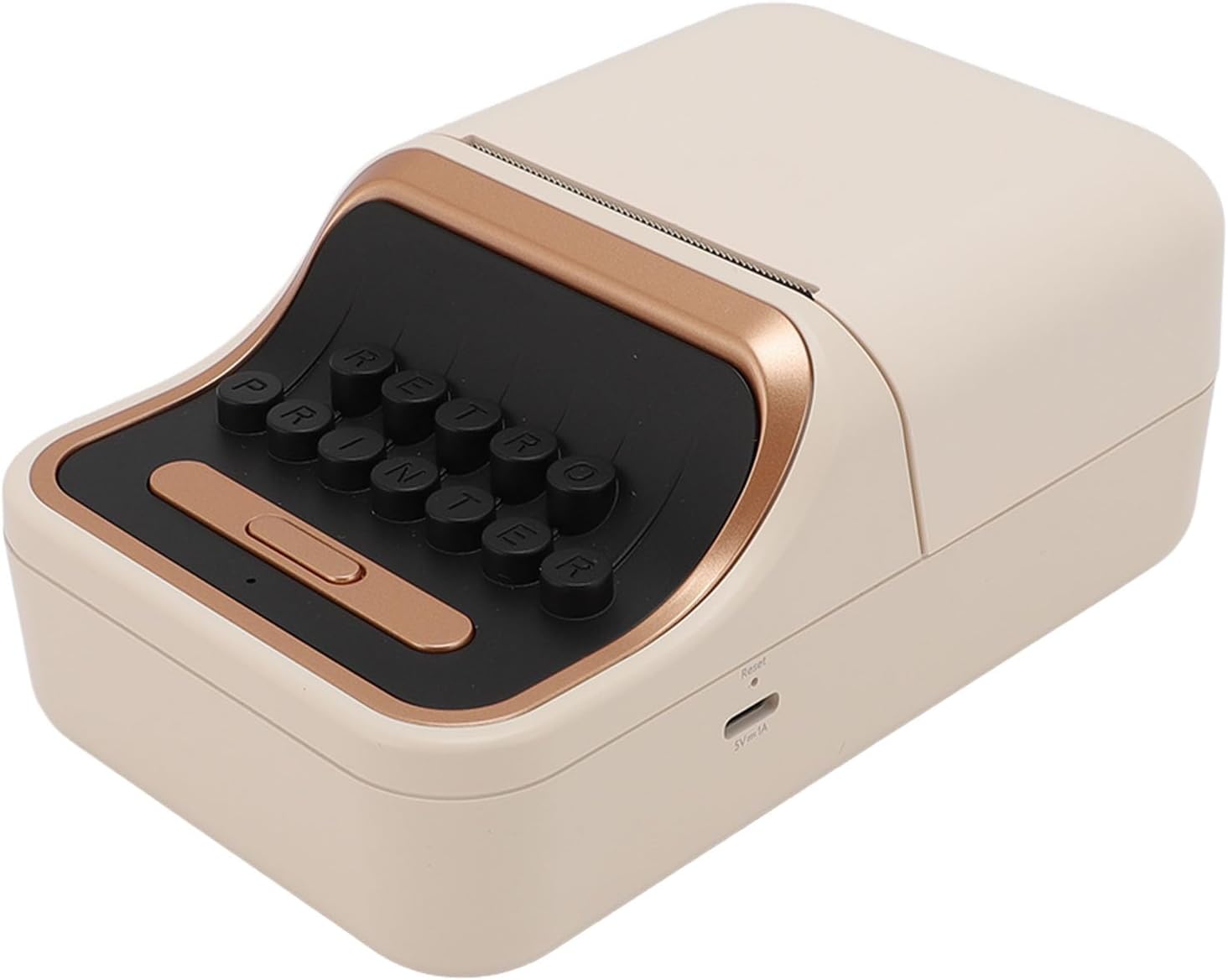
Image: Side view of the printer, highlighting the charging port and reset button for easy identification.
3.2 Loading Label Paper
- Open the printer's top cover.
- Insert the label paper roll into the designated compartment. Ensure the paper feeds smoothly and the print side is facing the print head. The printer supports label paper with a core inner diameter of at least 13mm and a width of up to 52mm.
- Close the top cover securely.

Image: The printer with its top cover open, showing how to load the label paper roll. Examples of printed labels on storage jars are also displayed.
3.3 Powering On and Bluetooth Pairing
- Press and hold the power button to turn on the printer.
- Download the dedicated mobile application for the printer (refer to the included user manual for app name and download instructions, or scan a QR code if provided on the device/packaging).
- Enable Bluetooth on your mobile device.
- Open the printer's mobile application and follow the on-screen instructions to connect to the printer via Bluetooth 5.0. The printer should appear in the app's device list.
4. Operating Instructions
4.1 Designing and Printing Labels
- Launch the mobile application on your smartphone.
- Utilize the app's interface to design your labels. The application provides various templates and editing tools.
- Select the desired label size and content. The printer supports label sizes from 30mm to 52mm.
- Once your design is complete, tap the print button within the app.
- The printer will automatically print the label.
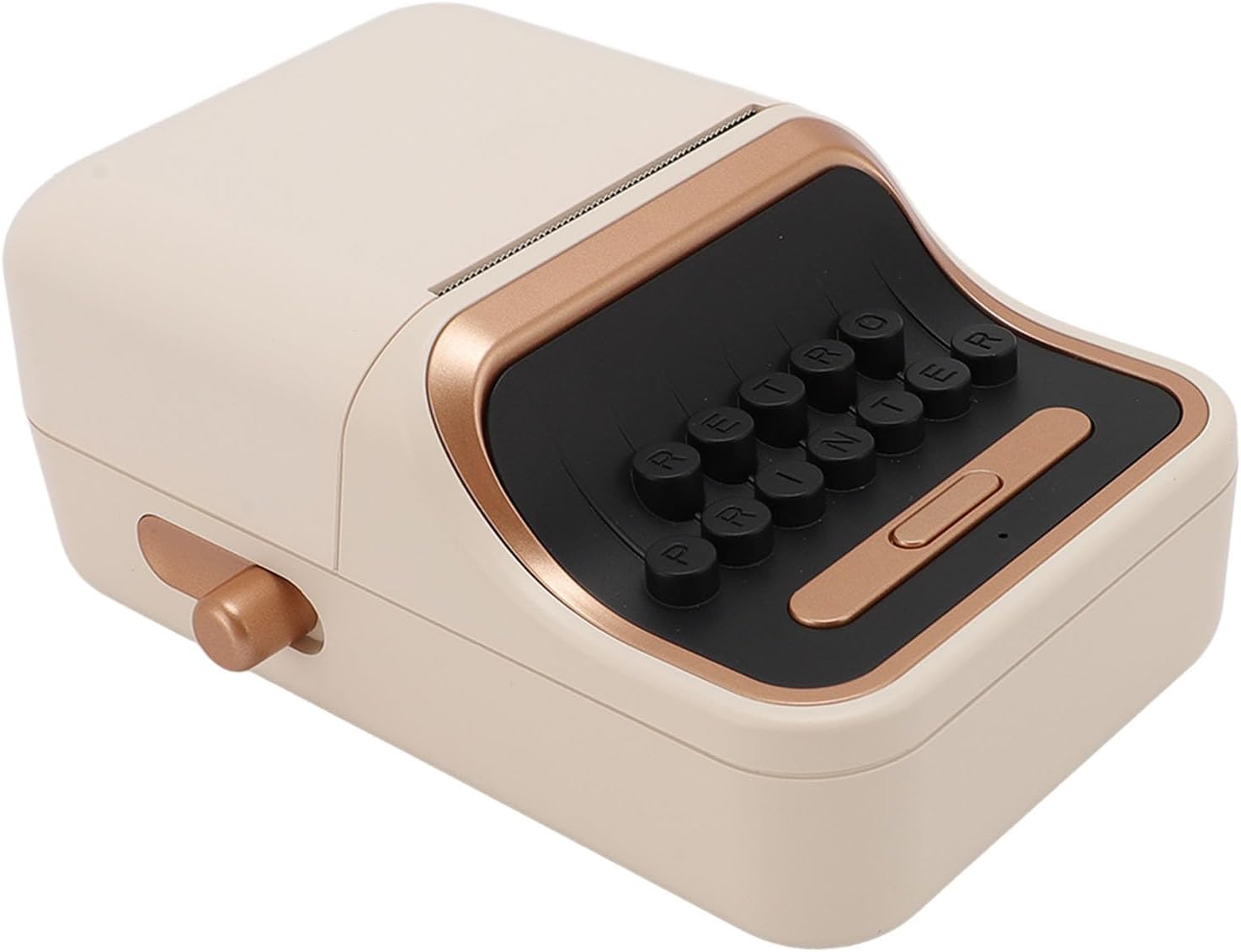
Image: A front-side view of the GOWENIC BT Thermal Label Printer, illustrating its compact and vintage-inspired design.
4.2 Adjusting Paper Settings
The printer features adjustable paper settings to accommodate different label types and sizes within its supported range. These adjustments are typically managed through the mobile application to ensure proper alignment and print quality.
5. Maintenance
5.1 Cleaning the Print Head
To maintain print quality, periodically clean the print head. Use a soft, lint-free cloth lightly dampened with isopropyl alcohol. Gently wipe the print head surface. Ensure the printer is turned off and disconnected from power before cleaning.
5.2 General Cleaning
Wipe the exterior of the printer with a soft, dry cloth. Avoid using abrasive cleaners or solvents that could damage the surface.
5.3 Storage
Store the printer in a cool, dry place away from direct sunlight and extreme temperatures when not in use for extended periods.
6. Troubleshooting
6.1 Printer Not Powering On
- Ensure the printer is fully charged. Connect it to a power source and allow it to charge for at least 30 minutes before attempting to power on again.
- Check the charging cable and adapter for any damage.
6.2 Unable to Connect via Bluetooth
- Verify that Bluetooth is enabled on your mobile device.
- Ensure the printer is within the Bluetooth range (typically 10 meters or 33 feet).
- Restart both the printer and your mobile device.
- If issues persist, try unpairing and re-pairing the printer through your mobile device's Bluetooth settings and the printer's application.
6.3 Poor Print Quality
- Check if the label paper is loaded correctly and is not creased or damaged.
- Clean the print head as described in the Maintenance section.
- Ensure you are using high-quality thermal label paper.
- Adjust print density settings within the mobile application, if available.
6.4 Paper Jam
- Turn off the printer immediately.
- Open the top cover and carefully remove any jammed paper. Avoid tearing the paper inside the mechanism.
- Reload the paper correctly and close the cover before powering on.
7. Specifications
| Brand | GOWENIC |
| Model Name | GOWENICipd0rkncw5 |
| Print Type | Thermal Printing |
| Connectivity Technology | Bluetooth 5.0 |
| Supported Label Width | 30mm to 52mm |
| Core Inner Diameter | ≥13mm |
| Battery Type | 1000mAh Battery |
| Charging Time | Approximately 2-3 hours |
| Product Dimensions (D x W x H) | 6.69" x 4.33" x 2.75" (17.0 cm x 11.0 cm x 7.0 cm) |
| Item Weight | 11.8 ounces (334.5 grams) |
| Printer Output | Monochrome |
| Max Print Speed (Monochrome) | 100 ppm |
8. Warranty and Support
8.1 Warranty Information
Warranty terms and conditions are typically provided at the time of purchase or included with the product packaging. Please refer to your purchase documentation for specific warranty details and duration.
8.2 Customer Support
For technical assistance, troubleshooting beyond this manual, or warranty claims, please contact GOWENIC customer support through the vendor's website or the contact information provided with your purchase.