
1. Overview
The TECPHILE B102 Wireless Keyboard with Touchpad is a versatile, cross-platform accessory designed for enhanced productivity. It offers seamless compatibility with a wide range of Bluetooth-enabled devices, including iOS, Android, macOS, and Windows tablets, PCs, and smartphones. This ultra-slim and lightweight keyboard features scissor-switch keys for a quiet typing experience and an integrated multi-touch trackpad for intuitive gesture controls (requires iOS 13+). It supports simultaneous connection to up to three devices, allowing for easy switching between them.

Image: The TECPHILE B102 Wireless Keyboard with Touchpad, showcasing its compact design.

Image: A hand demonstrating interaction with the integrated multi-touch trackpad on the keyboard.
2. Package Contents
Please verify that all items are present in your package:
- 1 x TECPHILE B102 Wireless Bluetooth Keyboard
- 1 x USB-C Charging Cable
- 1 x User Manual (This document)
3. Setup and Connection
3.1 Pairing with Devices
The TECPHILE B102 keyboard can connect to up to three individual devices via Bluetooth. Follow these steps to pair your devices:
- Ensure the keyboard is charged and powered on.
- Press and hold FN + A for 5 seconds until the Bluetooth indicator light flashes. This initiates pairing mode for Device 1.
- On your device (e.g., tablet, smartphone), go to Bluetooth settings and select "TECPHILE B102" from the list of available devices to connect.
- Repeat the process for Device 2 by pressing and holding FN + S for 5 seconds.
- Repeat for Device 3 by pressing and holding FN + D for 5 seconds.
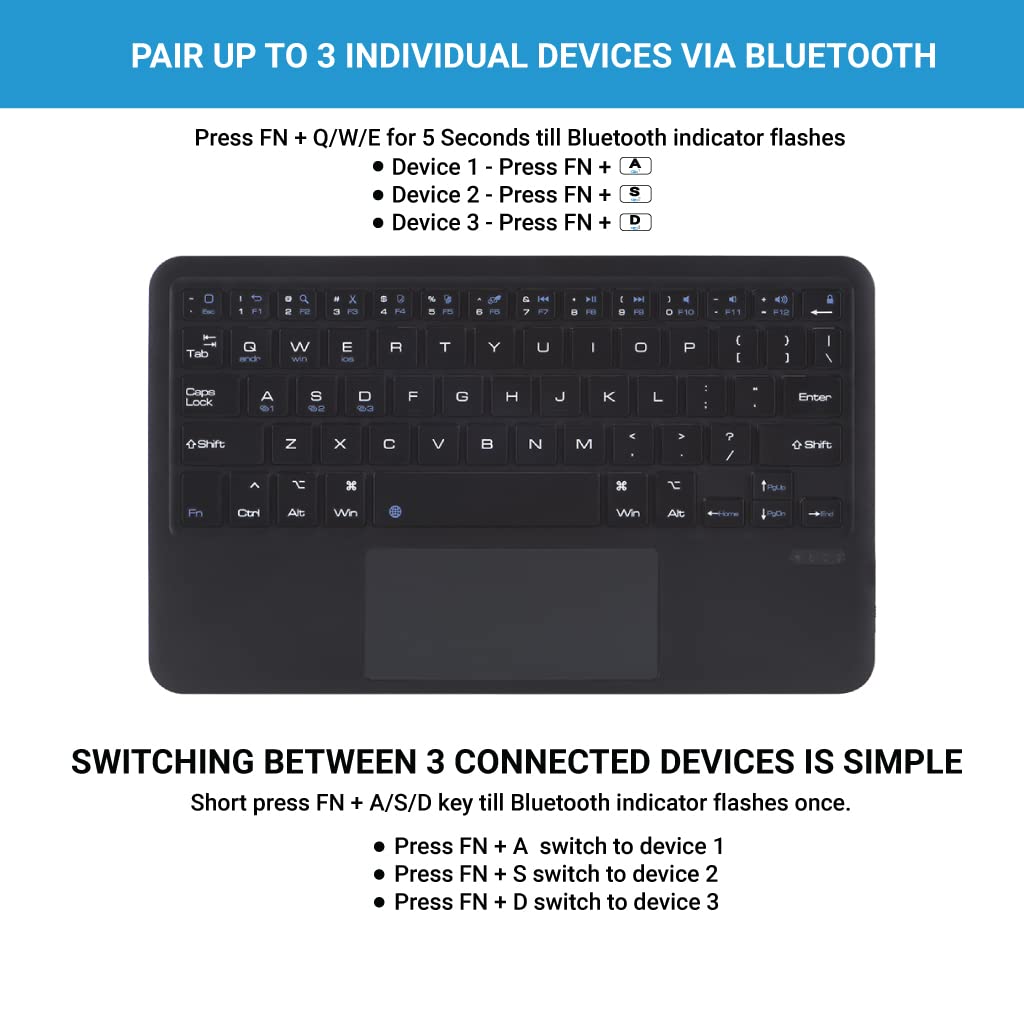
Image: Visual guide for pairing the keyboard with up to three devices using FN + A/S/D keys.

Image: The TECPHILE B102 keyboard demonstrating its ability to support and connect to three different devices simultaneously: a laptop, a tablet, and a smartphone.
4. Operating Instructions
4.1 Switching Between Connected Devices
Once paired, you can easily switch between your three connected devices:
- Short press FN + A to switch to Device 1.
- Short press FN + S to switch to Device 2.
- Short press FN + D to switch to Device 3.
The Bluetooth indicator light will flash once to confirm the switch.
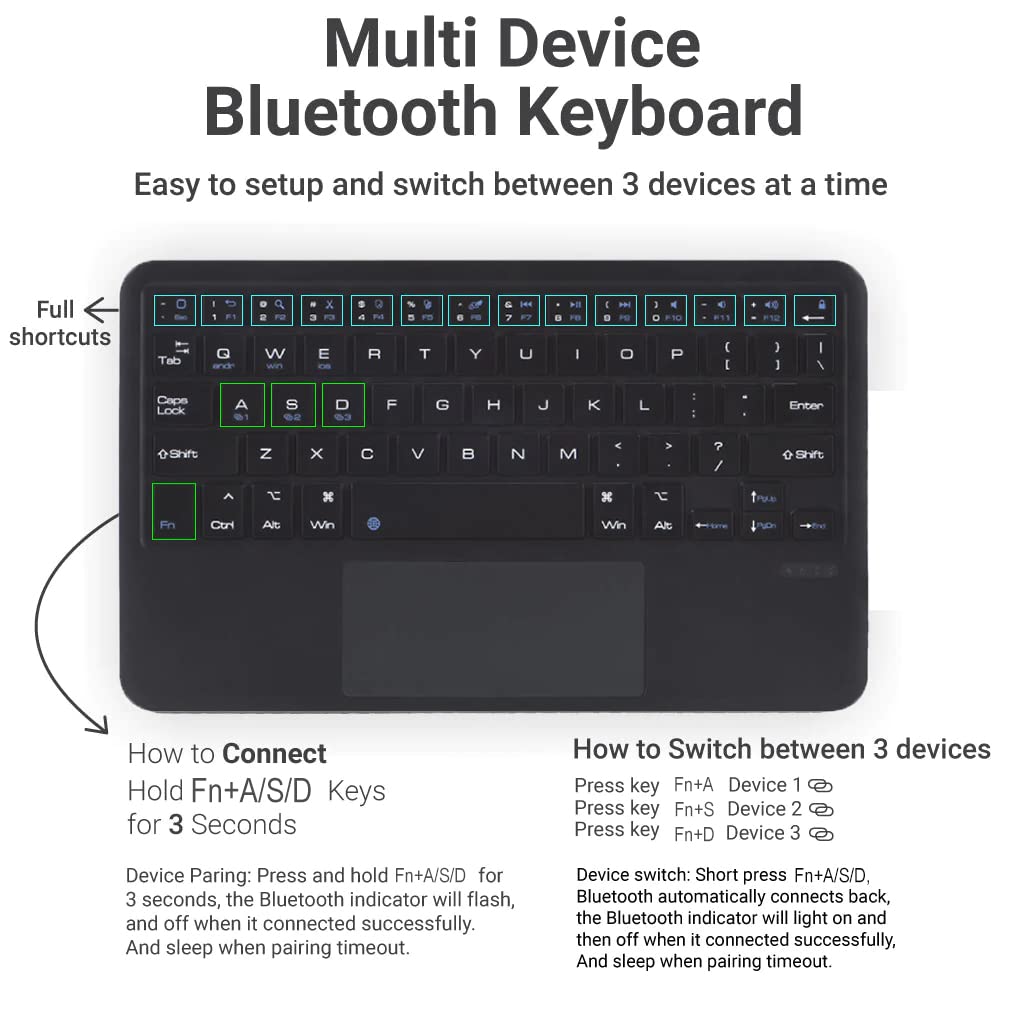
Image: A diagram illustrating how to connect and switch between multiple devices using the FN + A/S/D keys on the keyboard.
4.2 Using the Multi-Touch Trackpad
The integrated trackpad supports multi-finger touch gestures, providing mouse-like functionality. This feature requires iOS 13 or above for Apple devices. The trackpad includes dedicated left and right click buttons for precise control.
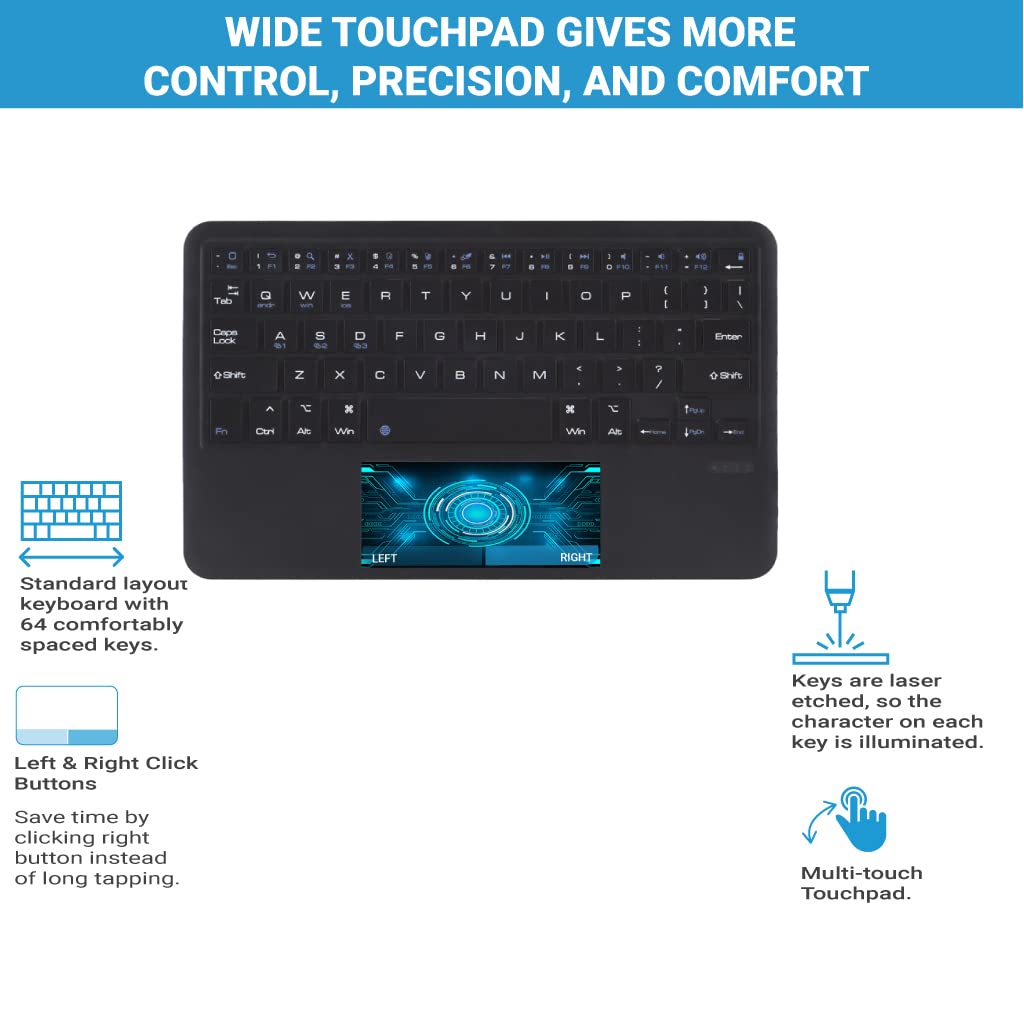
Image: A detailed view of the keyboard's wide touchpad, highlighting its multi-touch functionality and dedicated left/right click areas.
4.3 Function Keys and Shortcuts
The keyboard features system-specific function keys for iOS, Android, macOS, and Windows, allowing quick access to common functions such as:
- Volume control
- Media playback control
- Copy and paste text
- Other essential functions
Refer to your device's operating system documentation for specific key combinations and shortcuts.
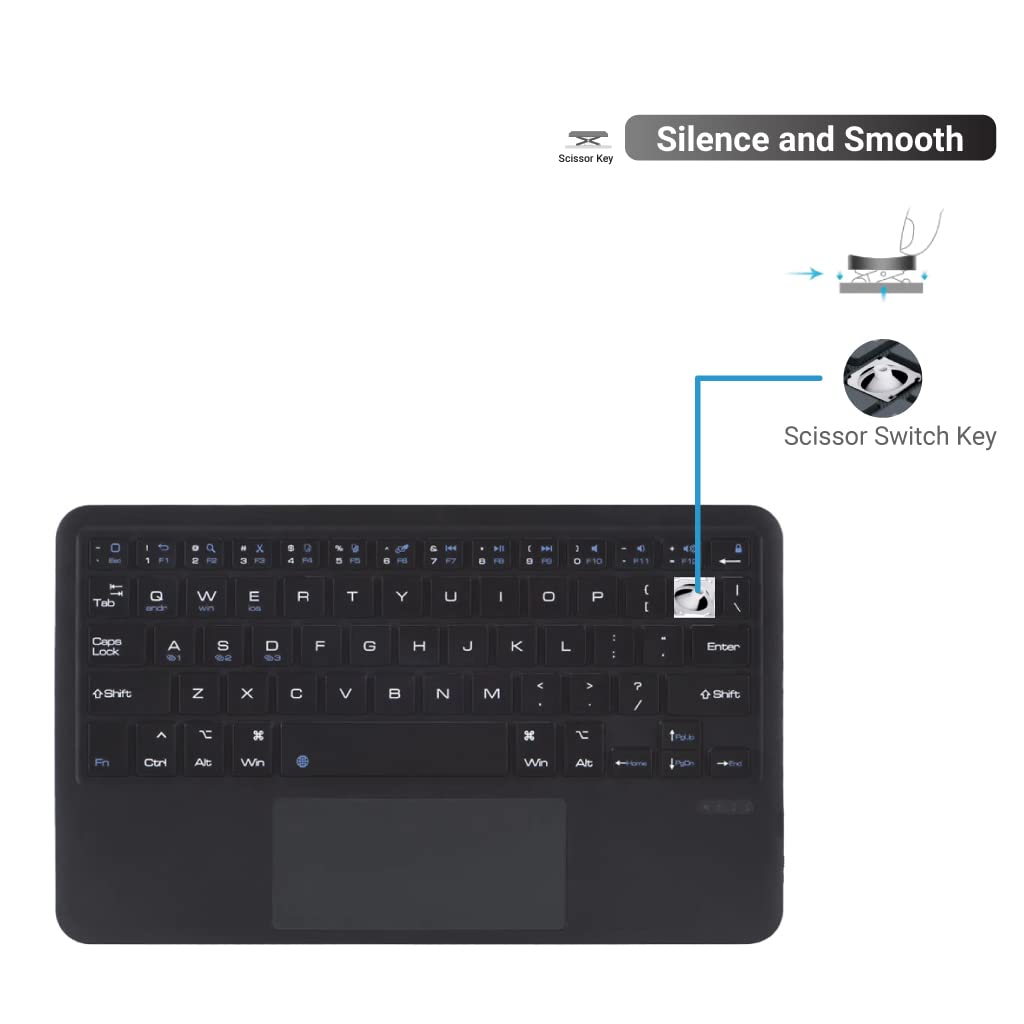
Image: An illustration detailing the scissor-switch key mechanism, which provides a silent and smooth typing experience.
5. Maintenance and Battery Management
5.1 Charging the Keyboard
The keyboard is equipped with a built-in rechargeable battery. Use the included USB-C cable to charge it.
- Connect the USB-C cable to the keyboard's charging port.
- Connect the other end of the cable to a 5V/1A power adapter (not included).
- A full charge typically takes 3-4 hours.
- Important: Only charge the keyboard with a 5V/1A power adapter to ensure optimal battery health and lifespan.

Image: Close-up view of the keyboard's USB-C fast charging port, with a USB-C cable being inserted.
5.2 Auto Sleep/Wake Function
To conserve battery power, the keyboard will automatically enter sleep mode after 10 minutes of inactivity. It will disconnect from your device in this state. To wake the keyboard and reconnect, simply press any key. The keyboard will instantly reconnect to the last active device.
6. Troubleshooting
If you encounter issues with your TECPHILE B102 keyboard, please refer to the following common solutions:
| Problem | Solution |
|---|---|
| Keyboard does not connect or frequently disconnects. |
|
| Trackpad is not responding. |
|
| Keys are not responding or typing incorrectly. |
|
| Keyboard enters sleep mode too quickly. | This is a normal power-saving feature. Simply press any key to wake the keyboard and reconnect. |
7. Specifications
| Feature | Detail |
|---|---|
| Brand | TECPHILE |
| Model Number | B102 |
| Connectivity Technology | Bluetooth 5.0 |
| Keyboard Description | Touchpad keyboard |
| Compatible Devices | iOS, Android, macOS, Windows devices (Tablets, PCs, Smartphones) |
| Product Features | Backlit, Hotkeys and Media Keys, Portable, Rechargeable, Trackpad |
| Keyboard Backlighting Color Support | RGB |
| Switch Type | Scissor-Switch |
| Keyboard Layout | QWERTY |
| Number of Keys | 64 |
| Colour | Black |
| Item Dimensions (L x W x H) | 24L x 16.5W x 0.5H Centimeters |
| Enclosure Material | Plastic |
| Item Weight | 250 Grams |
| Battery Life (Usage) | Over 100 hours |
| Battery Life (Standby) | Up to 100 days |
| Charging Port | USB-C |
| Country of Origin | China |
8. Warranty and Support
8.1 Warranty Information
This TECPHILE B102 Wireless Keyboard comes with a 6-month warranty covering manufacturing defects from the date of purchase.
8.2 Customer Support
For any queries, technical assistance, or warranty claims, please contact TECPHILE customer support:
- Email: customercare@conceptkart.com
- Address: TECPHILE, 2nd Floor, A36, Block B, Naraina Industrial Area Phase 2, Naraina, New Delhi, Delhi, 110028
Please have your purchase details and model number (B102) ready when contacting support.