1. Introduction
This manual provides detailed instructions for the installation, operation, and maintenance of your Fitcamx 4K Dash Cam. Designed for a seamless, OEM-style integration, this dash cam offers high-quality video recording to enhance your driving safety and provide reliable evidence in case of incidents. Please read this manual thoroughly before using the product to ensure proper functionality and longevity.
2. Product Overview and Package Contents
The Fitcamx 4K Dash Cam is specifically designed for Volvo EX40 2024-2025 and XC40 Recharge models, ensuring a factory-installed appearance without obstructing your view. It features 4K UHD video recording, built-in WiFi, and G-Sensor functionality.
Package Contents:
- 1x Fitcamx 4K Dash Cam (Front Only)
- 1x Power Cable
- 1x User Manual
- 1x 64GB Memory Card
- 1x Removal Pry Tool

Image: The Fitcamx 4K Dash Cam installed in a vehicle, alongside a Volvo EX40, and a smartphone displaying the dash cam's live view interface. This illustrates the product's integrated design and app connectivity.
3. Specifications
| Brand | FITCAMX |
| Compatible Vehicle Style | Volvo EX40 2024-2025 (HD2-6313), XC40 Recharge |
| CPU | Novatek |
| APP | Android and iOS (FITCAMX APP) |
| Shell Material | PC+ABS (High-density) |
| Aperture | f/1.6 |
| WiFi | 2.4Ghz |
| Video Resolution | 2160P (Front Only) |
| Included Memory Card | 64GB MicroSD |
| Max Memory Card Support | 256GB |
| Operating Temperature | -20°C to 85°C (-4°F to 185°F) |
| Product Dimensions | 8.66 x 6.69 x 3.94 inches |
| Item Weight | 1.1 pounds |
4. Installation Guide
The Fitcamx dash cam is designed for a simple plug-and-play installation, integrating seamlessly with your vehicle's interior for an OEM factory look. No complex wiring or modifications are required.

Image: A comparison showing the vehicle's interior before and after the Fitcamx dash cam installation, highlighting its discreet, OEM-style integration.
Installation Steps:
- Pry off the big cover: Carefully use the provided removal pry tool to detach the large plastic cover near your rearview mirror.
- Remove the triangular cover: Locate and remove the smaller triangular cover, typically adjacent to the larger cover.
- Remove the small back cover: Detach the small back cover to expose the wiring area.
- Connect the green plug to the Y-cable: Identify the green connector in your vehicle's wiring harness and connect it to the corresponding Y-cable provided with the dash cam.
- Mount the camera on the big cover: Securely attach the Fitcamx dash cam unit to the large plastic cover you removed in step 1.
- Mount the big cover on the windshield: Reinstall the large cover with the dash cam attached back onto its original position on the windshield, ensuring all connections are secure and the camera is properly aligned.

Image: A step-by-step visual tutorial demonstrating the installation process of the Fitcamx dash cam, from removing vehicle covers to connecting cables and mounting the camera.
5. Operating the Dash Cam
Once installed, the Fitcamx dash cam operates automatically. It will begin recording as soon as your vehicle starts, ensuring continuous coverage without manual intervention.
Automatic Recording:
The dash cam is designed to automatically power on and begin recording when your car's ignition is turned on. It will also automatically power off when the vehicle is turned off.
6. Using the FITCAMX App
The Fitcamx dash cam features built-in WiFi, allowing you to connect your smartphone via the dedicated FITCAMX app for live viewing, video playback, and settings management. The app is available for both Android and iOS devices.
Connecting to the App:
- Download the 'FITCAMX' app from the App Store (iOS) or Google Play Store (Android).
- Turn on your vehicle's ignition to power on the dash cam.
- On your smartphone, go to WiFi settings and connect to the WiFi network broadcast by the dash cam (usually named 'FITCAMX_XXXX'). The default password is '12345678'.
- Open the FITCAMX app. You should now be able to see a live preview from the dash cam.
App Functions:
- Live Preview: View real-time footage from the dash cam on your phone.
- Video Playback: Access recorded videos stored on the memory card.
- Download Footage: Easily download important video clips directly to your phone's gallery.
- Settings: Adjust dash cam settings such as video resolution, G-Sensor sensitivity, and more.
Note: Using the dash cam's WiFi does not interfere with your vehicle's CarPlay or Bluetooth functionality.
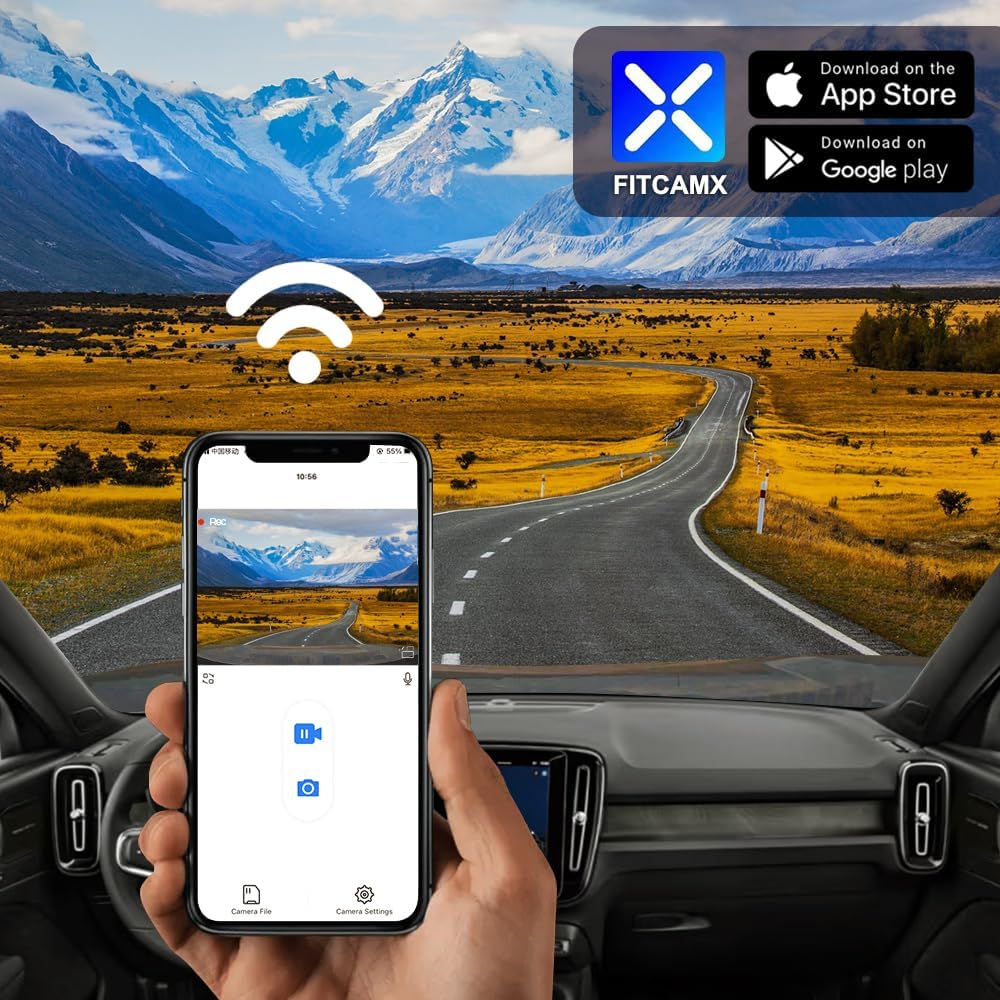
Image: A smartphone screen showing the FITCAMX app's live view, with a road scene visible through the dash cam, illustrating the ease of accessing footage and settings via WiFi.
7. Key Features Explained
The Fitcamx 4K Dash Cam is equipped with several advanced features to ensure comprehensive and reliable recording.

Image: An infographic summarizing the key features of the Fitcamx dash cam, including its OEM style, ease of installation, 4K video quality, wide aperture, WiFi/app connectivity, loop recording, night vision, and G-Sensor.
7.1. 4K UHD Video Quality
Equipped with a f/1.6 large aperture lens and a CMOS sensor, the dash cam records in Ultra High Definition (UHD) 2160P at 30 frames per second. This ensures excellent video clarity, rich detail, and superior dynamic range, even in varying light conditions.
7.2. Loop Recording
When the memory card reaches its full capacity, the loop recording function automatically overwrites the oldest unlocked footage with new content. This ensures continuous recording without the need for manual memory card management.
7.3. G-Sensor (Gravity Sensor)
The built-in G-Sensor detects sudden impacts or collisions. In the event of a significant shake or collision, the sensor automatically triggers the dash cam to save the current footage to a protected folder, preventing it from being overwritten by loop recording. This ensures critical evidence is secured.

Image: A visual representation of the loop recording process, showing older footage being overwritten, and the G-Sensor function, illustrating how it locks important video segments during a collision.
7.4. Memory Card Support
The dash cam comes with a 64GB MicroSD card included. It supports memory cards up to a maximum capacity of 256GB.
7.5. Temperature Resistance
Constructed from high-density ABS+PC materials, the Fitcamx dash cam is designed to withstand a wide range of temperatures, operating reliably from -20°C to 85°C (-4°F to 185°F).
Important Note: This dash cam does NOT include a parking mode feature.
8. Maintenance and Care
To ensure optimal performance and longevity of your Fitcamx dash cam, follow these maintenance guidelines:
- Clean the Lens: Regularly wipe the camera lens with a soft, lint-free cloth to ensure clear video recording. Avoid abrasive materials or harsh chemicals.
- Memory Card Management: While loop recording manages storage, it is recommended to periodically format the memory card (via the app or a computer) to maintain its performance and prevent data corruption. Back up any important footage before formatting.
- Keep Dry: Ensure the dash cam remains dry and away from excessive moisture.
- Avoid Extreme Temperatures: Although designed for wide temperature ranges, prolonged exposure to extreme heat or cold when the vehicle is off can affect battery life and component integrity.
9. Troubleshooting
If you encounter any issues with your Fitcamx dash cam, please refer to the following common troubleshooting tips:
- Dash Cam Not Powering On: Ensure the power cable is securely connected to both the dash cam and the vehicle's power source. Check your vehicle's fuse box if necessary.
- Recording Issues: Verify that the memory card is properly inserted and not full. Try formatting the memory card. Ensure the dash cam's firmware is up to date via the app.
- WiFi Connection Problems: Ensure the dash cam is powered on. Restart your phone's WiFi and try reconnecting. If issues persist, try restarting the dash cam by turning your vehicle off and on.
- Poor Video Quality: Clean the camera lens. Ensure the dash cam is securely mounted and not vibrating. Check video resolution settings in the app.
For more complex issues or if troubleshooting steps do not resolve the problem, please contact customer support.
10. Customer Support
FITCAMX is committed to providing prompt and effective technical support for all our products. If you have any questions, require assistance with installation, or encounter any operational issues, please do not hesitate to reach out to our customer service team.
Please refer to the contact information provided with your product packaging or visit the official FITCAMX website for support details.


