
Introduction
This manual provides detailed instructions for the setup, operation, and maintenance of your KYSONA 57° Ergonomic Wireless Tower Mouse. Please read this manual thoroughly before using the product to ensure proper functionality and a comfortable user experience.
Product Features
- Ergonomic Vertical Design: Features a 57° tilt to promote a natural wrist and forearm position, reducing strain and tension during extended use.
- Silent Switch: Equipped with quiet click buttons for a disturbance-free work or entertainment environment.
- Dual Mode Connectivity: Supports both Bluetooth (BT 3.0/5.0) and 2.4G wireless connections for versatile compatibility across multiple devices.
- Adjustable DPI: Offers 5 adjustable DPI settings (800/1200/1600/2400/4000) for precise cursor control.
- Smart Auto-Sleep Mode: Automatically enters sleep mode during inactivity to conserve battery life, providing up to 12 months of use.
- Compatibility: Works with Windows, macOS, iPadOS, laptops, and PCs.
Package Contents
- KYSONA 57° Ergonomic Wireless Tower Mouse
- USB Receiver (for 2.4G wireless connection)
- User Manual
- Note: 2 AAA batteries are required and not included.
Setup Instructions
1. Install Batteries
Open the battery compartment on the underside of the mouse. Insert two AAA batteries, ensuring correct polarity. Close the compartment securely.
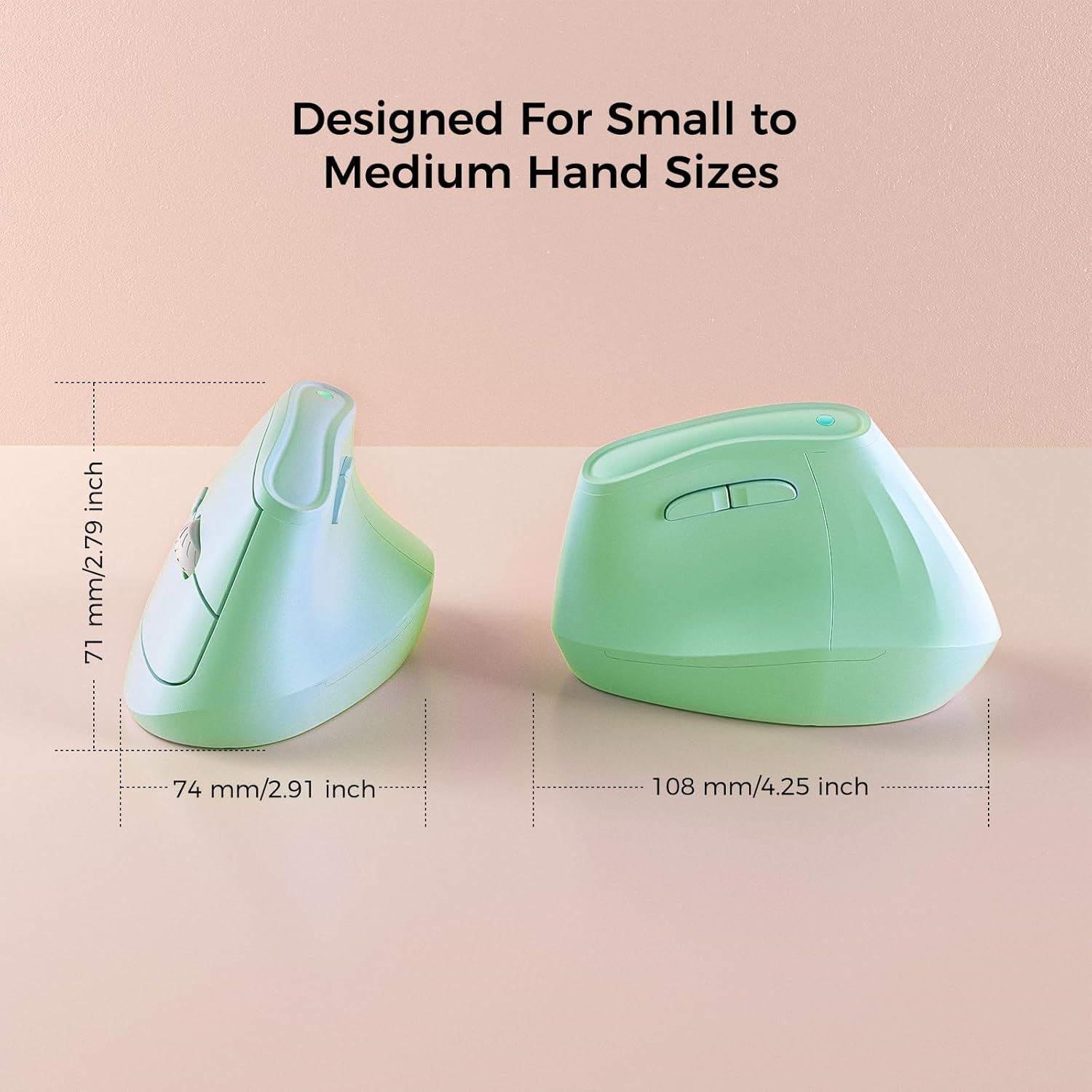
Image: Underside of the mouse with battery compartment visible.
2. Power On
Locate the ON/OFF switch on the bottom of the mouse and slide it to the "ON" position.
3. Connect to Device
Your KYSONA mouse offers two connectivity options:
3.1. 2.4G Wireless Connection (via USB Receiver)
- Remove the USB receiver from its storage slot on the bottom of the mouse.
- Plug the USB receiver into an available USB port on your computer.
- The mouse should automatically connect. If not, press the "Mode Switch" button on the bottom of the mouse until the indicator light shows 2.4G mode (usually green or blue).
3.2. Bluetooth Connection (BT 3.0/5.0)
- Press the "Mode Switch" button on the bottom of the mouse to cycle through modes until the indicator light shows Bluetooth mode (usually blue).
- On your device (Windows, macOS, iPadOS), go to Bluetooth settings.
- Search for new devices and select "KYSONA Mouse" (or similar) from the list.
- Follow any on-screen prompts to complete the pairing process.
- The mouse can connect to up to three Bluetooth devices. Use the "Mode Switch" button to toggle between paired devices.

Image: Mouse demonstrating dual-mode connectivity with a laptop and tablet.
Operating Instructions
1. Hand Position
Place your hand on the mouse so that your wrist and forearm are in a natural, handshake-like position. The 57° vertical design is intended to reduce pronation of the forearm.

Image: Proper hand placement on the ergonomic mouse.
2. Button Functions
- Left Click: Standard selection.
- Right Click: Context menu.
- Scroll Wheel: Scroll up/down. Pressing the scroll wheel acts as a middle click.
- Forward/Backward Buttons: Located on the thumb side, these buttons allow for quick navigation in web browsers or file explorers.
- DPI Button: Located near the scroll wheel, press to cycle through DPI settings.
3. DPI Adjustment
The mouse features 5 adjustable DPI levels: 800, 1200, 1600, 2400, and 4000. Press the DPI button to cycle through these settings. A higher DPI setting results in faster cursor movement, while a lower DPI provides more precise control.

Image: Visual representation of DPI settings.
Battery Information
- Requires 2 AAA batteries (not included).
- The smart auto-sleep mode helps extend battery life up to 12 months, depending on usage.
- Replace batteries when cursor movement becomes erratic or the mouse stops responding.
Maintenance
- Clean the mouse regularly with a soft, dry cloth.
- Avoid using harsh chemicals or abrasive cleaners.
- Keep the optical sensor on the bottom of the mouse clean for optimal tracking performance.
- Store the USB receiver in its designated slot on the mouse when not in use to prevent loss.
Troubleshooting
| Problem | Solution |
|---|---|
| Mouse not responding |
|
| Erratic cursor movement |
|
| Cannot pair via Bluetooth |
|
Specifications
- Model: EM9
- Connectivity: Bluetooth (BT 3.0/5.0) & 2.4G Wireless
- DPI Settings: 800 / 1200 / 1600 / 2400 / 4000
- Buttons: 5 (Left, Right, Scroll Wheel/Middle, Forward, Backward, DPI)
- Power Source: 2 x AAA Batteries (not included)
- Dimensions: 10.7 x 7.4 x 7.1 CM (4.2 x 2.9 x 2.8 inches)
- Weight: 4.2 ounces
- Compatibility: Windows, macOS, iPadOS, Laptop, PC
Warranty and Support
For warranty information or technical support, please refer to the contact details provided on the product packaging or visit the official KYSONA website. Keep your purchase receipt for warranty claims.

