
1. Introduction
This manual provides detailed instructions for setting up and operating your AIfasterfly MC200 Wireless Mobile Gaming Controller. Designed for both iPhone and Android devices, this controller enhances your mobile gaming experience with advanced features and ergonomic design. Please read this manual thoroughly before use to ensure optimal performance and longevity of your device.
2. Product Overview
2.1 Package Contents
- AIfasterfly MC200 Wireless Mobile Gaming Controller
- USB Charging Cable
- User Manual
2.2 Key Features
- Wireless Bluetooth Connectivity: Seamless connection with zero latency for iPhone and Android.
- Wide Compatibility: Supports Xbox Cloud, Steam Link, GeForce Now, and MFi Apple Arcade.
- Retractable Design: Fits phones from 4" to 7.3" (10cm-18.5cm) securely.
- Hall Effect Joysticks & Triggers: Eliminates drift, dead zones, and physical wear for precise control.
- Turbo Function: Customizable rapid-fire with 3 speeds (5/12/20 shots/sec).
- Programmable Back Buttons: Map up to 21 commands per button (ML/MR) for macro programming.
- Adjustable Lighting: 6 lighting modes with adjustable brightness.
- Long Battery Life: 800mAh battery provides 6+ hours of playtime with dynamic lights.
- Dual Vibration: Immersive, non-adjustable vibration feedback.
- Ergonomic Design: Textured grips reduce fatigue for extended gaming sessions.
- Keylinker App Optimization: Fine-tune settings via the Keylinker App (search "MC200").

Image: The AIfasterfly MC200 Wireless Mobile Gaming Controller, showcasing its ergonomic design and button layout.
3. Setup
3.1 Phone Installation
- Gently pull the left and right sides of the controller outwards to extend the retractable phone holder.
- Carefully place your smartphone into the holder. The controller is designed to fit phones ranging from 4 inches to 7.3 inches (10cm-18.5cm).
- Ensure your phone is securely seated within the rubber padding and anti-slip textured grips to prevent accidental drops.

Image: A smartphone being securely placed into the retractable holder of the AIfasterfly MC200 controller.

Image: The AIfasterfly MC200 controller extended, illustrating the minimum and maximum phone sizes it can accommodate (100mm-185mm).
3.2 Bluetooth Pairing
- Press and hold the HOME button on the controller for 3 seconds until the indicator light begins to flash. This indicates the controller is in pairing mode.
- On your smartphone (iPhone or Android), navigate to the Bluetooth settings.
- Locate and select "Xbox Wireless Controller" from the list of available devices.
- Once connected, the indicator light on the controller will become solid.
- To reconnect after initial pairing, simply press the HOME button. The controller will automatically connect to the last paired device.
- The controller will auto-shutdown if Bluetooth is disabled or if the HOME button is held for 5 seconds.
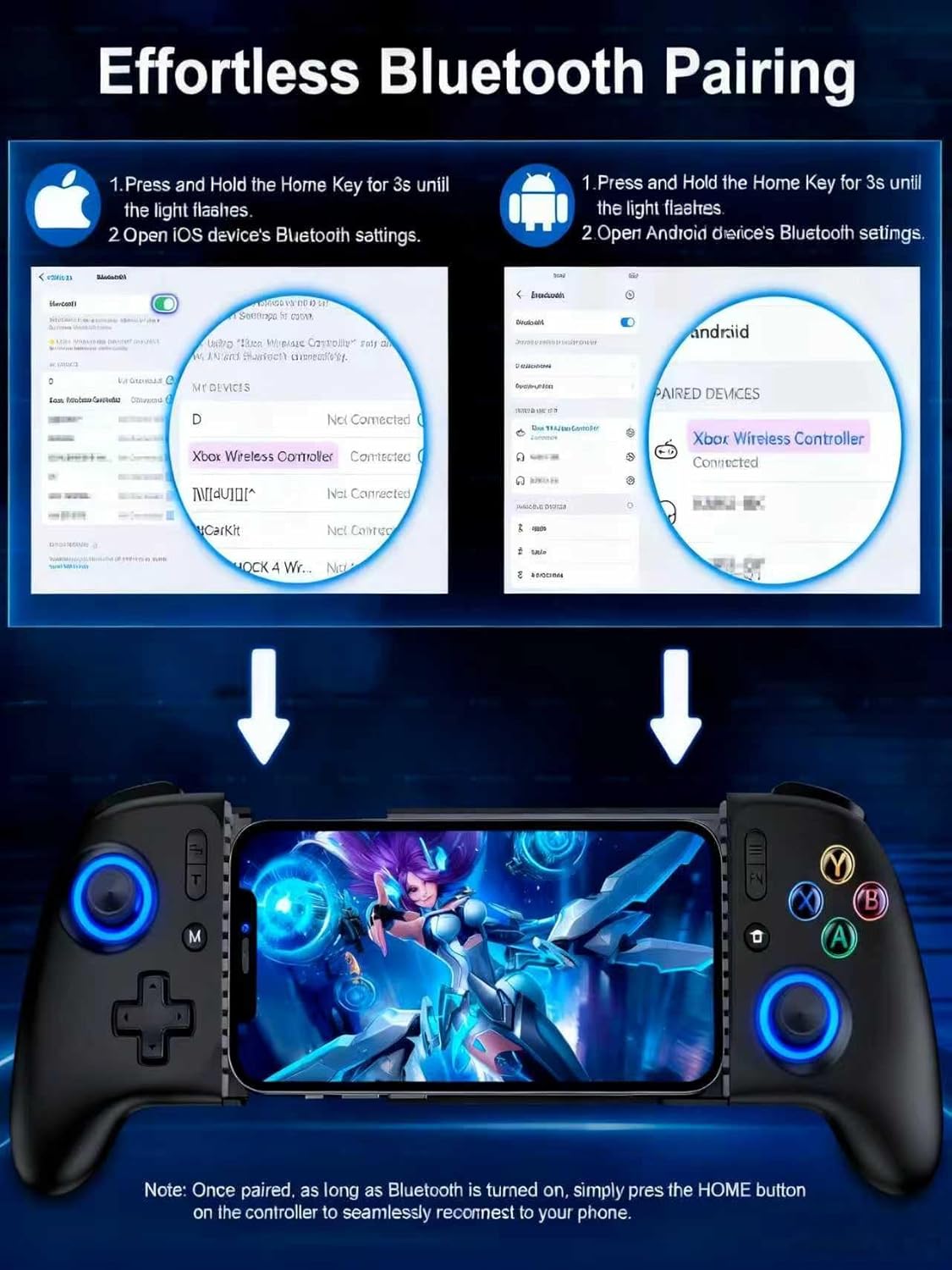
Image: Visual guide demonstrating the Bluetooth pairing process for both iOS and Android devices with the AIfasterfly MC200 controller.
4. Operating Instructions
4.1 Hall Effect Joysticks and Triggers
The MC200 controller features Hall Effect joysticks and triggers, which utilize magnetic induction principles. This technology prevents common issues such as stick drift, dead zones, and wear-and-tear, providing precise and responsive control for an extended lifespan. You can toggle zero-deadzone mode via M+L3/R3.

Image: Diagram illustrating the Hall Effect joystick technology, highlighting its precision and lack of dead zones.
4.2 Turbo Function
Activate the Turbo function for rapid-fire actions in games. The controller offers 3 adjustable Turbo speeds:
- 5 shots/second
- 12 shots/second
- 20 shots/second
Refer to the quick start guide for specific button combinations to activate and adjust Turbo speeds.

Image: The AIfasterfly MC200 controller with an overlay indicating the Turbo button and its three adjustable speeds.
4.3 Programmable Back Buttons (ML/MR)
The MC200 features two programmable back buttons (ML and MR) that allow for macro programming. You can map up to 21 commands per button, including A/B/X/Y, triggers, and D-pad inputs, to create custom game-winning combos. To enter programming mode, hold M + ML/MR.

Image: A diagram highlighting the ML and MR programmable back buttons on the AIfasterfly MC200 controller and the programming function.
4.4 Light Customization
Personalize your gaming experience with 6 lighting modes and adjustable brightness. Cycle through different lighting modes by pressing the FN button. Adjust brightness by pressing FN + L3 (increase) or FN + R3 (decrease).

Image: The AIfasterfly MC200 controller showcasing its adjustable LED lighting with various modes and brightness levels.
4.5 Battery Life and Charging
The controller is equipped with an 800mAh battery, providing over 6 hours of continuous playtime even with dynamic lights activated. Use the provided USB charging cable to recharge the controller. The charging indicator light will show the charging status.

Image: A user enjoying an extended gaming session with the AIfasterfly MC200 controller, highlighting its long battery life.
4.6 Dual Vibration
Dual motors provide immersive vibration feedback for a more realistic gaming experience in compatible games. Please note that the vibration intensity is non-adjustable.
4.7 Keylinker App Optimization
For advanced customization, download the Keylinker App (search "MC200") on your smartphone. The app allows you to fine-tune button layouts, adjust sensitivity, and manage macros for a personalized gaming setup.
5. Compatibility
The AIfasterfly MC200 Wireless Mobile Gaming Controller is compatible with a wide range of iPhone and Android devices. It supports iOS System Version 13.0 and above.
5.1 Supported Devices (Examples)
- iPhone: iPhone 6 to iPhone 15 Pro Max (and newer models with iOS 13.0+)
- Samsung Galaxy: S24, S23, S22, S21, S20, S10, S9, S8 Series, Note 20 Ultra 5G/10, Z Flip 4/3
- OnePlus: 9 Pro, 10 Pro
- Redmi: K90 Pro
- Realme: X2 Pro, 7 Pro
- LG: G7 ThinQ
- Nothing: 1
- Oppo: Find X5 Pro
- Vivo: Pro+, iQOO 3
- Xiaomi: 12 Pro, MIX4, POCO X3 Pro
- Smartisan: Pro 3
- Black Shark: 2
- Moto: S50
6. Specifications
| Model | MC200 |
| Connectivity | Bluetooth |
| Battery Capacity | 800mAh |
| Playtime | 6+ hours (with dynamic lights) |
| Phone Size Compatibility | 100mm - 185mm (4" - 7.3") |
| Joysticks/Triggers | Hall Effect |
| Programmable Buttons | ML/MR (up to 21 commands) |
| Lighting | 6 modes, adjustable brightness |
| Vibration | Dual motors (non-adjustable) |
| Dimensions | 9.65 x 4.57 x 2.4 inches (Package) |
| Item Weight | 13.4 ounces |
7. Troubleshooting
7.1 Controller Not Pairing
- Ensure the controller is sufficiently charged.
- Verify that Bluetooth is enabled on your smartphone.
- Make sure the controller is in pairing mode (indicator light flashing after holding HOME for 3 seconds).
- Try restarting both your smartphone and the controller.
- If previously paired, ensure the controller is not connected to another device.
7.2 Input Lag or Unresponsive Controls
- Ensure your phone's operating system is up to date.
- Close any unnecessary background applications on your phone to free up resources.
- Move closer to your phone to ensure a strong Bluetooth connection.
- Check if the game you are playing fully supports external controllers.
7.3 Stick Drift or Dead Zones
- The MC200 features Hall Effect joysticks designed to prevent drift. If you experience issues, ensure the controller firmware is up to date via the Keylinker App.
- Try toggling the zero-deadzone mode (M+L3/R3) as described in section 4.1.
7.4 Phone Not Fitting in Holder
- Verify your phone's dimensions are within the supported range of 4" to 7.3" (10cm-18.5cm).
- Remove any bulky phone cases that might prevent a proper fit.
8. Warranty and Support
The AIfasterfly MC200 Wireless Mobile Gaming Controller comes with a manufacturer's warranty. Please refer to the warranty card included in your package for specific terms, conditions, and duration. For technical support, troubleshooting assistance, or warranty claims, please contact AIfasterfly customer service through the contact information provided on the warranty card or the official AIfasterfly website.
Please retain your proof of purchase for warranty purposes.