
1. Introduction
This manual provides comprehensive instructions for the setup, operation, and maintenance of your KOORUI S2741LM 27-inch 4K UHD IPS Mini LED Gaming Monitor. Please read this manual thoroughly before using the product to ensure proper functionality and safety.
The KOORUI S2741LM offers a premium visual experience with its 4K UHD resolution, IPS Mini LED panel, and high refresh rates. It supports dual-mode operation for 4K at 160Hz or Full HD at 320Hz, HDR 1400, and Adaptive Sync technology for smooth gameplay. Its versatile connectivity options include Type-C with 90W power delivery, USB 3.1, HDMI 2.1, and DisplayPort 1.4. The ergonomic stand allows for extensive adjustments to optimize your viewing comfort.
2. Safety Information
- Always place the monitor on a stable, level surface to prevent it from falling.
- Do not block ventilation openings. Ensure adequate space around the monitor for proper airflow.
- Use only the power adapter and cables supplied by the manufacturer.
- Keep the monitor away from water, moisture, and extreme temperatures.
- Do not attempt to open or repair the monitor yourself. Refer all servicing to qualified personnel.
- Unplug the monitor from the power outlet during lightning storms or when unused for long periods.
- Avoid placing heavy objects on the power cord or monitor cables.
3. Package Contents
Please check that all items are present and in good condition. If any items are missing or damaged, contact your retailer.
- KOORUI S2741LM Gaming Monitor
- Monitor Stand (Base and Neck)
- Power Adapter and Power Cable
- HDMI Cable
- DisplayPort Cable
- USB Type-C Cable
- User Manual (this document)
4. Setup
4.1 Assembling the Stand
Carefully remove the monitor and stand components from the packaging. Attach the stand neck to the monitor panel, then secure the base to the neck. Ensure all screws are tightened securely.
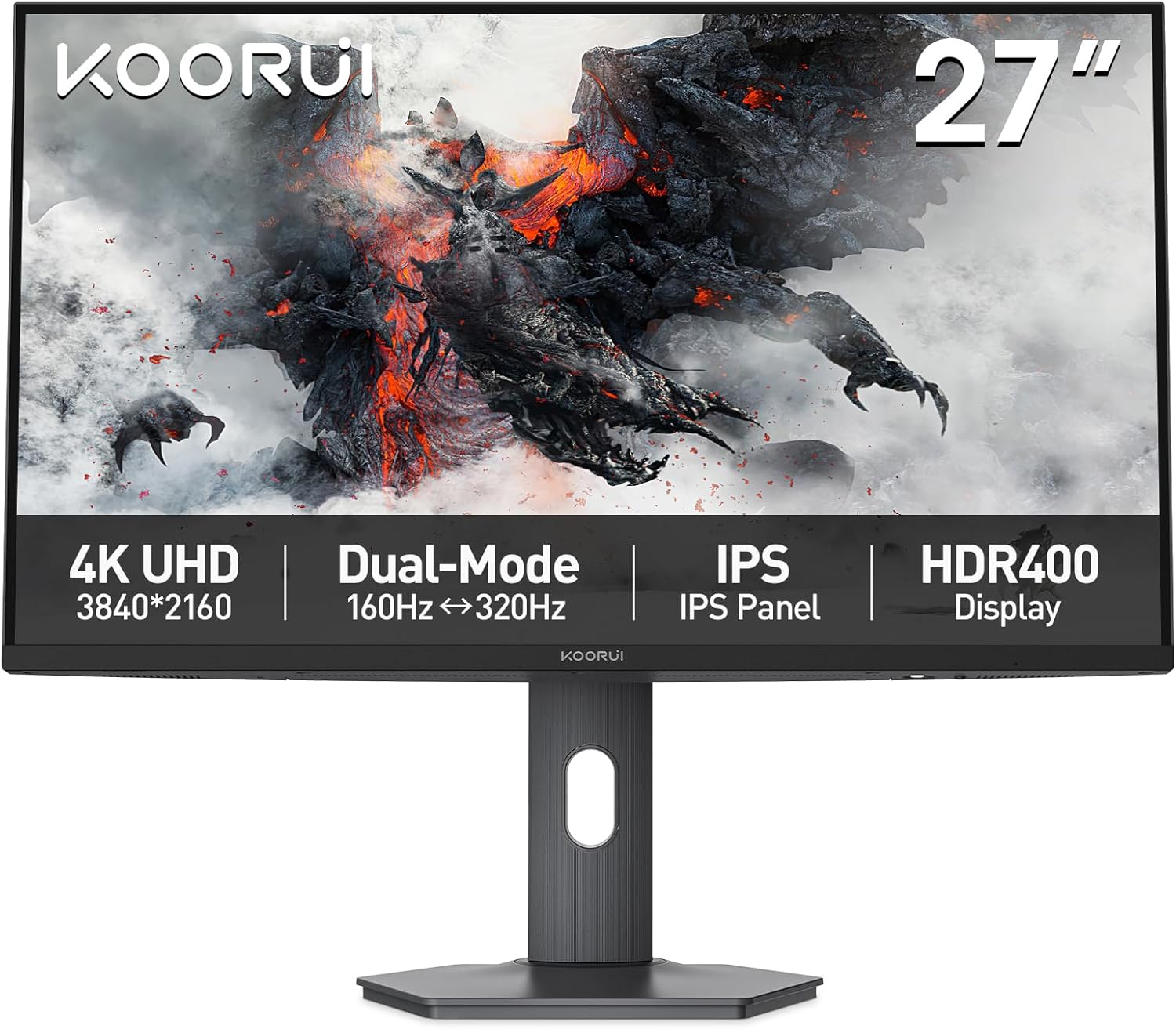
Image: Front view of the KOORUI S2741LM Gaming Monitor with its stand, highlighting key features like 4K UHD, Dual-Mode refresh rates, IPS panel, and HDR400 display.
4.2 Connecting the Monitor
Before connecting, ensure both the monitor and your computer are powered off.
- Power Connection: Connect the power adapter to the monitor's power input, then plug the power cable into a wall outlet.
- Video Connection:
- For optimal performance, use the supplied DisplayPort 1.4 or HDMI 2.1 cable to connect the monitor to your graphics card.
- Alternatively, use the USB Type-C cable to connect to compatible laptops or devices that support video output over Type-C. This port also provides 90W power delivery.
- USB Hub Connection: If using the USB Type-C connection for data, or if you wish to use the monitor's integrated USB 3.1 ports, connect a USB upstream cable (if provided, or via Type-C) from your computer to the monitor.
- Audio Output: Connect headphones or external speakers to the 3.5mm audio jack on the monitor if desired.
5. Operating the Monitor
5.1 Power On/Off
Press the power button located on the monitor to turn it on or off. The power indicator light will illuminate when the monitor is active.
5.2 On-Screen Display (OSD) Menu
The OSD menu allows you to adjust various monitor settings. Use the joystick or buttons (depending on your model's design) usually located on the back or bottom of the monitor to navigate the menu.
- Navigation: Push the joystick/button up, down, left, or right to move through menu options.
- Selection: Press the joystick/button inward to select an option or confirm a setting.
- Exit: Push the joystick/button in a specific direction (often left) or press a dedicated 'Exit' button to go back or exit the OSD.
5.3 Key Features and Settings
- Dual-Mode Refresh Rate: The monitor supports 4K UHD at 160Hz and Full HD (1920x1080) at 320Hz. You can switch between these modes via your graphics card settings or potentially through the monitor's OSD, depending on the input signal. This allows for flexibility between high resolution and ultra-high refresh rate gaming.
- HDR 1400: High Dynamic Range 1400 provides superior contrast, deeper blacks, and brighter whites, enhancing visual realism. Ensure HDR is enabled in your operating system and game/application settings for compatible content.
- Adaptive Sync: This technology synchronizes the monitor's refresh rate with your graphics card's frame rate, eliminating screen tearing and stuttering for smoother gameplay. Enable Adaptive Sync in your graphics card control panel.
- Picture-in-Picture (PIP) / Picture-by-Picture (PBP): These modes allow you to display content from multiple input sources simultaneously on the screen. Refer to the OSD menu for options to configure PIP/PBP layouts and input sources.
- Ergonomic Adjustments: The monitor stand allows for height adjustment (130mm), tilt (-5° to 20°), pivot (90° for portrait/landscape), and swivel (-30° to 30°). Adjust the monitor to your preferred viewing position to reduce strain.
6. Maintenance
- Cleaning the Screen: Gently wipe the screen with a soft, lint-free cloth. For stubborn marks, dampen the cloth with a small amount of non-ammonia, non-alcohol based glass cleaner. Do not spray cleaner directly onto the screen.
- Cleaning the Casing: Use a soft, dry cloth to clean the monitor casing. Avoid abrasive cleaners or solvents.
- Storage: If storing the monitor for an extended period, unplug it and cover it to protect it from dust.
7. Troubleshooting
| Problem | Possible Cause | Solution |
|---|---|---|
| No image on screen | Monitor not powered on; incorrect input selected; video cable loose or disconnected. | Ensure power cable is securely connected and monitor is turned on. Press the input select button to cycle through inputs. Check video cable connections at both the monitor and computer. |
| Image is blurry or distorted | Incorrect resolution or refresh rate; dirty screen. | Set the display resolution to 3840x2160 and refresh rate to 160Hz (or 1920x1080 at 320Hz) in your operating system settings. Clean the screen as per maintenance instructions. |
| No sound from monitor audio jack | Audio output not selected; volume too low. | Ensure the monitor is selected as the audio output device in your computer's sound settings. Increase volume via OSD or computer. |
| Screen flickering | Adaptive Sync issue; cable quality; graphics driver. | Try disabling Adaptive Sync temporarily. Use a high-quality, certified DisplayPort or HDMI cable. Update your graphics card drivers. |
8. Specifications
| Brand | KOORUI |
| Manufacturer | KOORUI |
| Model/Series | S2741LM |
| Model Number | S2741LM |
| Product Dimensions | 2 x 30 x 30 cm |
| Item Weight | 6 Kilograms |
| Color | Black |
| Display Size | 27.0 inches |
| Screen Resolution | 3840 x 2160 pixels (4K UHD) |
| Screen Surface Description | Matt |
| Display Type | IPS Mini LED |
| Contrast Ratio | 1500:1 |
| Response Time | 1 Millisecond |
| Refresh Rate | 160 Hz (4K UHD), 320 Hz (FHD) |
| Connectivity Technology | Type-C (90W PD), USB 3.1, HDMI 2.1 (x2), DisplayPort 1.4 |
| Special Features | Tilt Adjustment, Pivot Function, Swivel Adjustment, Height Adjustment, HDR 1400, Adaptive Sync, PIP/PBP |
9. Warranty and Support
For warranty information and technical support, please refer to the warranty card included with your product or visit the official KOORUI website. Keep your purchase receipt as proof of purchase for warranty claims.
If you encounter issues not covered in the troubleshooting section, please contact KOORUI customer service for assistance.