
1. Introduction
This manual provides detailed instructions for the installation, operation, and maintenance of your GeeekPi DeskPi Lite Pi5 Case. Designed specifically for the Raspberry Pi 5, this case enhances functionality with PCIe expansion for M.2 NVMe SSDs, an active cooling system, and convenient connectivity options.
Key Features:
- Compatibility: Specifically designed for the Raspberry Pi 5.
- Expandability: Supports PCIex1 expansion for M.2 NVMe SSDs (2230, 2242, 2260, 2280 sizes).
- Advanced Cooling: Integrated Armor Lite V5 Active Cooler for optimal thermal management.
- Convenient Connectivity: PCB daughter board with MicroHDMI to standard HDMI adapter and rear-routed USB-C port.
- GPIO Access: Features a GPIO expansion board and dust cover for easy and protected access.
- Power Management: Includes a power switch button and a reset push button for the Pi 5 board.

2. Package Contents
Verify that all components listed below are included in your package:
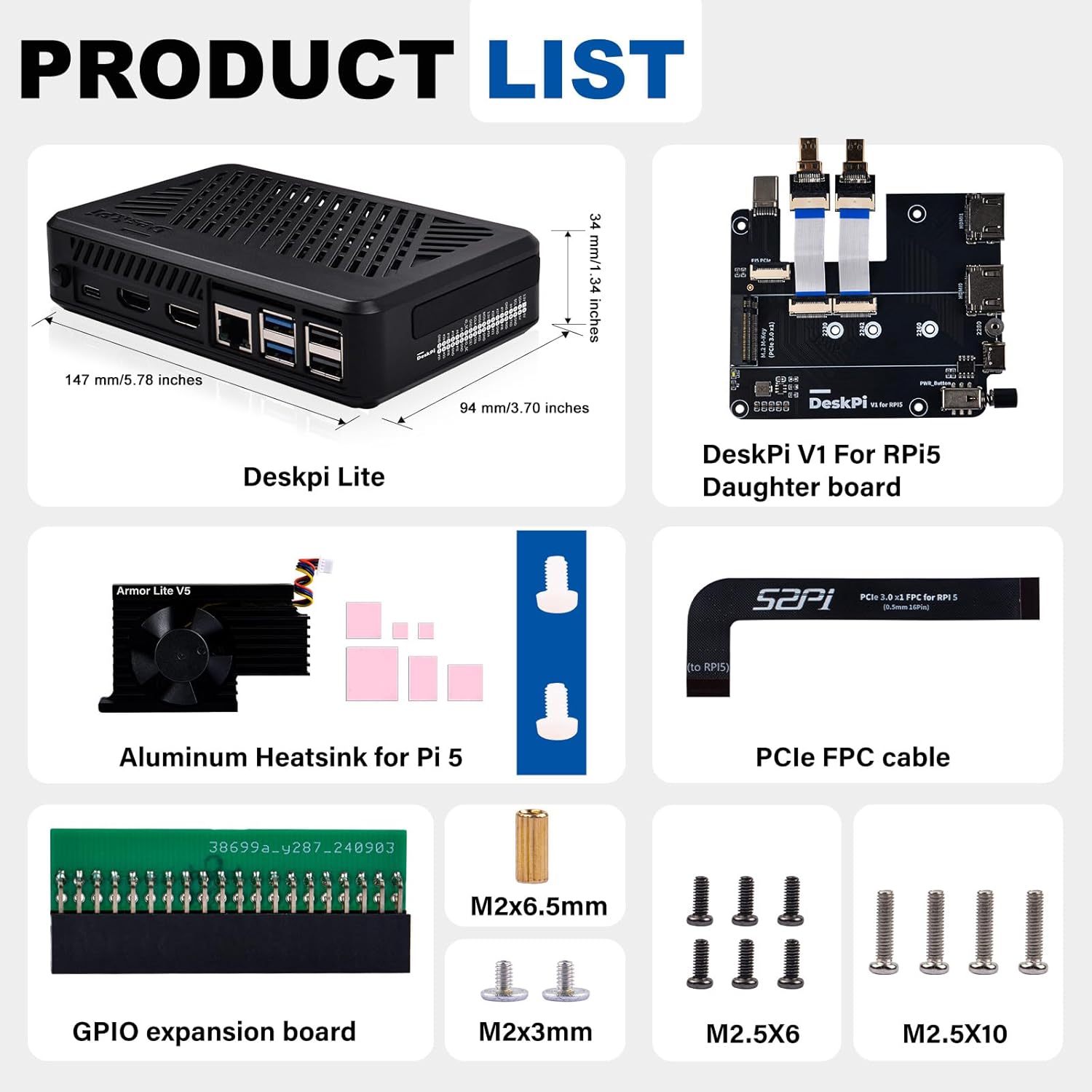
- DeskPi Lite Pi5 Case (Top and Bottom Shell)
- DeskPi V1 For RPi5 Daughter Board
- Armor Lite V5 Active Cooler (Aluminum Heatsink with Fan)
- PCIe FPC Cable
- GPIO Expansion Board
- Thermal Pads (various sizes)
- M2x6.5mm Standoff
- M2x3mm Screws
- M2.5x6 Screws
- M2.5x10 Screws
3. Setup Instructions
Follow these steps carefully to assemble your GeeekPi DeskPi Lite Pi5 Case with your Raspberry Pi 5 and M.2 NVMe SSD.

3.1. Heatsink and Thermal Pad Installation
- Carefully peel off the protective films from both sides of the thermal pads.
- Apply the thermal pads to the corresponding chips on your Raspberry Pi 5 board as indicated in Figure 3, Step 1. Ensure good contact.
- Align the Armor Lite V5 Active Cooler with the Raspberry Pi 5 board, ensuring the fan connector is near the fan header. Gently press down to secure it, making sure the thermal pads create firm contact between the heatsink and the chips.
- Secure the heatsink to the Raspberry Pi 5 board using the provided screws, as shown in Figure 3, Step 2.
- Connect the fan cable from the Armor Lite V5 Active Cooler to the appropriate fan header on the Raspberry Pi 5 board.

3.2. Daughter Board and PCIe Cable Connection
- Connect the PCIe FPC cable to the Raspberry Pi 5's PCIe slot and the DeskPi V1 Daughter Board's PCIe slot. Ensure the cable is inserted correctly and securely.
- Carefully align and connect the Raspberry Pi 5 board to the DeskPi V1 Daughter Board, ensuring all ports and connectors are properly seated. This connection includes the USB-C port and the HDMI ports.
- Insert the M.2 NVMe SSD into the designated slot on the DeskPi V1 Daughter Board. Secure it with the provided M2x6.5mm standoff and M2x3mm screw. The case supports M.2 NVMe SSDs of sizes 2230, 2242, 2260, and 2280.

3.3. Case Assembly
- Place the assembled Raspberry Pi 5 and daughter board into the bottom shell of the DeskPi Lite case. Ensure it sits flush and all ports align with the case openings.
- Secure the board assembly to the bottom case using the M2.5x6 screws.
- Attach the GPIO expansion board to the GPIO pins on the Raspberry Pi 5.
- Place the top shell of the case onto the bottom shell, aligning the screw holes. Secure the top shell with the M2.5x10 screws.
3.4. Video Installation Guide
For a visual step-by-step guide, please refer to the official installation video:
4. Operating Instructions
Once assembled, the DeskPi Lite Pi5 Case provides enhanced control and monitoring features.
4.1. Power and Reset Buttons
- Power Switch Button: Located on the side of the case, this button allows for convenient power on/off control of your Raspberry Pi 5.
- Reset Push Button: Positioned on the front, this button provides a quick way to reset the Raspberry Pi 5 board.
4.2. LED Indicators
The case features LED indicators to provide status information:
- Green LED: Indicates disk status.
- Red LED: Indicates power status.

4.3. GPIO Access
The integrated GPIO expansion board allows for easy access to the Raspberry Pi 5's GPIO pins from the outside of the case, protected by a rubber cover.
4.4. MicroSD Card Slot
The MicroSD card slot remains accessible from the outside, allowing for easy insertion and removal of the card without disassembling the case.
5. Maintenance
To ensure the longevity and optimal performance of your DeskPi Lite Pi5 Case and Raspberry Pi 5, follow these maintenance guidelines:
- Cleaning: Periodically clean the exterior of the case with a soft, dry cloth. For dust accumulation in the ventilation grilles, use compressed air. Ensure the device is powered off and disconnected from power before cleaning.
- Fan Maintenance: If the active cooler fan becomes noisy or less effective, inspect it for dust buildup and gently clean it with compressed air or a soft brush.
- Environmental Conditions: Operate the case in a well-ventilated area, away from direct sunlight, excessive heat, and moisture.
6. Troubleshooting
This section addresses common issues you might encounter.
6.1. SSD Not Detected
- Check PCIe Cable: Ensure the PCIe FPC cable is securely connected at both ends (Raspberry Pi 5 and daughter board).
- SSD Seating: Verify that the M.2 NVMe SSD is correctly seated in its slot and secured with the screw.
- Raspberry Pi OS Configuration: Ensure your Raspberry Pi OS is updated and configured to recognize NVMe drives. You may need to force PCIe to Gen3.0 in
config.txtby addingdtparam=pciex1_gen=3. - SSD Compatibility: Confirm your M.2 NVMe SSD is compatible with the PCIe interface and supported sizes (2230/2242/2260/2280).

lsblk and wireless signal information.6.2. Cooling Performance
- Thermal Pad Contact: Ensure the thermal pads are correctly placed and make firm contact between the Raspberry Pi 5 chips and the heatsink.
- Fan Connection: Verify the active cooler fan is properly connected to the Raspberry Pi 5's fan header.
- Fan Operation: Note that the fan typically activates when the CPU temperature reaches approximately 65 degrees Celsius. This is normal operation.

6.3. Assembly Difficulties
- Ribbon Cables: Be gentle when handling and connecting the FPC ribbon cables. Ensure they are fully inserted and the latches are secured.
- Component Alignment: Double-check the alignment of the Raspberry Pi 5 board with the daughter board and the case. Do not force components if they do not fit easily.
- Power Button Mechanism: When installing the Raspberry Pi 5, ensure the case's power button mechanism aligns correctly with the Pi's onboard power button to avoid damage.
7. Specifications
| Feature | Specification |
|---|---|
| Brand | GeeekPi |
| Model Name | DP-0038 |
| Compatibility | Raspberry Pi 5 |
| M.2 NVMe SSD Support | 2230, 2242, 2260, 2280 (PCIe x4 interface) |
| Cooling System | Armor Lite V5 Active Cooler |
| HDMI Ports | Dual Full-Size HDMI Output (via adapter) |
| USB Ports | 2x USB 3.0, 2x USB 2.0 (routed from Pi 5) |
| Ethernet Port | 1x Gigabit Ethernet (routed from Pi 5) |
| Power Input | USB-C 5V Power IN (routed to rear) |
| GPIO Access | External GPIO expansion board with dust cover |
| Dimensions (Approx.) | 147 mm (L) x 94 mm (W) x 34 mm (H) |
| Item Weight | 7.4 ounces |
| Material | Plastic |
8. Warranty and Support
For warranty information and technical support, please refer to the official GeeekPi website or contact their customer service directly. Details regarding warranty periods, coverage, and support channels are typically provided by the manufacturer.
Always retain your proof of purchase for warranty claims.