
1. Introduction
This manual provides detailed instructions for the installation, operation, and maintenance of your Jingelsye Car Radio Stereo. This unit is designed as a replacement for Ford Escape models manufactured between 2013 and 2018. It features an 8-core processor, Android 13 operating system, 4GB RAM, 32GB ROM, a 9-inch capacitive touchscreen, and supports various functionalities including Wireless CarPlay, Android Auto, GPS navigation, Bluetooth 5.0, FM/RDS radio, DSP sound processing, 5G WiFi, and HD camera input.
Please read this manual thoroughly before installation and use to ensure proper function and to maximize your driving experience.
2. Safety Information
- Professional Installation Recommended: Due to the complexity of vehicle electronics, professional installation is highly recommended to prevent damage to the unit or your vehicle.
- Vehicle Compatibility: Ensure the unit is compatible with your specific Ford Escape model and year before attempting installation. Refer to the compatibility section.
- Power Disconnection: Always disconnect the vehicle's battery before performing any electrical work to avoid short circuits or electrical shock.
- Wiring: Follow all wiring diagrams carefully. Incorrect wiring can cause damage or malfunction.
- Driving Safety: Do not operate the unit in a way that distracts you from driving. Always prioritize road safety.
- Temperature: Avoid exposing the unit to extreme temperatures or direct sunlight for prolonged periods.
3. Compatibility and Pre-Installation Check
This car radio stereo is designed for Ford Escape models from 2013 to 2018. It is crucial to verify your vehicle's center console configuration before installation.

Image: A warning note stating that if the Ford Escape center console matches the image (showing a Sony system with a small screen and physical buttons), the product is not compatible and will not function.
Important Note: If your Ford Escape center console features a factory Sony system with a small screen and specific button layout as shown in the image above, this product is not compatible. A mismatch will occur, and the unit will not power on or function correctly. Please send a picture of your center console to customer support for confirmation if you are unsure.
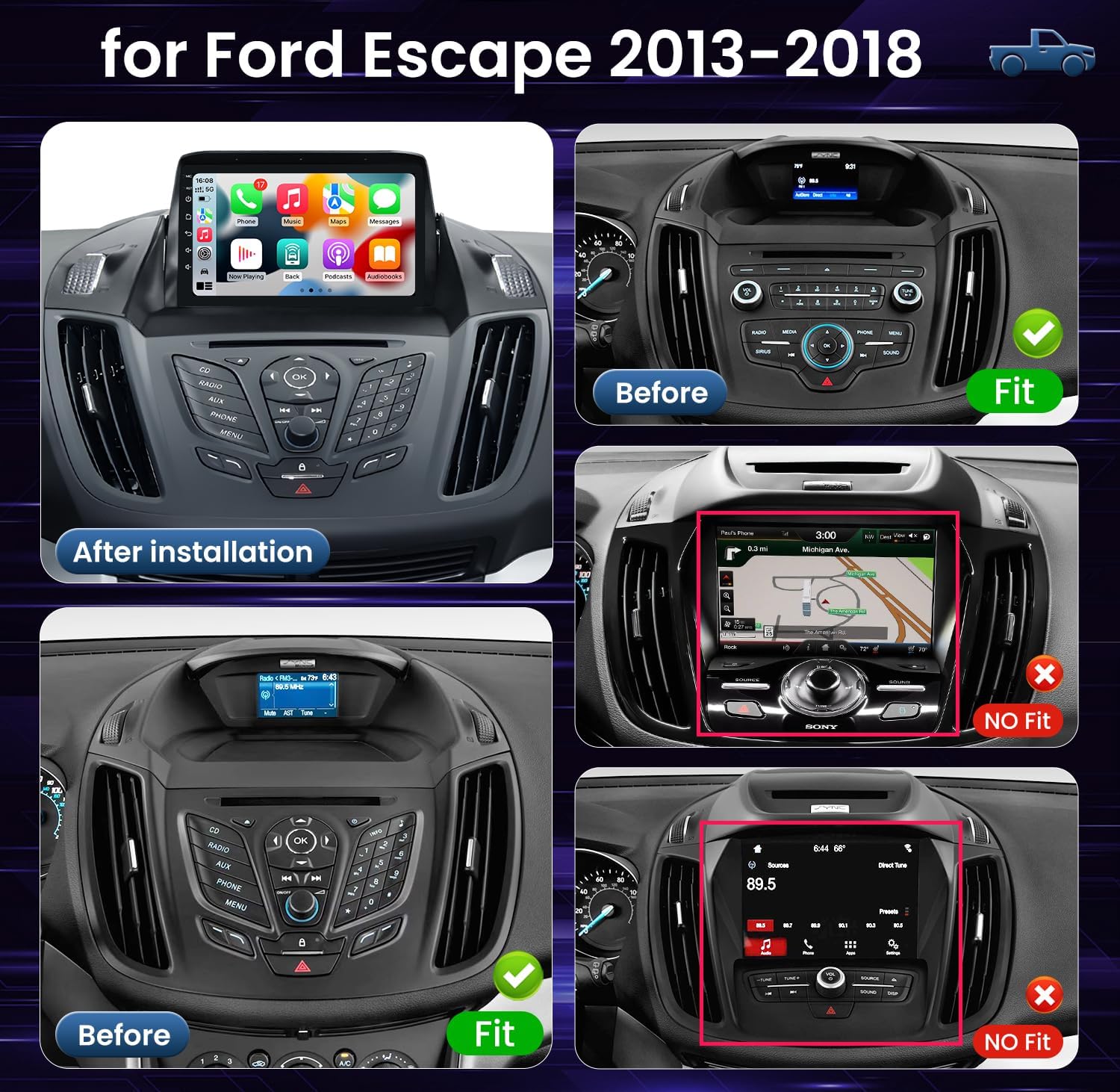
Image: A collage showing various Ford Escape dashboards. The top left shows the new unit installed. The top right shows a 'Before' image of a compatible console with a 'Fit' checkmark. The bottom left shows another compatible 'Before' console with a 'Fit' checkmark. The middle right and bottom right show 'Before' images of incompatible Sony consoles with 'No Fit' crosses.
4. Package Contents
Verify that all items listed below are included in your package:
- 1x Radio Body
- 1x Power Cable
- 1x RCA Cable
- 2x USB Cable
- 1x GPS Module
- 1x 4G Antenna
- 1x Microphone
- 1x Camera Body (for rearview camera)
- 1x Reversing Cable
- 1x Canbus Decoder
- 1x Original USB Cable
- 1x Crowbar (for trim removal)

Image: A visual representation of the package contents, including the main radio unit, 4G antenna, power cable, crowbar, GPS module, original vehicle's USB cable, reversing cable, microphone, CANBUS decoder, RCA cable, 2*USB cables, and a backup camera.
5. Installation Guide
The installation process is designed to be non-destructive for compatible Ford Escape models. However, it involves working with vehicle wiring and trim. If you are not confident in your ability to perform the installation, it is strongly recommended to seek assistance from a qualified professional.
General Installation Steps:
- Disconnect Battery: Before starting, disconnect the negative terminal of your vehicle's battery to prevent electrical issues.
- Remove Factory Radio: Carefully use the provided crowbar or appropriate trim tools to remove the existing factory radio and surrounding trim panels. Refer to your vehicle's service manual for specific instructions on trim removal.
- Connect Wiring Harness: Connect the provided power cable, RCA cables, USB cables, GPS module, 4G antenna, microphone, and reversing camera cables to the new head unit. Ensure all connections are secure.
- CANBUS Connection: Connect the CANBUS decoder as per the wiring diagram. The CANBUS system is essential for integrating with your vehicle's steering wheel controls and other factory features.
- Test Connections: Before fully reassembling, temporarily connect the battery and power on the unit to test basic functions like power, audio, and display.
- Secure Unit: Mount the new head unit securely into the dashboard opening.
- Reassemble Trim: Carefully reattach all trim panels and secure them.
- Final Check: Reconnect the battery fully and perform a comprehensive test of all functions, including radio, navigation, Bluetooth, CarPlay/Android Auto, and steering wheel controls.
For specific wiring diagrams and detailed instructions, please refer to the documentation included with your product or contact Jingelsye customer support.
6. Operating Instructions
6.1. Power On/Off
Press and hold the power button on the unit's front panel to turn the device on or off. A short press typically mutes/unmutes the audio.
6.2. 9-Inch Capacitive Touchscreen
The unit features a 9-inch capacitive touchscreen with a resolution of 1280*800. This display offers vivid colors and a stable frame rate, enhanced by tempered glass full lamination technology for improved visual clarity and responsiveness.

Image: A comparison graphic highlighting the 1280*800 resolution of the Jingelsye screen against lower resolutions (1280*720P and 800*600P), demonstrating superior clarity and color. Icons for 1280*800, 10 inch, OLED, HD, 178° View, and Touch are displayed.
6.3. Wireless CarPlay & Android Auto
Connect your smartphone wirelessly or via USB to access CarPlay or Android Auto. These features allow seamless integration of your phone's apps for navigation, communication, and entertainment directly on the car stereo display.
- Wireless Connection: Enable Bluetooth and Wi-Fi on your smartphone. Pair your phone with the car stereo via Bluetooth. Follow the on-screen prompts to initiate Wireless CarPlay or Android Auto.
- Wired Connection: Connect your smartphone to one of the unit's USB ports using a compatible USB cable. The system should automatically detect and launch CarPlay or Android Auto.
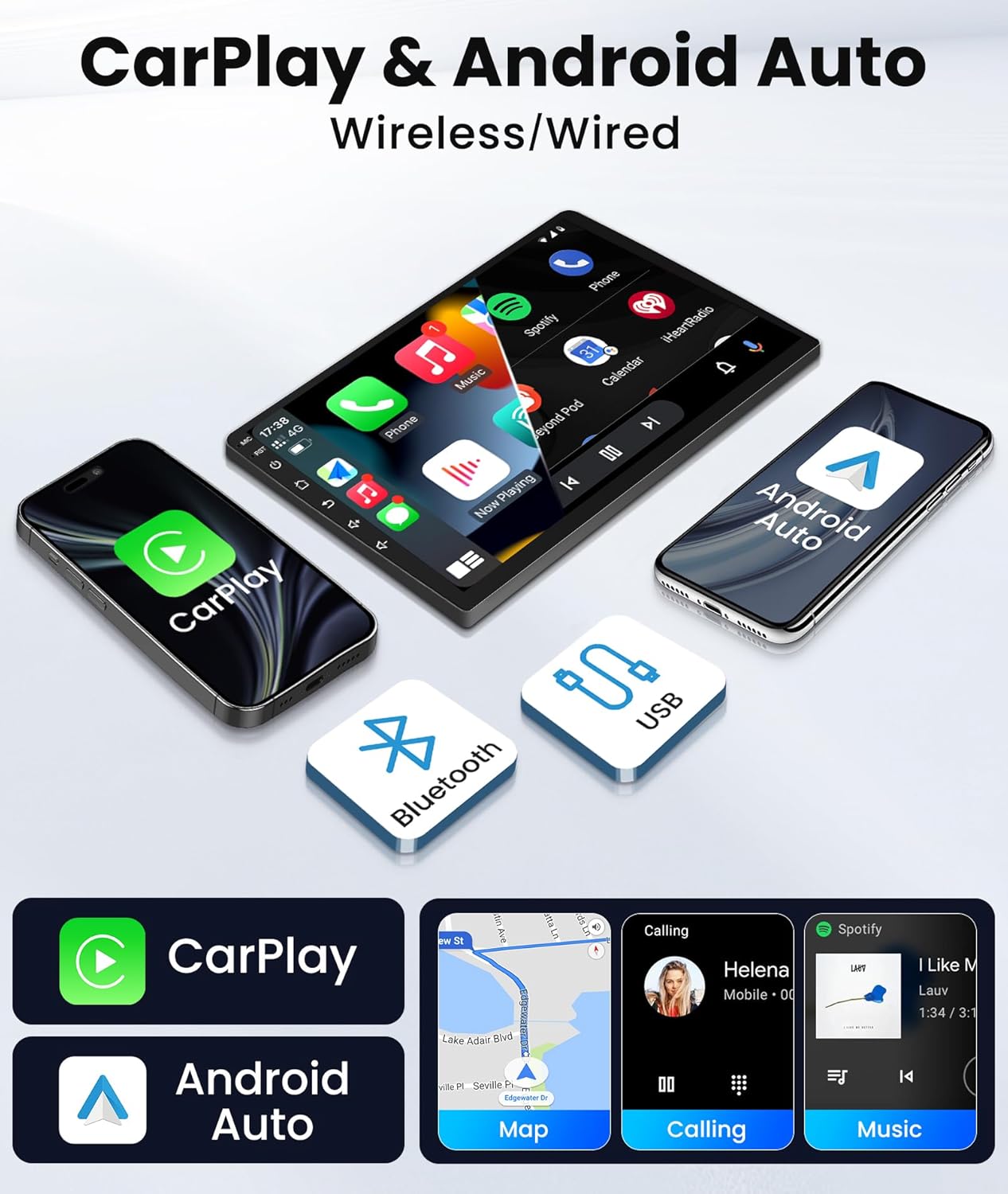
Image: A visual representation of Wireless CarPlay and Android Auto connectivity, showing smartphones connected via Bluetooth and USB to the car stereo, displaying navigation, calling, and music interfaces.
6.4. Bluetooth 5.0
The integrated Bluetooth 5.0 module provides stable and fast connections for hands-free calling and audio streaming. Pair your phone with the unit to make and receive calls safely, and stream music from your device.
6.5. GPS Navigation
The unit supports accurate GPS satellite positioning and is compatible with navigation applications like Google Maps and Waze. Ensure the GPS antenna is properly installed for optimal signal reception.

Image: A graphic illustrating faster 5G WiFi support (20-50M/s upload/download) compared to 2.4G WiFi (4-10M/s), alongside a navigation screen showing a map with a route and current location.
6.6. FM/RDS Radio
Access your favorite radio stations with the built-in FM/RDS tuner. RDS (Radio Data System) provides additional information such as station name and song title where available.
6.7. DSP Sound Processing
The professional DSP (Digital Sound Processor) allows for digitally controlled full car audio output. Customize your audio experience with multiple preset sound effects, master scene sound effects, and a 36-band equalizer for precise sound adjustment.

Image: Screenshots of the car stereo interface showing various audio settings, including a graphical equalizer, sound field adjustments, subwoofer controls, and sound filter options, demonstrating the DSP capabilities.
6.8. 5G WiFi Connectivity
Benefit from faster internet speeds with 5G WiFi support, enabling quicker app downloads, streaming, and online navigation updates.
6.9. Steering Wheel Control
The unit supports the original steering wheel control functions of your Ford Escape. After proper CANBUS connection, you can map the steering wheel buttons to control various functions of the stereo, such as volume, track skipping, and mode selection.
6.10. Split-Screen Display
Utilize the split-screen feature to multitask, such as running navigation on one side of the screen while controlling music or another application on the other side.
6.11. HD Backup Camera Support
The system supports 1080P HD rearview camera input, providing a clear view of the area behind your vehicle when reversing. Ensure the camera is properly installed and connected to the reversing cable.

Image: A collage showcasing various features: 1080P HD Backup Camera view, Bluetooth 5.0 call interface, 8 Core 4G+32G processor, and steering wheel control buttons.
7. Maintenance
7.1. Cleaning the Screen
To clean the touchscreen, gently wipe it with a soft, lint-free cloth. For stubborn smudges, slightly dampen the cloth with water or a screen-safe cleaning solution. Avoid using harsh chemicals or abrasive materials that could damage the screen.
7.2. Software Updates
Periodically check for software updates to ensure optimal performance and access to new features. Updates can typically be downloaded via Wi-Fi or USB. Refer to the system settings for update options or contact customer support for guidance.
8. Troubleshooting
This section addresses common issues you might encounter. If you experience a problem not listed here, please contact customer support.
| Problem | Possible Cause | Solution |
|---|---|---|
| Unit does not power on | Incorrect wiring; Blown fuse; Incompatible vehicle console. | Check all power connections and fuses. Verify vehicle compatibility (refer to Section 3). Consult a professional installer. |
| No sound or distorted audio | Speaker wires incorrectly connected; Volume too low; DSP settings misconfigured. | Check speaker wiring. Adjust volume. Reset DSP sound settings to default. |
| Bluetooth connection drops frequently | Interference; Outdated firmware; Phone compatibility issue. | Ensure no other devices are interfering. Update unit firmware. Try pairing with a different phone. |
| CarPlay/Android Auto not connecting | Incorrect USB cable; Phone settings; Software glitch. | Use a high-quality USB cable. Ensure CarPlay/Android Auto is enabled on your phone. Restart both phone and head unit. |
| Steering wheel controls not working | CANBUS not connected or configured; Incorrect mapping. | Verify CANBUS connection. Use the steering wheel mapping utility in the unit's settings. Contact support for CANBUS troubleshooting. |
| GPS signal is weak or inaccurate | GPS antenna improperly placed or connected. | Ensure the GPS antenna has a clear view of the sky and is securely connected. |
9. Specifications
| Feature | Detail |
|---|---|
| Model Name | Car Radio Stereo |
| Brand | Jingelsye |
| Operating System | Android 13 |
| CPU | 8 Core Processor |
| RAM | 4GB |
| ROM | 32GB |
| Screen Size | 9 Inches |
| Display Resolution | 1280*800 |
| Touchscreen Type | Capacitive |
| Bluetooth Version | 5.0 |
| WiFi Support | 5G WiFi |
| Special Features | Wireless CarPlay & Android Auto, DSP Sound, GPS, FM/RDS, 1080P HD Rearview Camera Support, Split-Screen |
| Connectivity | Bluetooth, USB, Wi-Fi |
| Mounting Type | Dashboard Mount |
| Item Weight | 5.66 pounds |
| Package Dimensions | 17.13 x 13.74 x 6.46 inches |
10. Warranty and Support
Jingelsye is committed to providing professional and friendly customer service. If you encounter any issues with installation, compatibility, or operation, please do not hesitate to contact our support team. Providing a picture of your vehicle's center console can help expedite compatibility checks.
For warranty information, please refer to the documentation included with your purchase or contact Jingelsye customer service directly through the retailer where the product was purchased.